How to Make a Picture Clearer: 5 Fixes That Actually Work
Soft, grainy or too small? Five practical ways to make a picture clearer, from quick phone edits to AI sharpening, and how to pick the right one.

"Unclear" can mean a few different things: a photo that's slightly soft, one that's grainy from low light, or one that's just too small and turns blocky when you zoom in. The fix depends on which one you have. Here are five that work, roughly from quickest to most powerful.
1. Start with a better copy of the photo
Before editing anything, make sure you're working with the best version you have.
- Messaging apps shrink photos. A picture forwarded on WhatsApp or Messenger is often compressed to a fraction of its original size. Ask for the original file, or send it as a document.
- Screenshots lose quality. If you screenshotted a photo, find the original instead.
- Cloud "storage saver" modes keep a lower-quality copy. Download the original from the source if you can.
A clean original makes every other fix work better.
2. Adjust clarity and contrast
Often a photo looks unclear because it's flat, not because it's blurry. Your phone's built-in editor can fix that in seconds.
- On iPhone, open the photo, tap Edit, and raise Definition and Contrast slightly. Brilliance helps dull photos.
- On Android (Google Photos), tap Edit > Adjust and raise Sharpen a little and Contrast to taste.
- Keep it subtle. Too much definition makes skin look rough and adds halos around edges.
3. Sharpen the edges
Sharpening raises contrast along edges so details look crisper. It's ideal for photos that are only a little soft.
In Photoshop: duplicate the layer, then use Filter > Sharpen > Unsharp Mask with Amount 80 to 120%, Radius 1 px and Threshold 2 to 4. Check at 100% zoom for bright outlines.
In Lightroom: in the Detail panel, raise Sharpening and hold Alt (Option) while dragging Masking to limit it to edges.
In GIMP (free): Filters > Enhance > Sharpen (Unsharp Mask).
Sharpening can't add detail that was never captured. For small or very soft photos, the next fix does more.
4. Use an AI sharpener and upscaler
AI tools go beyond edge contrast. They rebuild fine detail like hair, fur and skin texture, and can enlarge a small photo without it going blocky.
- Open Sharpen Image or the Photo Quality Enhancer and upload your photo.
- Choose Standard for a quick, free result, or Pro for photos that are badly pixelated, low resolution or damaged.
- Compare with the slider, then download.
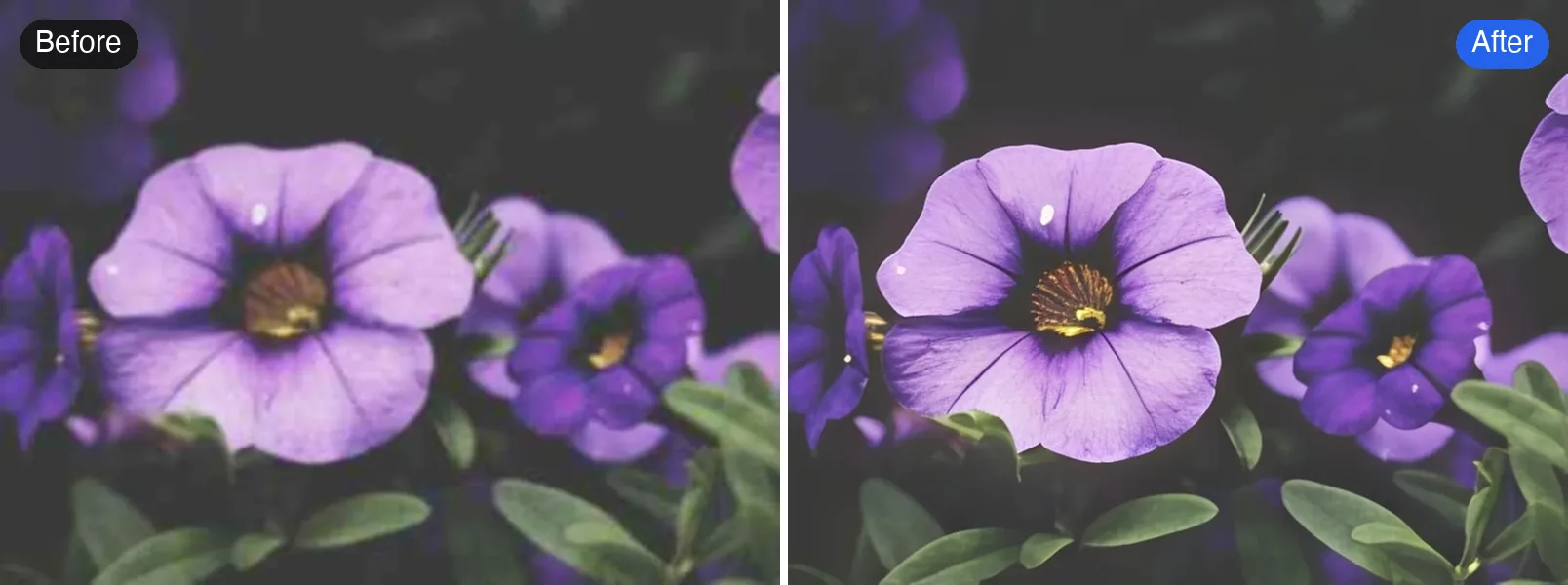
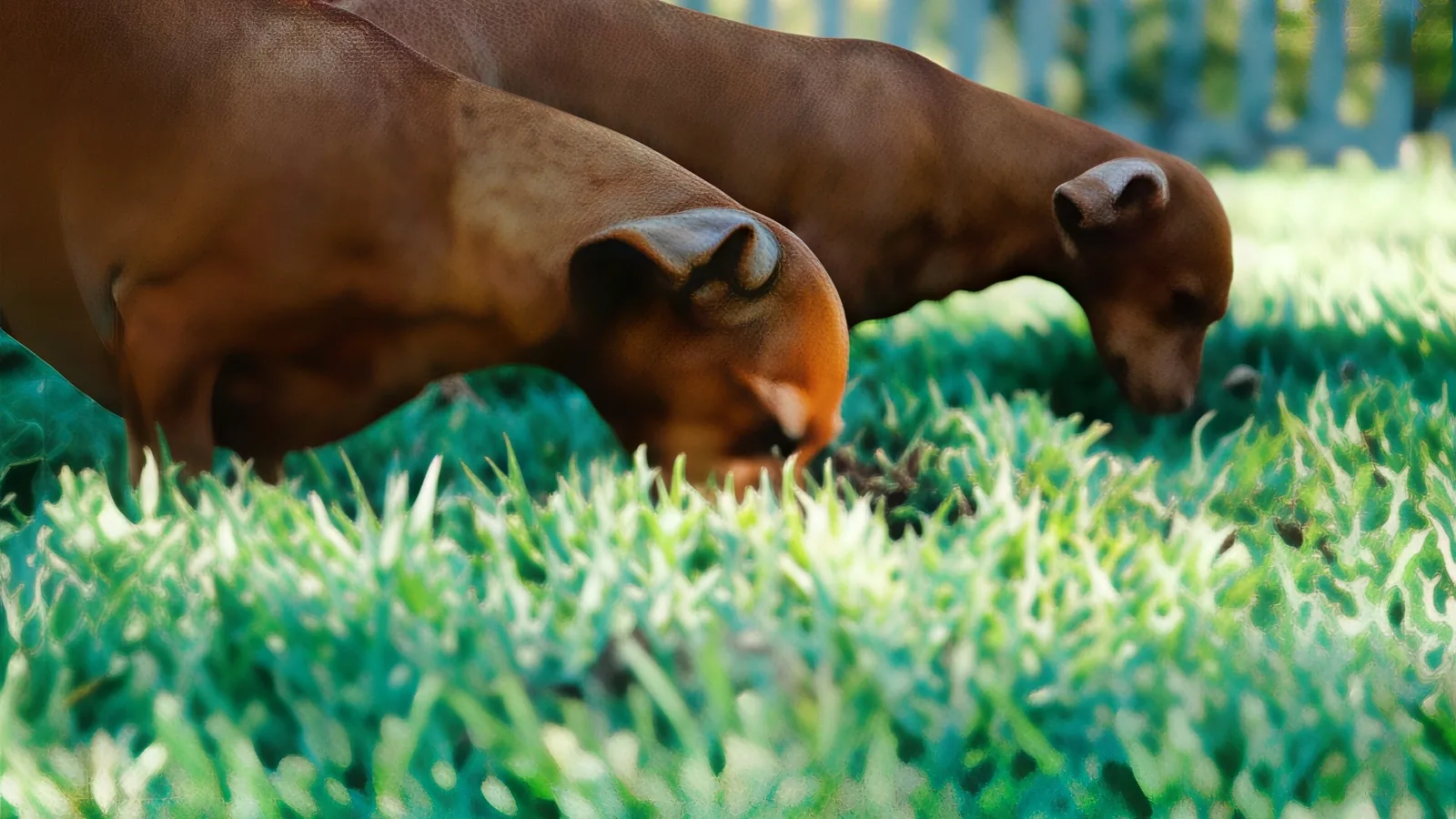
What we saw testing on real photos: Standard is strongest on faces, which it cleans up and smooths. On fur and feathers it can look slightly painted, which is where Pro does much better, bringing back individual hairs and feathers. If the photo is genuinely blurry rather than just soft, use Unblur Image instead.
5. Reduce noise from low-light photos
Grainy speckles from a dark room make photos look muddy. Noise reduction smooths them out.
- In Lightroom, the Detail panel has Noise Reduction (or Denoise in newer versions). Raise Luminance until the grain fades, then add a little sharpening back.
- AI enhancers remove noise as part of their cleanup, so a grainy indoor shot often improves a lot in one pass.
Go easy: heavy noise reduction makes skin look waxy.
Which fix should you use?
- Looks dull or flat: clarity and contrast (fix 2).
- Slightly soft: sharpening (fix 3) or AI Standard (fix 4).
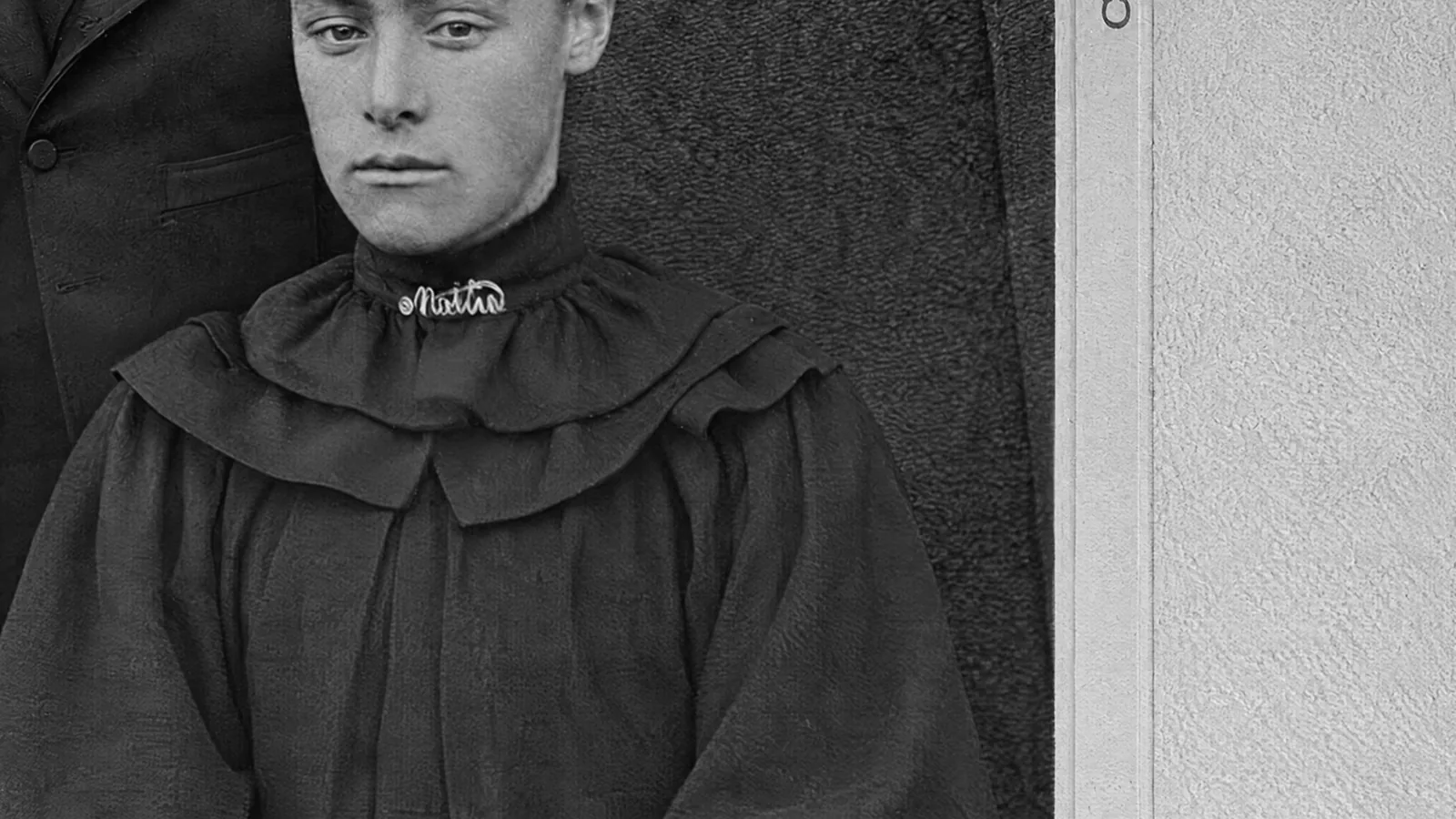
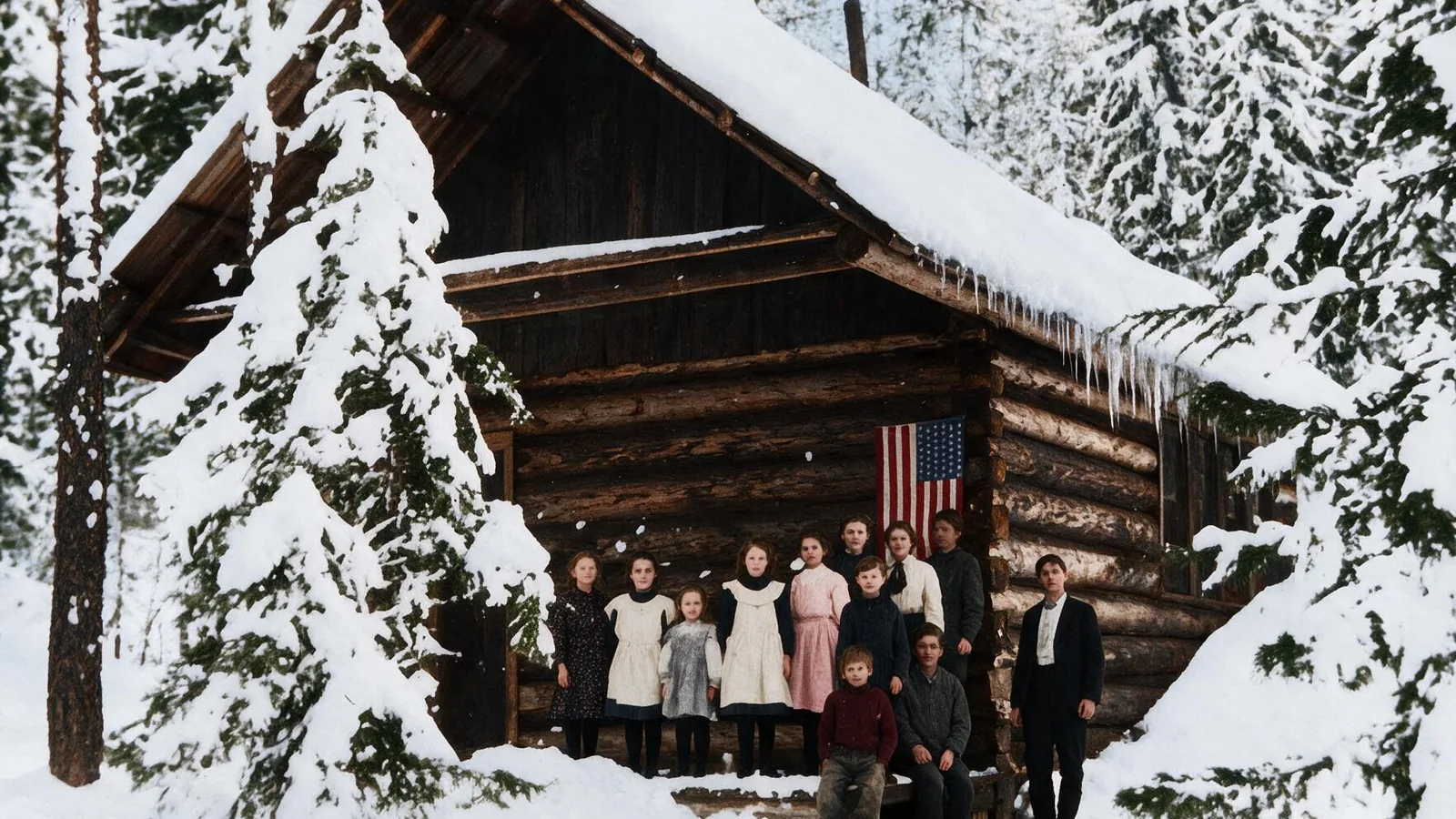
- Small, pixelated or old: AI upscaling, Pro version (fix 4).
- Grainy from low light: noise reduction (fix 5) or an AI enhancer.
- Clearly blurry from shake or missed focus: see how to unblur a picture.
Quick answers
Can I make a picture clearer for free? Yes. Phone editors are free, GIMP is free, and the Standard versions of our tools run on the free credits everyone gets each day.
Does making a photo bigger make it clearer? Not by itself. Plain enlarging just stretches the pixels. AI upscaling is different because it adds detail as it enlarges.
Will an AI tool change my face? It shouldn't change who you are, but it can smooth skin and refine small features. Always compare with the original before sharing.
Try it on your own photo
Make a picture clearer when it is only slightly soft.