How to Restore Old Photos: Scan, Repair and Keep Them Safe
How to restore old photos: scan or photograph prints well, repair scratches, creases and fading with AI or by hand, and know what damage can't be fixed.


Old prints fade, crack and collect scratches, but most of that damage can be repaired. The good news: you don't need a darkroom or a retoucher for the common problems. The part people get wrong is usually the first step, capturing the photo well. This guide covers the whole process.
We restored real damaged prints while writing it: glass plates with flaking emulsion, a cracked newspaper portrait, a creased 1960 class photo and a scratched sepia portrait.
Step 1: Get a good digital copy
Restoration can only work with what's in the file, so a careful scan pays off more than any filter.
With a flatbed scanner (best):
- Wipe the glass and gently dust the print with a soft brush. Don't use water or cleaning sprays on the photo.
- Scan at 600 dpi for regular prints, or 1200 dpi for small ones you'll want to enlarge.
- Save as PNG or high-quality JPEG. Turn off the scanner's automatic "dust removal" and "color restore" so you keep the original detail.
With your phone (fine for most photos):
- Take the photo out of its frame or album sleeve. Glass and plastic cause glare.
- Shoot in soft daylight near a window, not with the flash.
- Hold the phone directly above the print, parallel to it, so it isn't skewed into a trapezoid.
- Fill the frame and tap to focus on a face.
Phone scanning apps such as Google PhotoScan help remove glare by combining several shots.
Step 2: Repair scratches, creases and fading
This is where AI saves hours. Removing dozens of scratch lines by hand can take an afternoon; an AI restorer does it in under a minute.
- Open Restore Old Photos and upload your scan.
- Choose Standard for most photos (it keeps the result about the size of your scan), or Pro if you want a larger file, around 8 megapixels, for printing.
- Compare the result with the slider, paying close attention to faces and any badly damaged areas, then download.
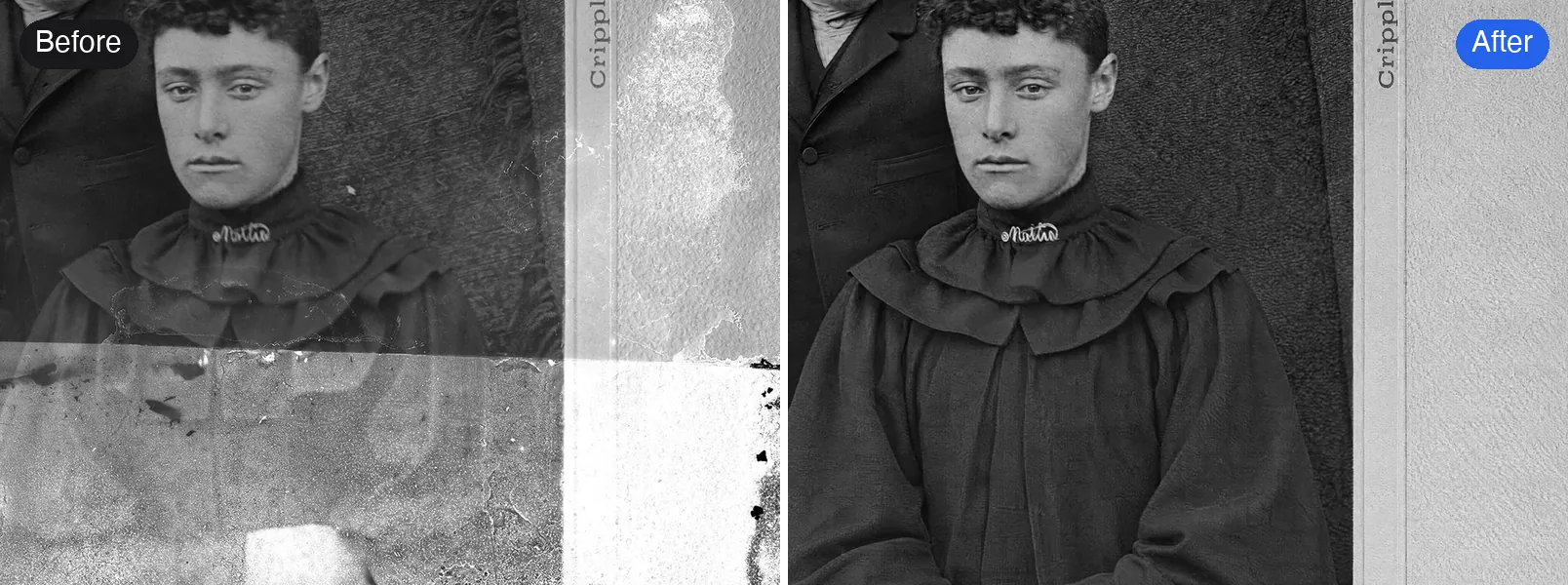
A few things we learned testing on real prints:
- Scratches, dust, spots and fold lines came out cleanly on every photo, including the crease running across a class photo.
- Faces stayed the same people. On the 30 small faces in the class photo, nothing changed. Still, check faces closely.
- Tone is kept. A black and white photo stays black and white, and sepia stays sepia. Restoration and colorizing are separate steps.
Step 3: Be careful with missing pieces
When a corner is torn off or part of a face has flaked away, there's nothing left to repair. AI fills the gap with something plausible, which may not be what was really there. On one glass plate, a model we tested gave a man a cap where the top of his head was missing.
For photos with large missing areas, especially across a face, look at the result critically. A human retoucher with family references is the safer choice for those.
Step 4 (optional): Add color
Once the photo is clean, you can colorize it. Restore first, then colorize: scratches and spots confuse colorizing models and end up colored too. See how to colorize black and white photos, or go straight to Colorize Photo.
Doing it by hand instead
If you prefer full control, this is the classic Photoshop workflow:
- Duplicate the layer.
- Spot Healing Brush for dust and small specks: click each one.
- Healing Brush or Clone Stamp for longer scratches and creases: sample clean texture nearby (Alt-click) and paint along the line.
- Content-Aware Fill for small missing areas.
- Levels or Curves to restore contrast in faded prints.
It's slow for heavy damage, but nothing beats a careful manual retouch for an important photo.
Keep the originals safe
- Store prints flat, in acid-free sleeves or boxes, away from sunlight, heat and damp basements.
- Keep the raw scan as well as the restored version. Better tools may come along, and you'll want to start from the original.
- Back up scans in two places, such as a cloud folder and an external drive.
Quick answers
Can I restore old photos for free? Yes. The Standard version of Restore Old Photos runs on the free credits everyone gets each day.
Do I need a scanner? No. A steady phone photo in soft daylight works well for most prints.
Will restoration add color? No. It keeps the photo's original tone. Use Colorize Photo afterwards if you want color.
Try it on your own photo
Clear scratches, dust and fading on scanned prints.