Clarpex

Restore Old Photos Online: Fix Scratches and Fading

Scan or photograph the print, upload it, and get back a clean copy with the same faces and the same moment. Nothing to install.

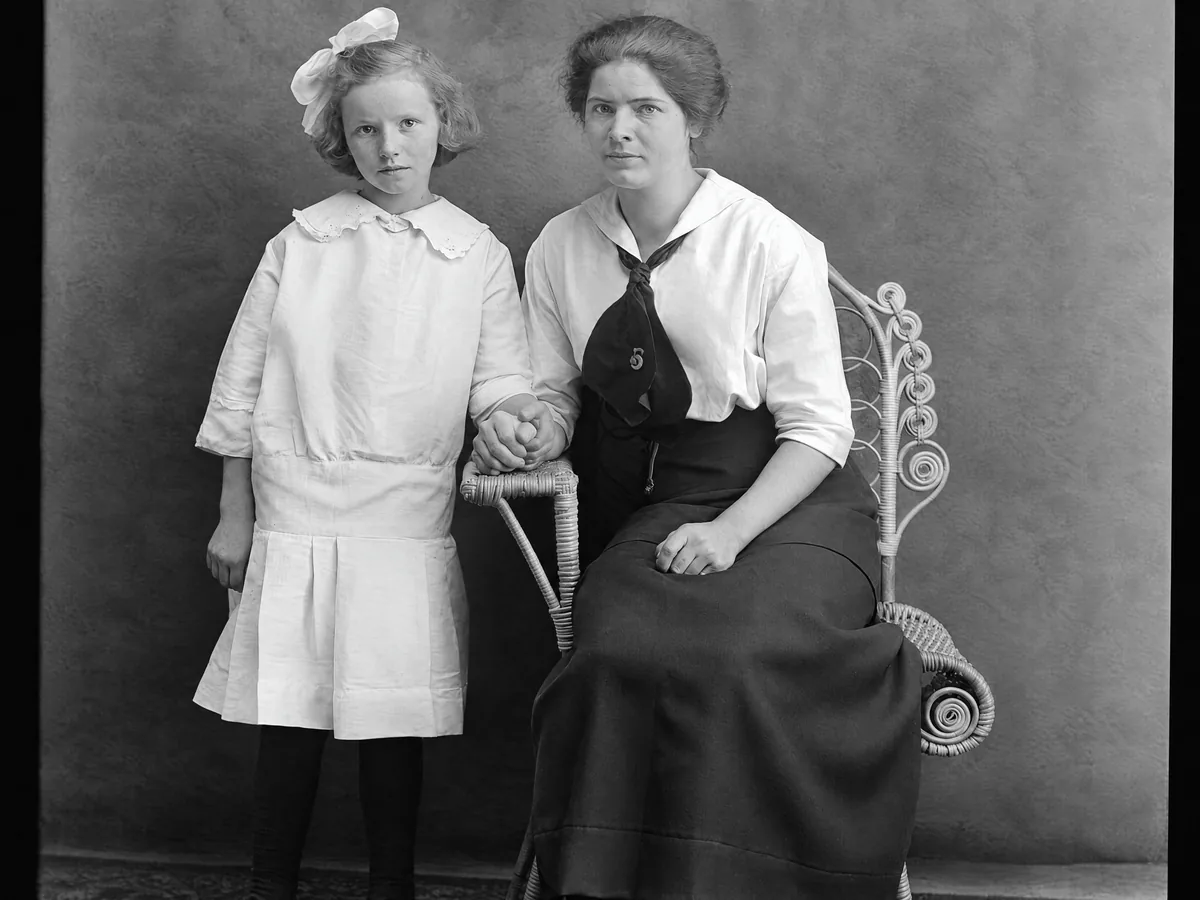
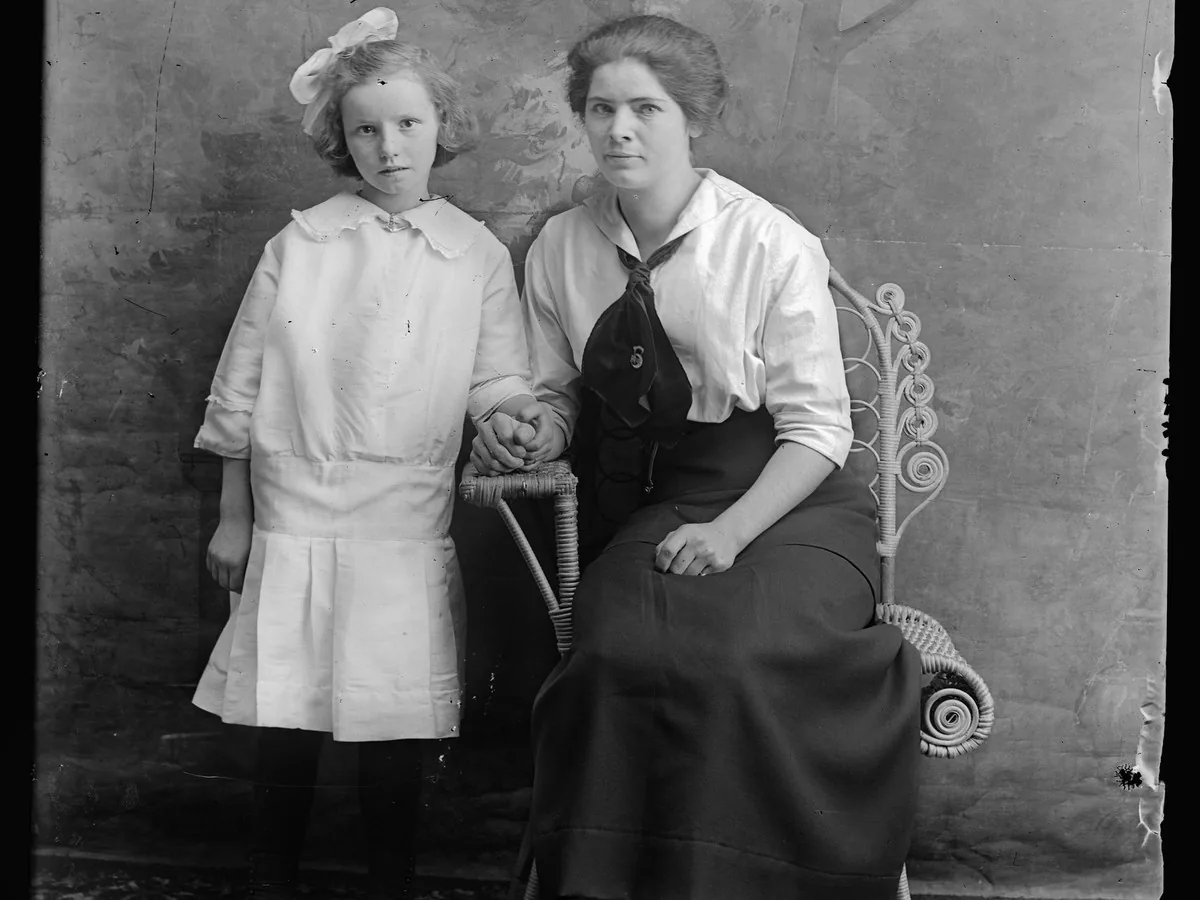
Damaged glass-plate portrait, after enhancementDamaged glass-plate portrait, before enhancement
No photo? Try one:

Upload Image

Drag and drop, or click to browse

JPG, PNG or WebP, up to 20 MB

  • Free daily credits
  • No sign-up
  • Private

Standard or Pro for your old photos

Both use the same repair, which removes scratches, cracks, creases and spots and keeps a black and white photo black and white. Pro returns a much bigger file for printing.

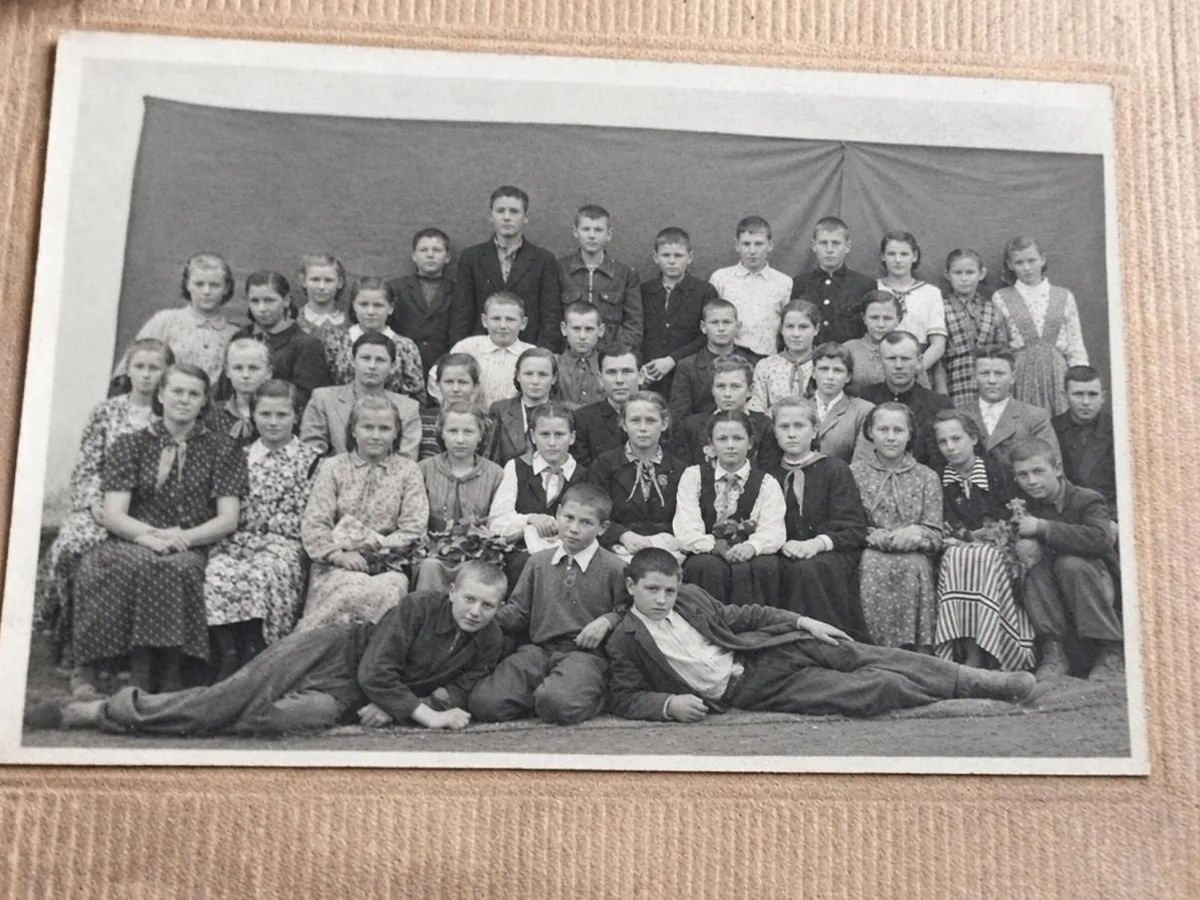
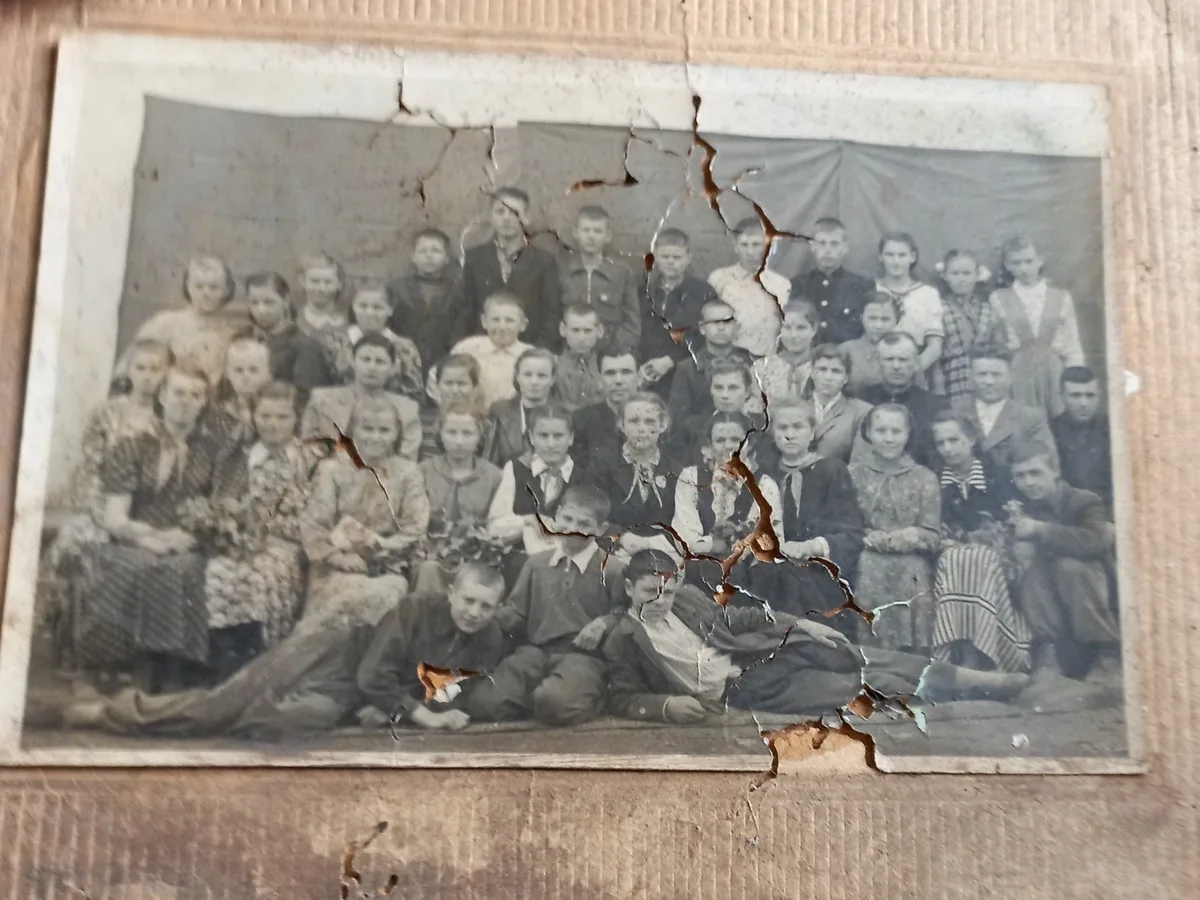
Cracked class photo, after enhancementCracked class photo, before enhancement

Standard for most old photos

Clears scratches, creases, spots and fading, and gives the photo back at about the size you uploaded. On the class photo above, the cracks running across the print are gone, and every child's face is left as it was. Covered by the daily free credits.
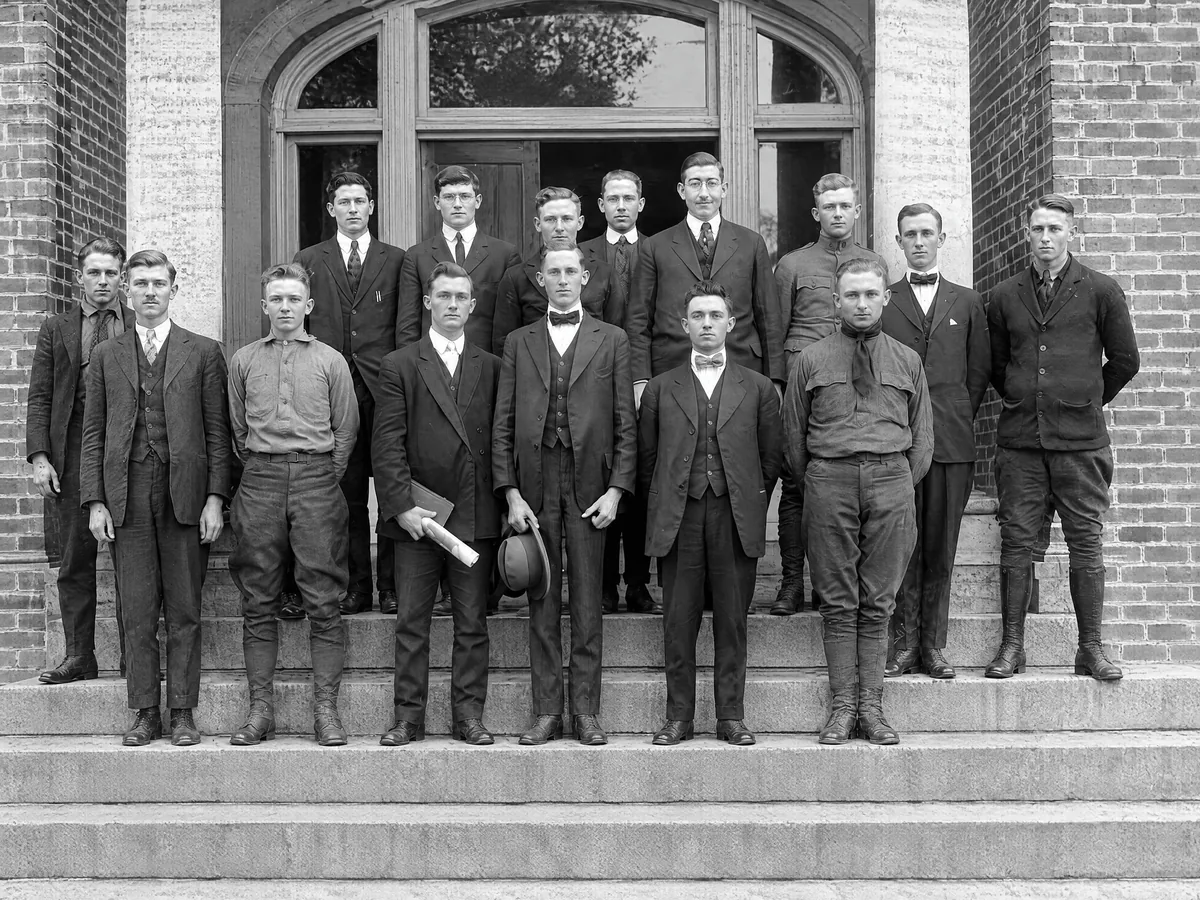
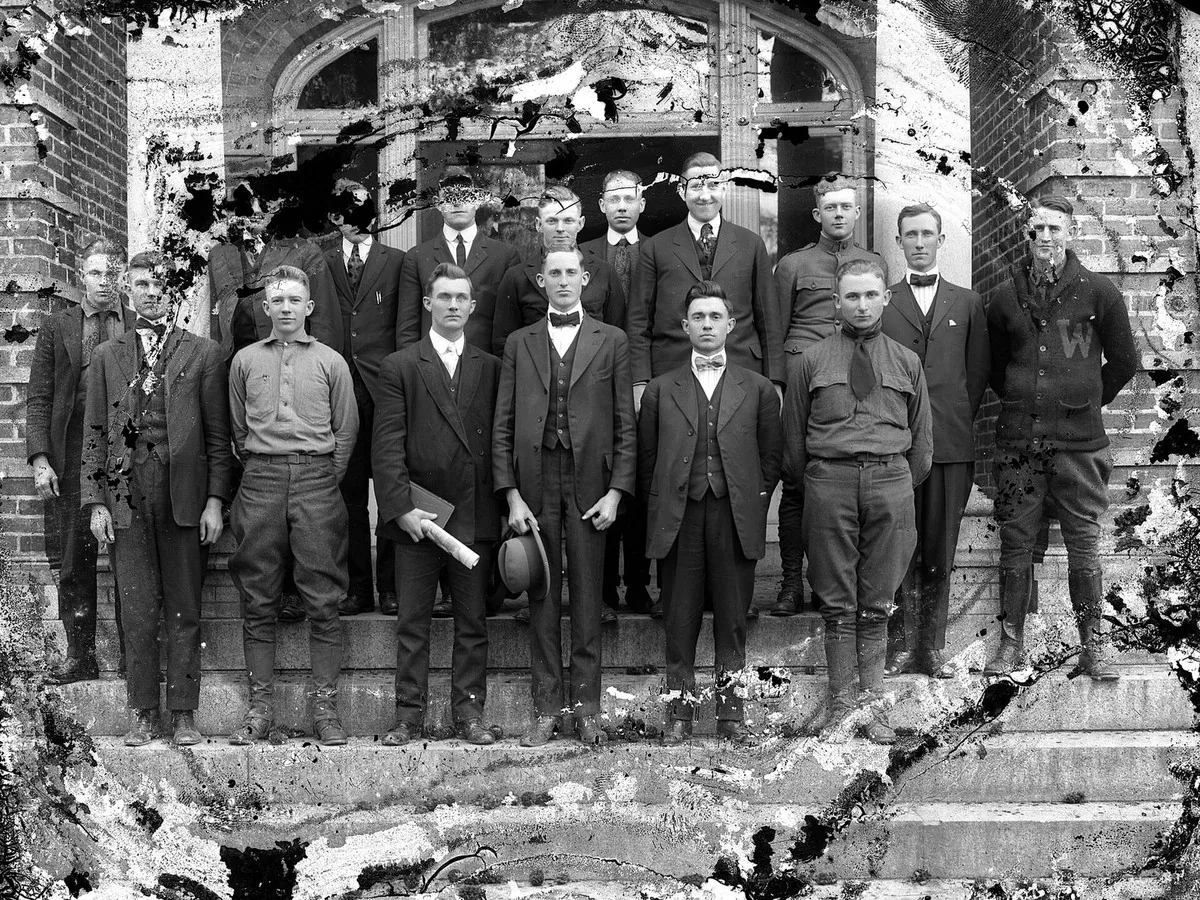
Glass plate with flaking edges, after enhancementGlass plate with flaking edges, before enhancement

Pro for prints and keepsakes

The same repair at about 8 megapixels, so you can print it or crop in. On the group photo above, the emulsion had flaked away around the edges. The gaps are filled in and the faces that survived are kept as they were; the face of the second man from the left was mostly gone, so the one you see is the AI's reconstruction.

How to restore old photos in 3 steps

The scan matters more than anything else, so start there.

  1. Scan or photograph the print

    A flatbed scan at 600 dpi is ideal. A phone photo works too: shoot straight on, in daylight, with no flash glare. Then upload it here, up to 20 MB.

  2. Choose a version

    Standard for sharing. Pro if you want to print it or keep the best possible copy.

  3. Check the faces, then download

    Slide across the faces first. If something looks off, run it again: each run comes out slightly different.

What restoration handled in our tests

We restored six real damaged photos: glass plates with flaking emulsion, a cracked portrait, a creased school class photo from 1960, and a sepia portrait with scratches.

Scratches, dust and folds: gone

Both versions removed the scratch lines, spots and creases on every photo, including the fold running through the class photo. This is the damage the tool handles best.

Same people, same moment

The models are told to leave faces, expressions, clothing and the layout untouched. On the 30 faces in the class photo, they did. Where damage covers part of a face, check it with the slider before you share.

Missing pieces are a guess

Where a big piece is missing, the AI fills in something plausible. On a tiny, badly scratched 1860s print it drew a patterned rock under the sitter that was never there. Another model we tested gave a soldier a cap where his head had flaked away, so we didn't use it. If a big piece is missing, look closely or ask a human retoucher.

How to restore an old photo in Photoshop

Restoring by hand is slow but gives you full control. This is the usual workflow.

Expect an hour or more for a badly damaged print. This tool does the dust and scratch work in under a minute, and you can still finish the result by hand.

  1. 1

    Scan at high resolution

    Use 600 dpi for normal prints and 1200 dpi for small ones. Save as TIFF or a high-quality JPG, and always work on a copy.

  2. 2

    Remove dust with a filter

    Filter > Noise > Dust & Scratches with a small radius takes care of specks. Apply it to a duplicate layer and mask it in only where it's needed.

  3. 3

    Heal scratches and tears

    Use the Spot Healing Brush for small marks and the Clone Stamp for bigger gaps. Work at 100% zoom and change the source point often so no pattern repeats.

  4. 4

    Fix contrast and fading

    A Levels or Curves adjustment brings back the blacks and whites. Add a Hue/Saturation layer if you want to remove a yellow cast.

Old photo restoration FAQ

Yes. Standard costs 8 credits and is covered by the free credits you get each day, without signing up. Pro uses 18 purchased credits. Downloads have no watermark.

No, but it helps. A phone photo taken straight on in soft daylight works well. Avoid flash, glass frames and angled shots, because glare and distortion get treated as part of the picture.

It's told not to, and in our tests faces stayed the same person. Generative models can still shift small features, especially on tiny or badly damaged faces, so always compare with the slider.

Small tears and creases, yes. Large missing areas get filled with a plausible guess. That can look fine in the background, but for a missing face it won't be accurate.

No. Both versions keep the photo's original tone, so black and white stays black and white and sepia stays sepia. To add color, restore it first, then run the result through our Colorize Photo tool.

Your photos are used only to create your result, never to train AI. Without an account they're deleted after 24 hours. Signed in, they're kept in History for 72 hours, or until you delete them if you turn on "Keep my tasks". Details are in our Privacy Policy.

More ways to fix your photos

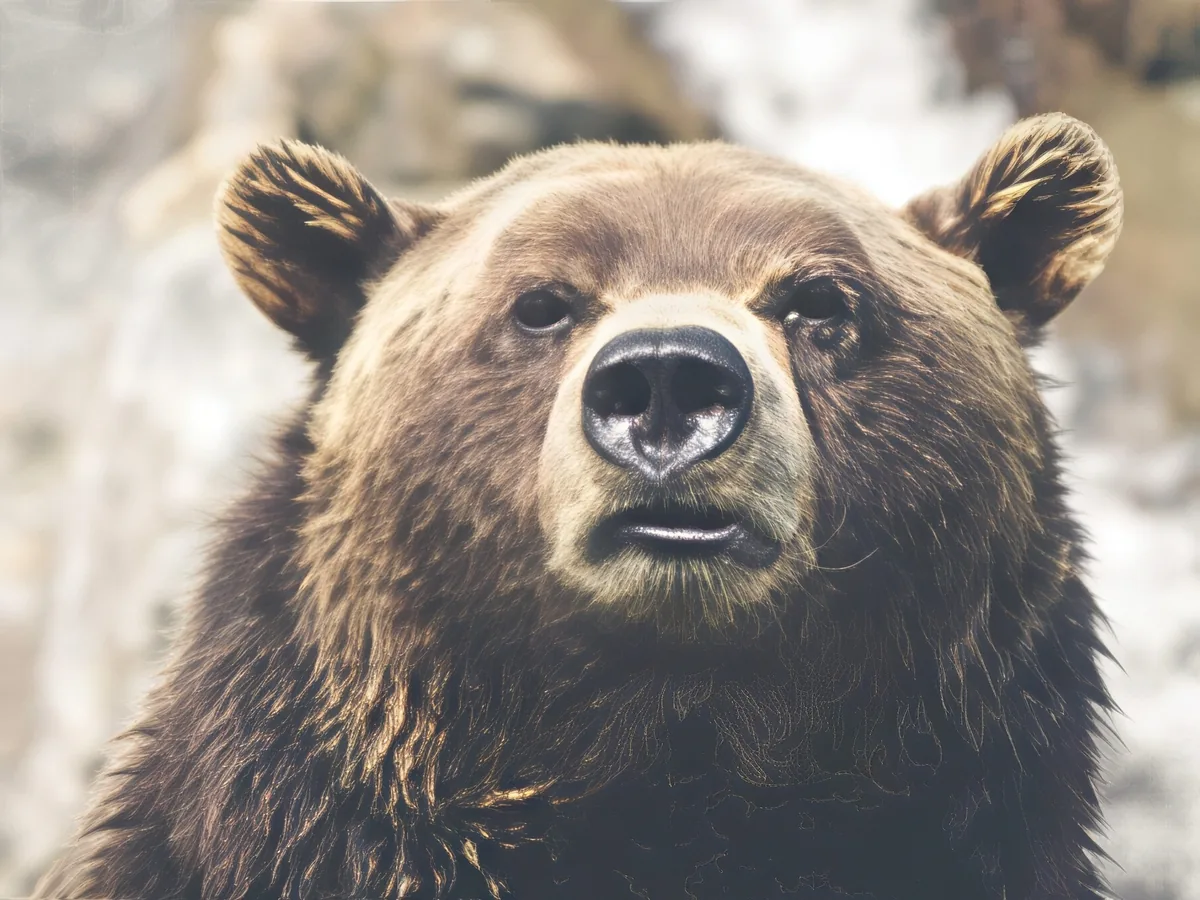
Soft close-up of a brown bear, before enhancementSoft close-up of a brown bear, after enhancement

Sharpen Image

Make a picture clearer when it is only slightly soft.

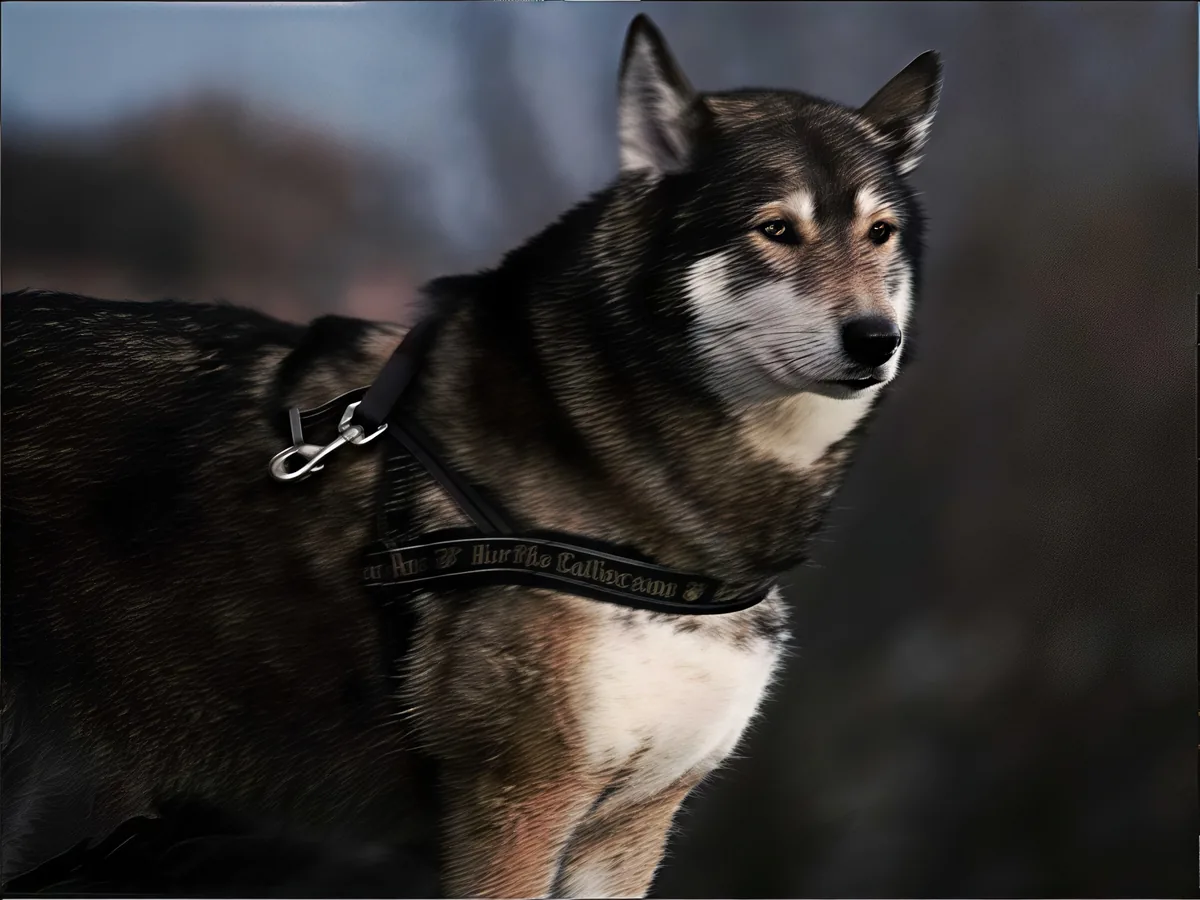
Shaky photo of a husky, before enhancementShaky photo of a husky, after enhancement

Unblur Image

Remove motion blur and out-of-focus blur from photos.

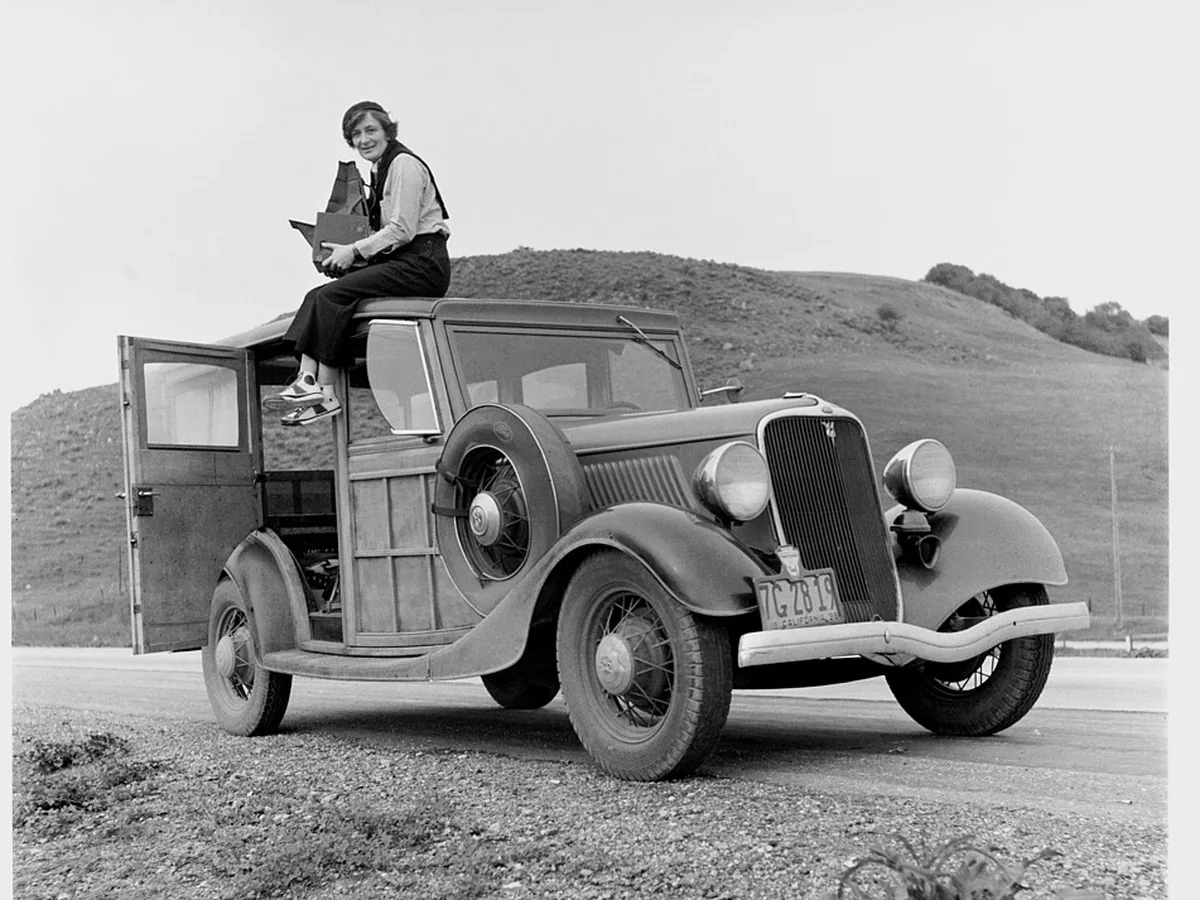
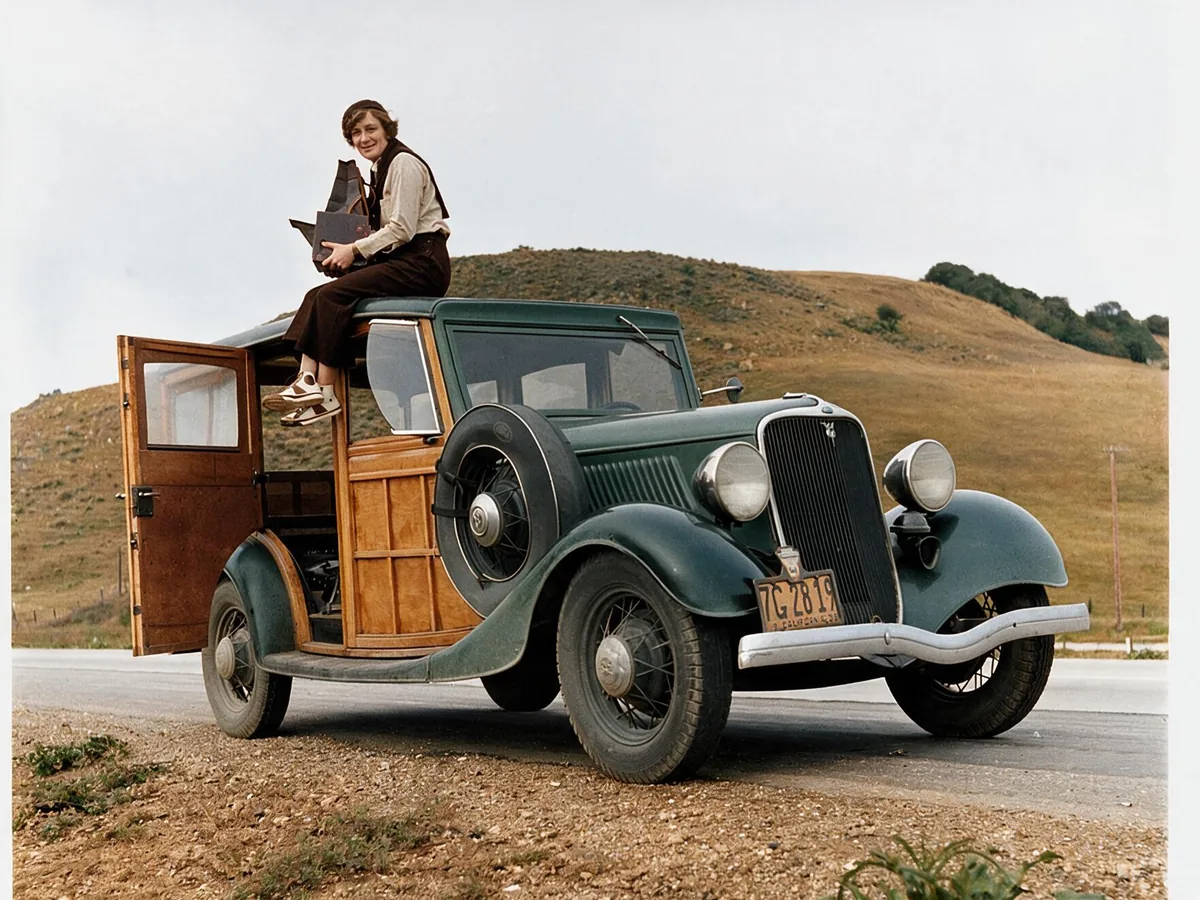
Black and white photo of a woman on a 1930s car, before enhancementBlack and white photo of a woman on a 1930s car, after enhancement

Colorize Photo

Turn black and white photos into natural color.

Low-resolution photo of a pug in a blanket, before enhancementLow-resolution photo of a pug in a blanket, after enhancement

Photo Quality Enhancer

Upscale and clean up any photo in one go.