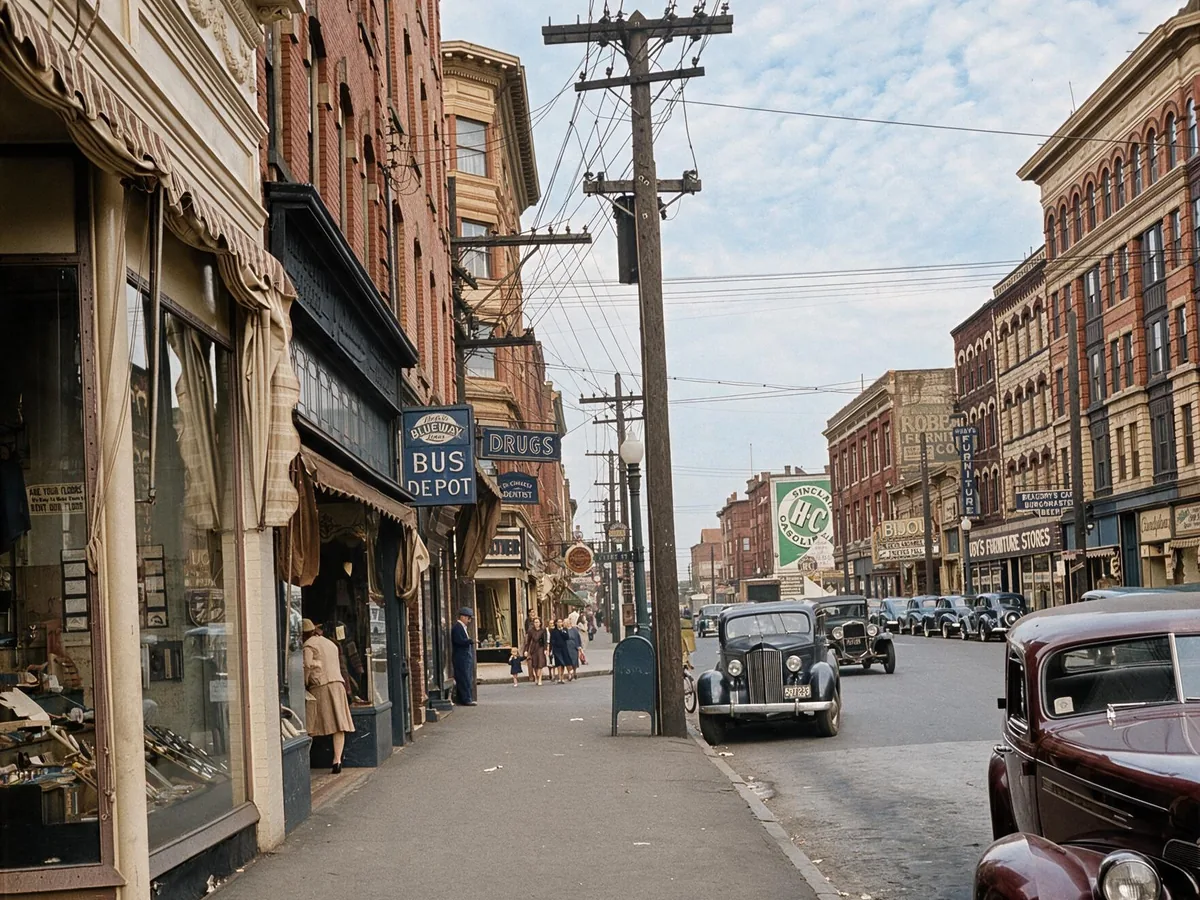
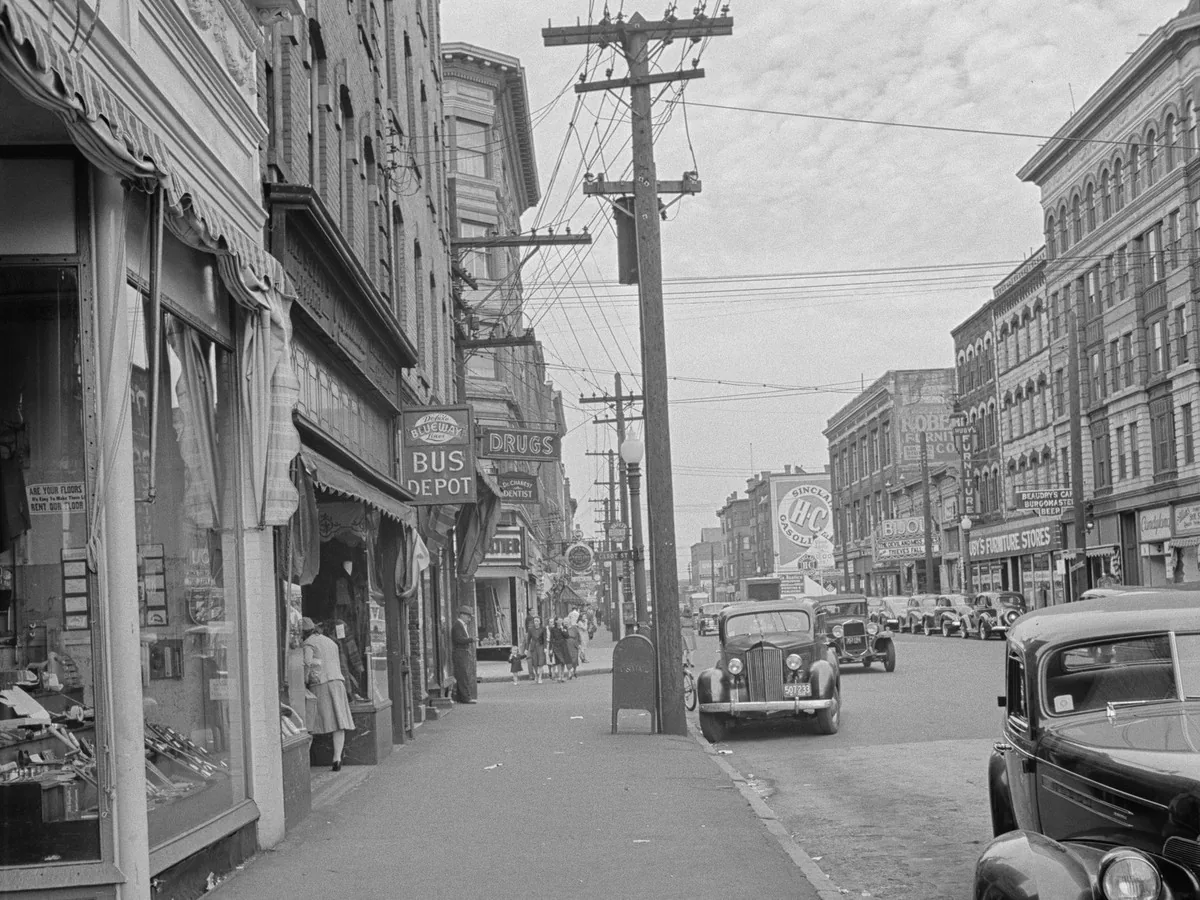
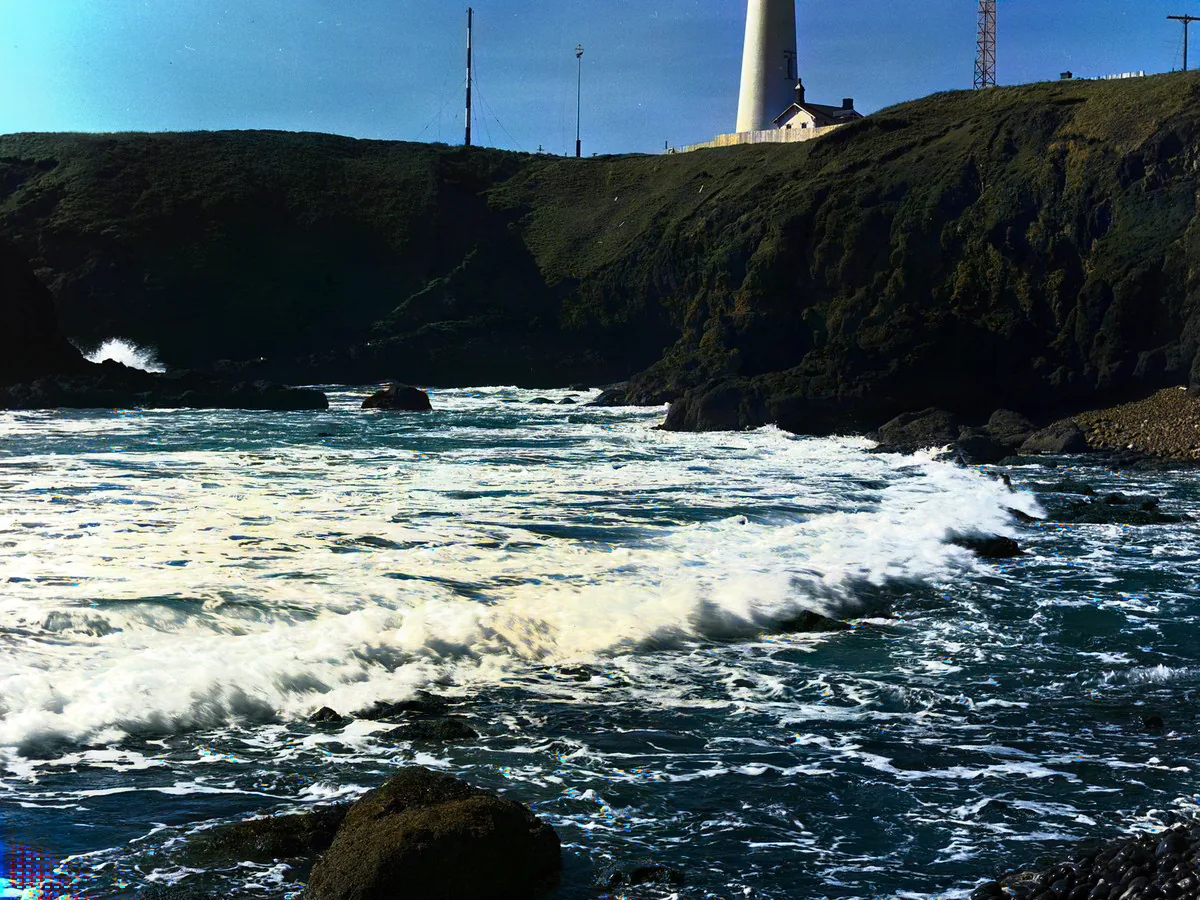
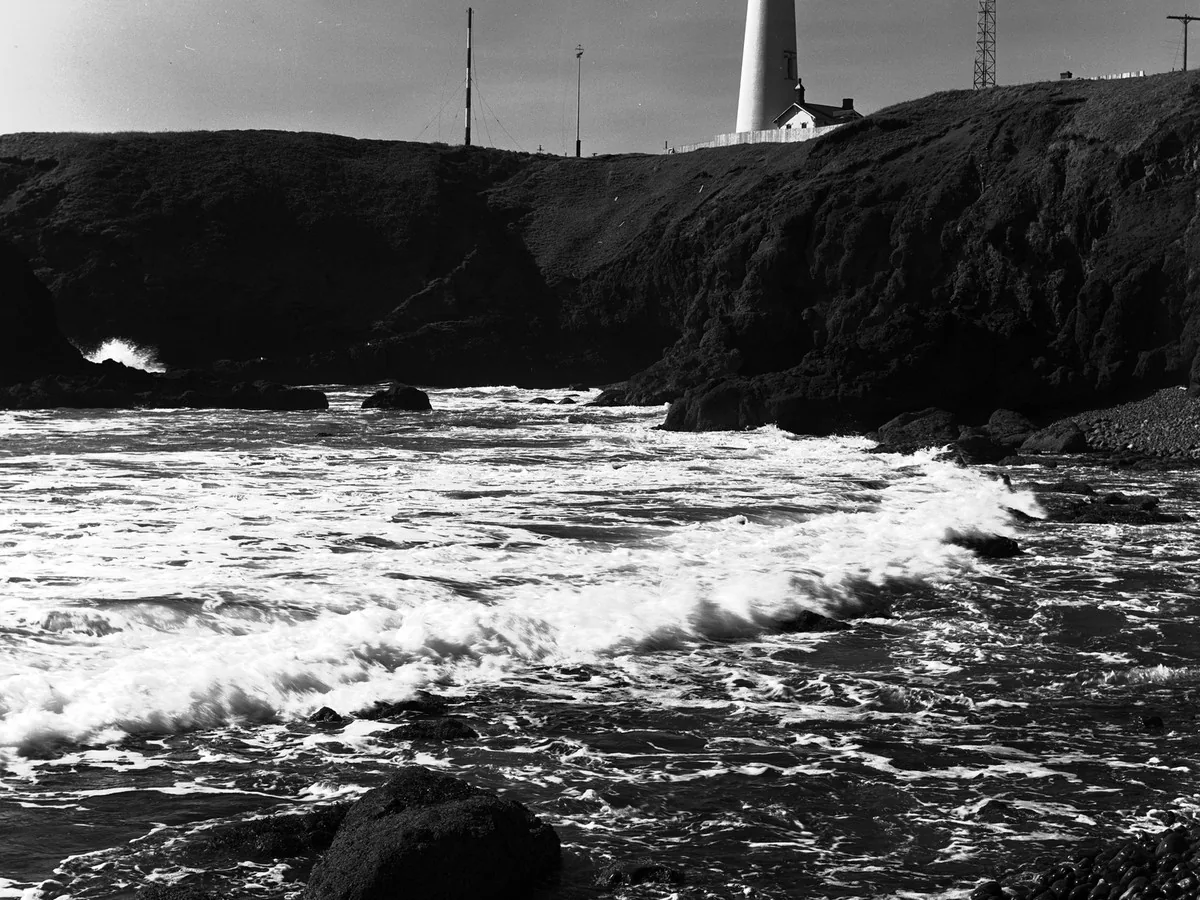
Upload a black and white or sepia photo and see it in color. Works on family portraits, old landscapes and everything in between.
No photo? Try one:
Upload Image
Drag and drop, or click to browse
JPG, PNG or WebP, up to 20 MB
Free daily credits
No sign-up
Private
Two styles of color
Same photo, two looks. Pick the one that suits the picture.
Standard: bright and full
Bold, saturated color, like a photo taken today. On the lighthouse coast above it gave the sea and sky deep, bright blues. It works best on landscapes and travel shots, and skin can come out warm. It keeps your photo at its original size and is the cheapest option.
Pro: natural, true-to-life color
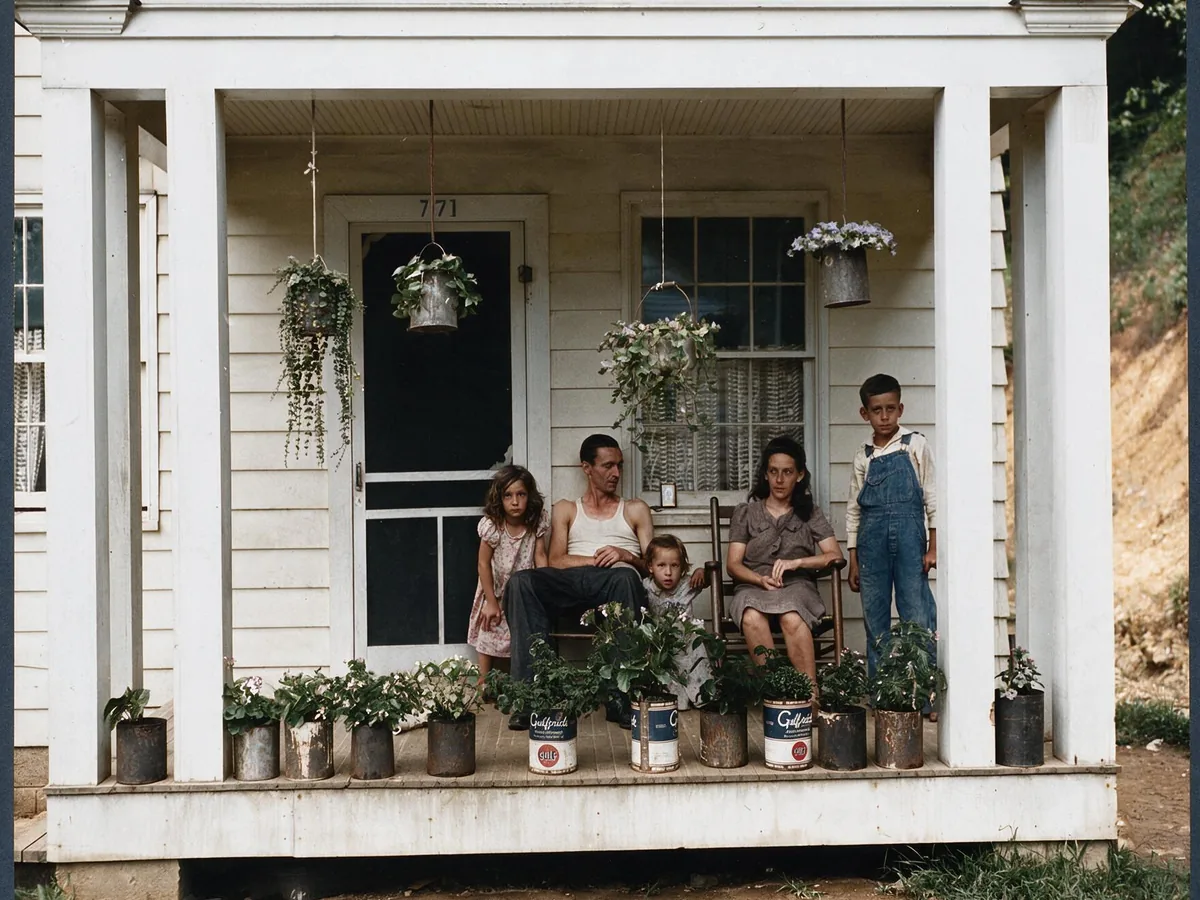
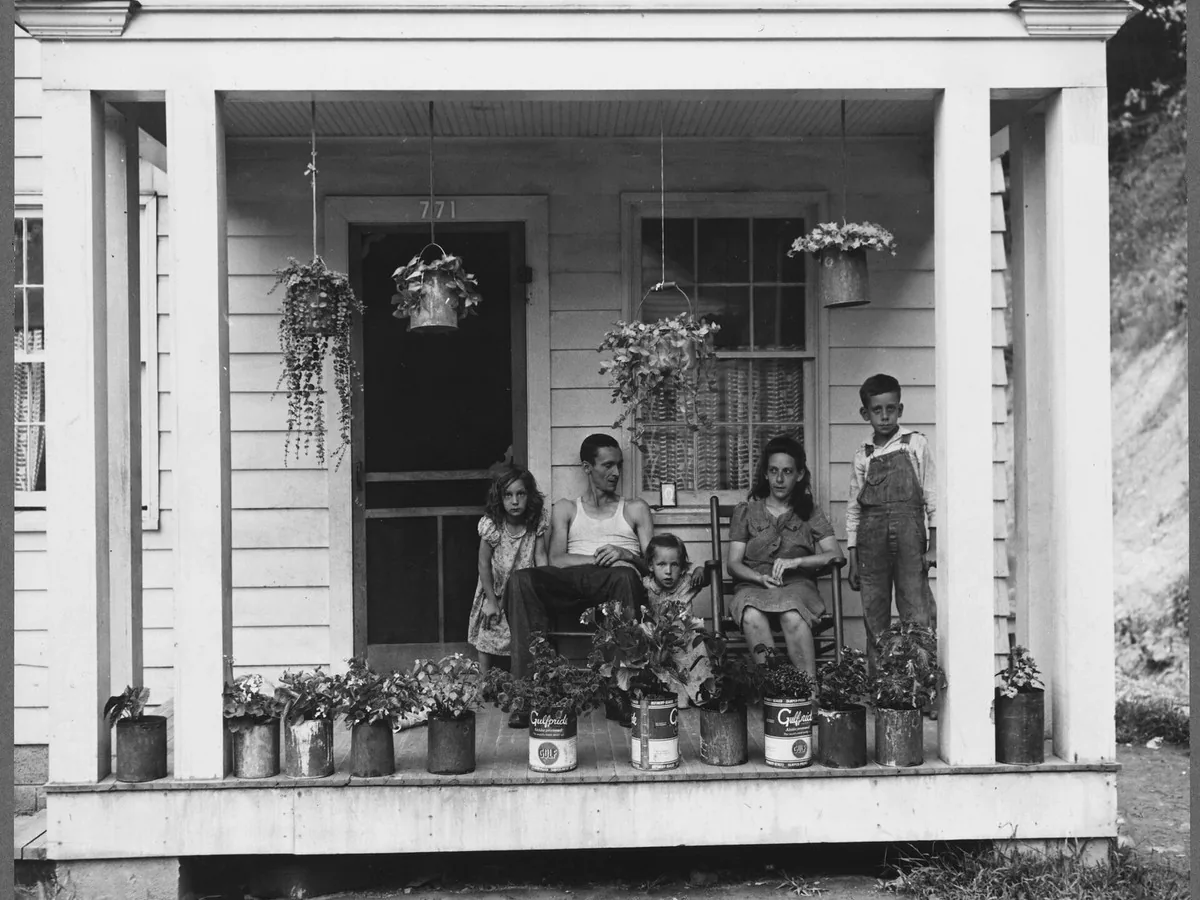
Quieter, believable color that keeps the mood of the original. On the porch photo above, the skin tones, the white clapboard and the potted plants all look natural, with nothing too bright. The result is about 2.4 megapixels, plenty for screens and standard prints.
How to colorize a black and white photo
Three steps to turn a black and white photo to color. Most photos are done in a minute or two.
Upload the photo
JPG, PNG or WebP up to 20 MB. Scans of prints work best, and sepia or faded photos are fine.
Choose a style
Standard for vivid color, Pro for a more natural, period look.
Compare and save
Drag the slider to see the original under the color. Not quite right? Try the other style.
How the colors turned out in our tests
We colorized six real black and white photos, from 1930s documentary portraits to a mountain landscape, and compared every model we could find.
Pro gets skin right
On portraits, Pro gave natural skin and hair. Standard tends to make skin orange, as if everyone had been in the sun. Other models we tried added red cheeks.
Pro keeps the weather you photographed
Standard turned a grey lake bright turquoise. Pro kept rivers, sand and grass in believable colors and left a 1936 dust storm sky cloudy. Another model we tried replaced that sky with a clear blue one, so we didn't use it.
The colors are an educated guess
No tool can know that a dress was green or a car was red. The AI picks colors that are likely. If an exact color matters to your family, note it down and adjust it afterwards.
How to colorize a photo in Photoshop
Coloring by hand gives you exact control over every color. It's also slow. This is the basic method.
Photoshop's Neural Filters also include a Colorize option if you have a Creative Cloud plan. For a quick result without an editor, the tool above does it in one step.
1
Switch to RGB and add layers
Go to Image > Mode > RGB Color, then add a new layer for each area: skin, hair, clothes, sky.
2
Paint each area
Use a soft brush and one color per layer. Don't worry about brightness yet.
3
Set the layers to Color blend mode
The Color blend mode keeps the photo's shading and only adds hue. Lower the opacity until it looks natural.
4
Use real references
Look up photos from the same decade and place to pick believable colors for clothes, cars and buildings.
Colorize photo FAQ
Yes. Standard costs 2 credits and is covered by the free credits you get every day, no sign-up needed. Pro uses 8 purchased credits. Downloads have no watermark.
They're plausible, not guaranteed. The AI has learned what skies, skin, grass and fabric usually look like, so it gets most things right. Specific details, like the color of a uniform or a car, can be wrong.
Yes, including sepia and faded prints. If the photo is scratched or torn, restore it first with our Restore Old Photos tool, then colorize the clean version for a better result.
Standard only adds color and keeps the photo at its original size. Pro redraws the photo in color at about 2.4 megapixels, so fine details can shift slightly. Compare with the slider before you download.
JPG, PNG or WebP up to 20 MB and 40 megapixels. Large photos are scaled down in your browser to what the model accepts.
Your photos are used only to create your result, never to train AI. Without an account they're deleted after 24 hours. Signed in, they're kept in History for 72 hours, or until you delete them if you turn on "Keep my tasks". Details are in our Privacy Policy.
More ways to fix your photos
Sharpen Image
Make a picture clearer when it is only slightly soft.
Unblur Image
Remove motion blur and out-of-focus blur from photos.
Restore Old Photos
Clear scratches, dust and fading on scanned prints.