Clarpex

Sharpen Image Online and Make Photos Clearer

For photos that are almost right: a bit soft, slightly out of focus, or saved too small. Drop one in and compare the sharper version before you download.

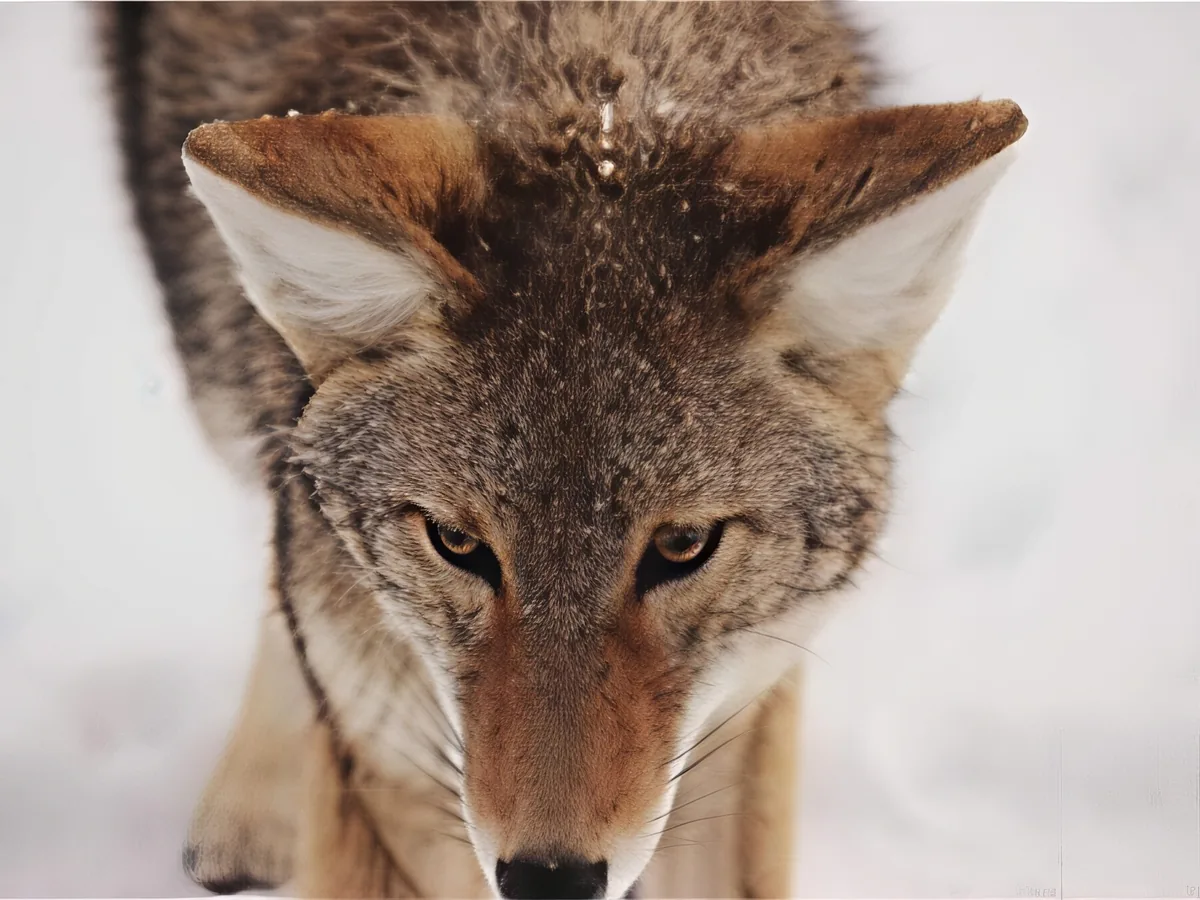
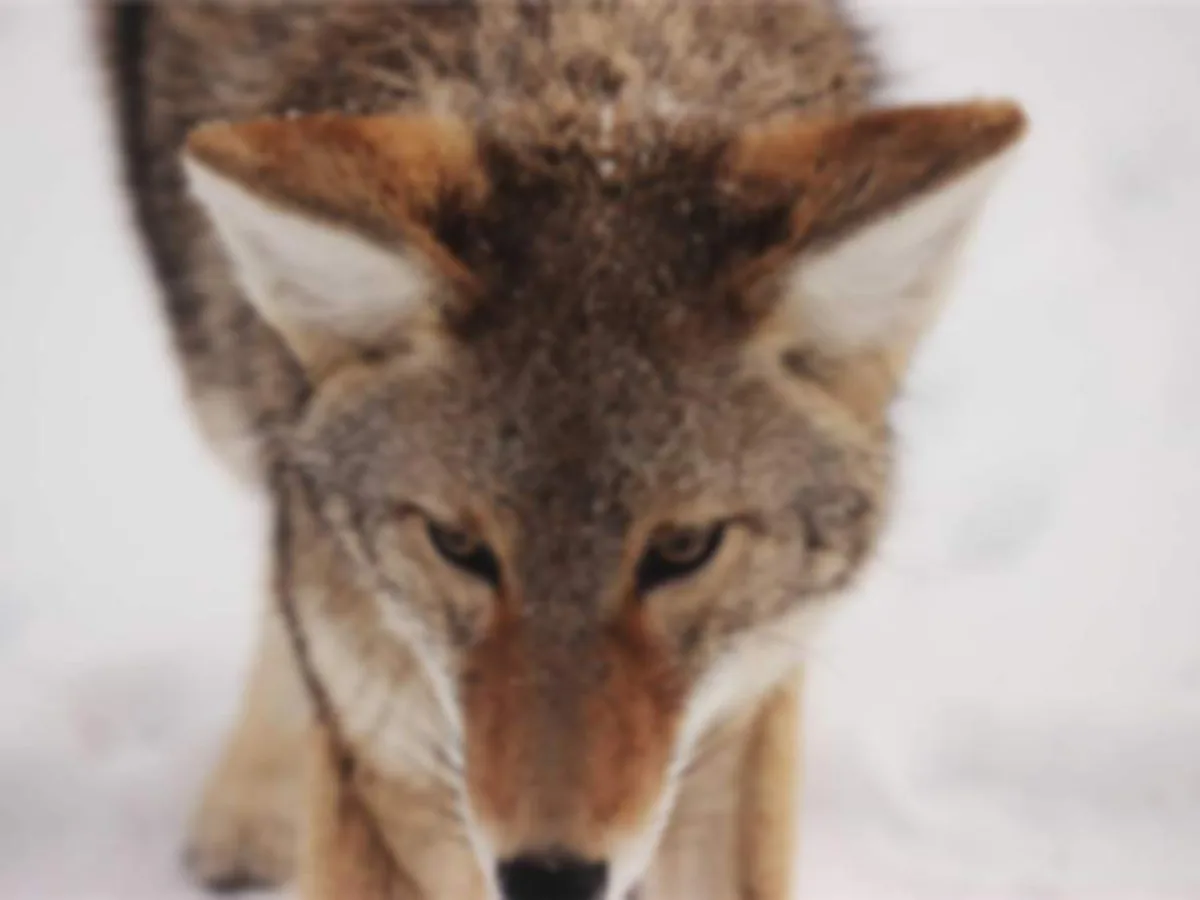
Soft wildlife close-up, after enhancementSoft wildlife close-up, before enhancement
No photo? Try one:

Upload Image

Drag and drop, or click to browse

JPG, PNG or WebP, up to 20 MB

  • Free daily credits
  • No sign-up
  • Private

Standard or Pro: which one to use

Both make the photo clearer. They differ in how much detail they can rebuild, and in what that costs.

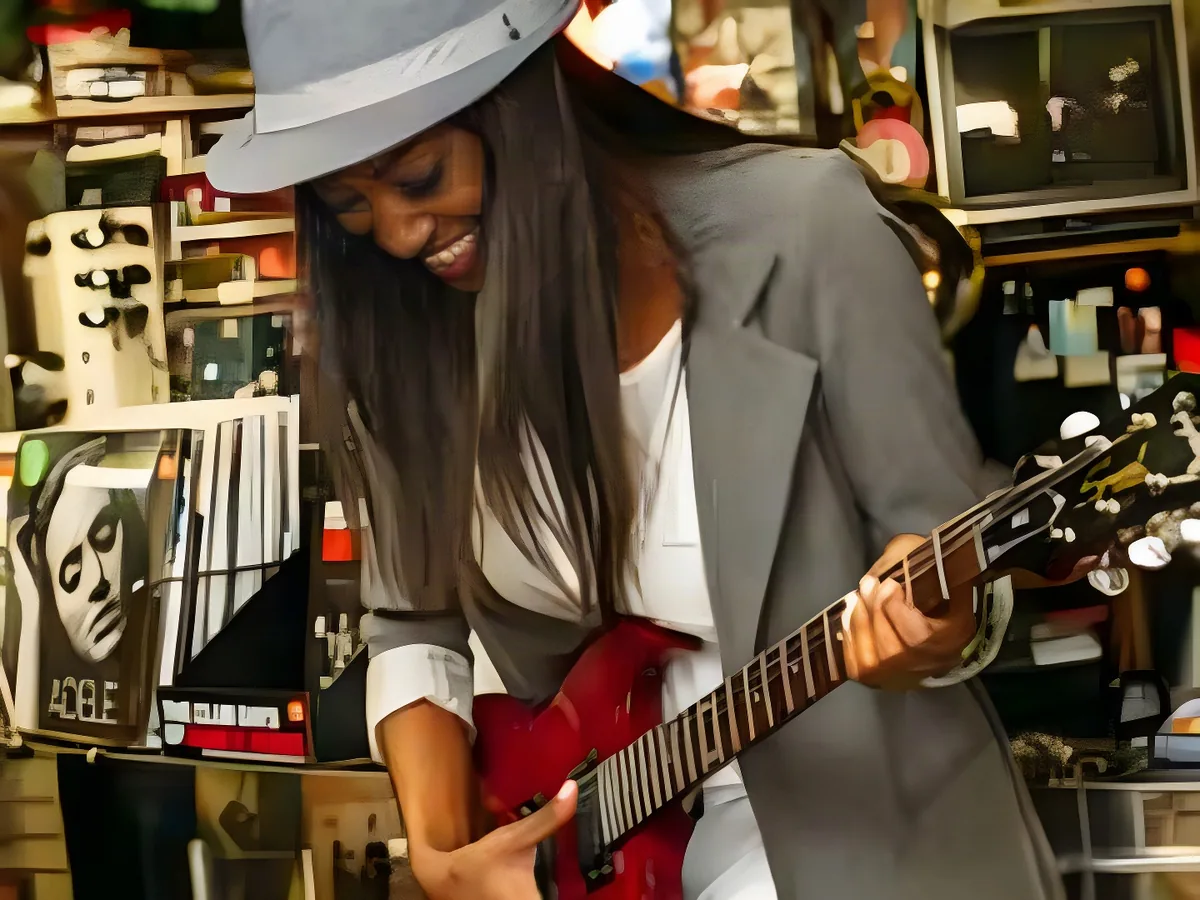
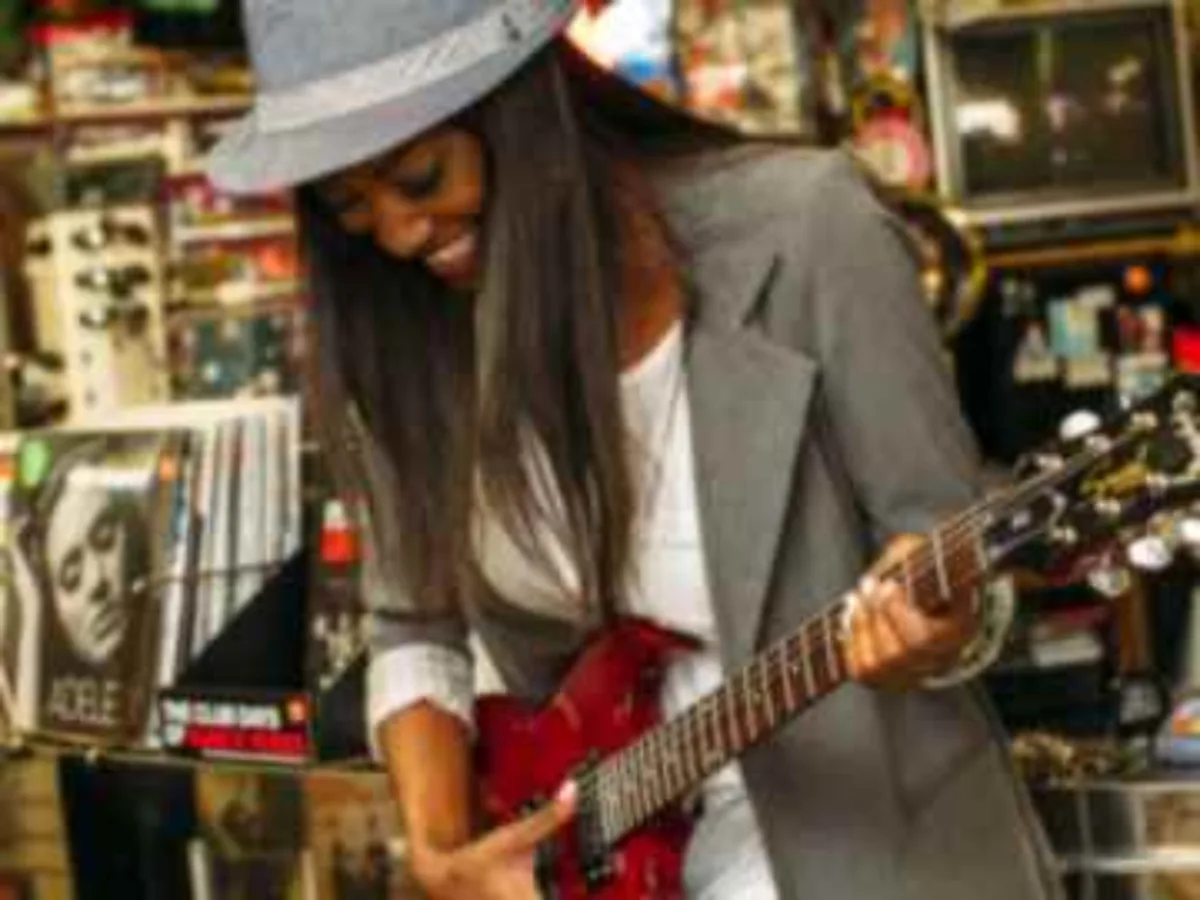
Low-resolution portrait, after enhancementLow-resolution portrait, before enhancement

Standard for people and everyday shots

Fast and cheap, and at its best on faces. The photo above of a woman playing guitar in a record shop started as a tiny image; her face, her smile and the brim of her hat came back. You get the photo back at 4 times the size.
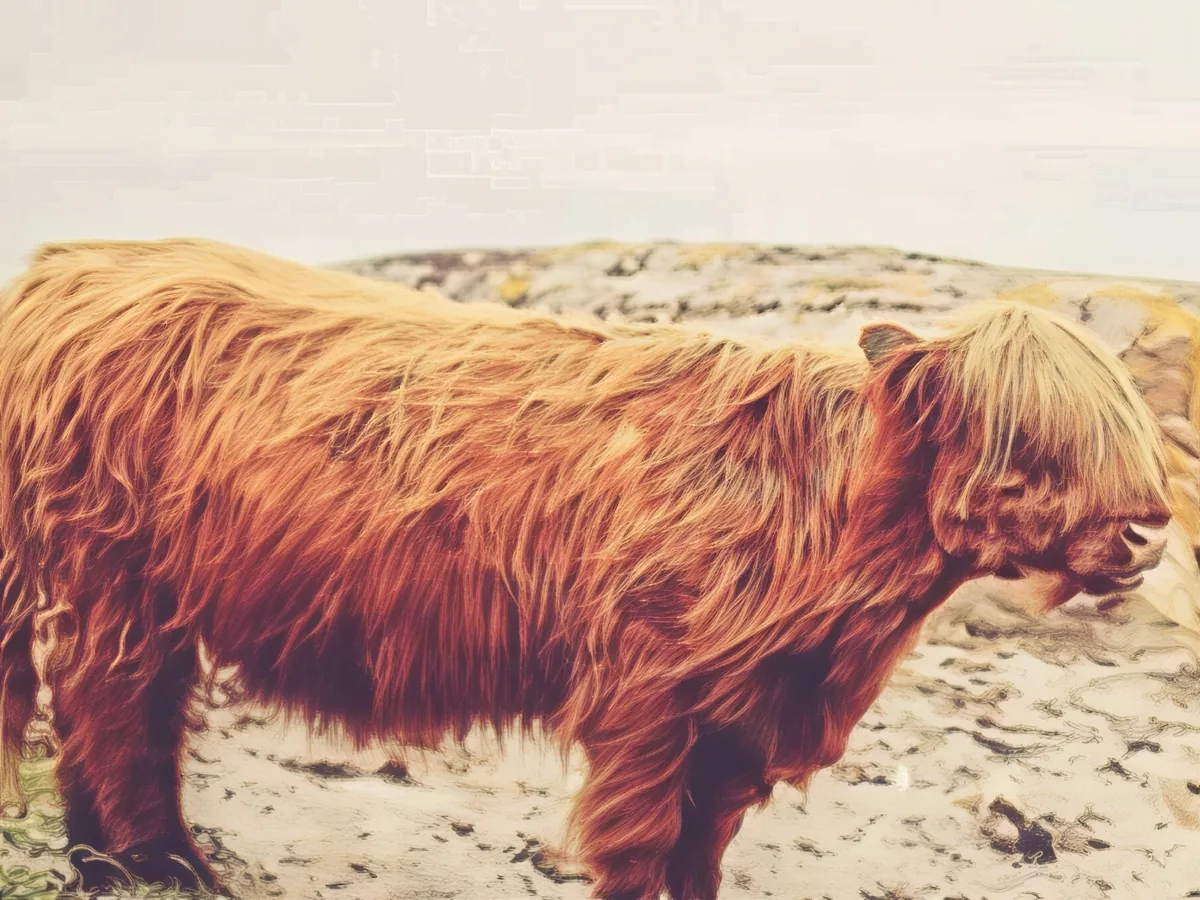
Soft photo of a long-haired cow, after enhancementSoft photo of a long-haired cow, before enhancement

Pro for fur, foliage and fine texture

Pro redraws texture instead of only tightening edges, so fur, hair and grass come out clean. On the Highland cow above it drew the long fur back strand by strand. It takes longer, around 30 seconds, and returns the photo at twice its size.

How to sharpen an image in 3 steps

The quickest way to make a picture clearer: no editor to open and no sliders to learn.

  1. Upload your photo

    JPG, PNG or WebP up to 20 MB. Large photos are scaled down to what the model accepts, right in your browser.

  2. Pick a version

    Standard covers most photos. Switch to Pro if fur, grass or fabric still looks smudgy.

  3. Compare and download

    Drag the slider over the details you care about, then save the full-size file.

What we saw when we tested it

We ran both versions on photos we had shrunk and softened on purpose, then put the results next to the originals.

Faces come back well

On a portrait cut to a third of its size, Standard restored the eyes, eyebrows and skin texture to something close to the original photo.

Fur needs Pro

On a photo of a lioness, Standard left blocky patches across the forehead. Pro rebuilt the fur strand by strand. If you see blocks, run it again with Pro.

It can't read what isn't there

Tiny text, distant faces and license plates won't become readable. The model fills in detail that fits the photo. That is fine for a portrait and wrong for evidence.

How to sharpen an image in Photoshop or GIMP

If you already have an editor open, this is the classic way. It works well on photos that are only a little soft.

Manual sharpening only boosts edges that are already there. When a photo is so small or soft that the edges are gone, a model that rebuilds detail gets further. That is the case this tool is for.

  1. 1

    Duplicate the layer

    Press Ctrl+J (Cmd+J on a Mac) so you can always go back to the original.

  2. 2

    Apply Unsharp Mask or High Pass

    In Photoshop: Filter > Sharpen > Unsharp Mask. In GIMP: Filters > Enhance > Sharpen (Unsharp Mask). For High Pass, set the filtered layer's blend mode to Overlay.

  3. 3

    Keep the amount low

    Start around 80 to 120% with a radius of 1 to 2 pixels. Push it further and you get bright halos along edges and crunchy noise.

  4. 4

    Check at 100% zoom

    Sharpening looks different zoomed out. Look at eyes and edges at full size before you export.

Sharpen image FAQ

Yes. Standard costs 2 credits a run, and everyone gets free credits every day without signing up, so you can sharpen a few photos a day at no cost. Pro uses purchased credits. Downloads have no watermark.

Sharpening is for photos that are a little soft or too small. Unblurring is for photos where the camera moved or focused on the wrong thing. If your photo is clearly smeared, try our Unblur Image tool.

Mild blur, yes. Heavy blur is a different problem: use Pro here or the Unblur Image tool, and compare. If the subject is only a few pixels wide, no tool can fully save it.

Yes. Standard returns 4 times the width and height of the photo it processes, Pro returns 2 times. You can upload JPG, PNG or WebP files up to 20 MB and 40 megapixels.

It can if it's pushed too far. These models rebuild detail to match the rest of the photo, so most results look natural. Very small faces can change slightly, which is why you compare with the slider before downloading.

Your photos are used only to create your result, never to train AI. Without an account they're deleted after 24 hours. Signed in, they're kept in History for 72 hours, or until you delete them if you turn on "Keep my tasks". Details are in our Privacy Policy.

More ways to fix your photos

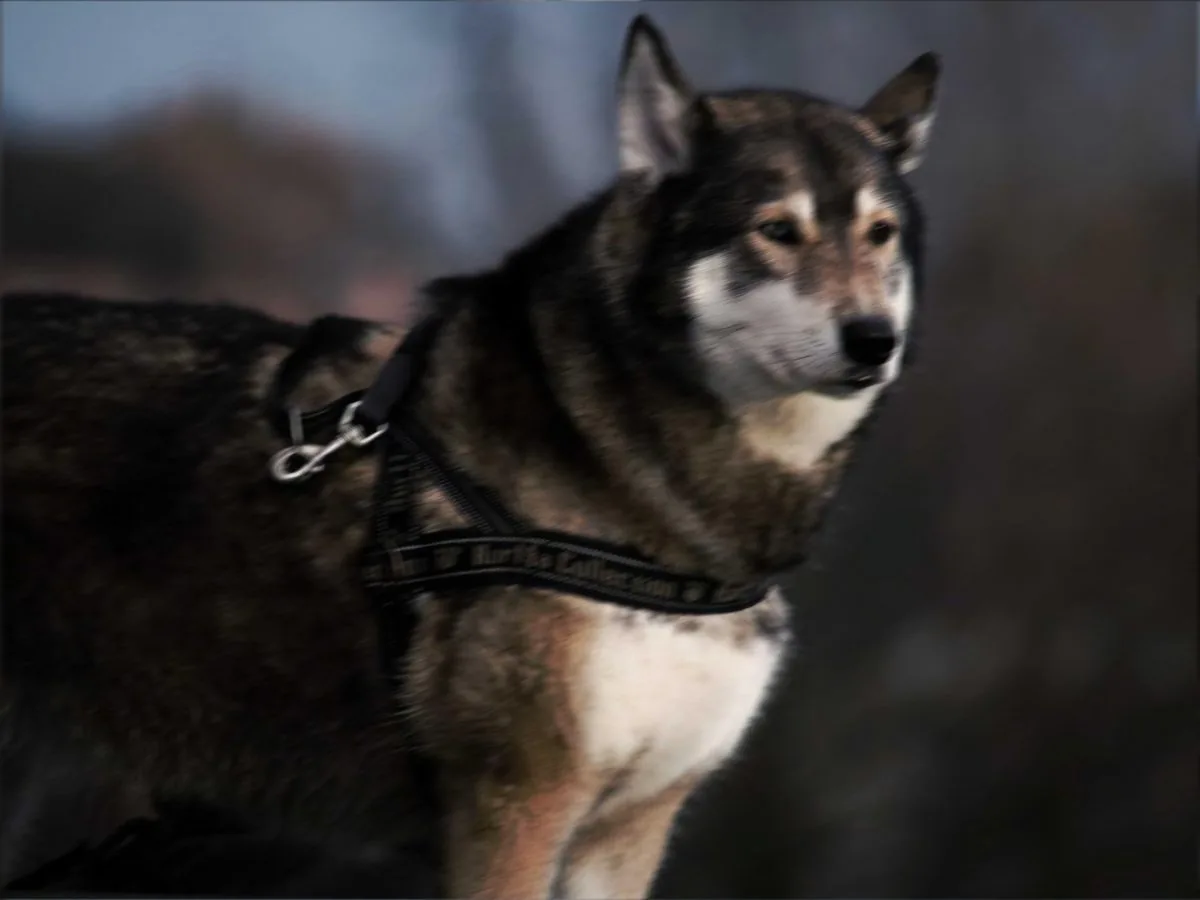
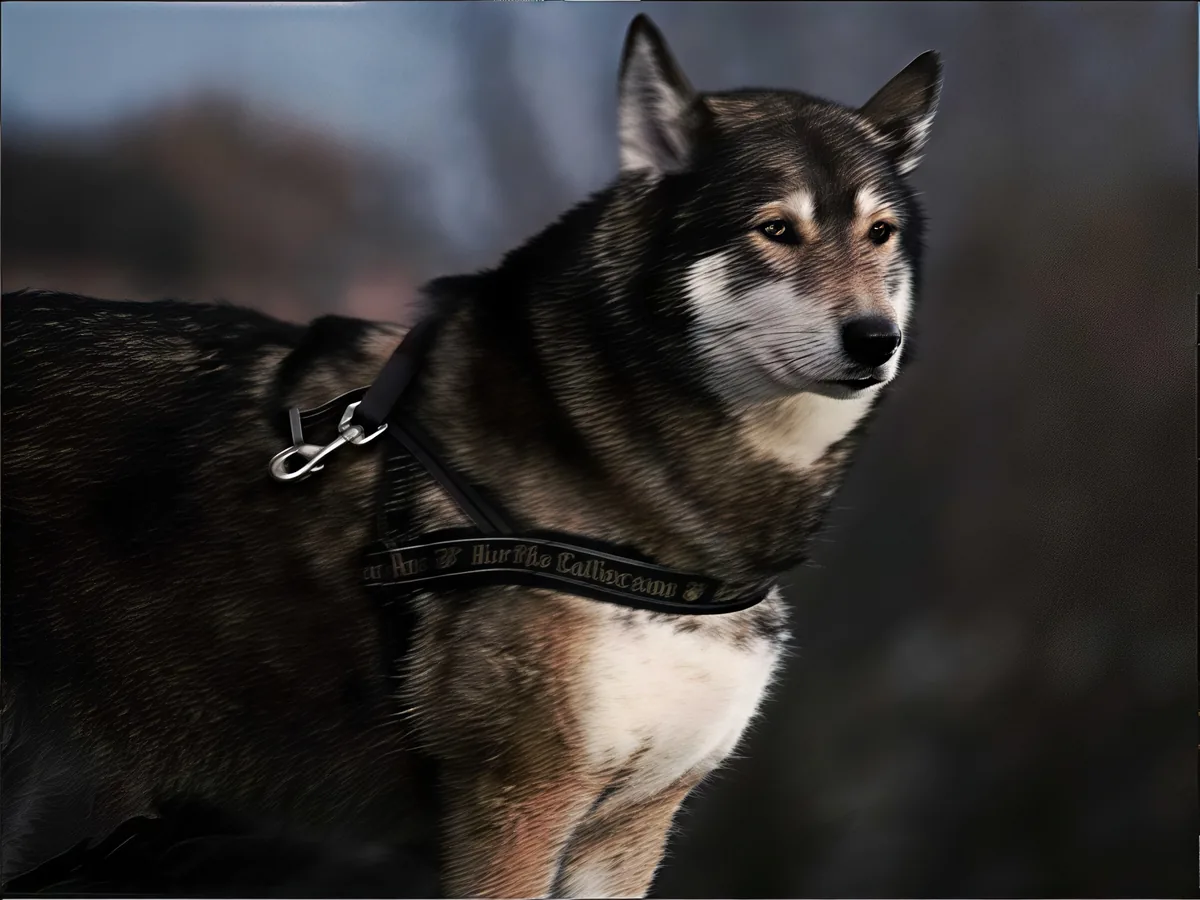
Shaky photo of a husky, before enhancementShaky photo of a husky, after enhancement

Unblur Image

Remove motion blur and out-of-focus blur from photos.

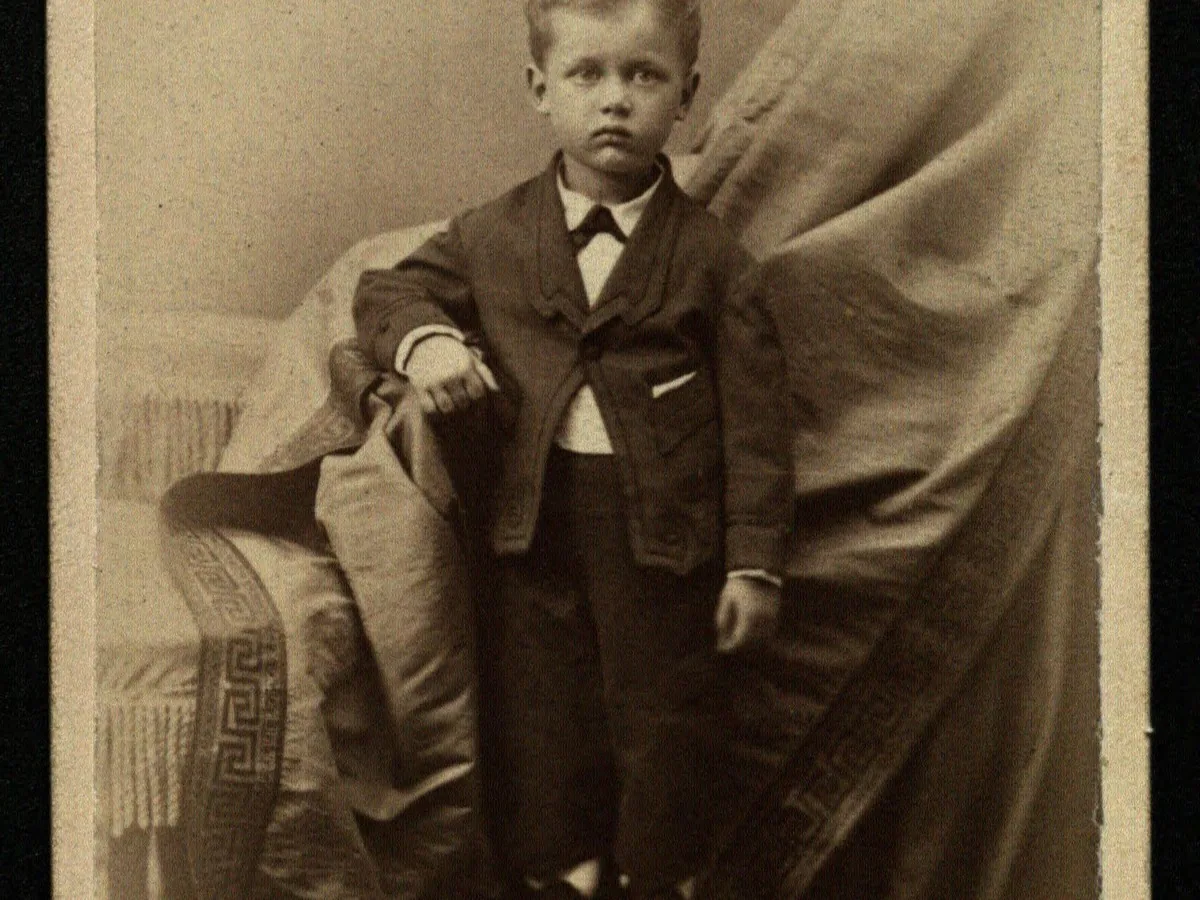
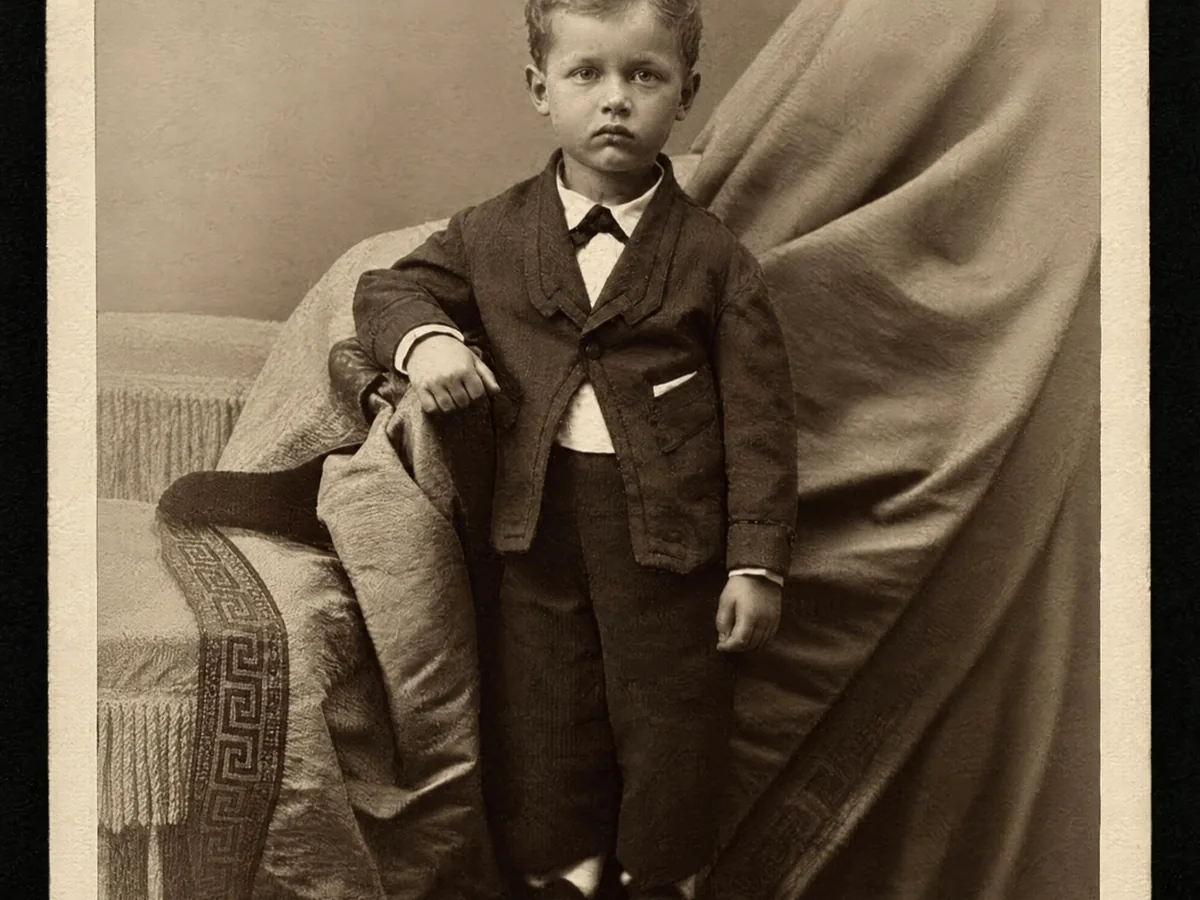
Faded cabinet card of a young boy, before enhancementFaded cabinet card of a young boy, after enhancement

Restore Old Photos

Clear scratches, dust and fading on scanned prints.

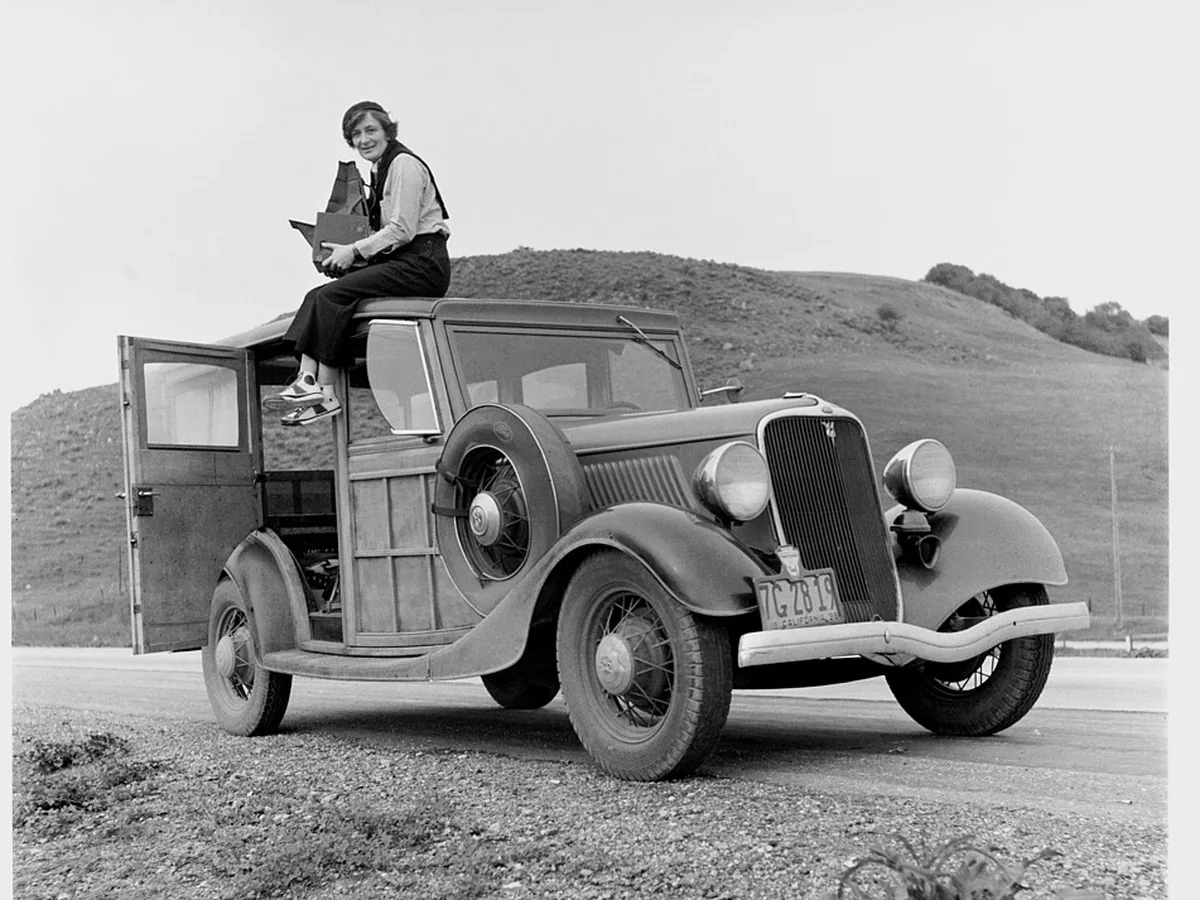
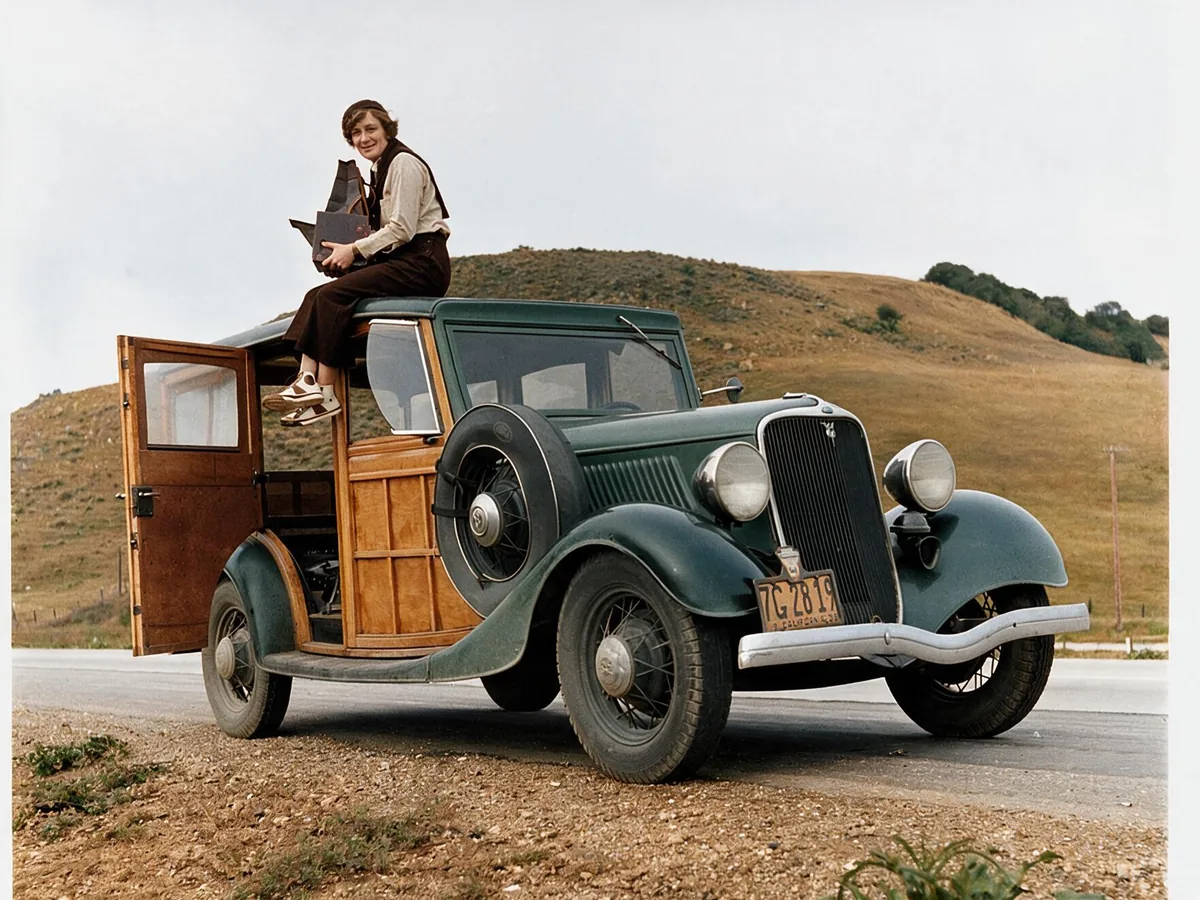
Black and white photo of a woman on a 1930s car, before enhancementBlack and white photo of a woman on a 1930s car, after enhancement

Colorize Photo

Turn black and white photos into natural color.

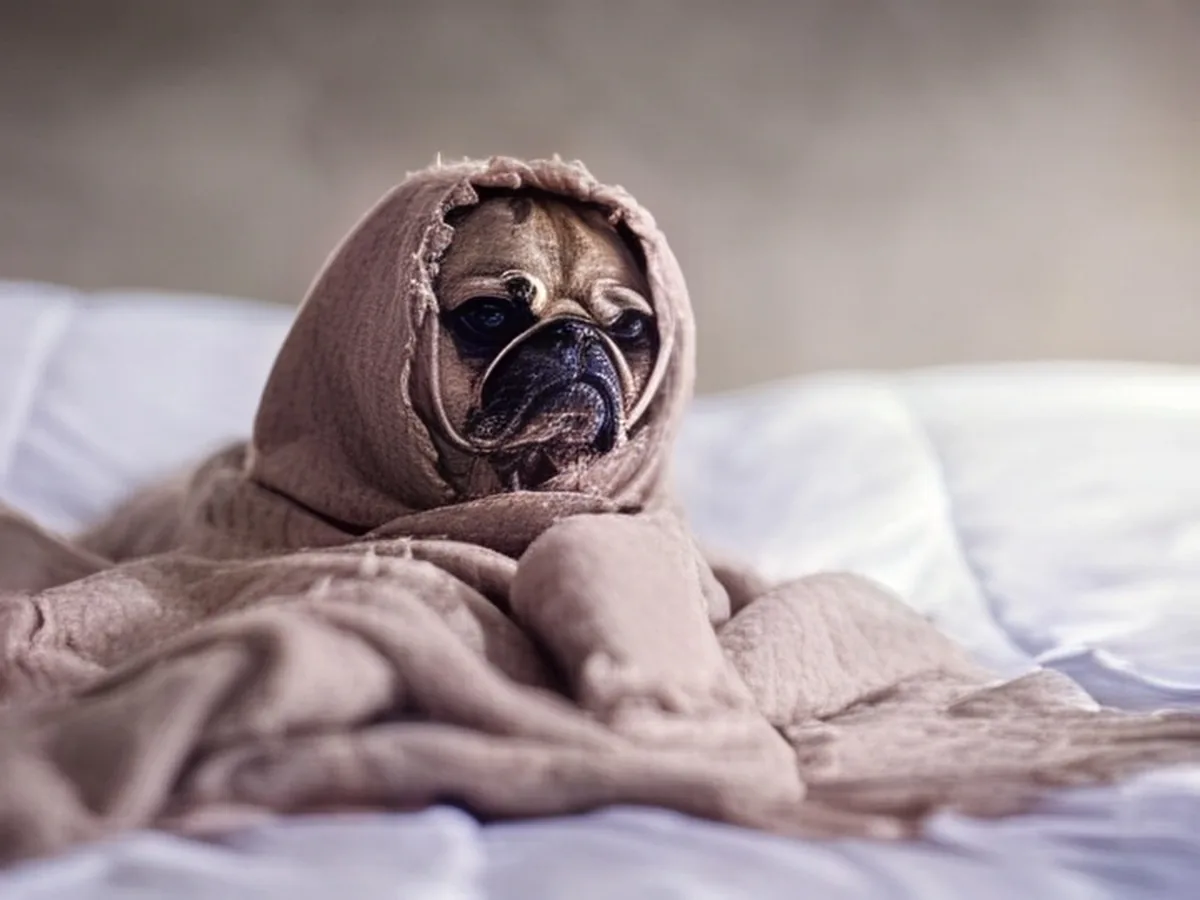
Low-resolution photo of a pug in a blanket, before enhancementLow-resolution photo of a pug in a blanket, after enhancement

Photo Quality Enhancer

Upscale and clean up any photo in one go.