Clarpex

AI Image Humanizer: Make AI Photos Look Real

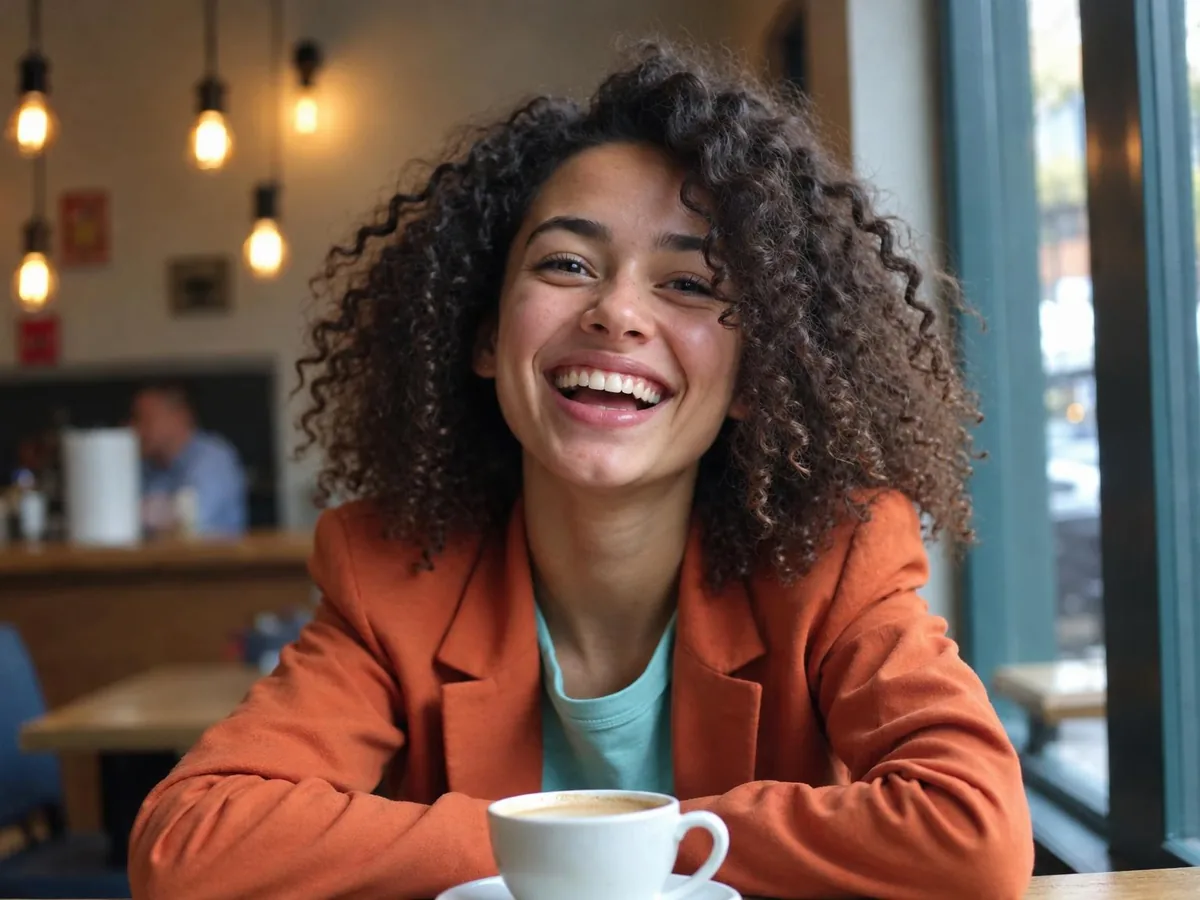
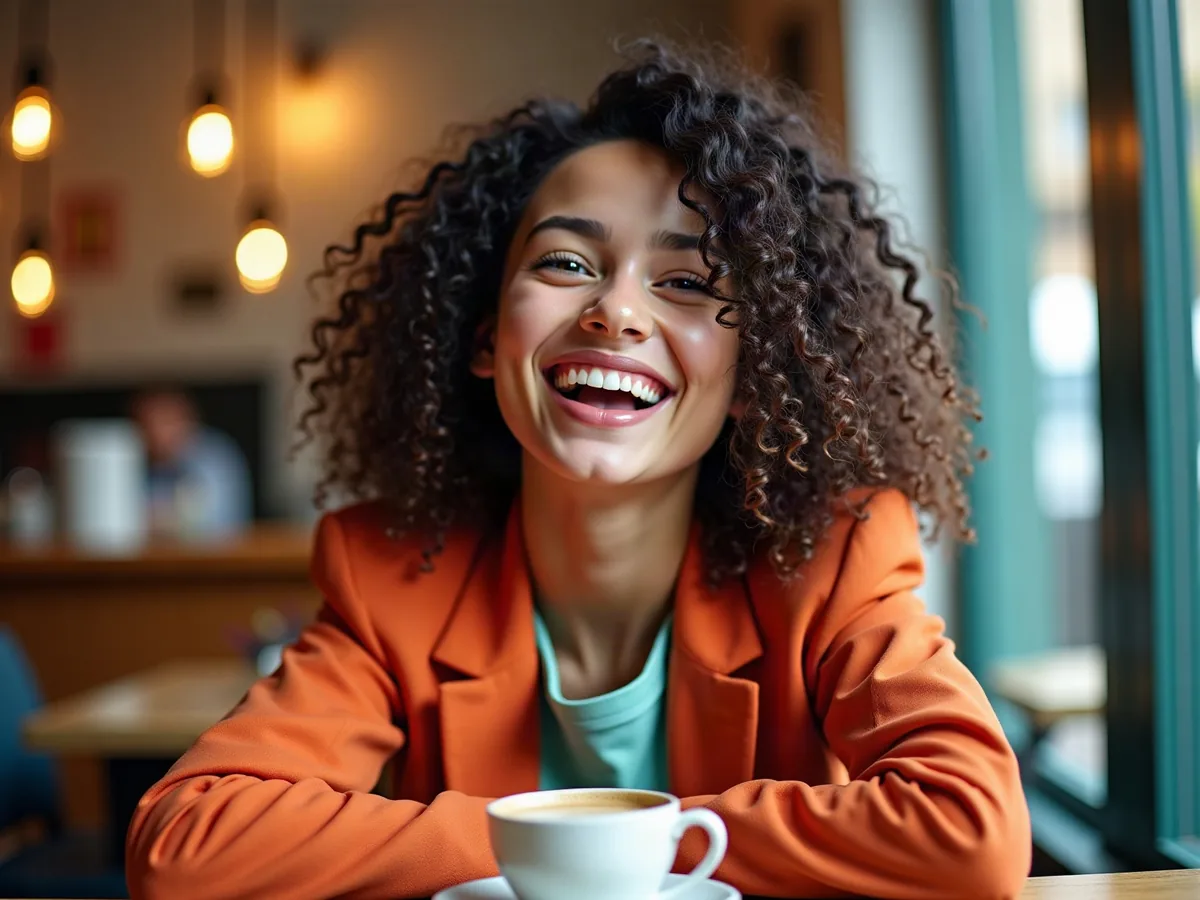
Fix what makes a picture look AI-generated: waxy skin, glossy surfaces, overdone glow and oversaturated color. The people, the place, its lighting and the framing stay the same, and the result looks like an everyday phone photo.

AI image of a laughing woman with curly hair in an orange jacket at a cafe table, after enhancementAI image of a laughing woman with curly hair in an orange jacket at a cafe table, before enhancement
No photo? Try one:

Upload Image

Drag and drop, or click to browse

  • Free daily credits
  • No sign-up
  • Private

What you can do with an AI image humanizer

Drag the slider on each pair. The scene, its lighting and the framing stay; what changes is everything that made the image look generated.

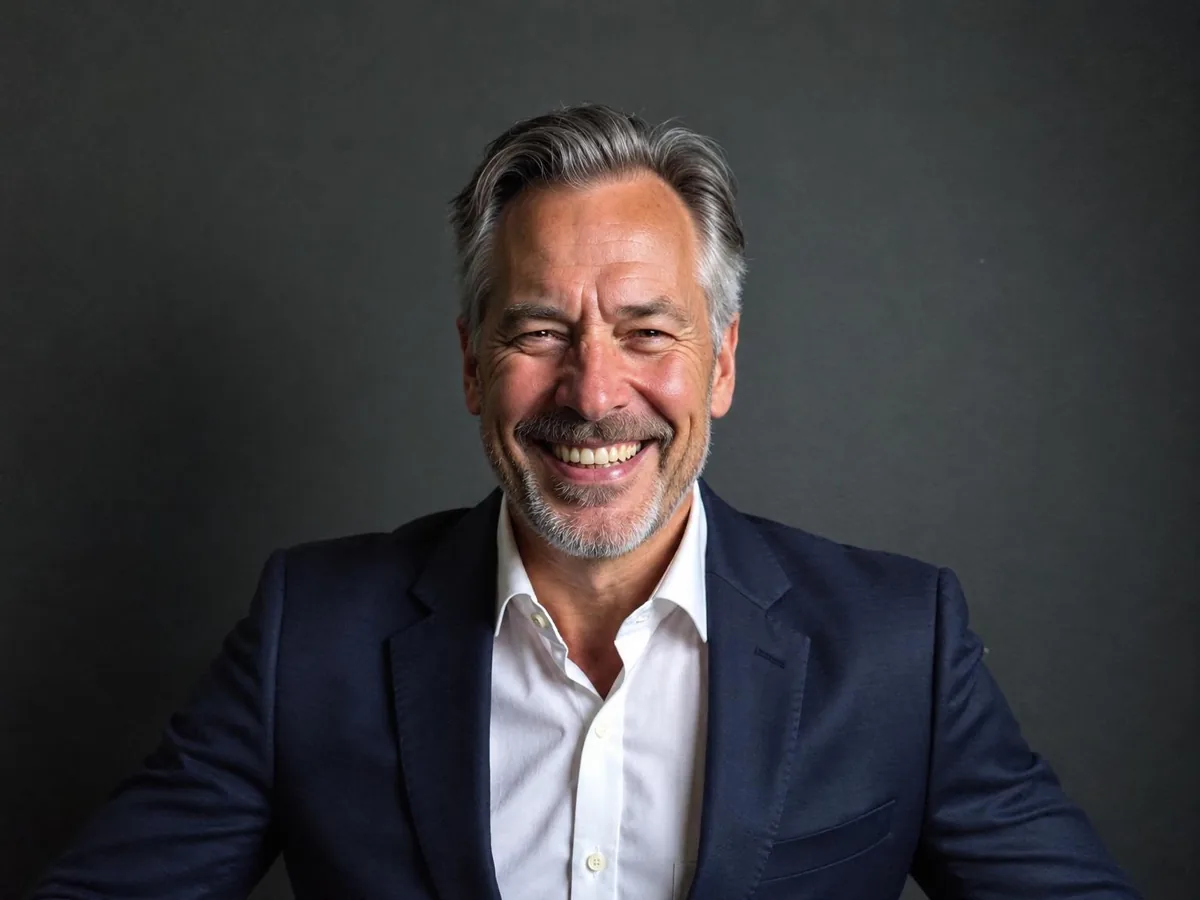
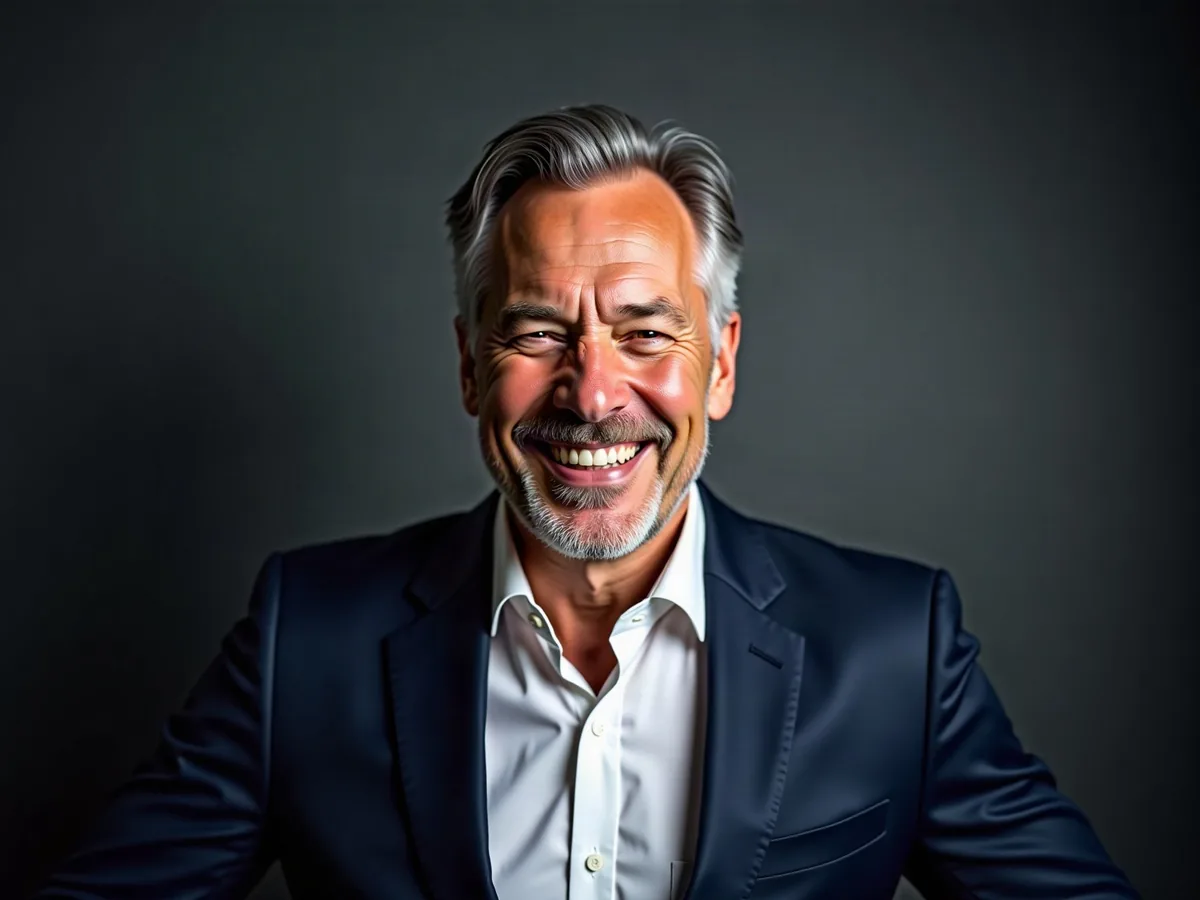
AI headshot of a smiling man in a navy suit with waxy, orange-tanned skin against a dark wall, after enhancementAI headshot of a smiling man in a navy suit with waxy, orange-tanned skin against a dark wall, before enhancement

Humanize an AI headshot before it goes on LinkedIn

AI headshots often give themselves away with tanned, waxy skin, over-bright teeth and harsh HDR contrast. The humanizer keeps your backdrop, outfit and framing and gives the face natural skin tones and real texture, so it sits well next to real photos on LinkedIn or a team page.

  • Profile photo
  • Waxy skin
  • Skin texture
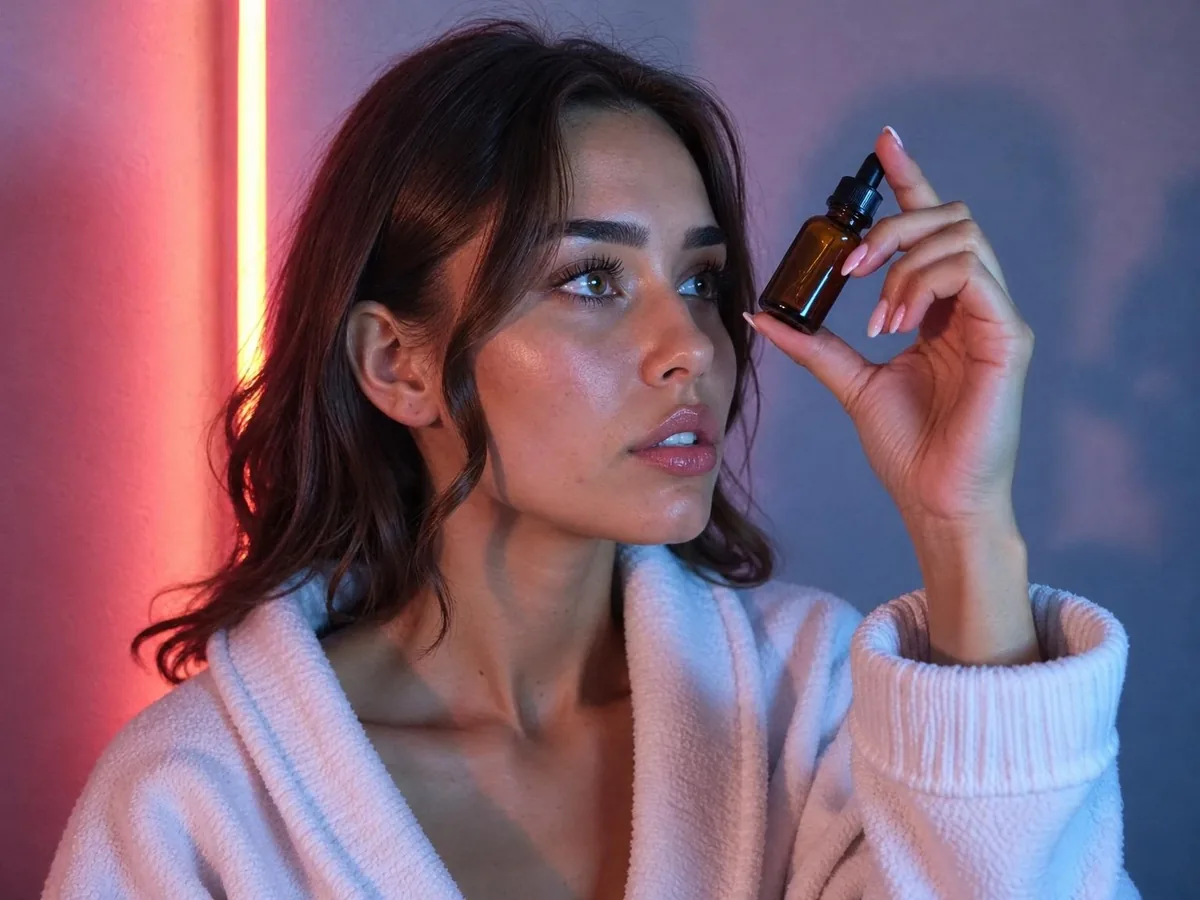
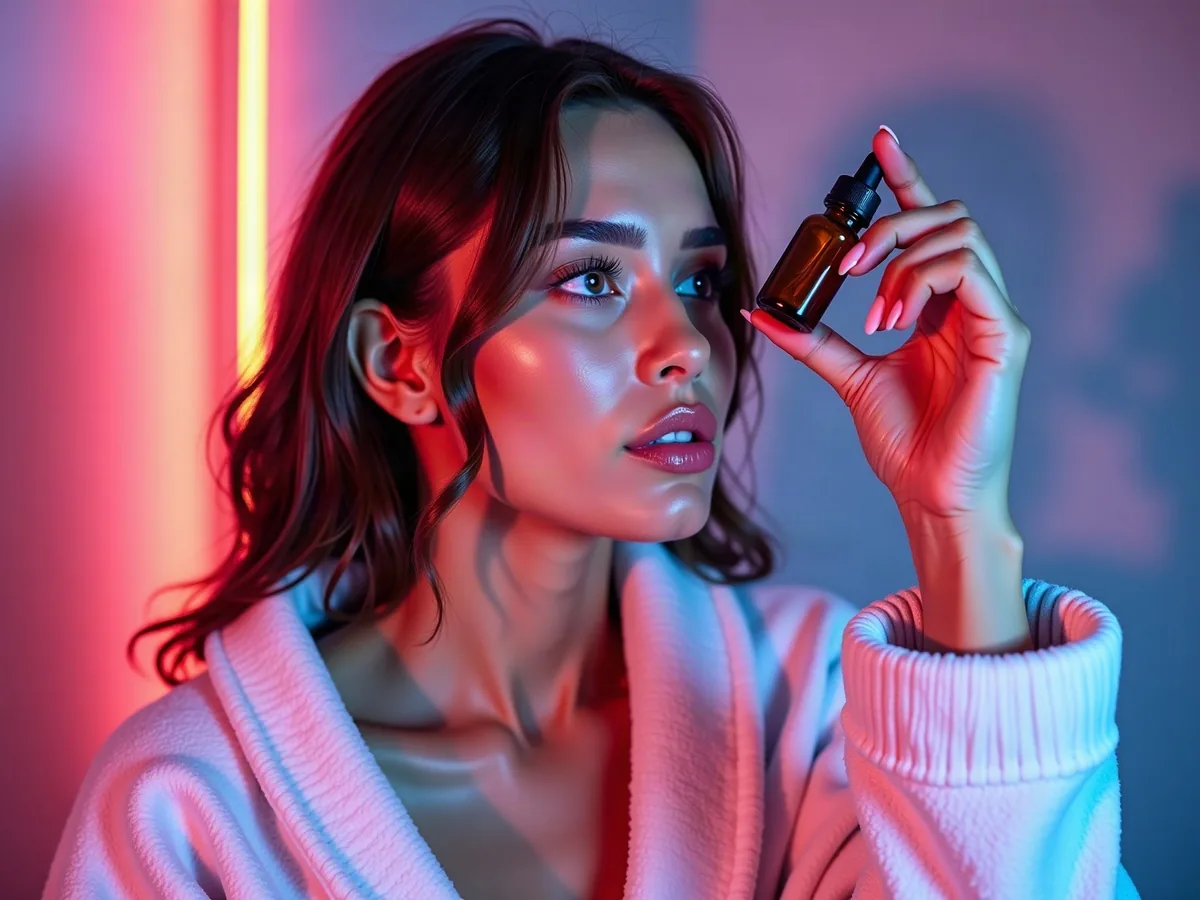
AI skincare image of a woman with glossy skin holding a serum bottle under pink and blue neon light, after enhancementAI skincare image of a woman with glossy skin holding a serum bottle under pink and blue neon light, before enhancement

Make AI UGC look like a customer shot it

UGC-style ads work because they look homemade, and glossy, airbrushed skin looks anything but. The humanizer keeps the room, the lighting and the product in hand, and puts real skin texture and a natural sheen back on the face.
  • UGC ad
  • Glossy skin
  • Product kept
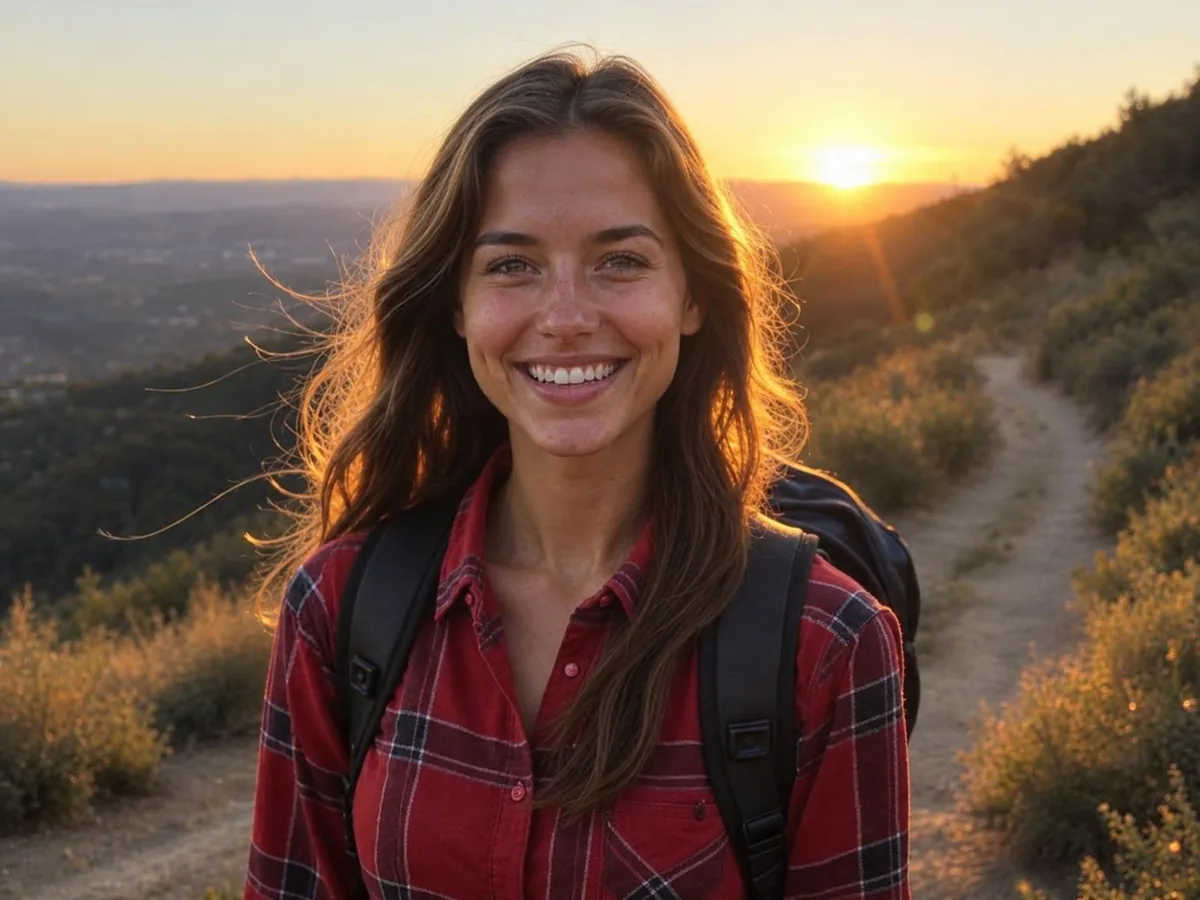
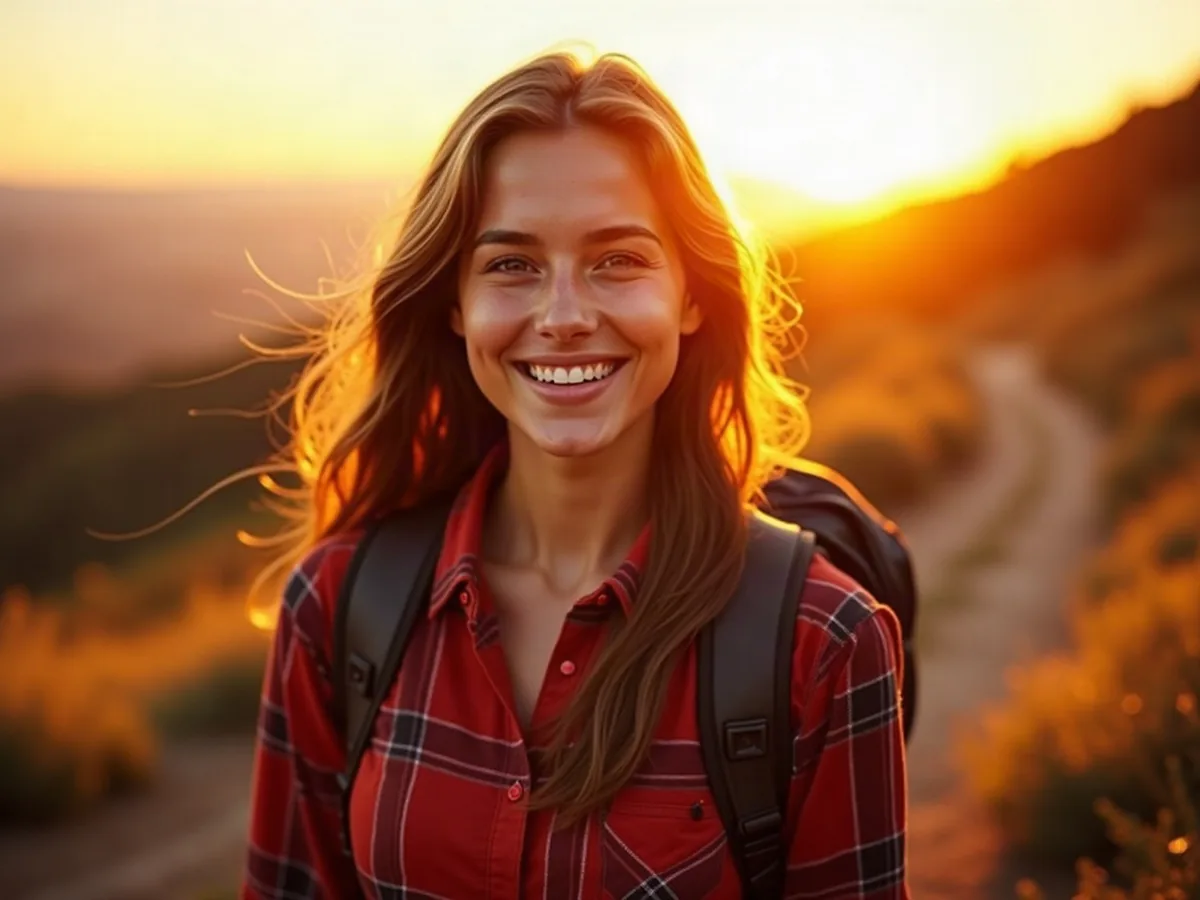
AI photo of a smiling woman in a plaid shirt on a mountain trail in golden light, after enhancementAI photo of a smiling woman in a plaid shirt on a mountain trail in golden light, before enhancement

Make an AI dating profile photo look real

Orange glow, sun flare and poreless skin make a profile photo read as AI before anyone reads the bio. The humanizer keeps the place and the sunset, tones the glow down to what a phone would capture and puts real texture back on the face.

  • Dating profile
  • Golden glow
  • Natural texture
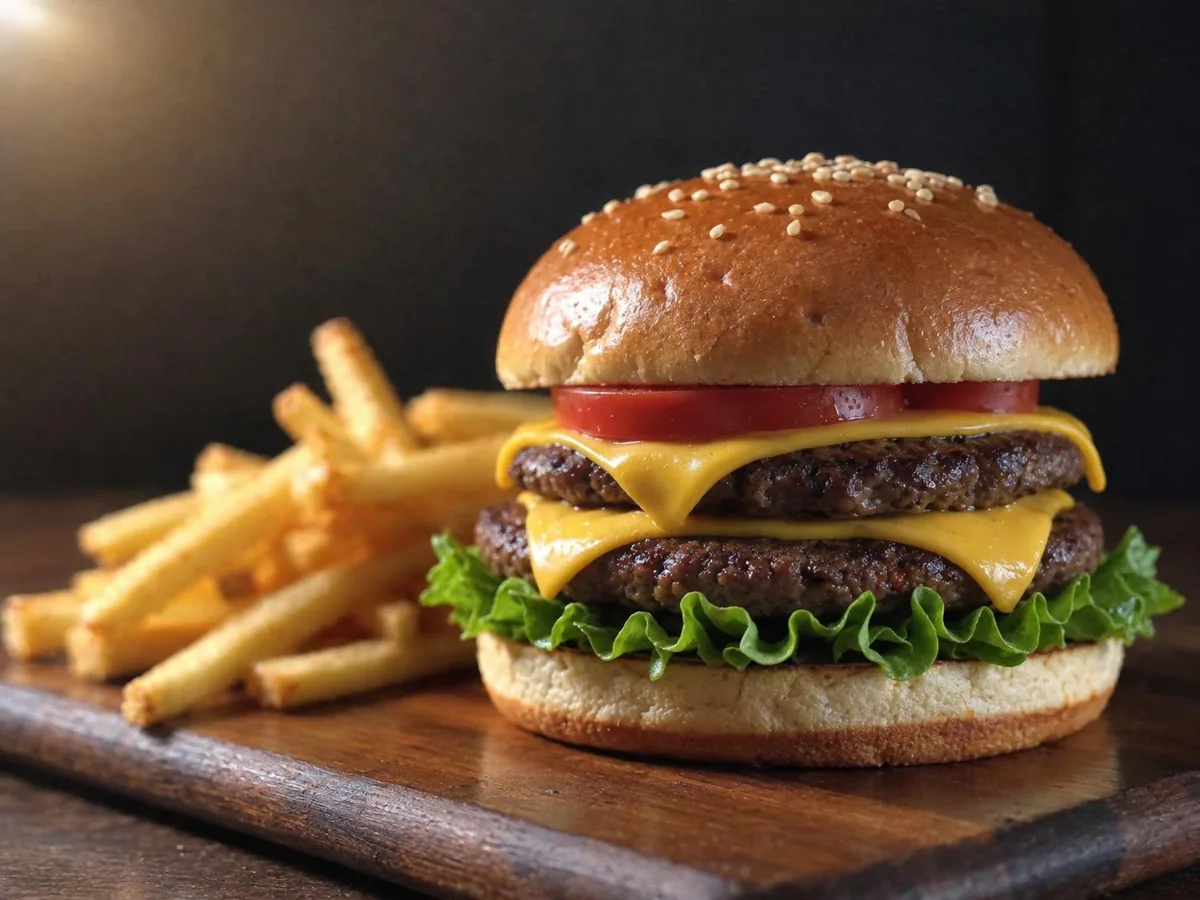
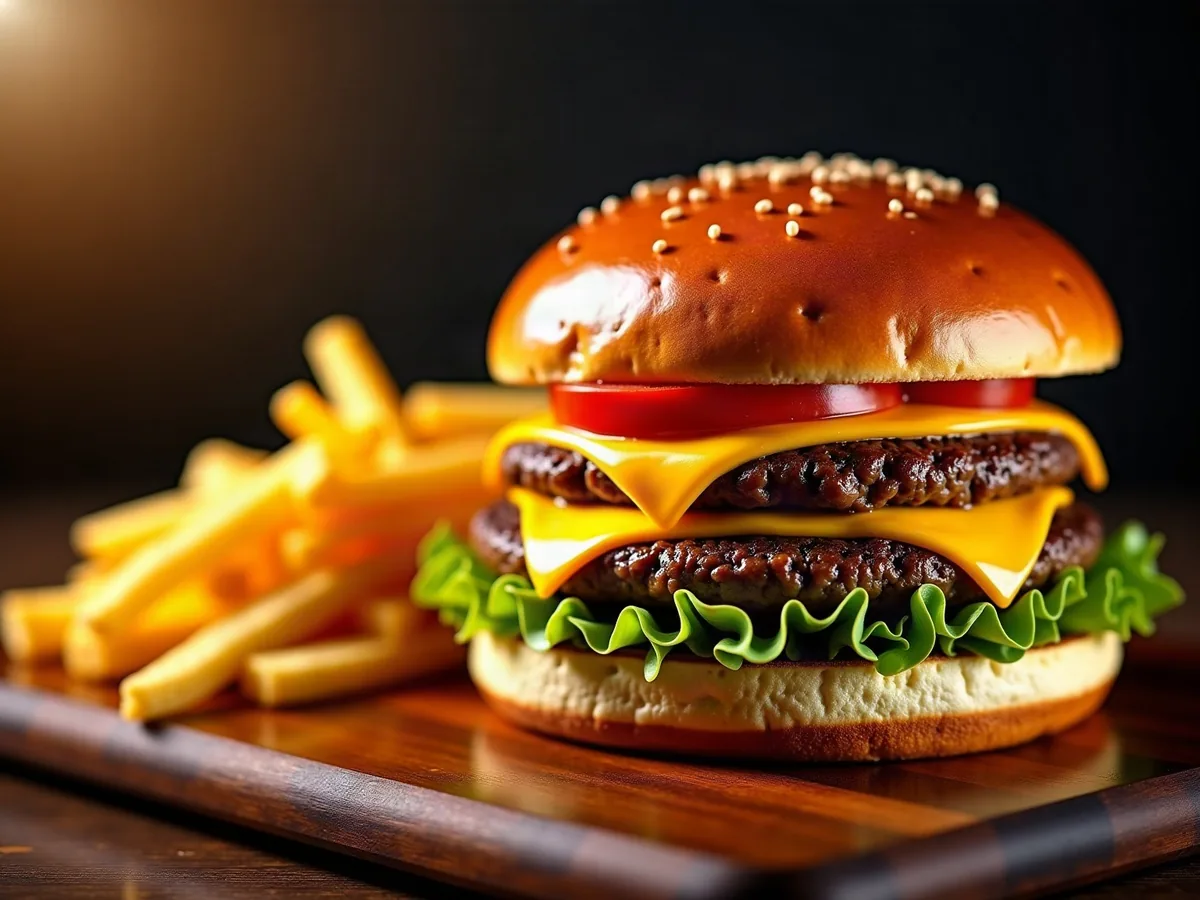
AI image of a glossy cheeseburger with fries in heavy HDR on a dark background, after enhancementAI image of a glossy cheeseburger with fries in heavy HDR on a dark background, before enhancement

Food photos that look cooked, not rendered

Extreme HDR gives AI food glowing edges, varnished bread and neon-bright colors, and food that looks fake doesn't sell. The humanizer keeps the same dish, board and background, with matte surfaces, everyday colors and no halos, ready for a menu or a delivery app.

  • Menu photo
  • Plastic shine
  • Food
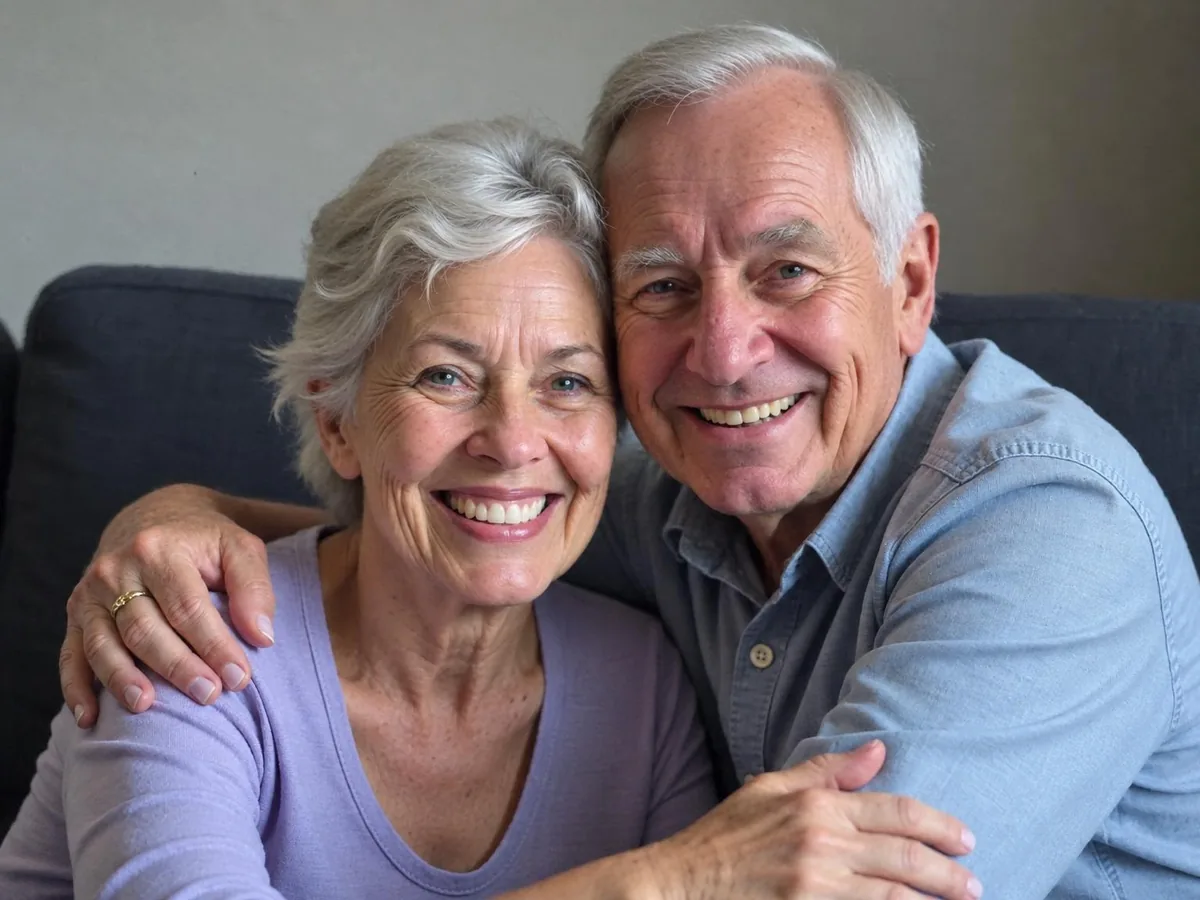
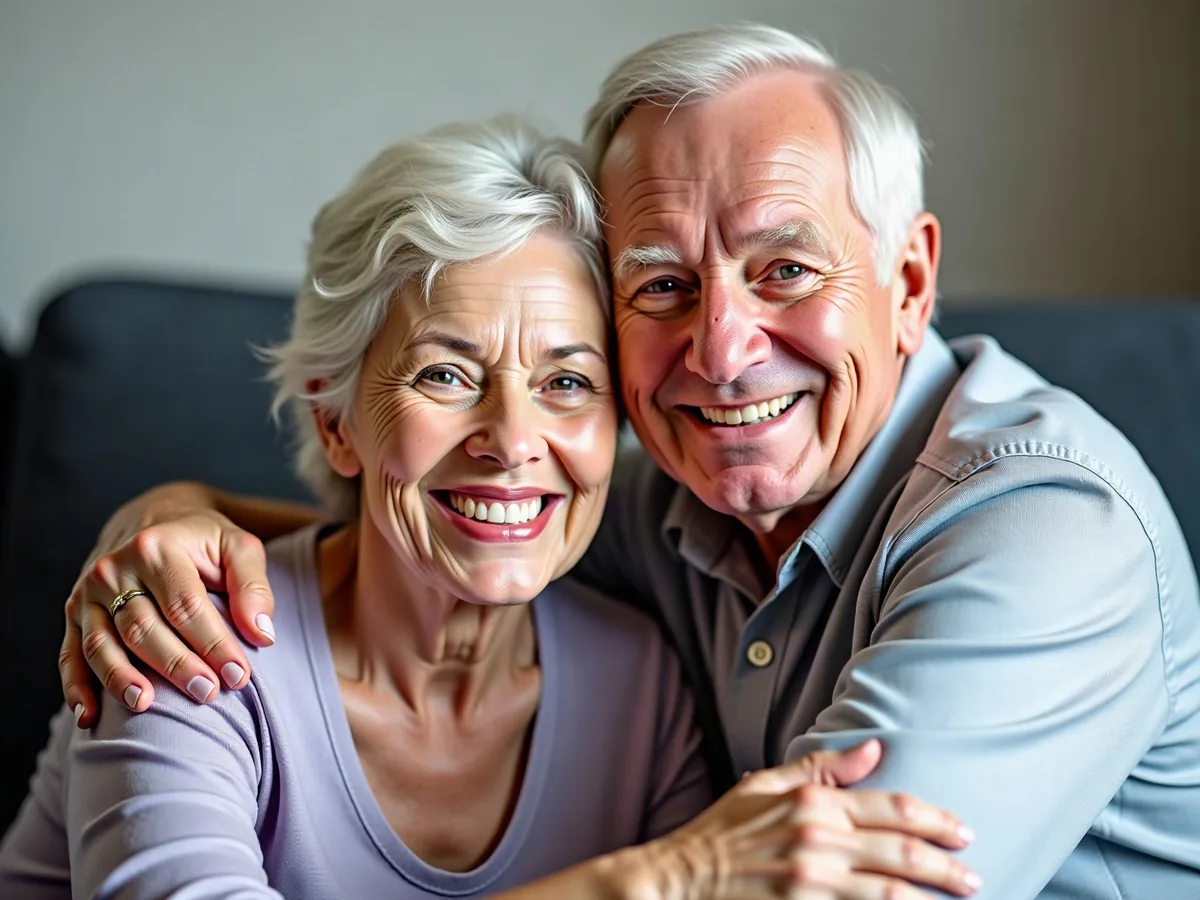
AI portrait of an older couple hugging on a sofa with orange, waxy skin, after enhancementAI portrait of an older couple hugging on a sofa with orange, waxy skin, before enhancement

An AI portrait of grandparents that looks like a family photo

Generated portraits of older people often come out orange, waxy and over-sharpened. The humanizer gives them natural skin tones and soft everyday light, and keeps white hair, smiles, poses and the room. With two or more people in the picture, every face stays recognizable.

  • Family portrait
  • Two faces
  • Natural skin tone
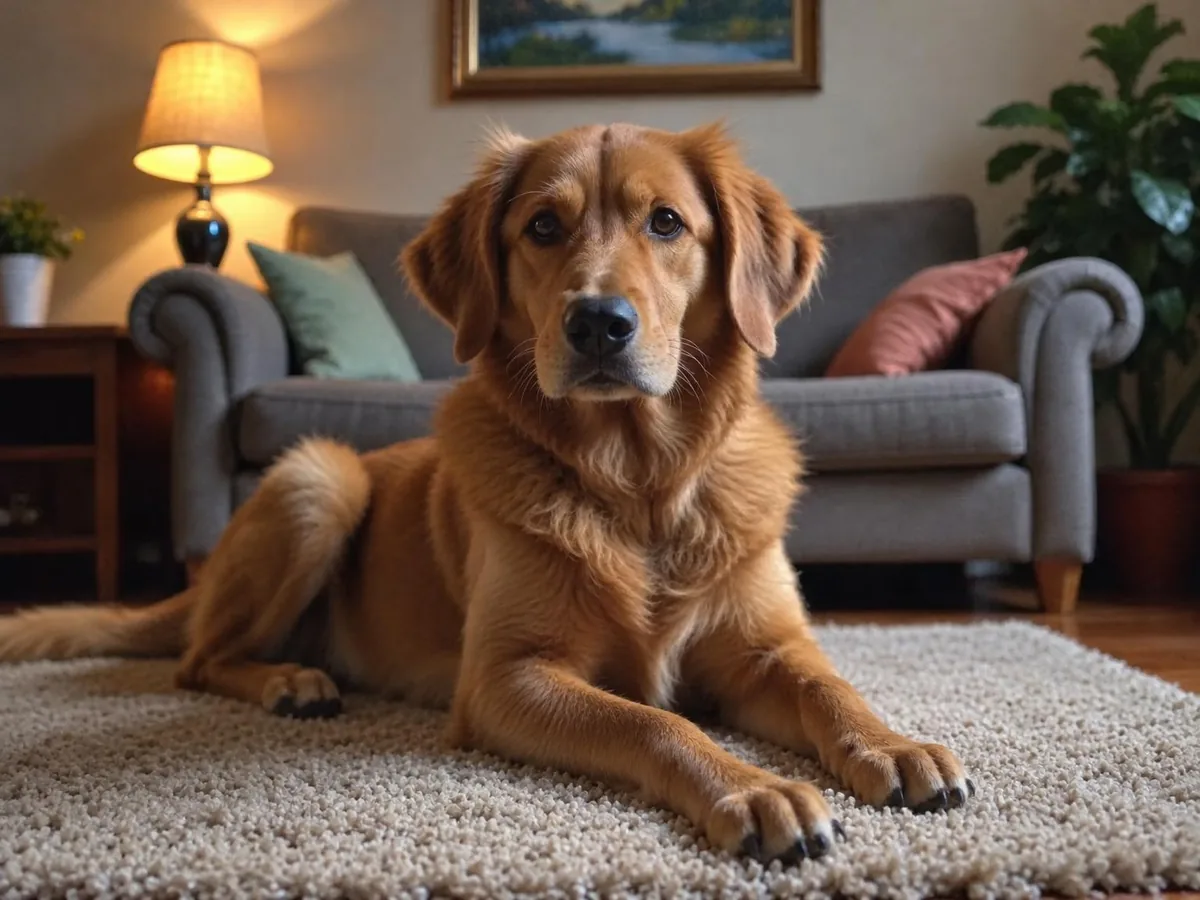
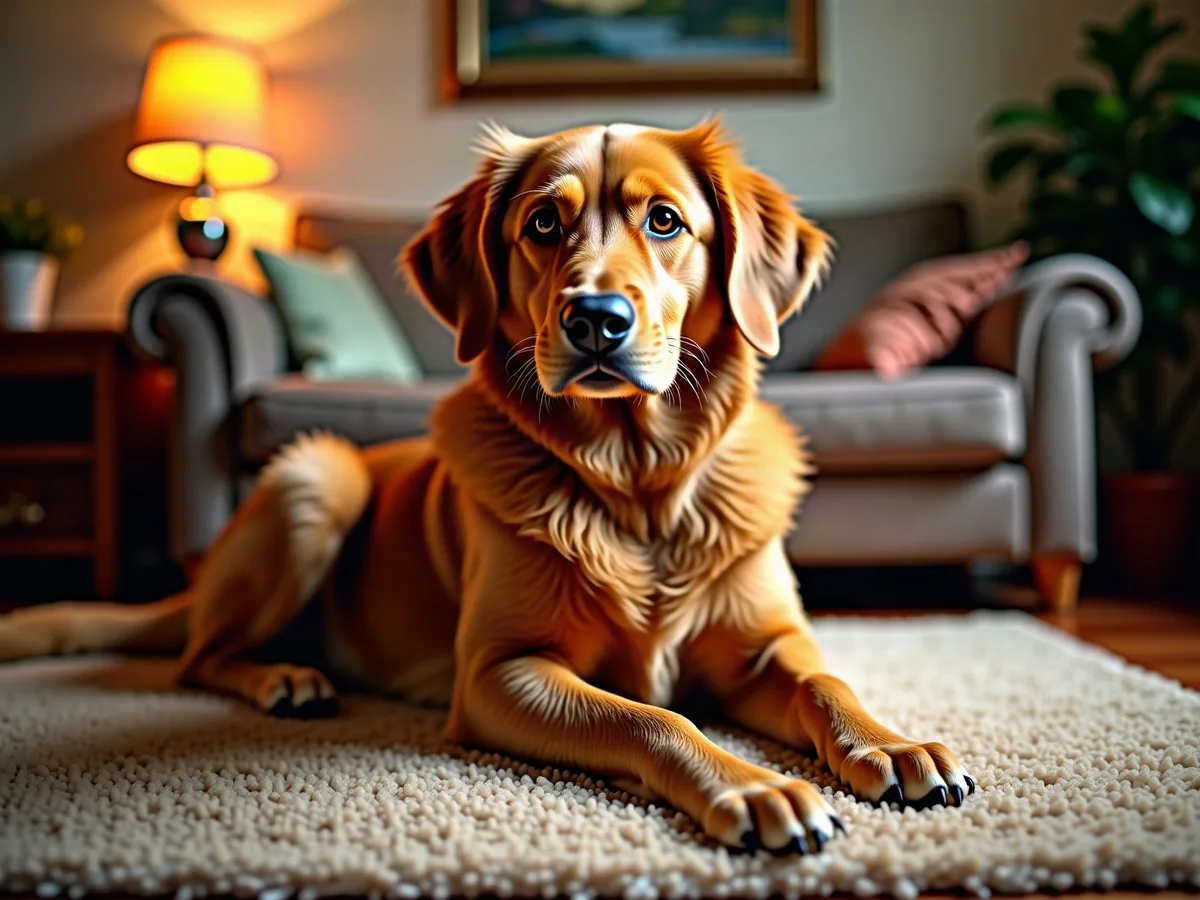
AI image of a golden retriever on a rug with heavy HDR glow and oversaturated fur, after enhancementAI image of a golden retriever on a rug with heavy HDR glow and oversaturated fur, before enhancement

Not only people: make AI pet photos look real

Heavy HDR gives AI pet photos glowing edges, crunchy fur and an orange cast. The humanizer keeps the pose, the room and its lamps, and brings back a natural coat.

  • Pet photo
  • HDR halos
  • Not just faces

How to make an AI image look real

Three steps and nothing to set up. A run takes under a minute.

  1. Upload the AI image

    JPG, PNG or WebP up to 20 MB, from any AI image generator.

  2. Let it re-render the look

    One pass fixes skin, glow, color and shine together. The scene, its lighting and the framing stay as they are.

  3. Compare, then download

    Drag the slider over faces and light to see the change, then save the result.

What gives an AI image away, and what changes

Your scene stays as it is. What changes is how it's rendered.

Overdone glow, haze and HDR

Bloom, haze, lens flare and HDR halos are toned down to what a phone camera would really capture, and oversaturated color comes back to everyday color. Real light sources stay: a sunset stays a sunset, neon stays on, a lamp keeps glowing.

Waxy skin and plastic shine

Airbrushed skin gets pores, fine lines and natural unevenness, and glossy food, fur and fabric lose their plastic shine. On an image that is only slightly too smooth the change is subtle; on heavy glass skin it's easy to see.

What it doesn't change

It keeps the place, the background, the objects and the light sources, and never adds clothes, people or props. Small background details can be redrawn slightly, so compare with the slider if every detail matters. Anime, illustrations and paintings keep their own style.

How to make AI images look real without a humanizer

If you're still generating, or you'd rather fix it by hand, these help.

Hand edits handle color and grain well, but real skin texture and toning down glow across a whole scene take a long time to do by hand. That's where the humanizer saves the most time.
  1. 1

    Ask the generator for a phone photo

    Add words like "candid iPhone photo, natural light, no retouching, visible skin texture" and leave out "cinematic", "8k" and "hyperrealistic", which push images toward the polished AI look. Re-rolling also changes faces and poses, so it works best before you have a picture you like.

  2. 2

    Cool down the color

    In Lightroom, Photoshop or a phone editor, lower saturation and vibrance, pull the warmth toward neutral and ease off glow or clarity. Most AI images are warmer and more saturated than real photos.

  3. 3

    Add a little grain

    Real camera files have fine noise. A light grain layer (Filter > Noise > Add Noise in Photoshop, or the Grain panel in Lightroom) takes off the too-clean finish.

  4. 4

    Bring back skin texture

    Frequency separation or a texture brush can add pores to airbrushed skin, but it takes practice and time on every image.

AI image humanizer FAQ

Each image costs 8 credits. Everyone gets 10 free credits a day without an account, enough for one image, and downloads have no watermark. Credit packs and plans for more are on the pricing page.

Don't count on it. The tool changes how an image looks to people. It isn't built to hide that an image was made with AI, and no tool can honestly promise to beat every detector. If a platform or client asks you to label AI images, keep labeling them.

No. People, faces, expressions, pose, clothing, objects, the place and its light sources stay as they are, and the framing doesn't move. What changes is how it's rendered: skin texture, glow, color and shine. Small background details can be redrawn slightly, so if every detail matters, compare with the slider before you download.

It keeps them in their own style: an anime character stays anime and a painting stays a painting. Turning a drawing into a photo is a job for an image generator, not this tool.

The same size as your image, up to about 2K (around 2.4 megapixels). For a poster or print, run the result through the Image Upscaler next.

Your images are used only to create your result, never to train AI. Without an account they're deleted after 24 hours. Signed in, they're kept in History for 72 hours, or until you delete them if you turn on "Keep my tasks". Details are in our Privacy Policy.

More ways to fix your photos

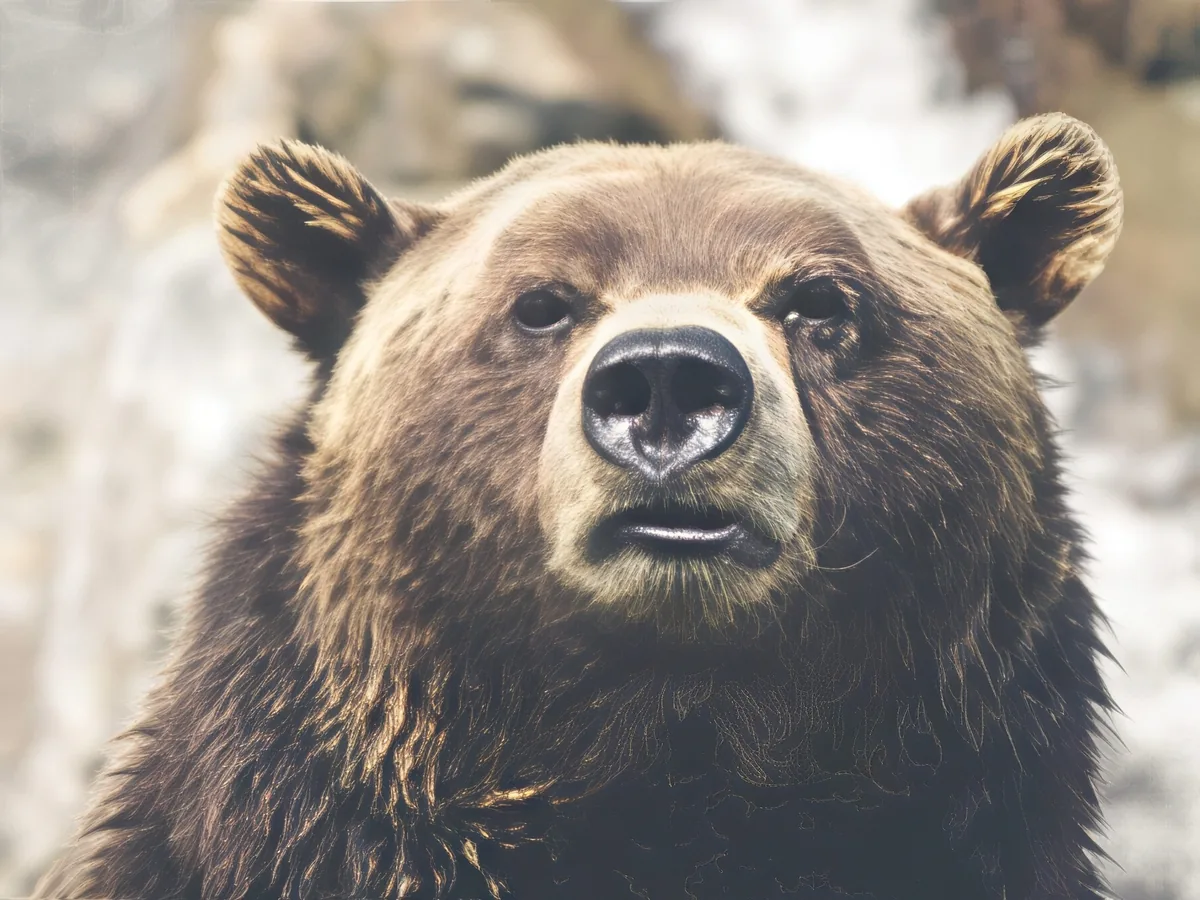
Soft close-up of a brown bear, before enhancementSoft close-up of a brown bear, after enhancement

Sharpen Image

Make a picture clearer when it is only slightly soft.

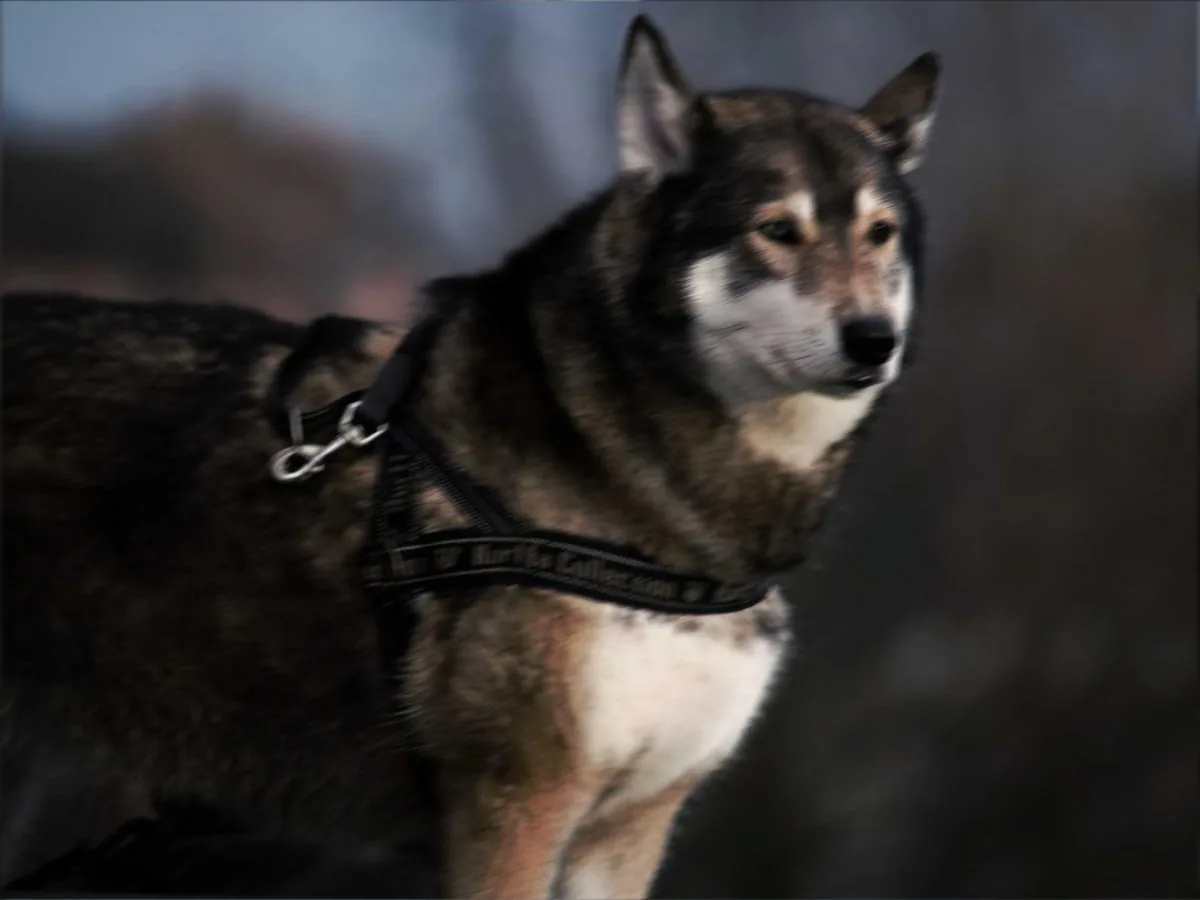
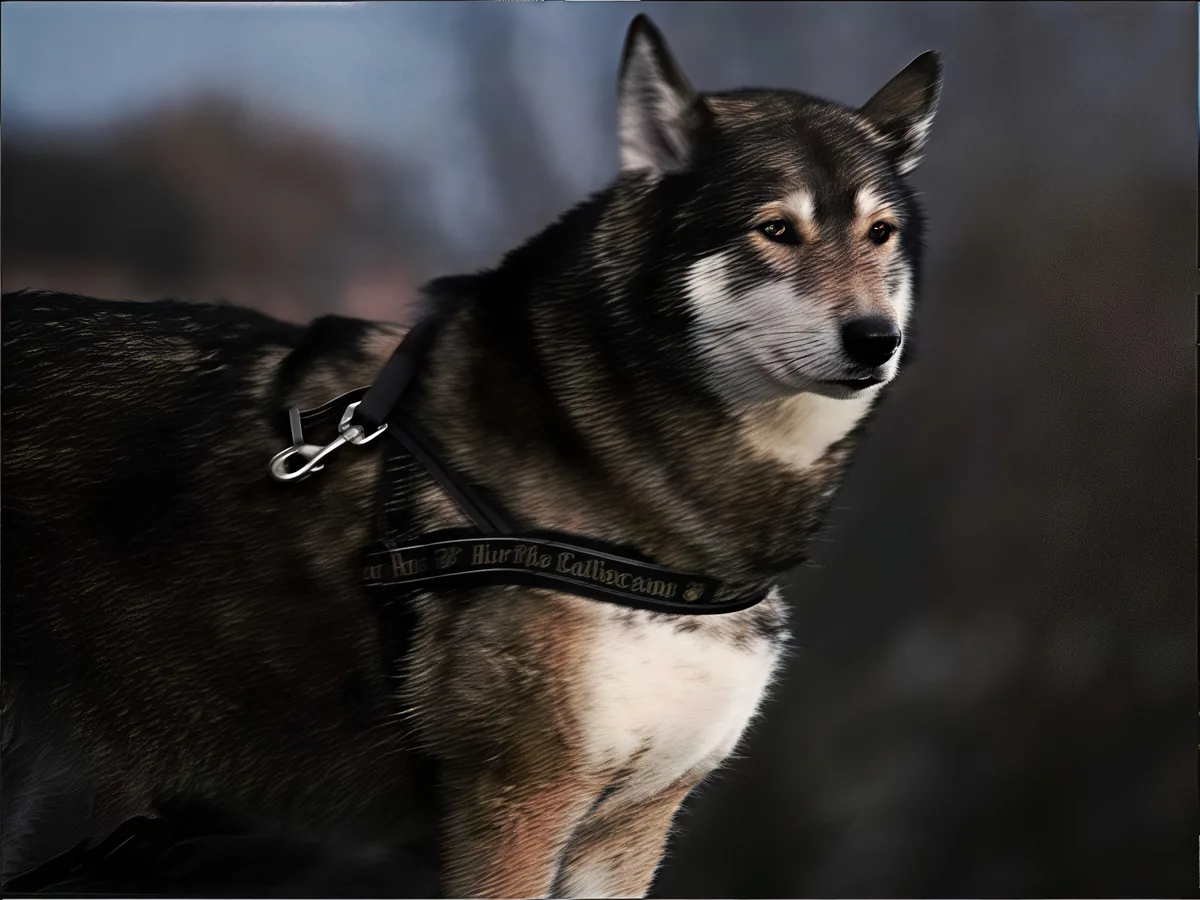
Shaky photo of a husky, before enhancementShaky photo of a husky, after enhancement

Unblur Image

Remove motion blur and out-of-focus blur from photos.

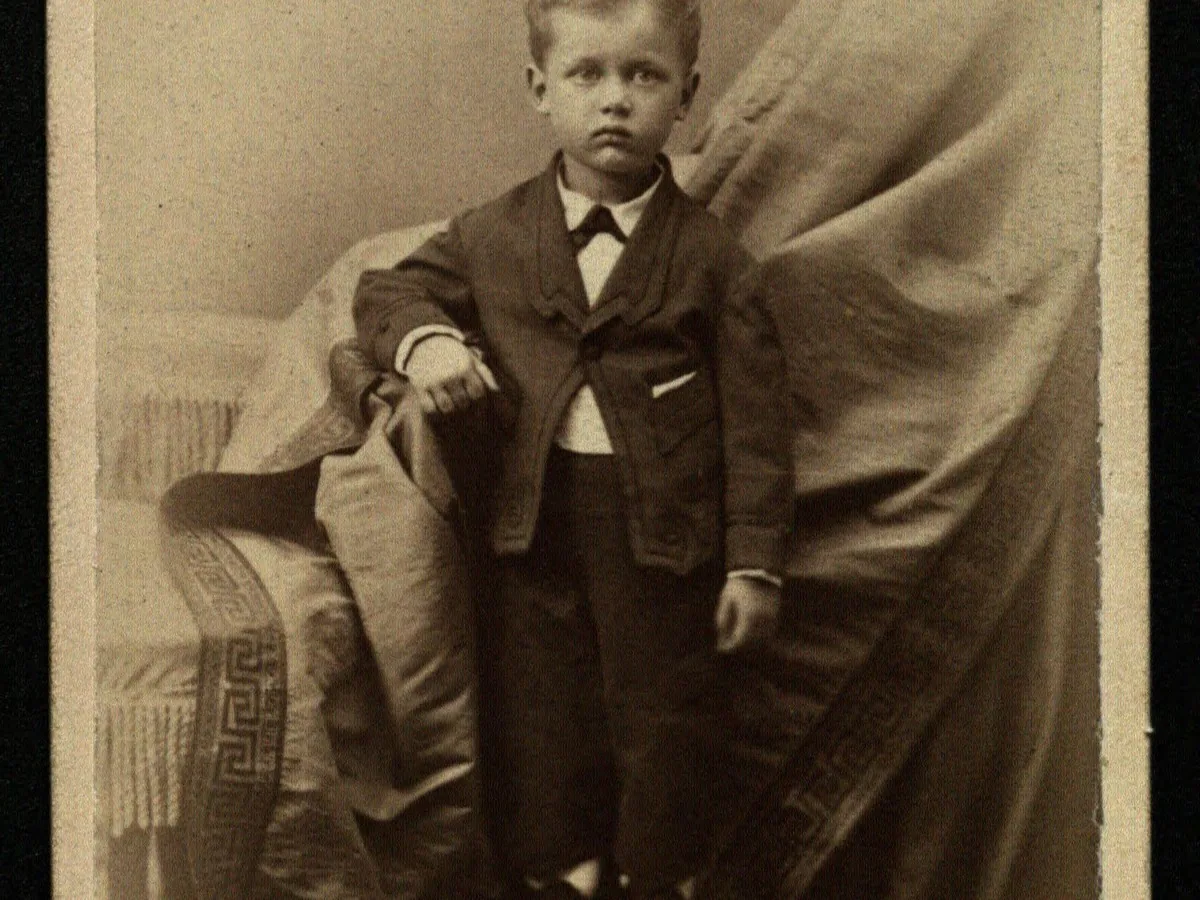
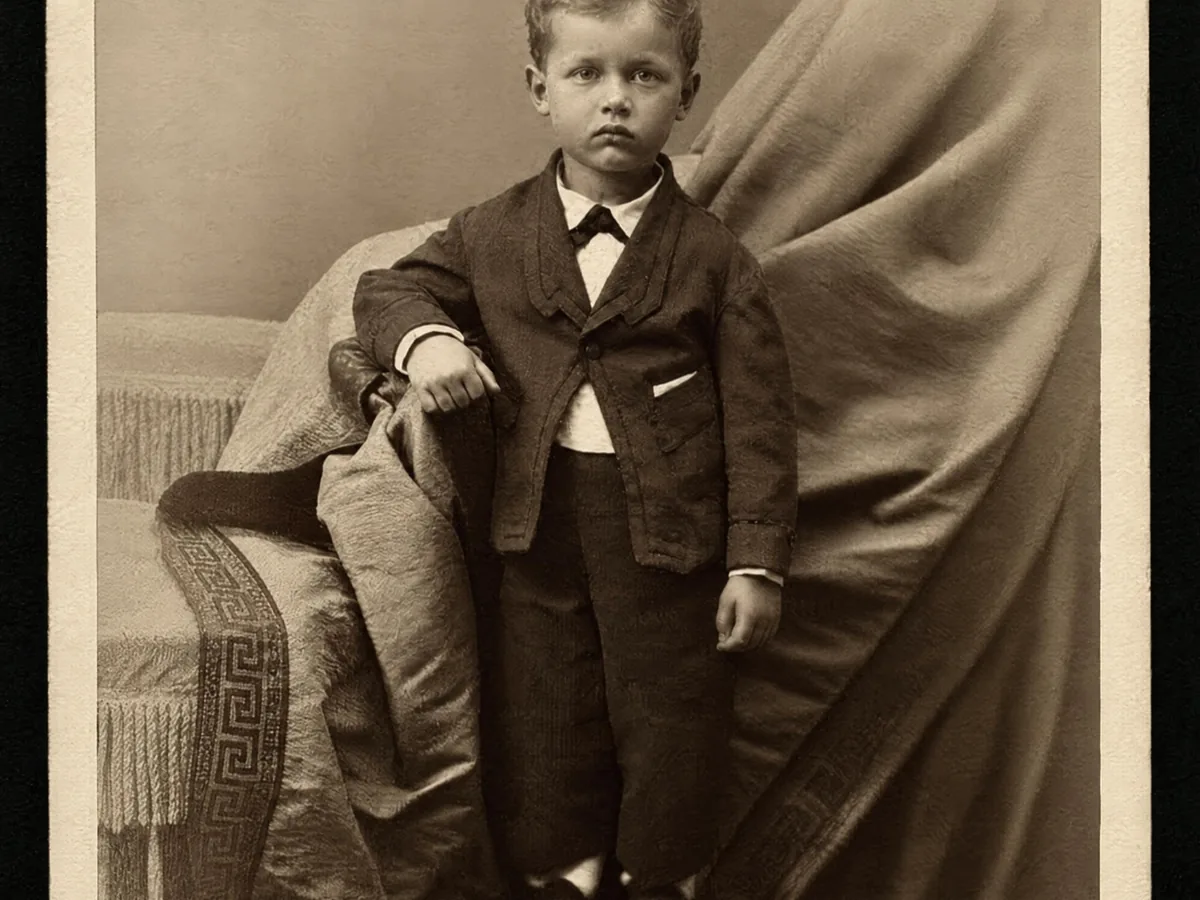
Faded cabinet card of a young boy, before enhancementFaded cabinet card of a young boy, after enhancement

Restore Old Photos

Clear scratches, dust and fading on scanned prints.

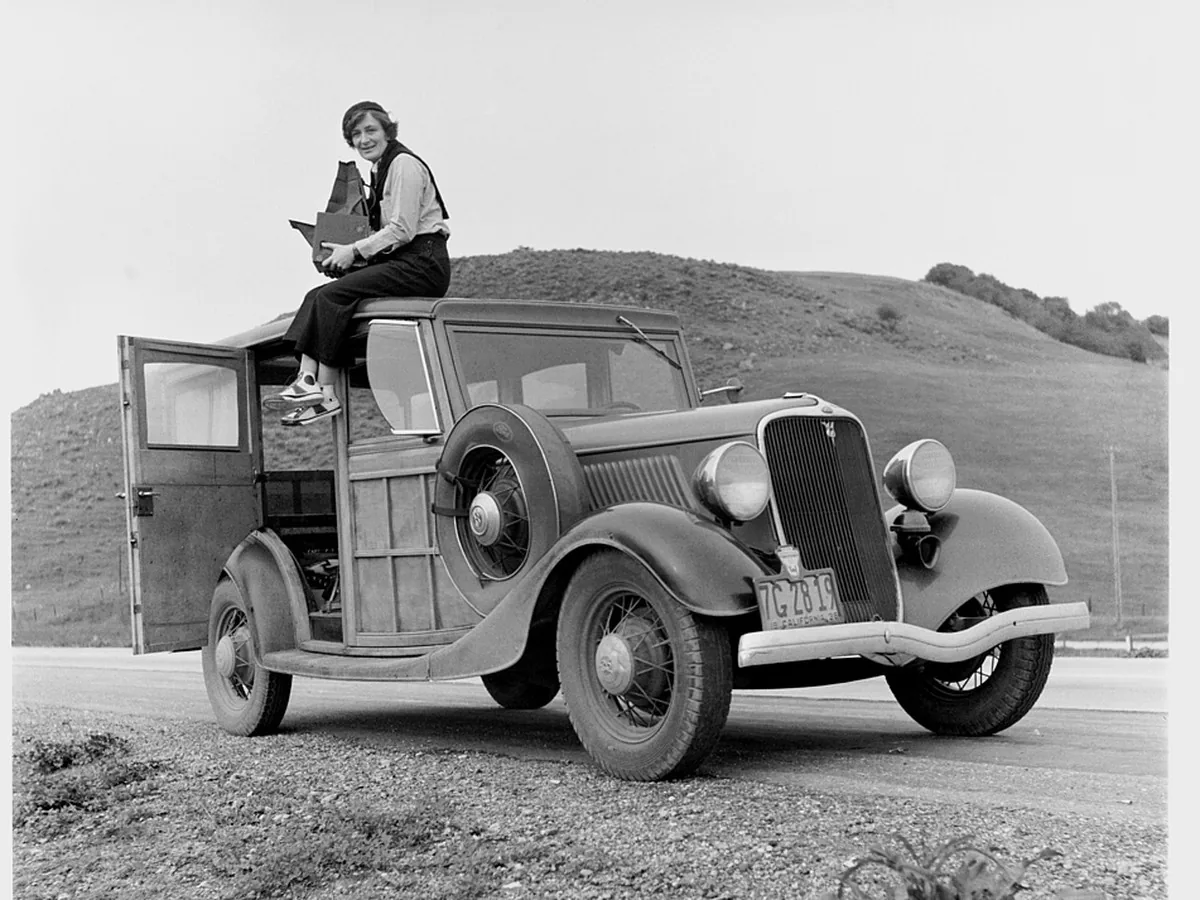
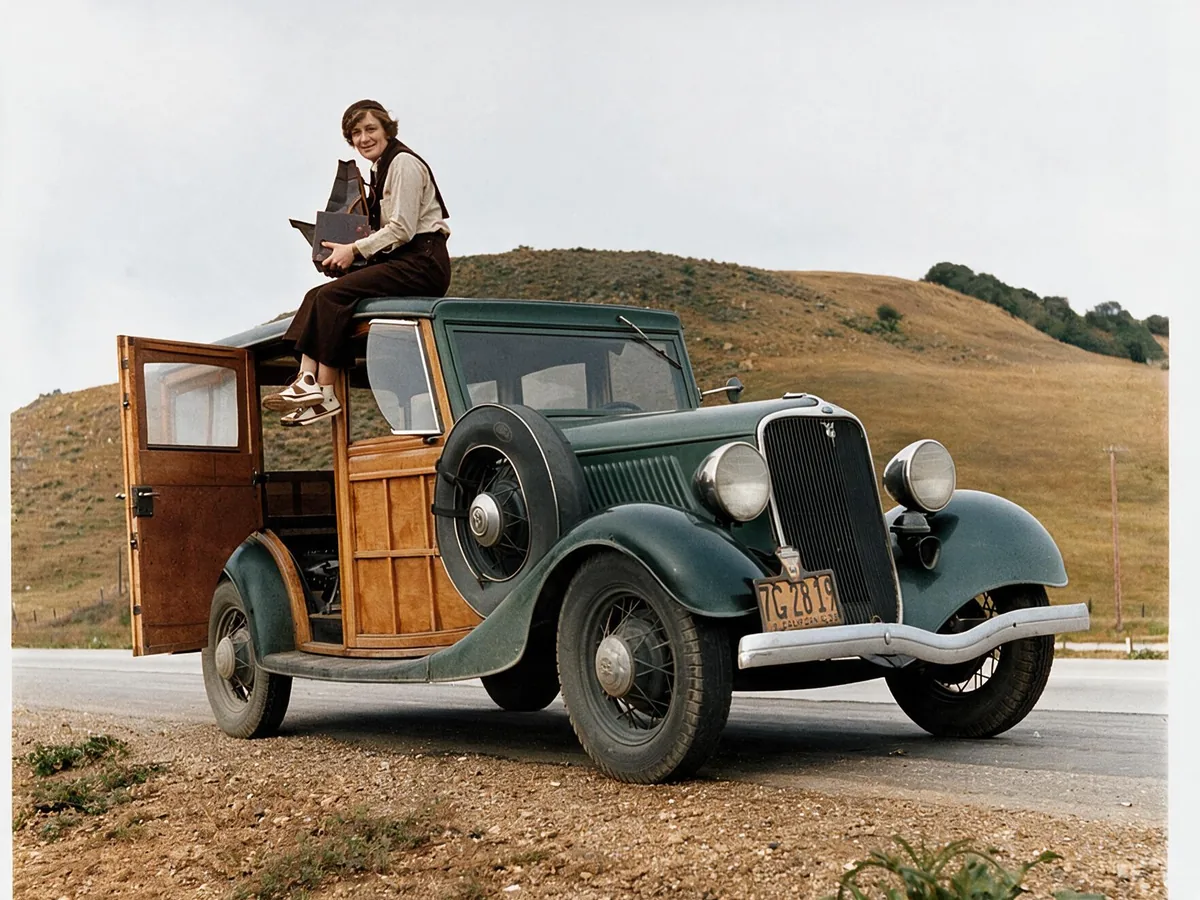
Black and white photo of a woman on a 1930s car, before enhancementBlack and white photo of a woman on a 1930s car, after enhancement

Colorize Photo

Turn black and white photos into natural color.

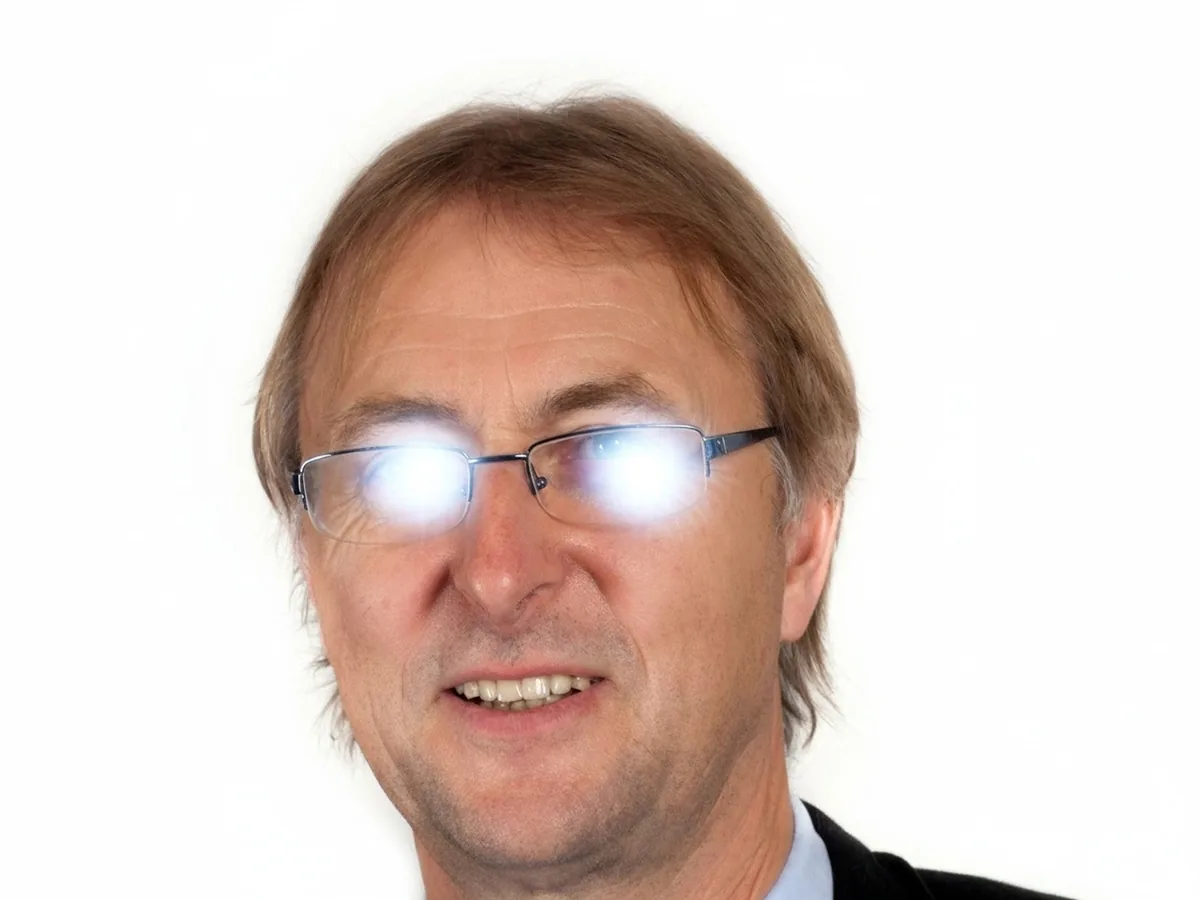
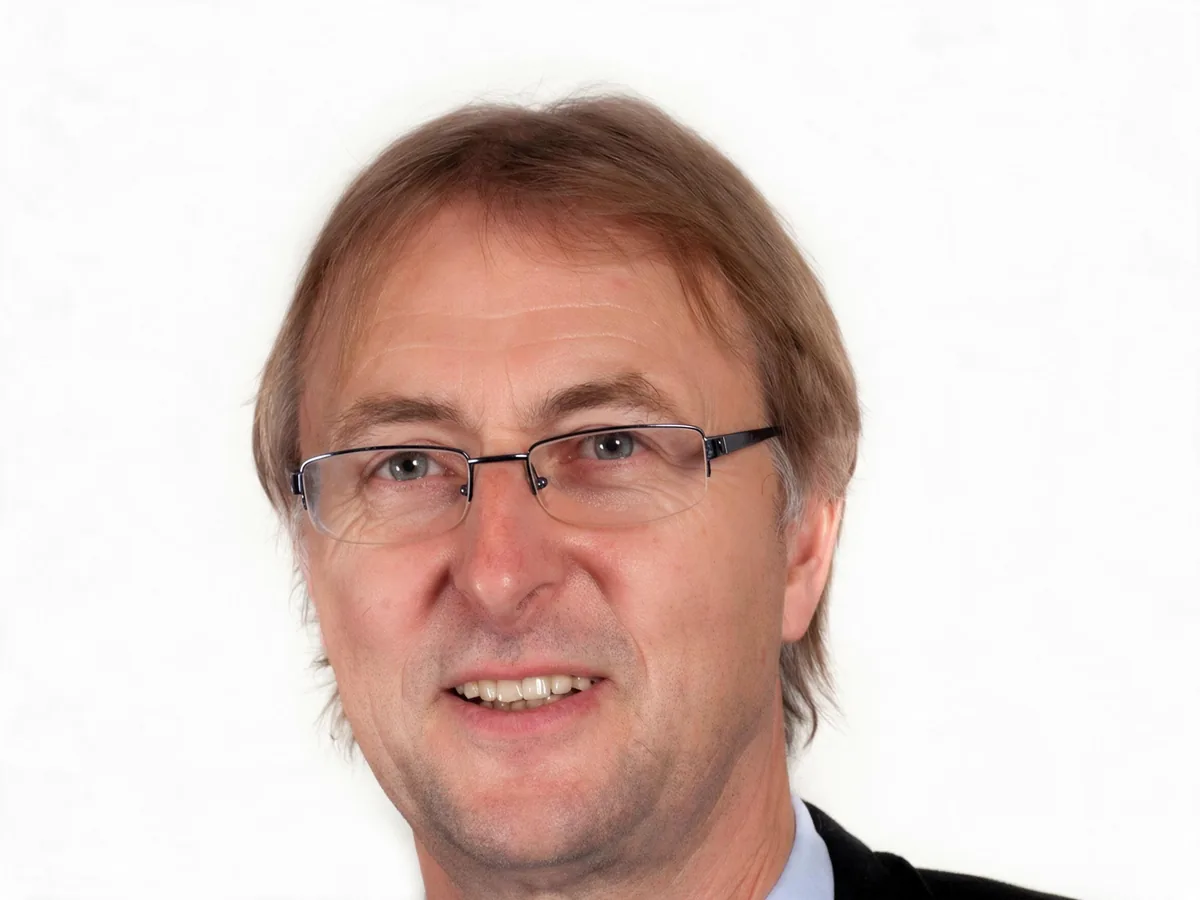
Portrait with flash glare on his eyeglasses, before enhancementPortrait with flash glare on his eyeglasses, after enhancement

Remove Glare

Clear glare on glasses, glass and flash spots.

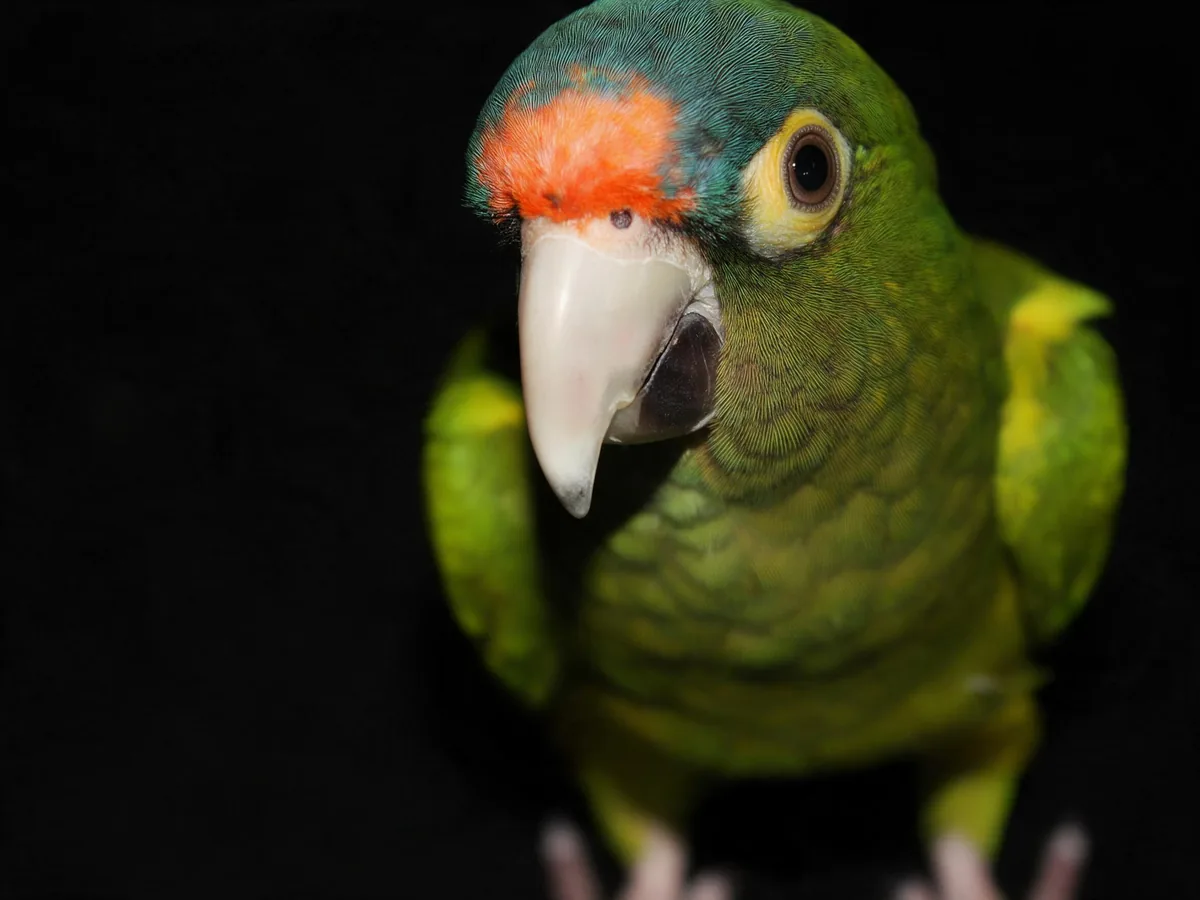
Close-up of a green parrot with an orange forehead, before enhancementClose-up of a green parrot with an orange forehead, after enhancement

Unpixelate Image

Turn blocky, pixelated photos smooth and sharp.

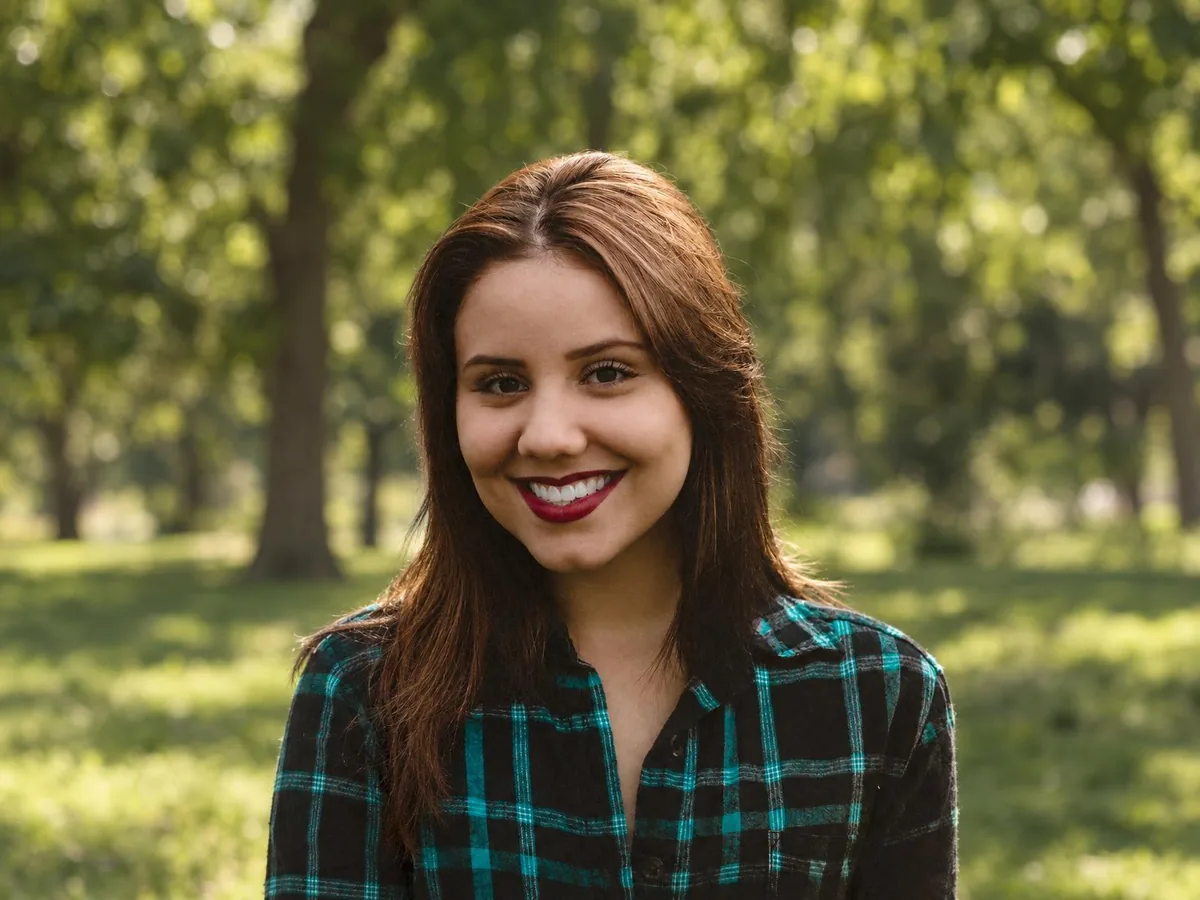
Smiling woman with red hair moved into a park, before enhancementSmiling woman with red hair moved into a park, after enhancement

Change Background Photo

Swap any photo background for a color, scene or image.

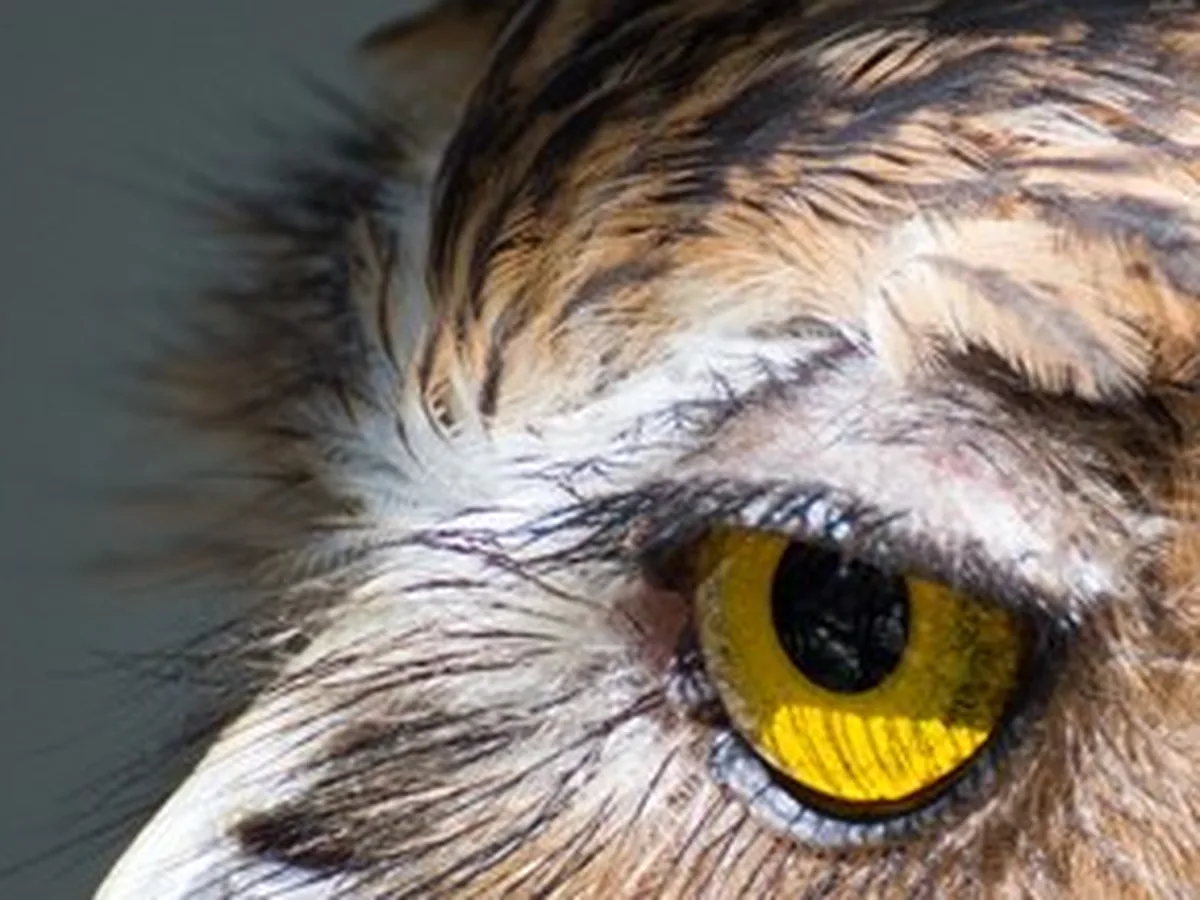
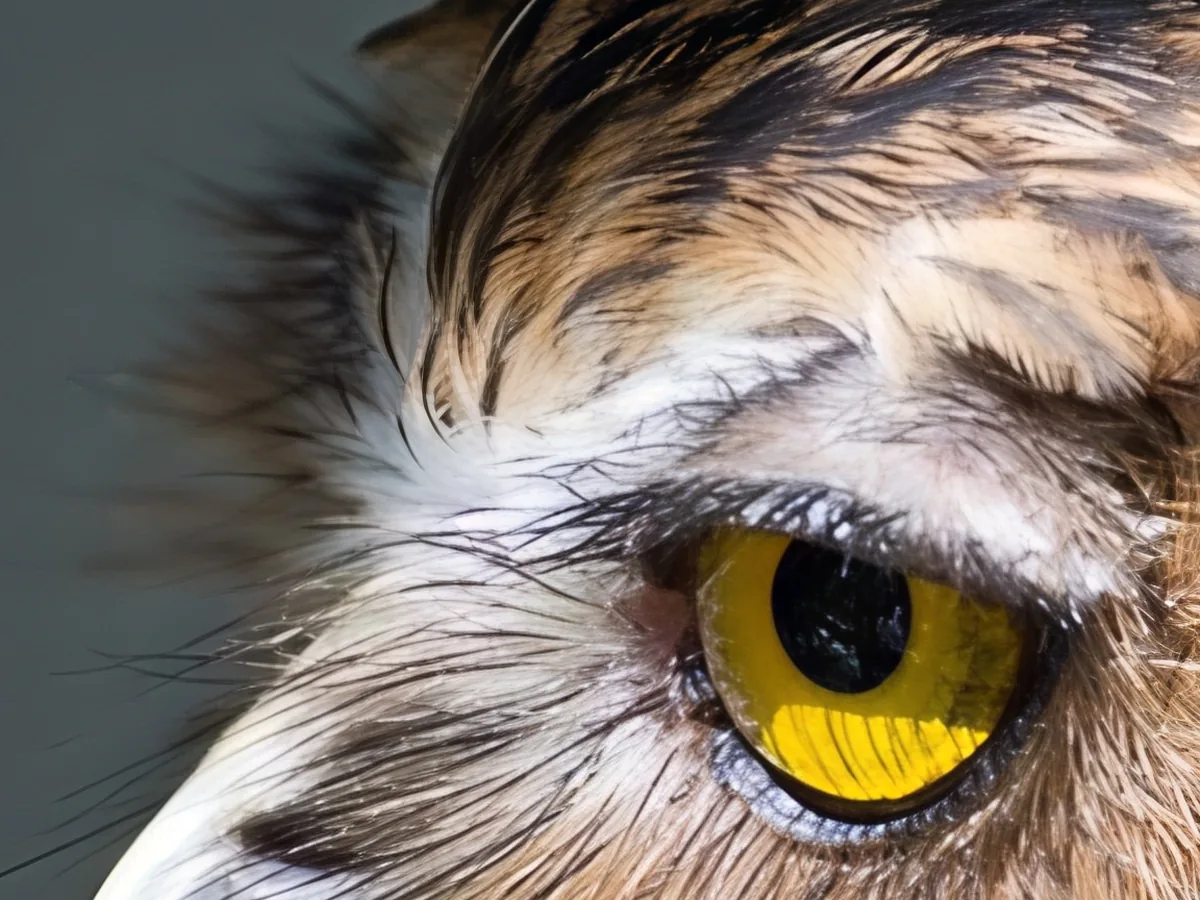
Close-up of an owl's yellow eye, before enhancementClose-up of an owl's yellow eye, after enhancement

Image Upscaler

Upscale photos to 2K, 4K or 8K with AI.

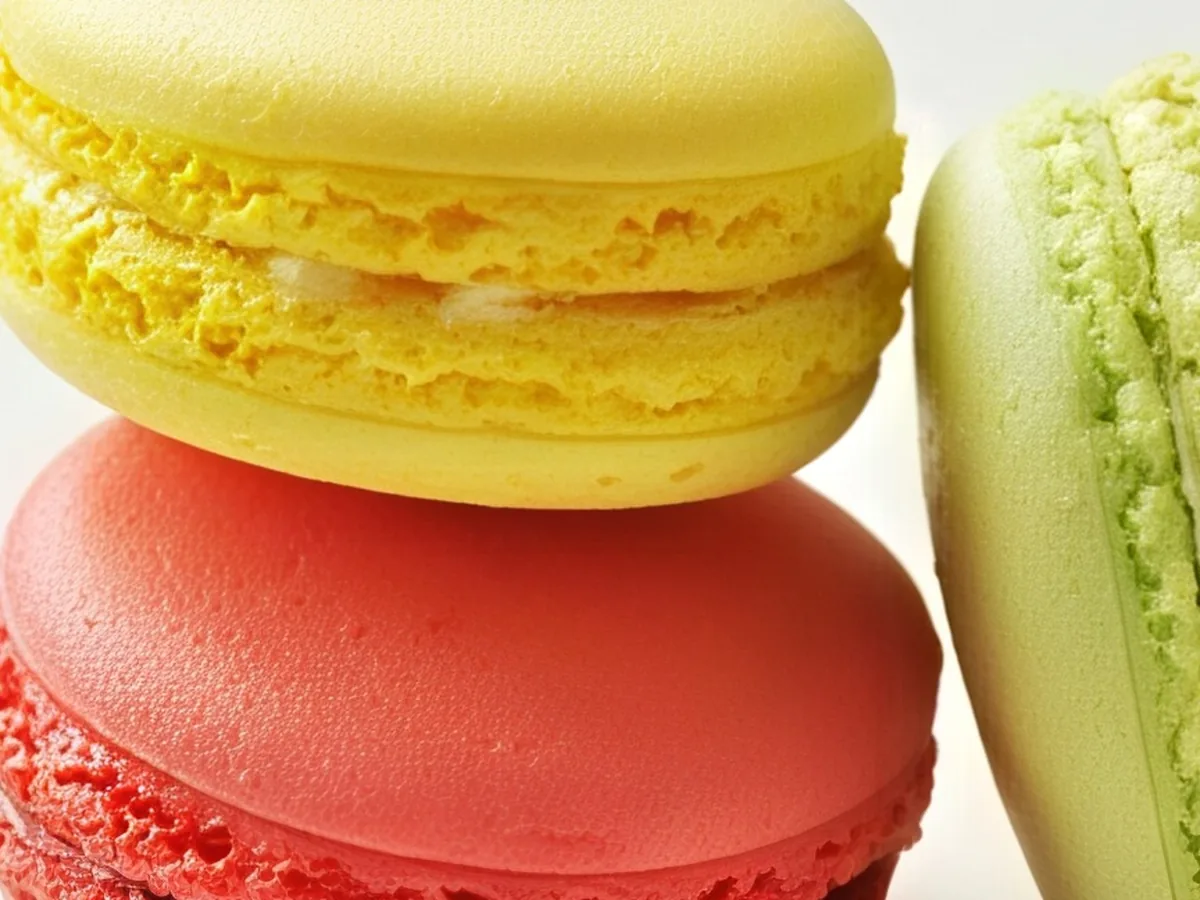
Close-up of yellow, pink and green macarons, before enhancementClose-up of yellow, pink and green macarons, after enhancement

HD Photo Converter

Turn low-res photos into 1080p, 2K or 4K.

Low-resolution photo of a pug in a blanket, before enhancementLow-resolution photo of a pug in a blanket, after enhancement

Photo Quality Enhancer

Upscale and clean up any photo in one go.