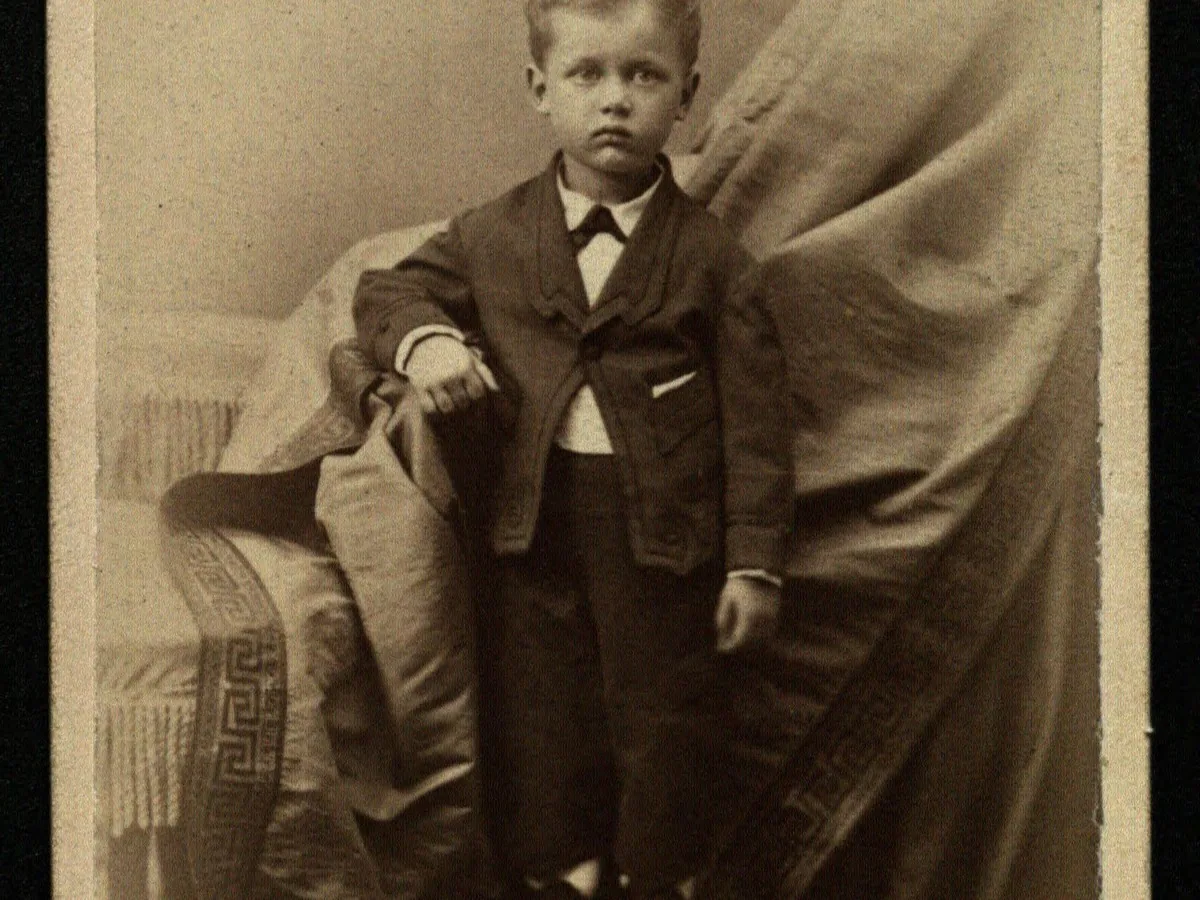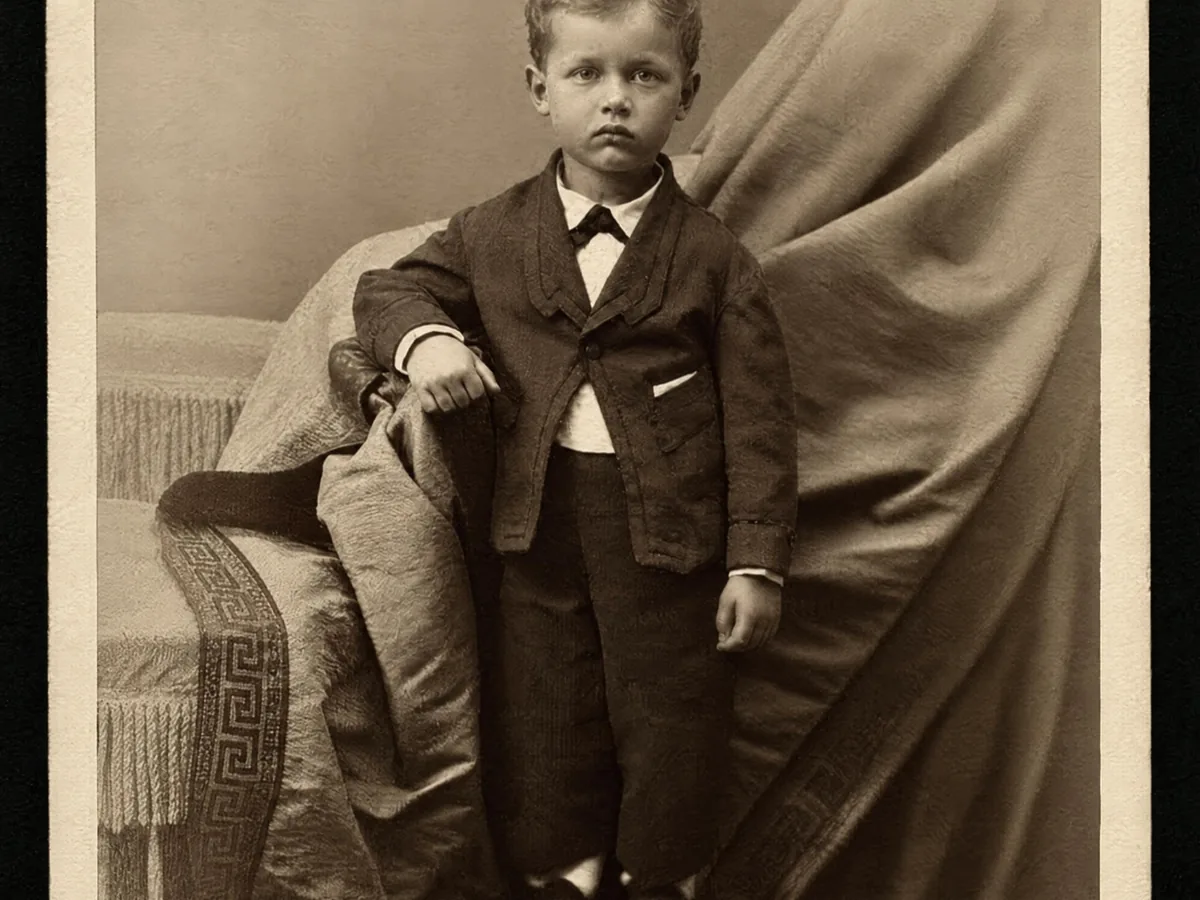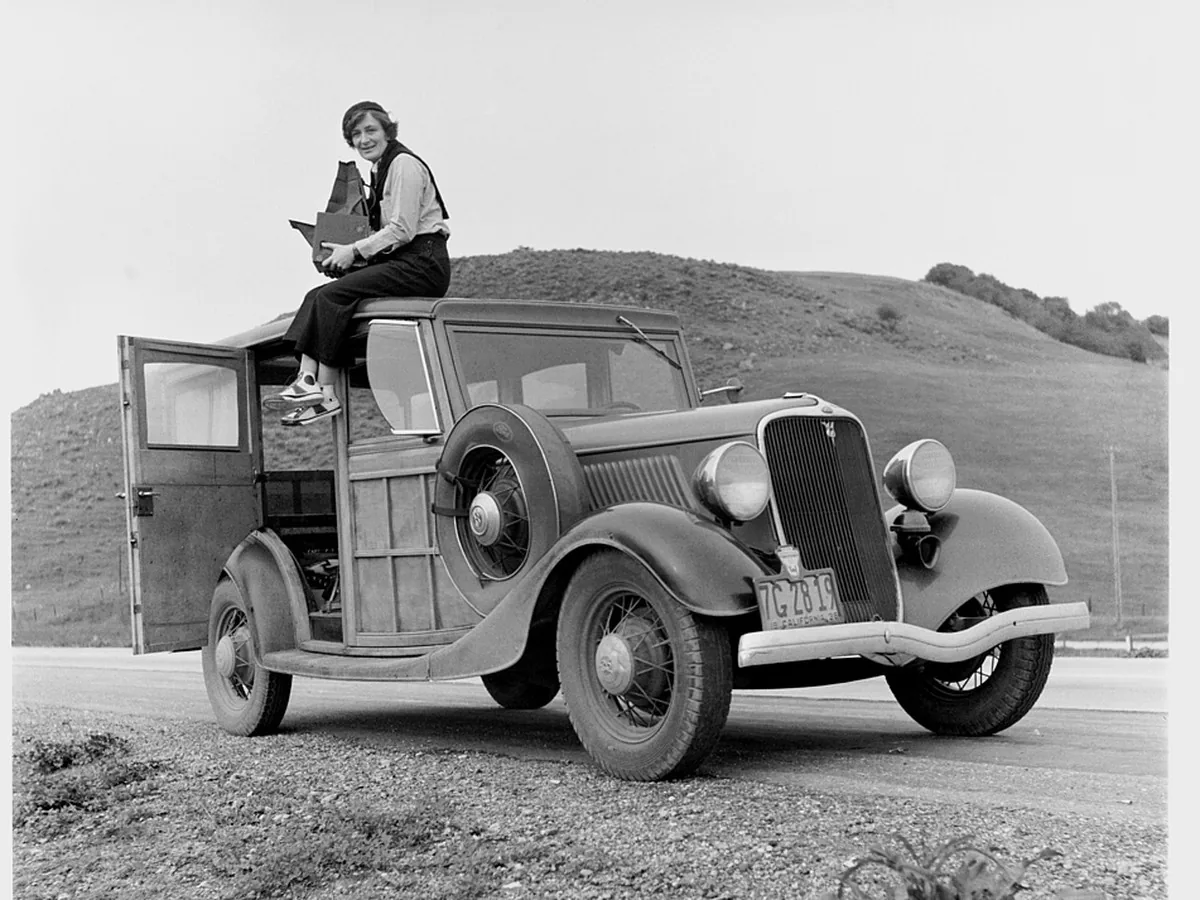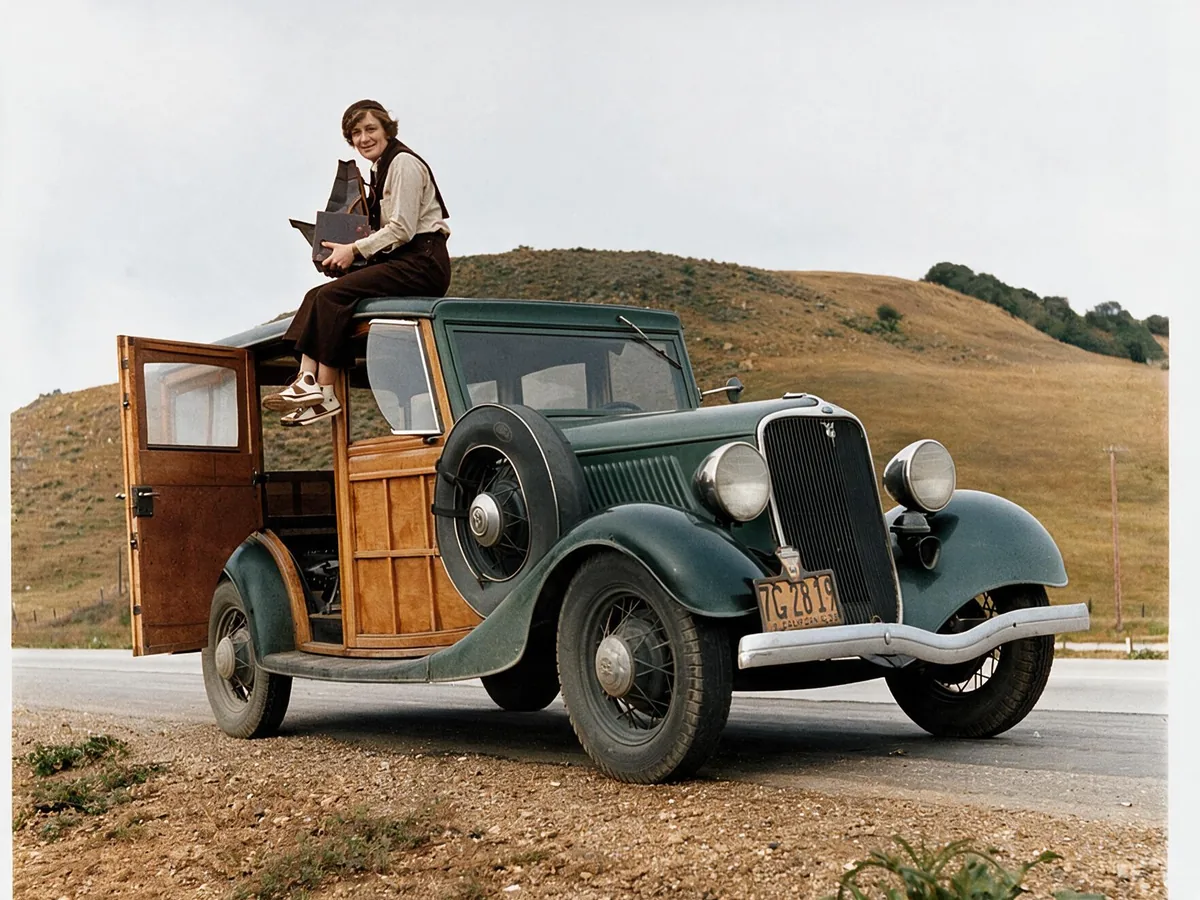
Standard for quick 4K upscales
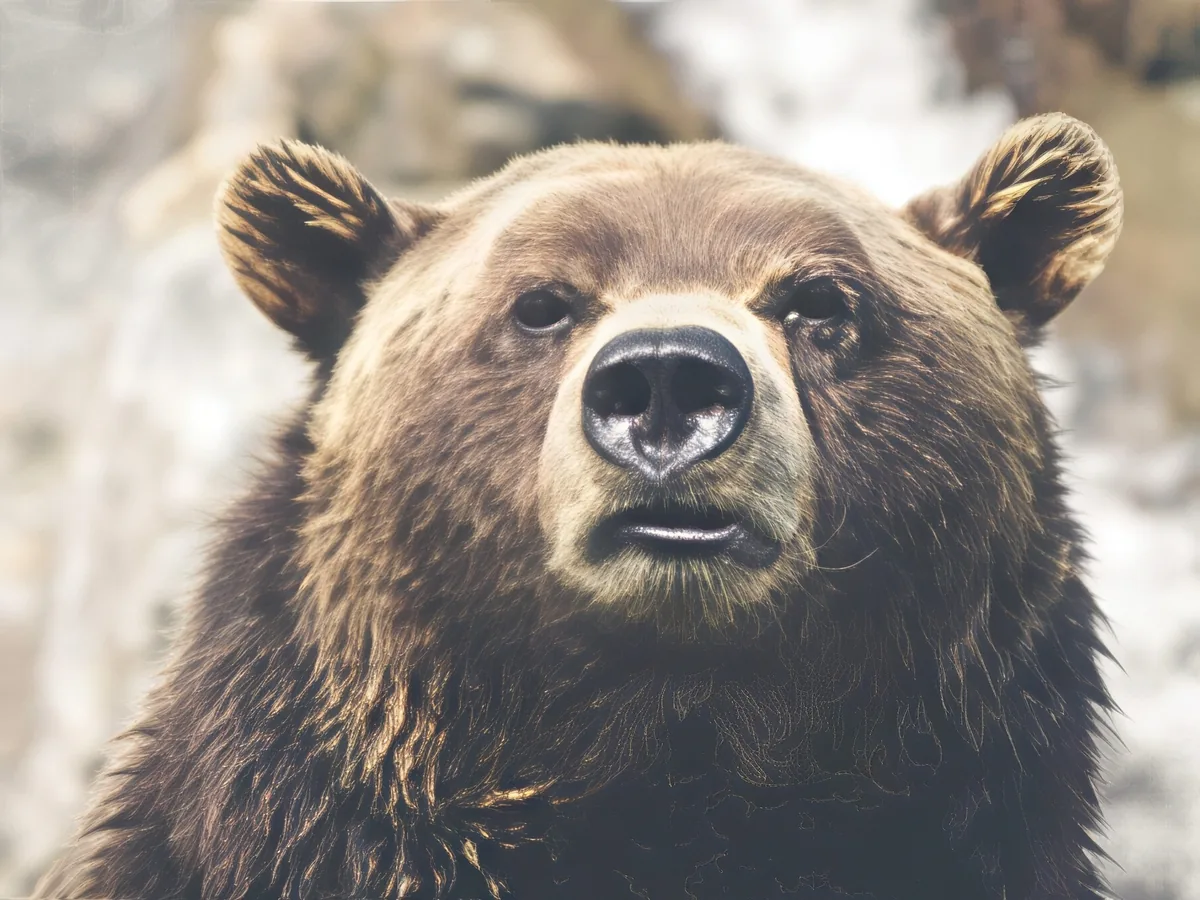
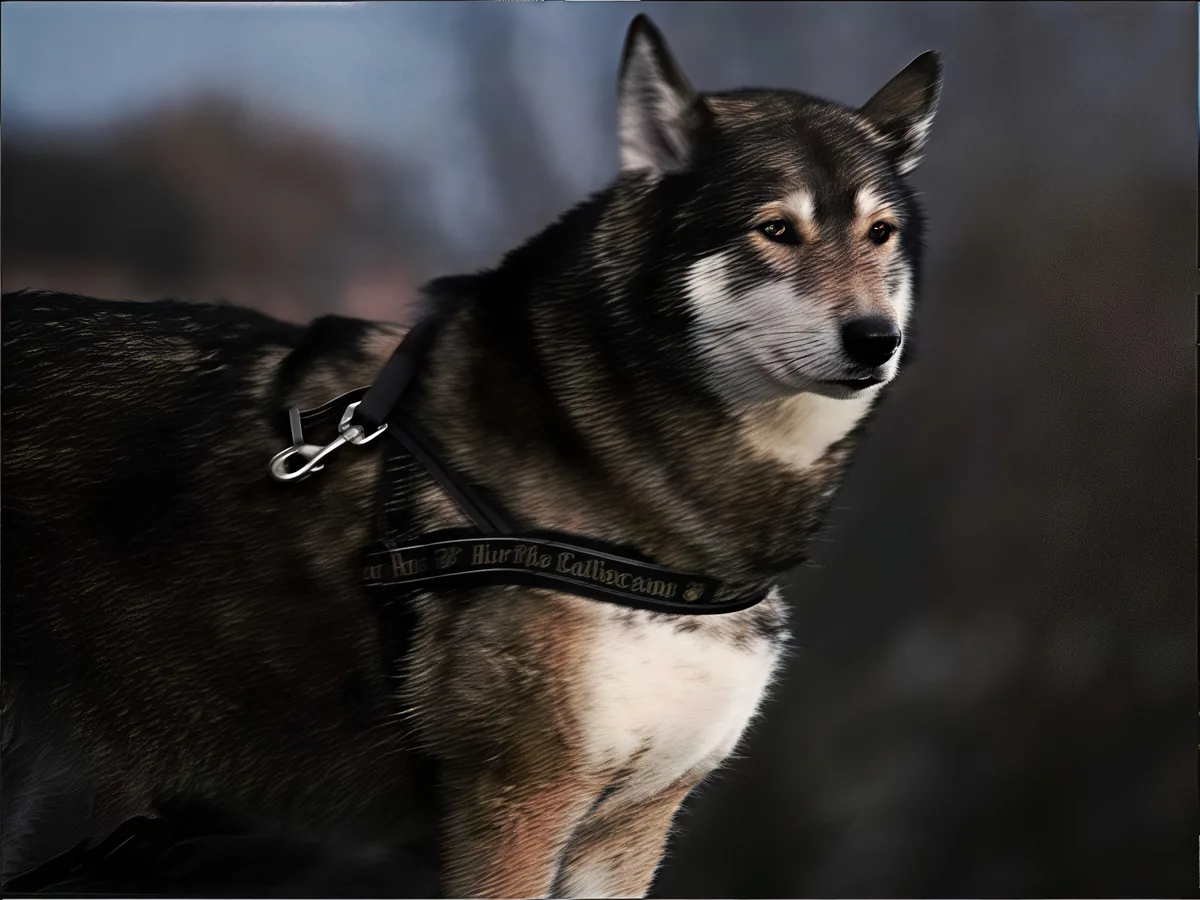
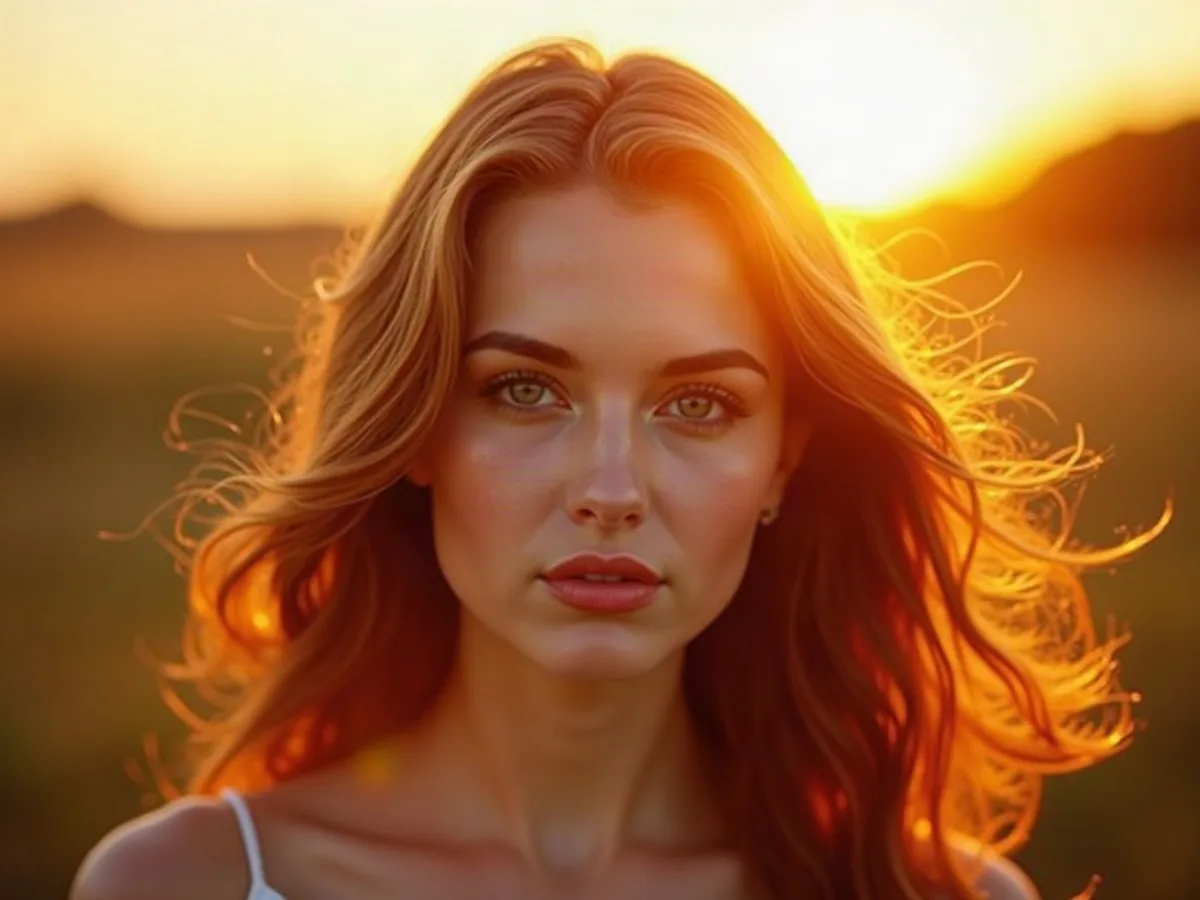
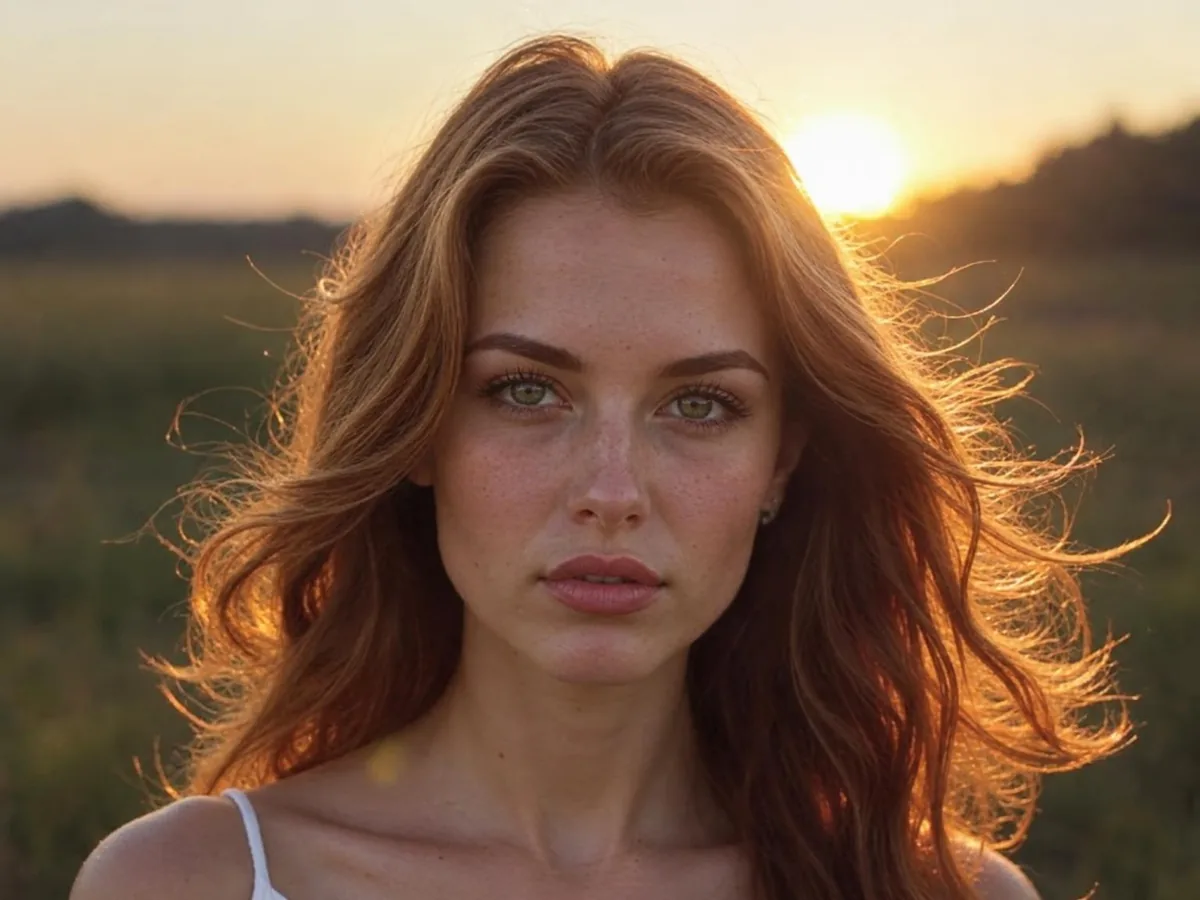
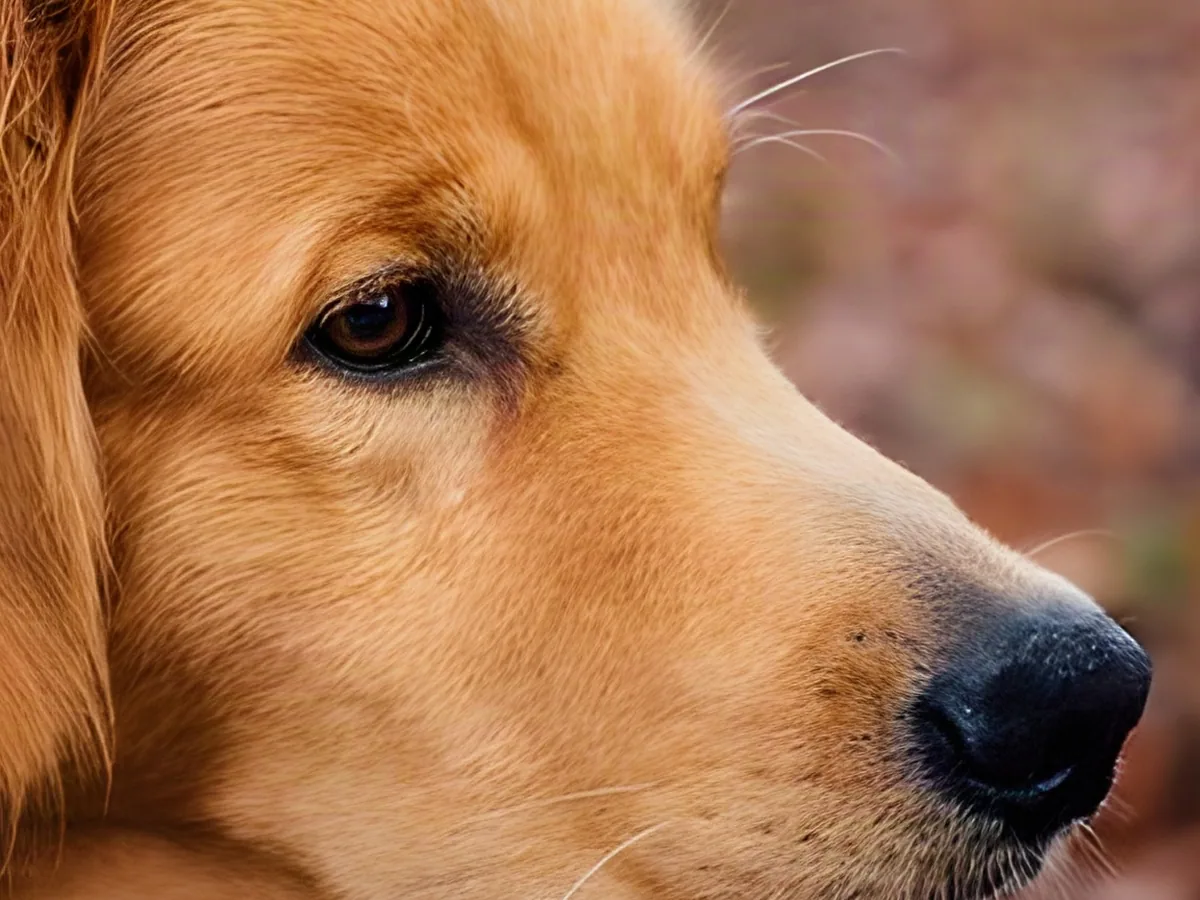
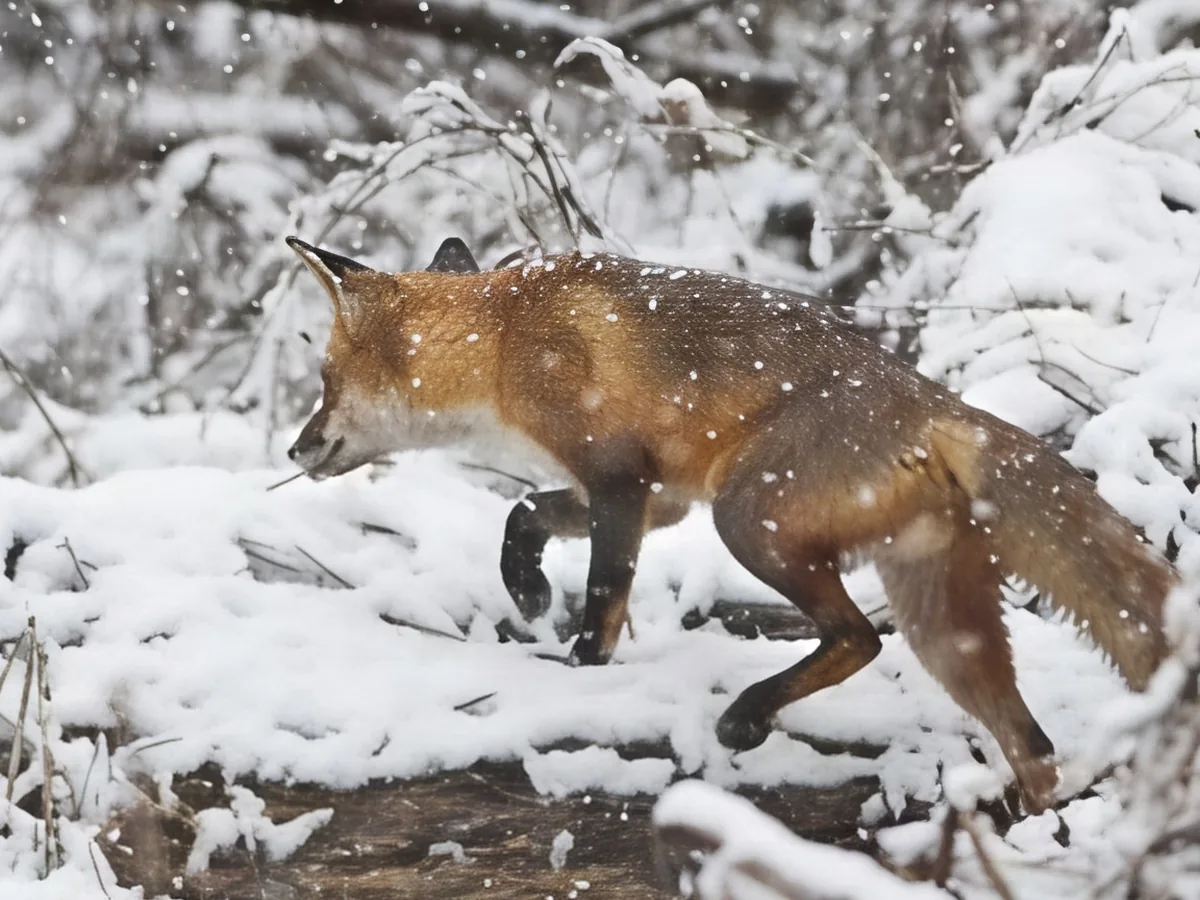
Enlarges the photo 4x, cleans it up and delivers it at the size you picked, up to 4K. Fur, eyelashes and whiskers come out smooth and clear, so it suits pets and everyday photos. Covered by the daily free credits.
This image upscaler makes a small photo big enough for a wallpaper, a print or a close crop. Pick 2K, 4K or 8K, and the AI rebuilds the detail instead of just stretching the pixels.
Upload Image
Drag and drop, or click to browse
Both versions upscale to 2K or 4K. Pro rebuilds finer detail and is the one that goes to 8K.
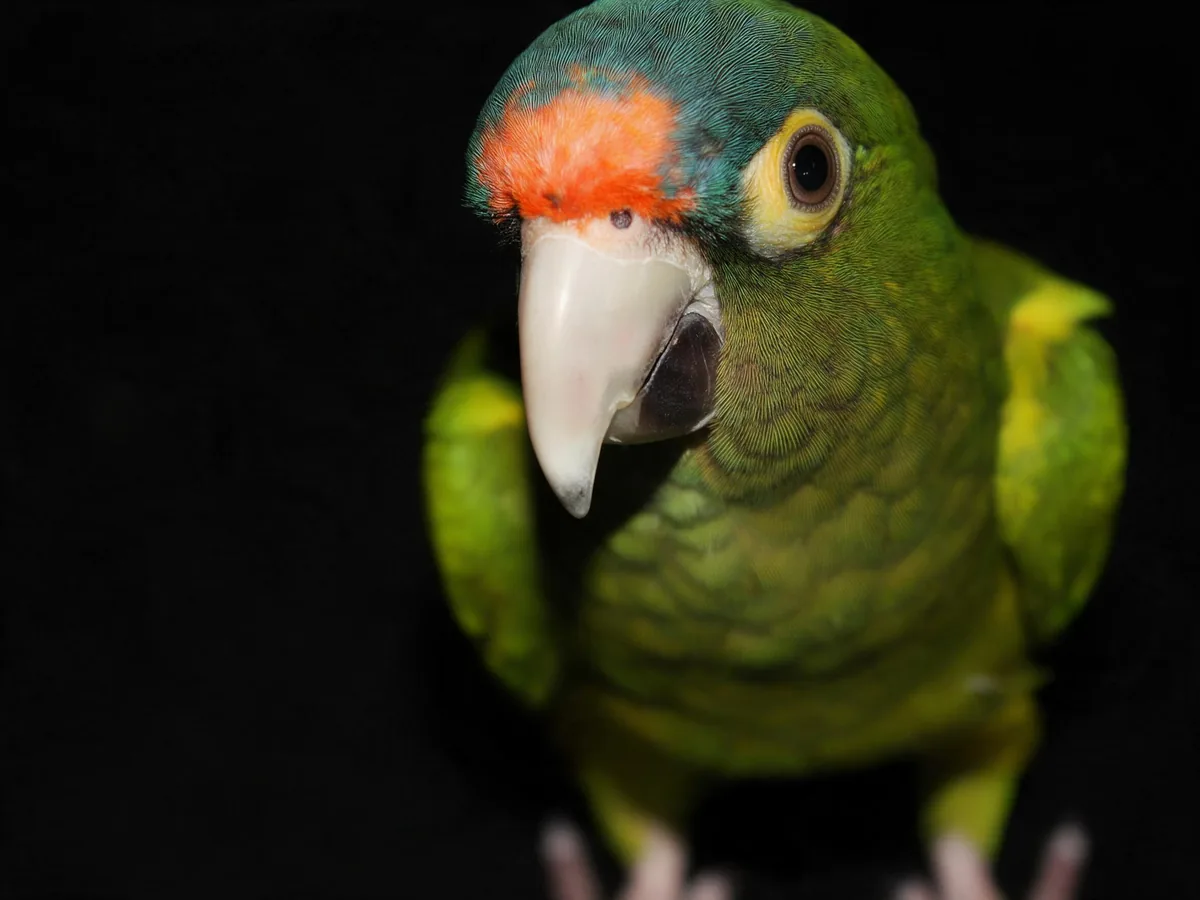
Enlarges the photo 4x, cleans it up and delivers it at the size you picked, up to 4K. Fur, eyelashes and whiskers come out smooth and clear, so it suits pets and everyday photos. Covered by the daily free credits.
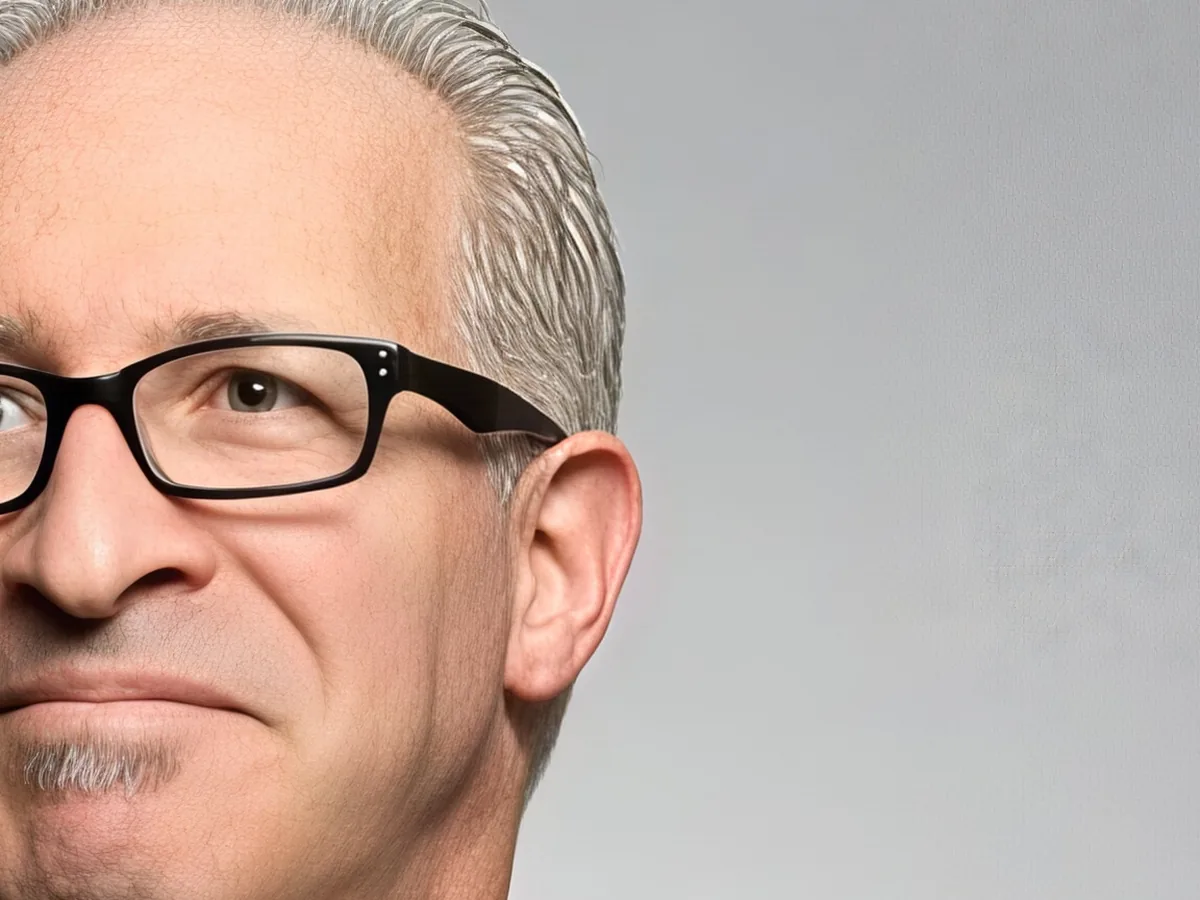
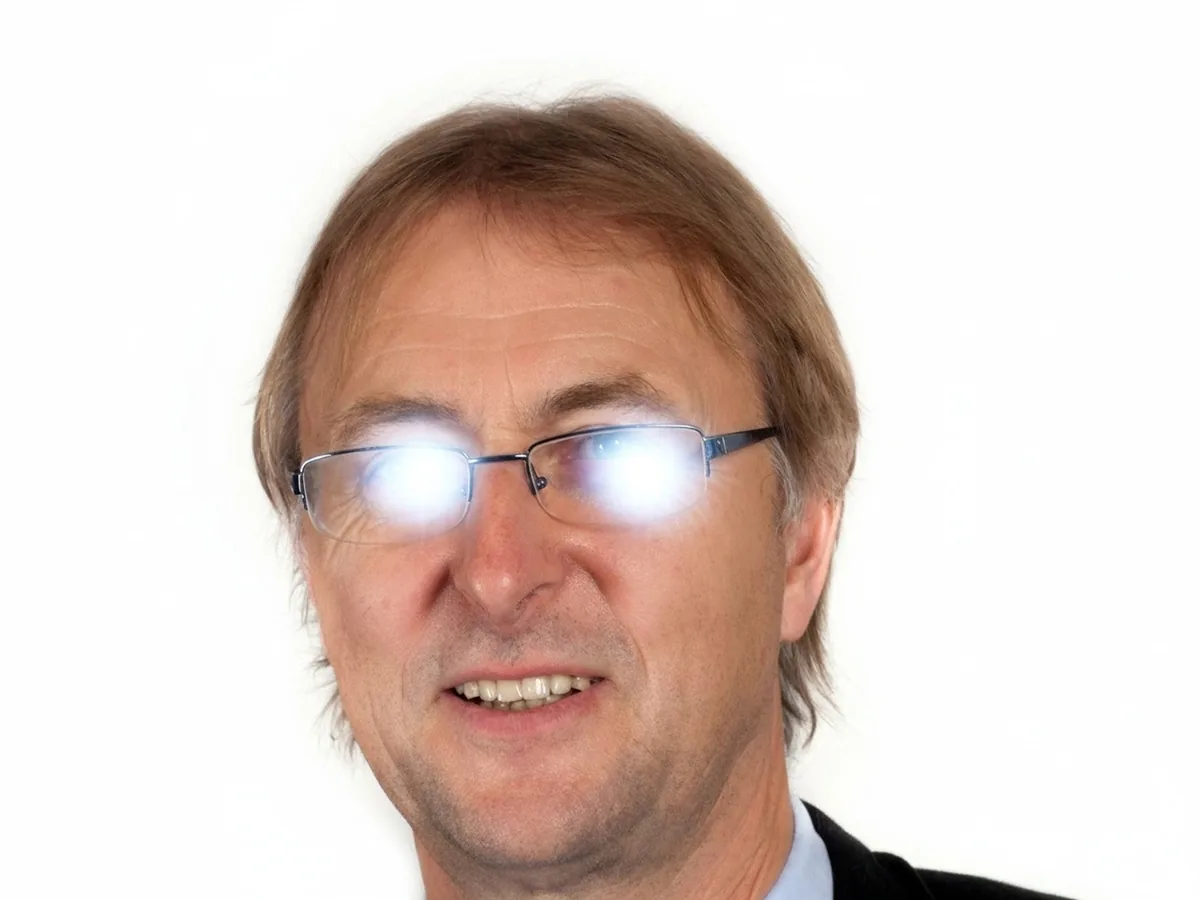
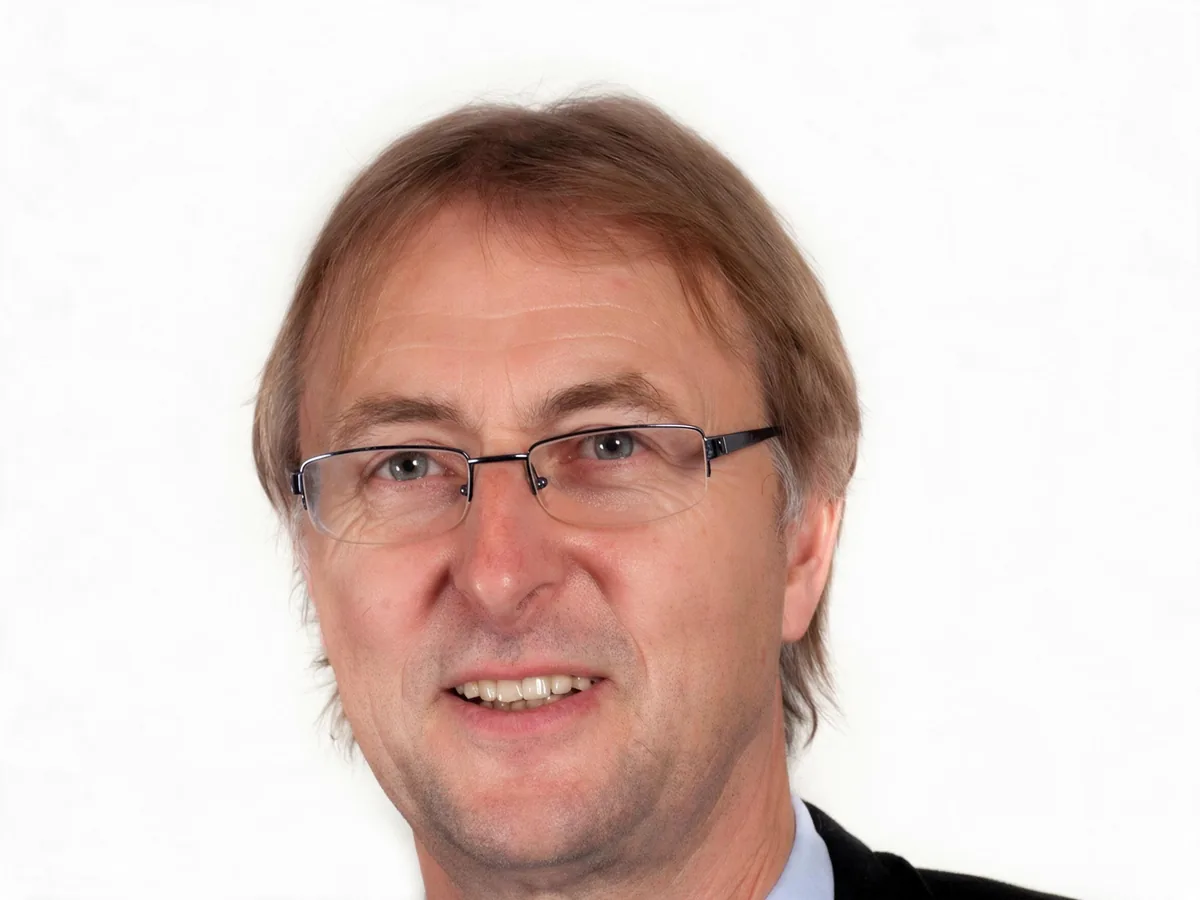
Rebuilds texture like hair, skin and foliage: 10 credits at 2K or 4K, 20 credits at 8K. Pick it for portraits, where glasses, eyebrows and stubble come back crisp.
Pick the smallest size that fits where the photo is going. Bigger files take longer to load and share.
| Size | Pixels (16:9) | Prints sharp up to | Good for |
|---|---|---|---|
| 2K | 2560 × 1440 | 8.5 in (22 cm) wide | Social posts, websites, laptop wallpapers |
| 4K | 3840 × 2160 | 12.8 in (33 cm) wide | 4K screens and TVs, phone wallpapers, prints up to A4 |
| 8K | 7680 × 4320 | 25.6 in (65 cm) wide | Posters and large prints, heavy cropping |
Pixels shown for a 16:9 photo; other shapes keep their own proportions. A square photo at 8K stops at about 6900 × 6900.
Three steps. A run usually takes under a minute.
JPG, PNG or WebP up to 20 MB. A thumbnail saved from the web or a photo from an old phone works too.
Choose 2K, 4K or 8K, then Standard or Pro. You see the exact pixel size before you start.
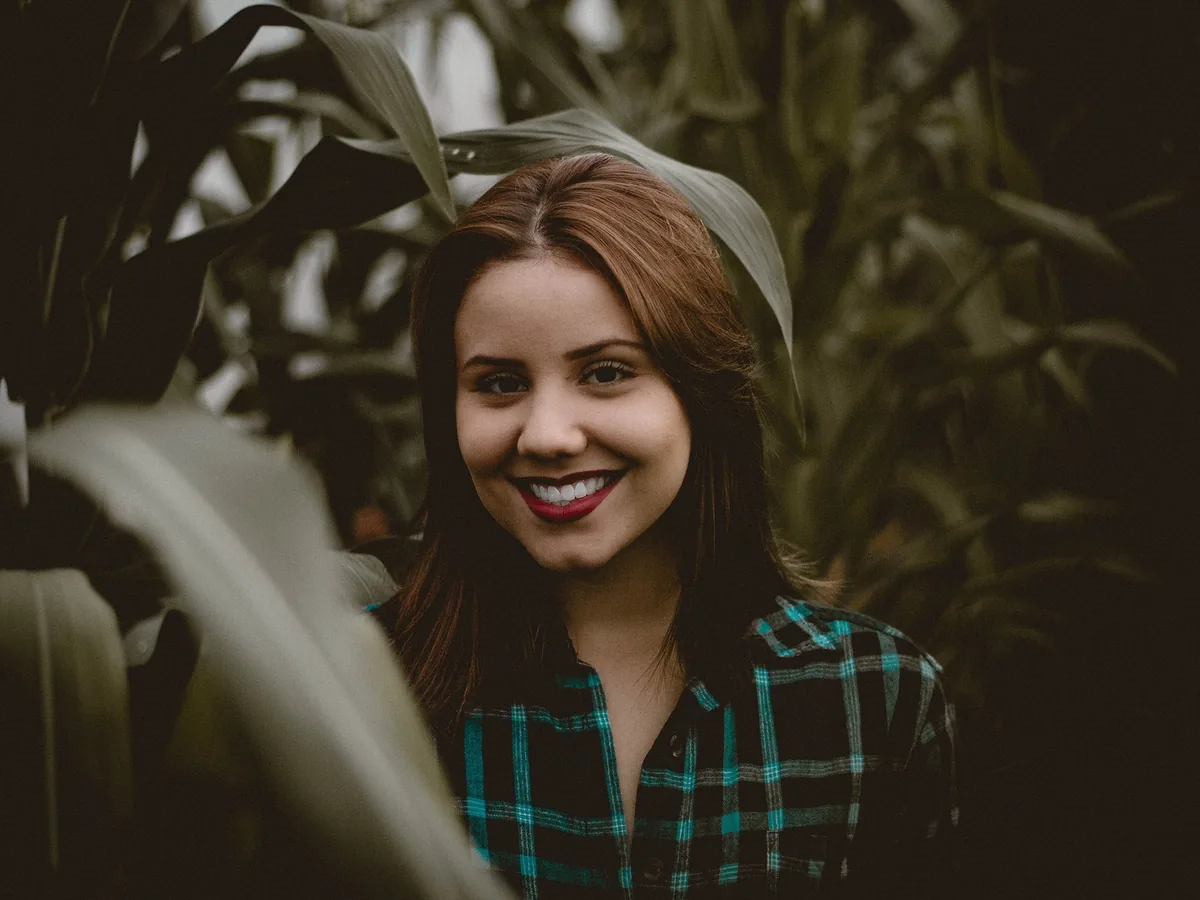
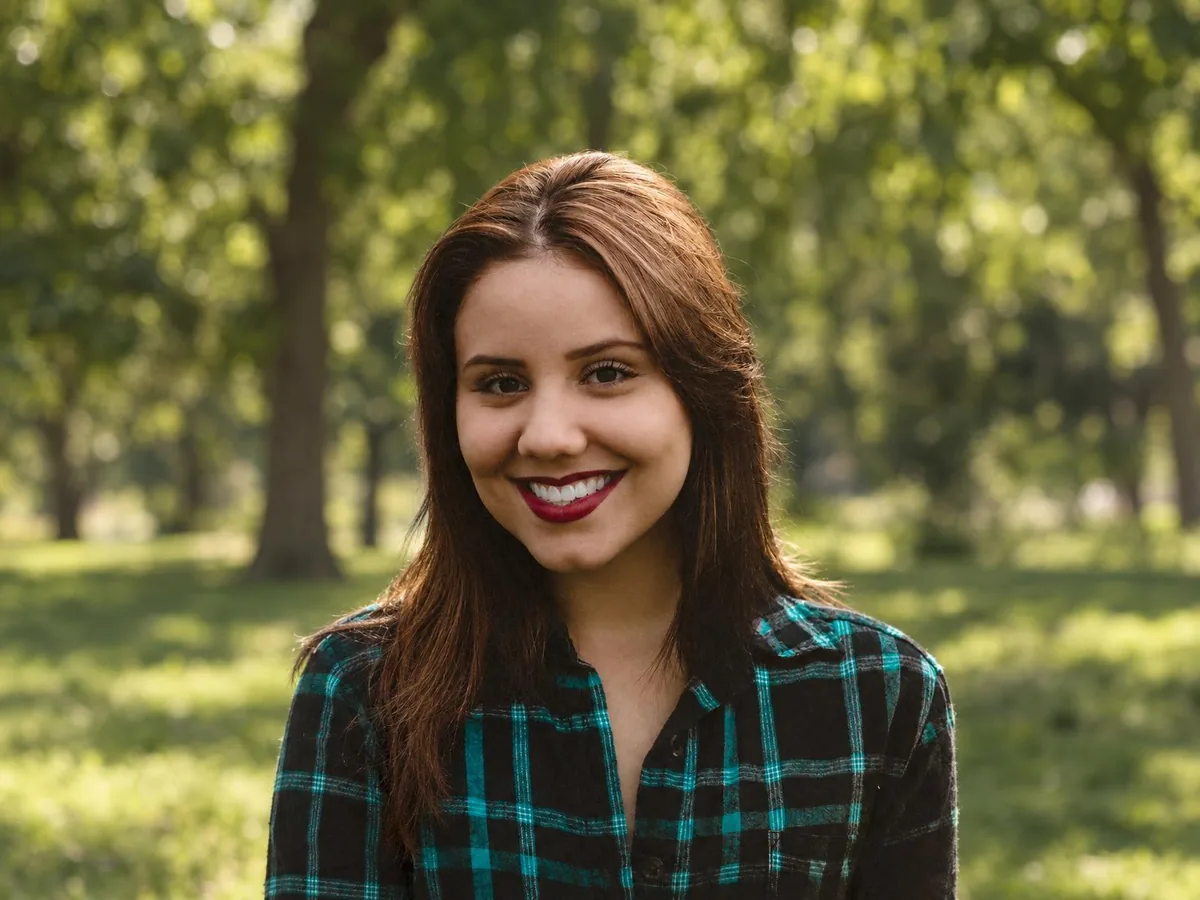
Slide across faces and edges to compare with the original, then save the full-size file.
Photos that are sharp but small upscale best. Here is what to expect.
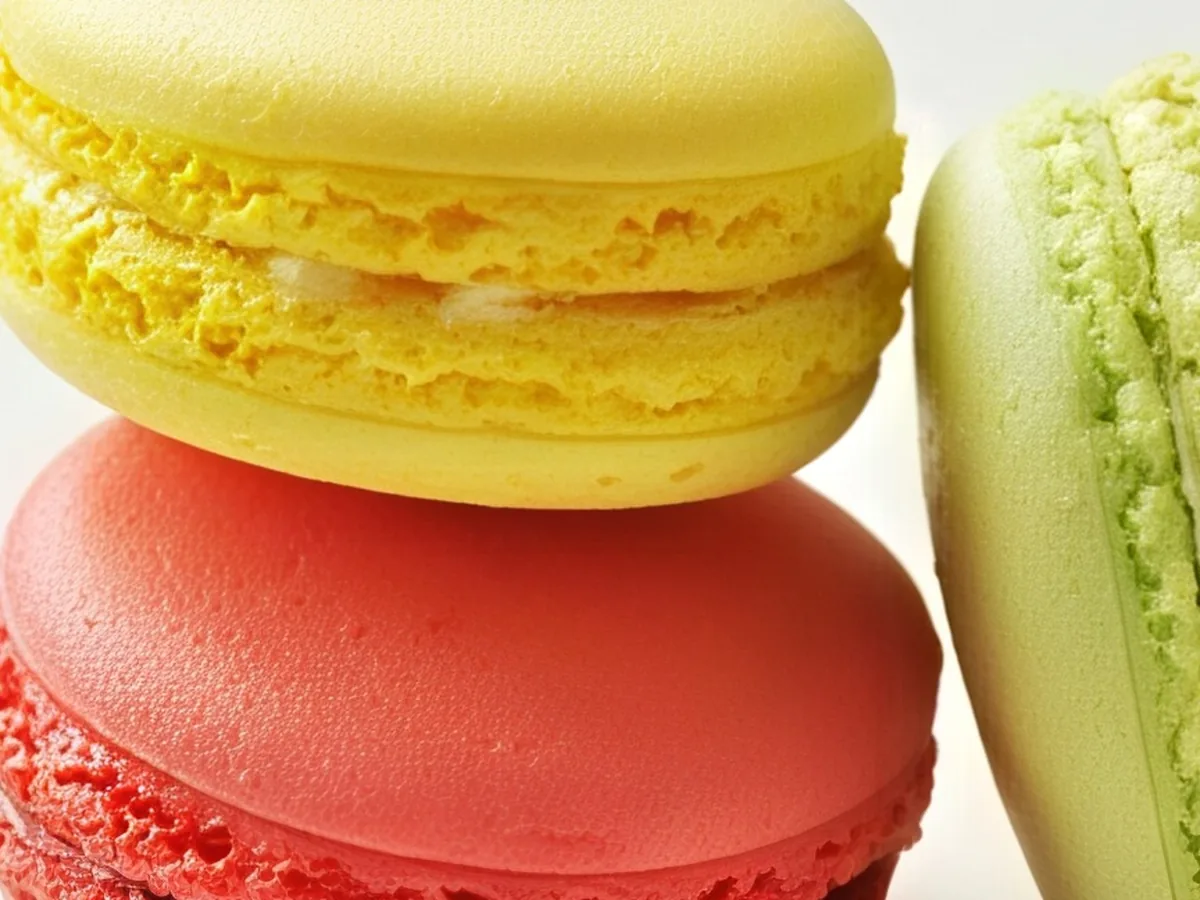
Web images, thumbnails and photos from older phones come out at 4K with natural fur, foliage, skin and edges. Colors and framing don't change.
The AI rebuilds detail up to 4x the original size. A photo that needs more than that, like a 300-pixel thumbnail at 4K, gets the rest by plain resizing, so fine detail stays soft. The panel tells you when that happens.
Upscaling adds pixels and detail to a sharp but small photo. A photo blurred by motion or missed focus needs an unblur tool first. Faces only a few pixels wide may come back looking like someone else.
Any editor can enlarge a photo, but it only spreads the existing pixels out. These steps get the cleanest result.
Without AI, an enlarged photo looks smooth but soft. When you need real detail at 4K or 8K, this tool rebuilds it in under a minute.
A small photo is often just a preview. The original in your camera roll, a cloud backup or the sender's phone may already be big enough.
In Photoshop, use Image Size with Preserve Details 2.0. In GIMP, use Scale Image with NoHalo. Enlarge in one step rather than several small ones.
A light Unsharp Mask (radius 1 px) brings back some edge contrast. Too much creates bright halos around edges.
A sharp print needs about 300 pixels per inch. Divide the pixel width by 300 to see how many inches wide it prints well.
Yes. Standard costs 2 credits and is covered by the free credits everyone gets each day, no account needed. Pro uses 10 purchased credits, or 20 at 8K. Downloads have no watermark.
Yes, with Pro. Photos with a long side of at least 1920 pixels reach 8K entirely through the AI. Smaller photos get the last step by plain resizing, so 4K is usually the better choice for them.
No. The result is a new, larger file with more detail, saved as a high-quality JPG. Your original photo isn't changed.
At 300 pixels per inch, a 4K result prints sharp up to about 13 inches (33 cm) on its long side, and an 8K result up to about 25 inches (65 cm). Posters seen from farther away can go bigger.
The photo enhancer fixes blur, noise and low quality without asking for a size. The image upscaler lets you pick the exact output size, from 2K up to 8K.
Your photos are used only to create your result, never to train AI. Without an account they're deleted after 24 hours. Signed in, they're kept in History for 72 hours, or until you delete them if you turn on "Keep my tasks". Details are in our Privacy Policy.