
Clarpex

Change Background Photo: Swap Any Background in Seconds

Upload a photo and pick a new background: a clean color, a ready-made scene, a few words of your own, or another photo. The person, pet or product stays exactly as it is, with soft edges and shadows that fit the new place.

Woman with a phone and a necklace, moved onto a city street, after enhancementWoman with a phone and a necklace, moved onto a city street, before enhancement
No photo? Try one:

Upload Image

Drag and drop, or click to browse

  • Free daily credits
  • No sign-up
  • Private

What you can do when you change a photo background

Drag the slider on each pair. The subject keeps its size, position and every detail; only what's behind it changes.

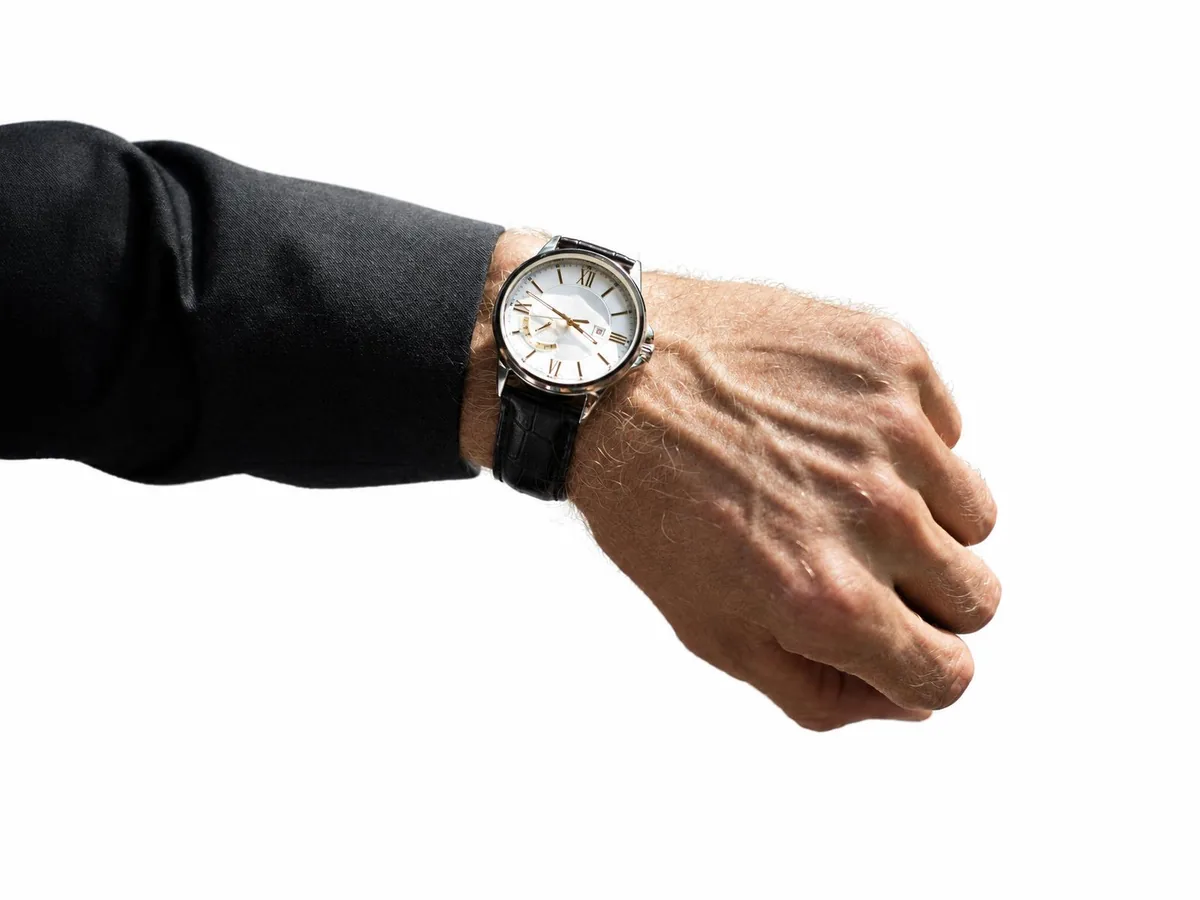
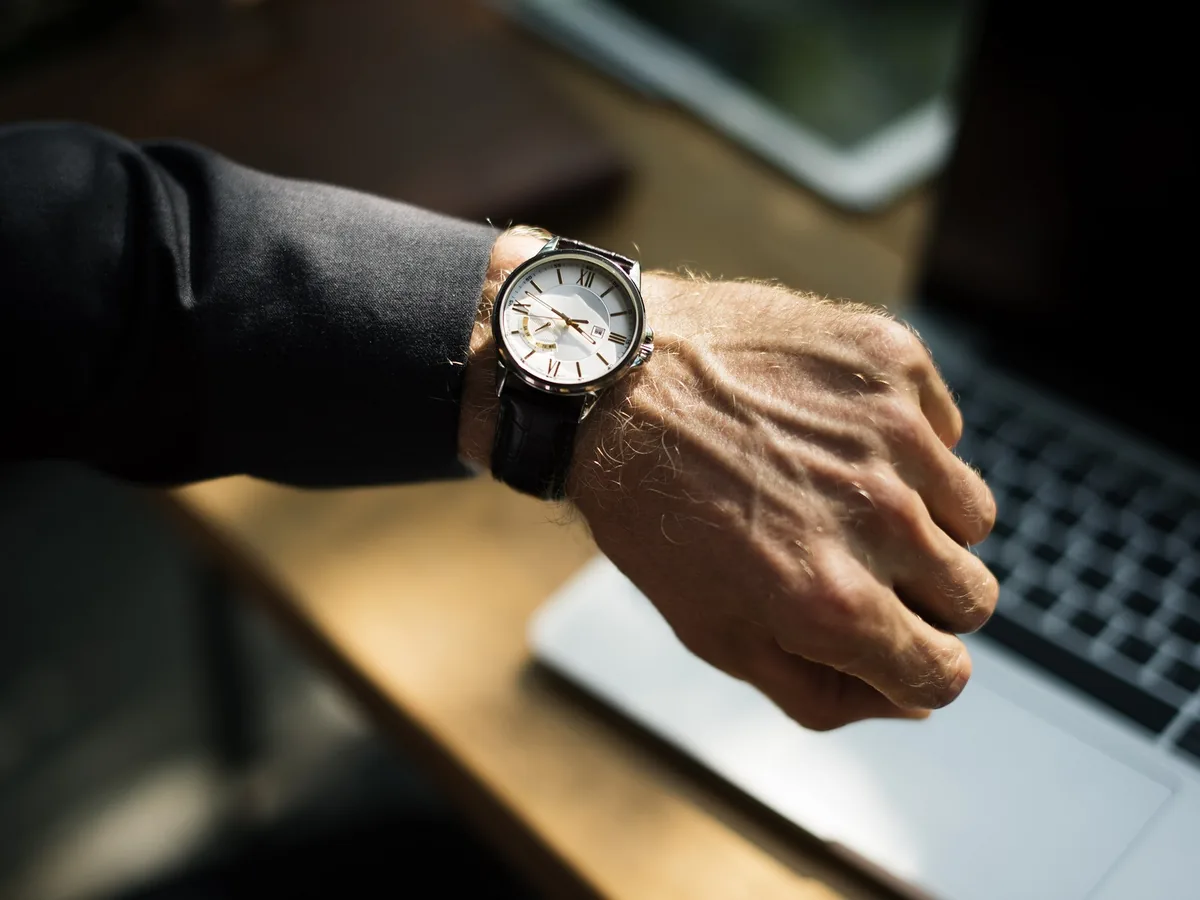
Wrist with a silver watch over a laptop, background changed to white, after enhancementWrist with a silver watch over a laptop, background changed to white, before enhancement

Change a photo background to white for product listings

Amazon, eBay and Shopify listings ask for a plain white background. Pick White in the Color tab and the product sits on pure #FFFFFF, with labels, logos and fine details untouched. Need a brand color instead? Use Any color.

  • Online store
  • White background
  • Product
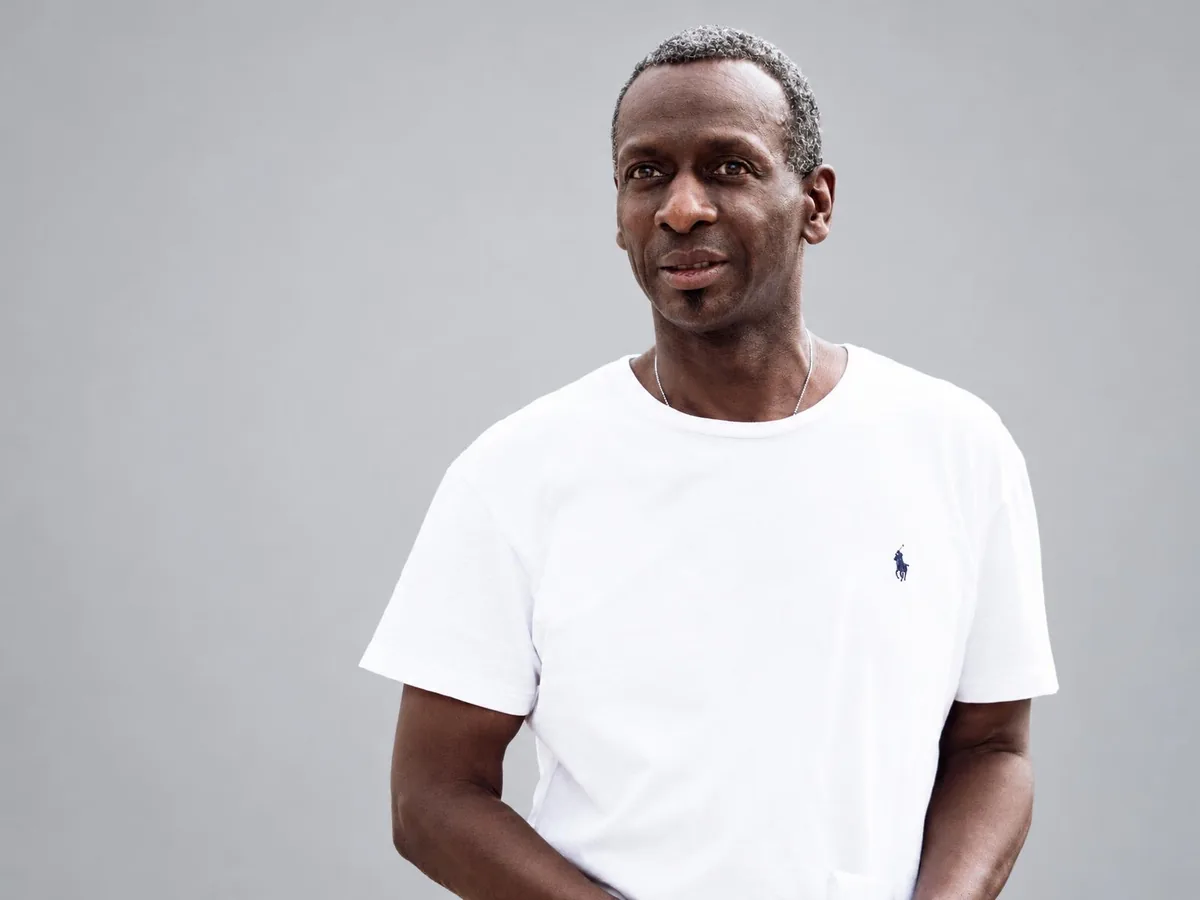
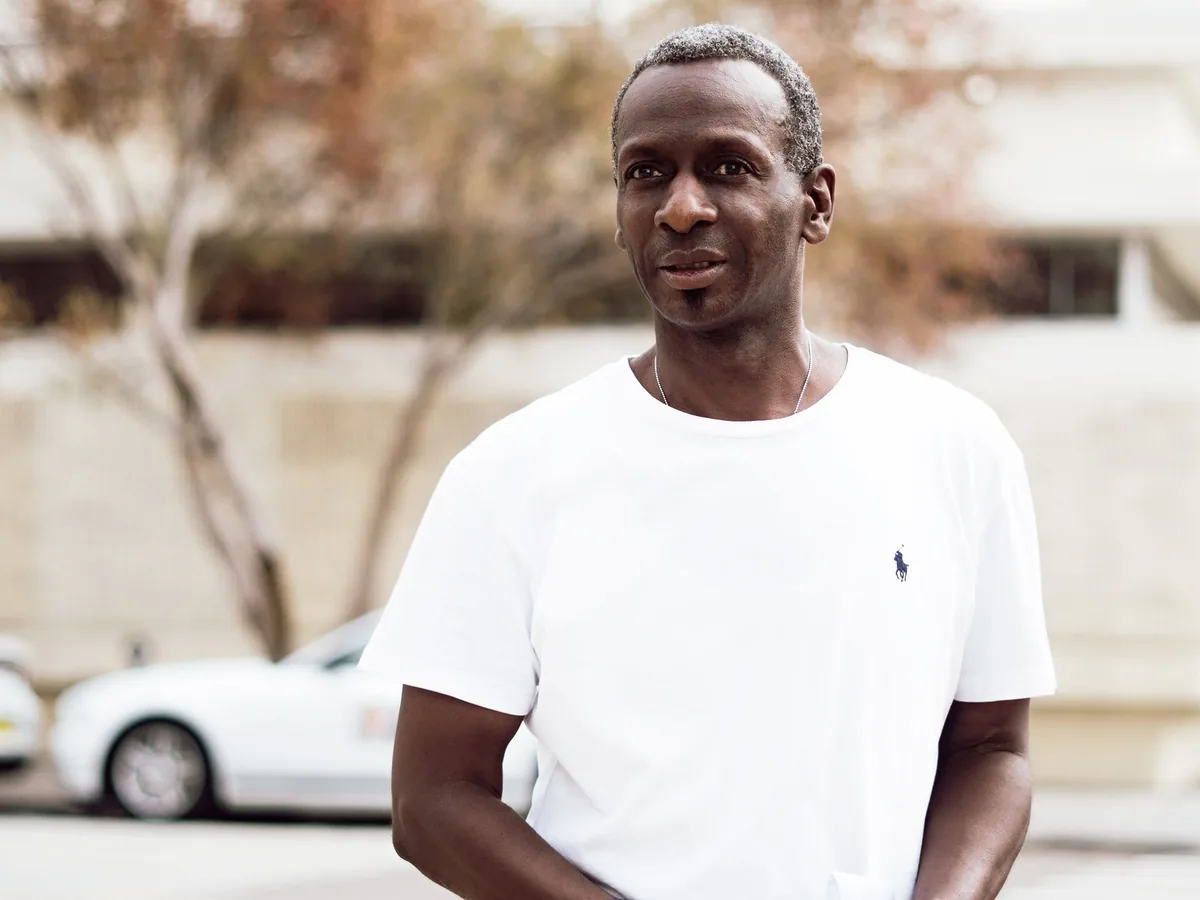
Man in a white T-shirt on a street, background changed to a grey studio wall, after enhancementMan in a white T-shirt on a street, background changed to a grey studio wall, before enhancement

Turn a casual photo into a studio headshot

No photographer needed for a profile picture. Choose the Studio scene to put a plain grey backdrop behind you for LinkedIn, a team page or a resume. Your face, hair and clothes stay as they are.

  • Profile photo
  • Studio
  • Person
Close-up of an empty wine glass, background changed to a cafe interior, after enhancementClose-up of an empty wine glass, background changed to a cafe interior, before enhancement

Change the background behind glass and see-through objects

Cut-out tools often leave glass looking grey or empty. Here the new scene shows through glasses, bottles and jars, so drinks and tableware work for menus and product shots. Reflections can still show the old surroundings, so check them with the slider.

  • Transparent
  • Scene
  • Product
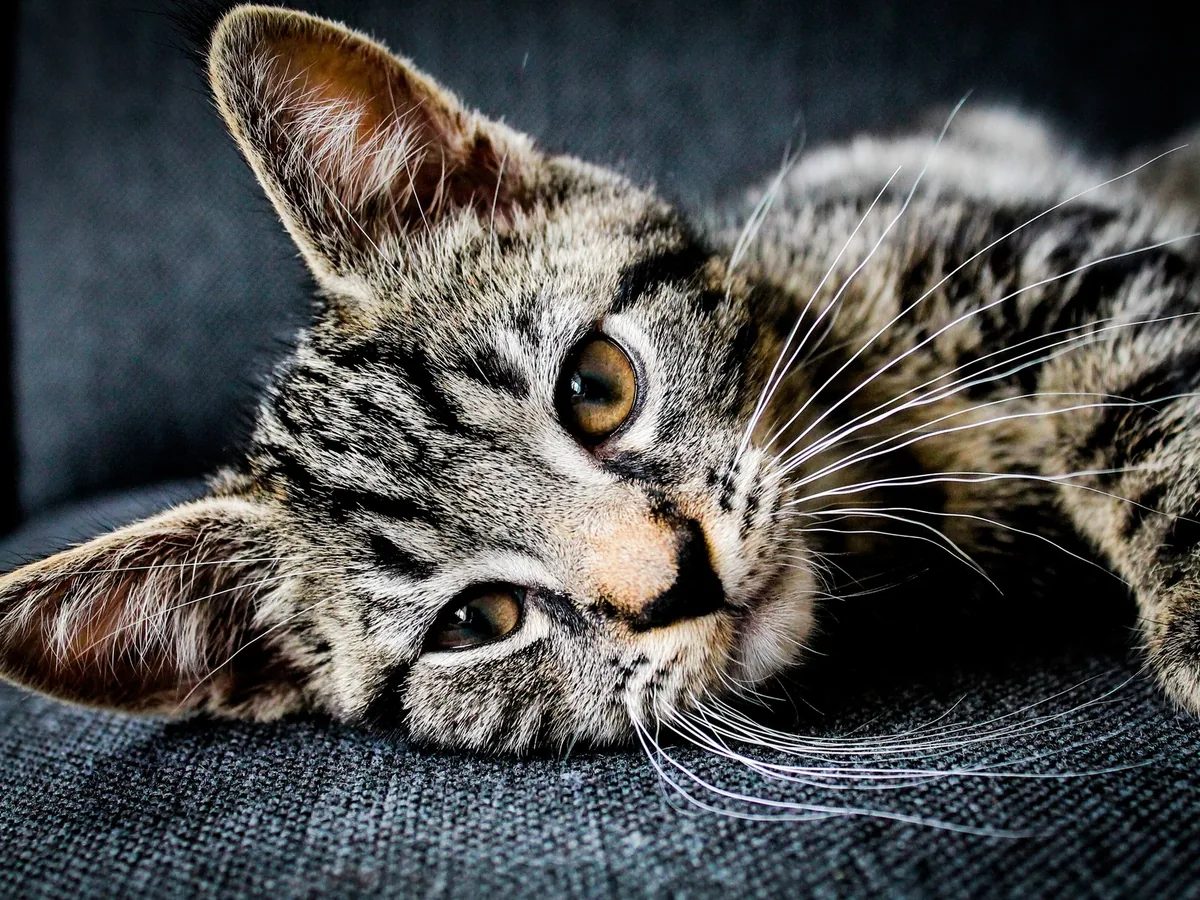
Tabby cat lying down, background changed to a sunny windowsill with plants, after enhancementTabby cat lying down, background changed to a sunny windowsill with plants, before enhancement

Describe any background in your own words

If none of the eight scenes fits, type a short description like "a sunny windowsill with plants" or "a snowy mountain at sunset". Name the place and the light; a few words work better than a long paragraph.

  • Pet photo
  • Own words
  • Fur and whiskers
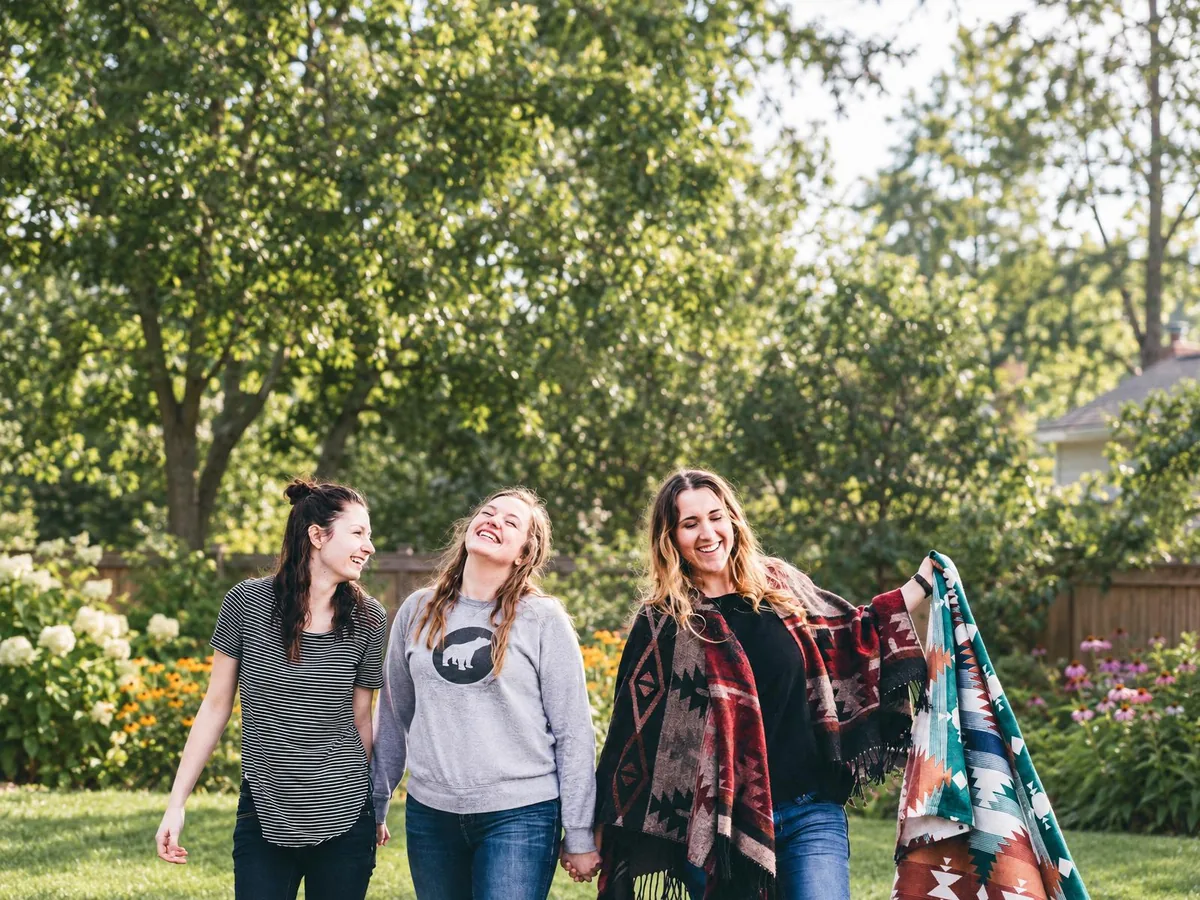
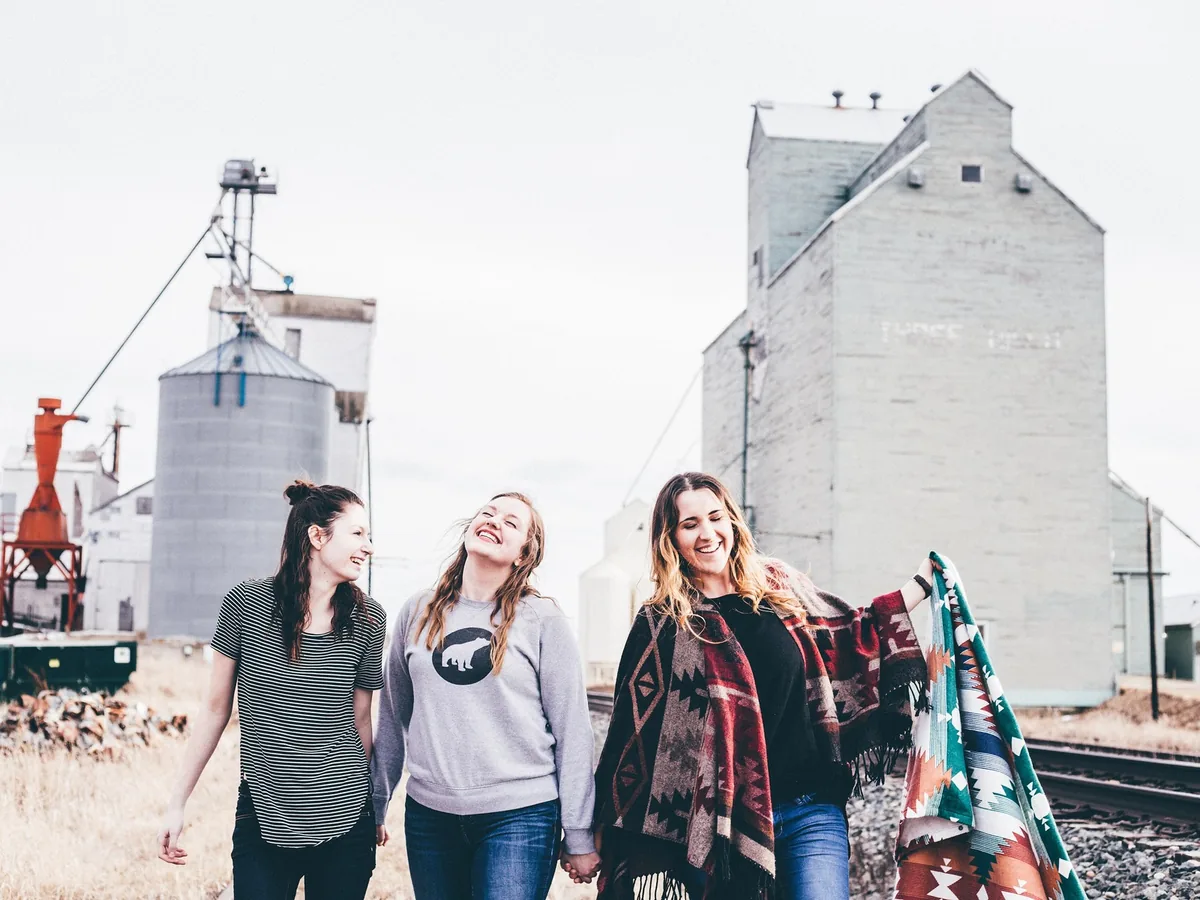
Three friends walking by train tracks, background changed to a green summer garden, after enhancementThree friends walking by train tracks, background changed to a green summer garden, before enhancement

Change the background of a group photo

Family and friend photos keep every person, their poses and what they hold. Replace a messy street or a crowded tourist spot with a park, a garden or a beach.

  • Group photo
  • Scene
  • Person
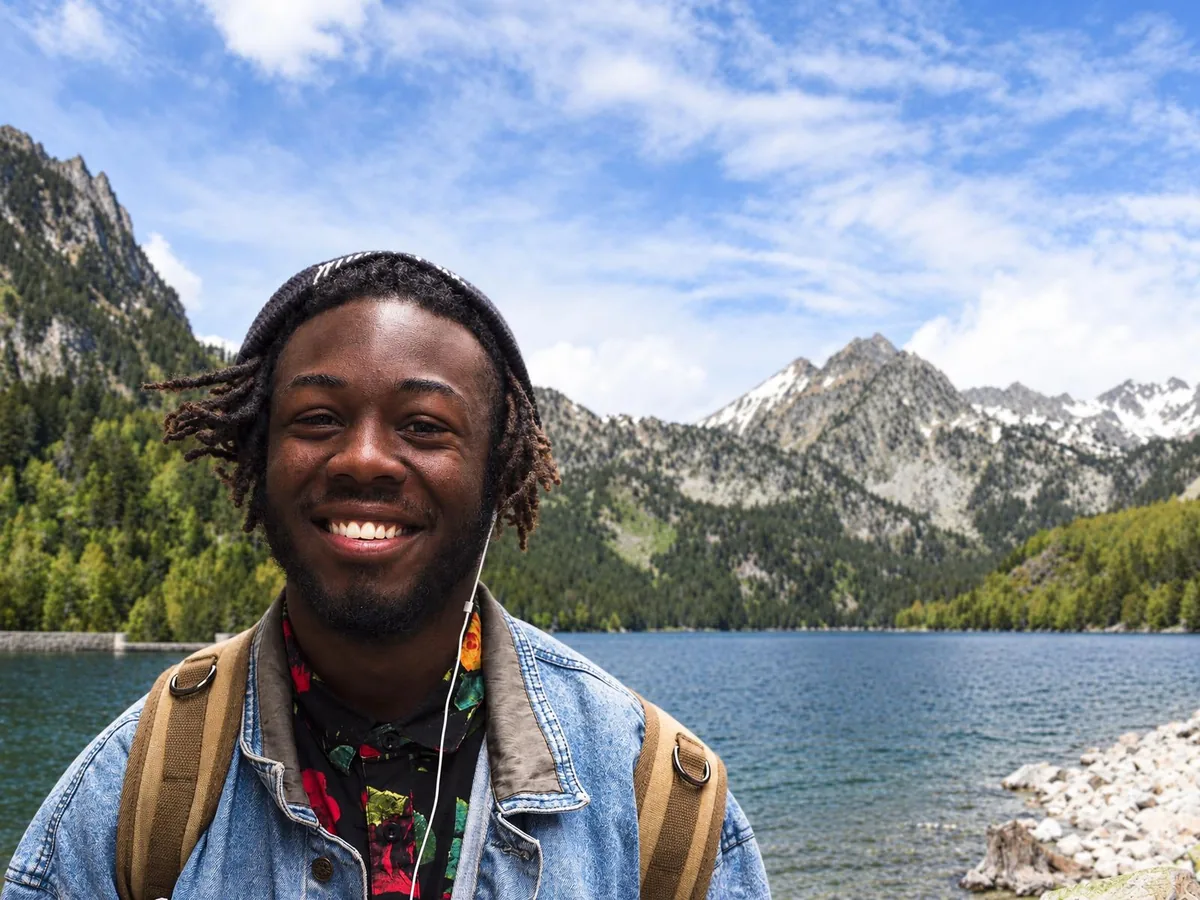
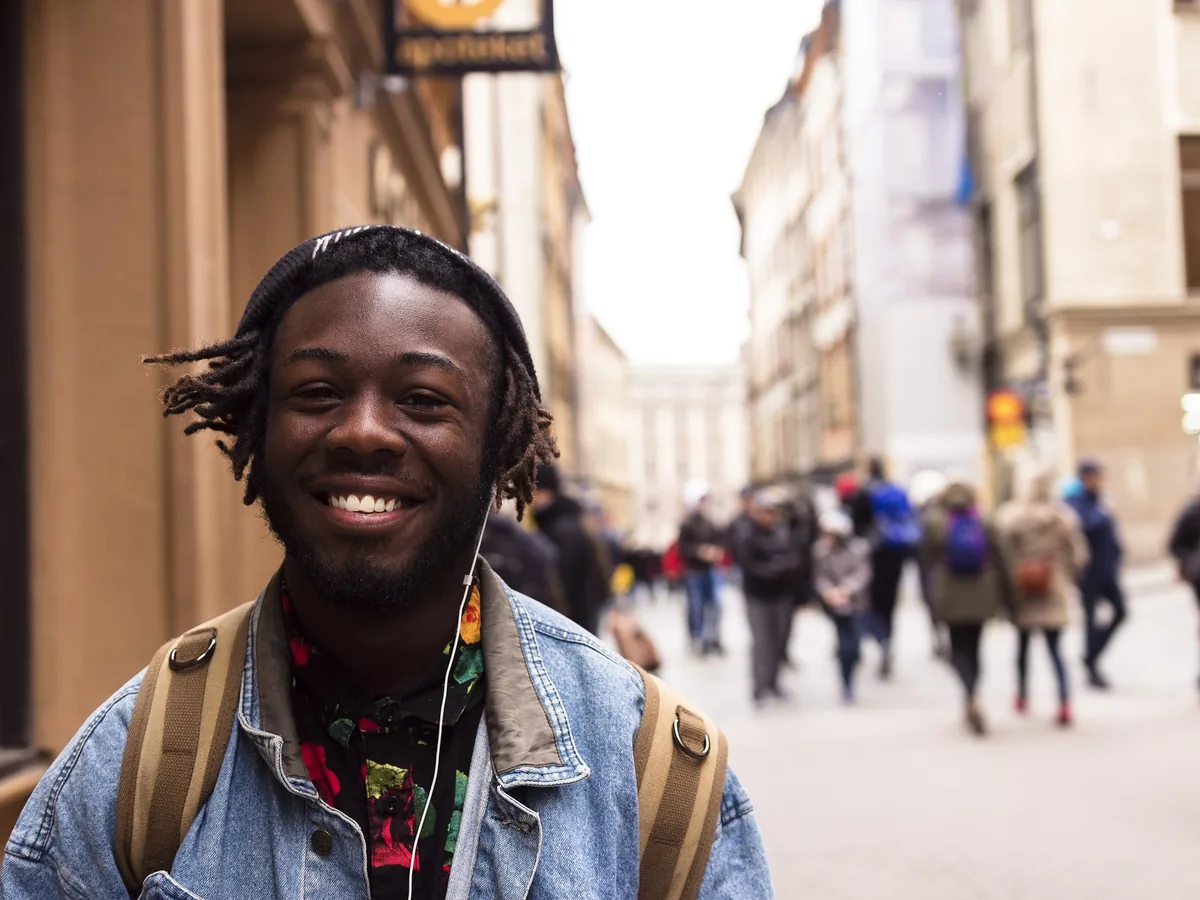
Smiling man with a backpack on a busy city street, placed by a mountain lake from an uploaded photo, after enhancementSmiling man with a backpack on a busy city street, placed by a mountain lake from an uploaded photo, before enhancement

Put yourself in a different background with your own photo

Upload a picture of the place you want, such as a view from your trip, your office or a venue, and the subject is placed into it at the same size and position. For the most natural result, use a background taken from about the same height and distance.

  • Uploaded background
  • Your own place
  • Person

How to change the background of a photo

Three steps. A run takes under a minute.

  1. Upload your photo

    JPG, PNG or WebP up to 20 MB: a portrait, a product shot, a pet or a group.

  2. Pick the new background

    A color, one of eight scenes, a few words of your own, or another photo to place the subject in.

  3. Compare, then download

    Drag the slider over hair and edges, try another background if you like, then save the result.

Where changing the background works best

Photos with a clear subject work best. A few cases need a quick check before you download.

People, pets and products

The subject keeps its face, pose, colors, text and logos, and stays the same size in the same place. Anything it holds or rests on can stay with it, so a pair of shoes keeps the box it stands on.

Hair, fur and see-through edges

Loose hair and whiskers stay soft instead of being cut off, glass shows the new background through it, and a light shadow is added where the subject meets the ground so it doesn't look pasted on.

What needs a second look

If it isn't clear what the photo is about, for example a car mostly out of frame, the wrong thing can be kept. An uploaded background shot from a very different angle can make the result look composited. Check with the slider before you download.

How to change a photo background without AI

Any editor can do it by hand; these are the steps.

A plain color background is easy by hand. Matching hair edges, shadows and light to a new scene takes much longer, and that's where this tool saves the most time.

  1. 1

    Select the subject

    In Photoshop use Select > Subject; in GIMP use the Foreground Select tool. On a phone, long-press the subject in the Photos app (iPhone) to lift it off the background.

  2. 2

    Refine the edges

    Use Select and Mask (Photoshop) to brush over hair and fur, and add a 1 to 2 px feather so the edge isn't sharp. This is the slow part.

  3. 3

    Put the new background behind it

    Add a solid color layer or a background photo under the cut-out and scale it so the horizon and perspective look right.

  4. 4

    Match light and add a shadow

    Adjust brightness and color on the subject to fit the new scene, and paint a soft shadow under it. Skipping this is what makes edits look fake.

Change background photo FAQ

Yes. Each photo costs 8 credits, and everyone gets 10 free credits a day without an account, enough for one photo a day. Downloads have no watermark. Credit packs and plans for more are on the pricing page.

Yes. Pick White in the Color tab for a pure white (#FFFFFF) background. Marketplaces have their own rules for how much of the frame the product fills, so check their guidelines for size and margins.

Yes. Upload any photo in the Your image tab, or choose Any color in the Color tab to match your brand. A background taken from a similar angle and distance looks most natural.

No. Fine hair, whiskers and fur keep their soft edges, and the light on them is adjusted to the new background. Very wispy hair against a busy original background is the hardest case, so check it with the slider.

Not yet. The result is a finished photo with the new background. For a cut-out to use in a design, pick a plain white or color background and remove it in your design tool.

Your photos, including any background image you upload, are used only to create your result, never to train AI. Without an account they're deleted after 24 hours. Signed in, they're kept in History for 72 hours, or until you delete them if you turn on "Keep my tasks". Details are in our Privacy Policy.

More ways to fix your photos

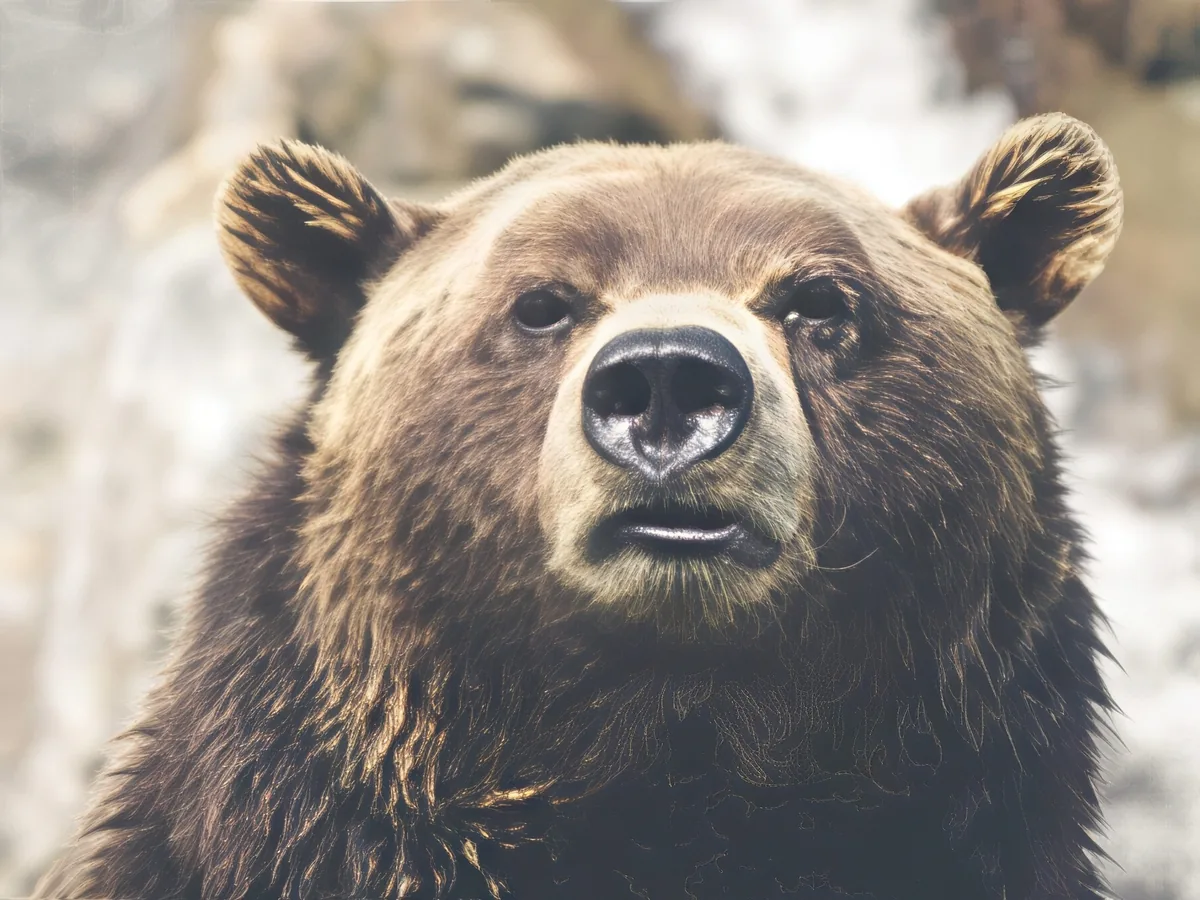
Soft close-up of a brown bear, before enhancementSoft close-up of a brown bear, after enhancement

Sharpen Image

Make a picture clearer when it is only slightly soft.

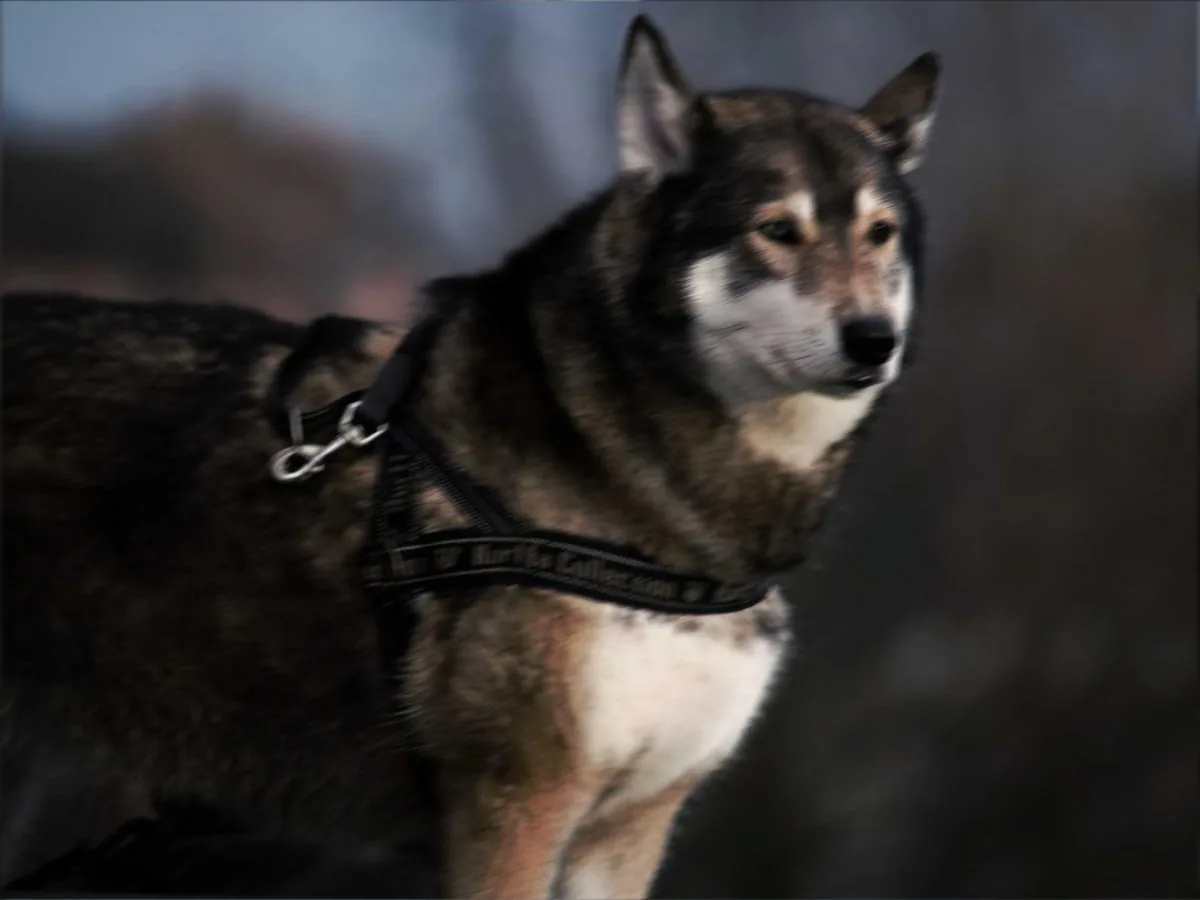
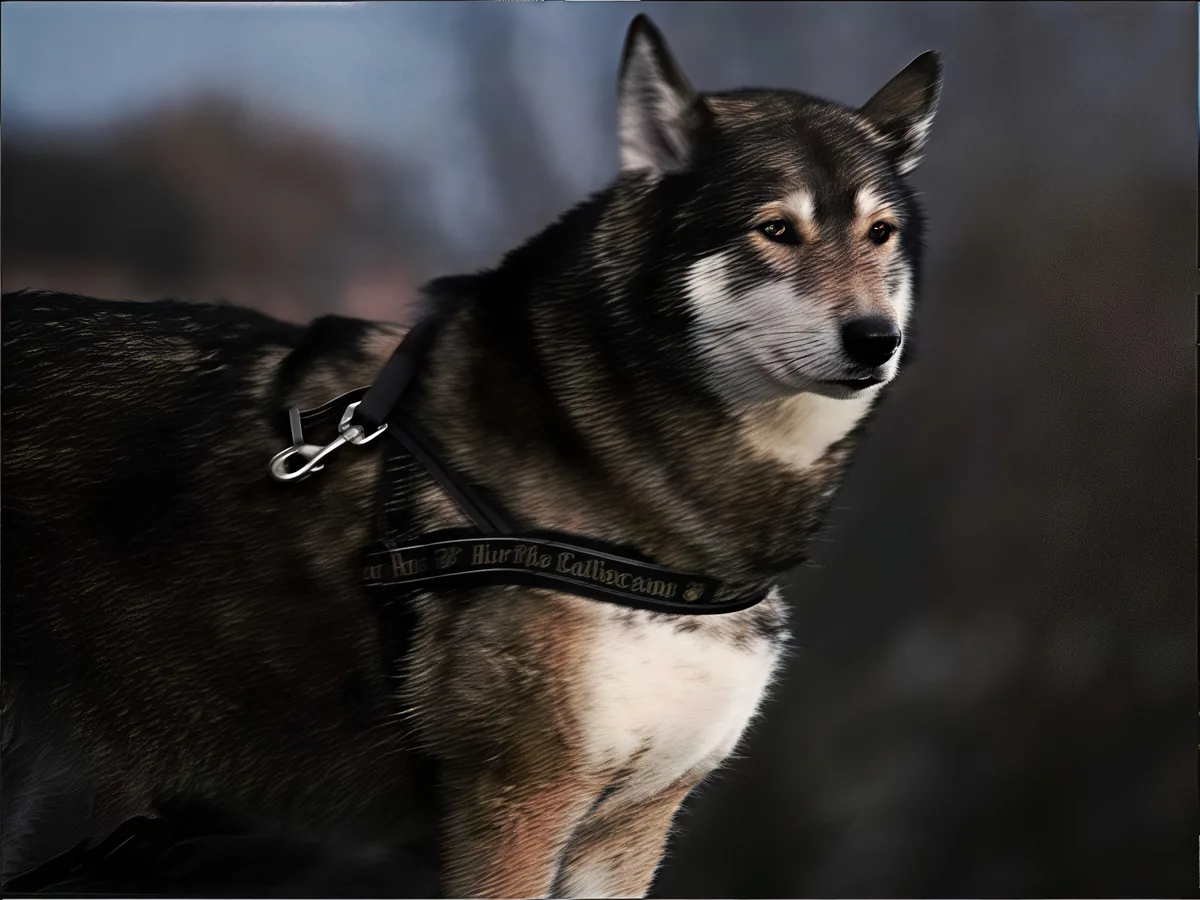
Shaky photo of a husky, before enhancementShaky photo of a husky, after enhancement

Unblur Image

Remove motion blur and out-of-focus blur from photos.

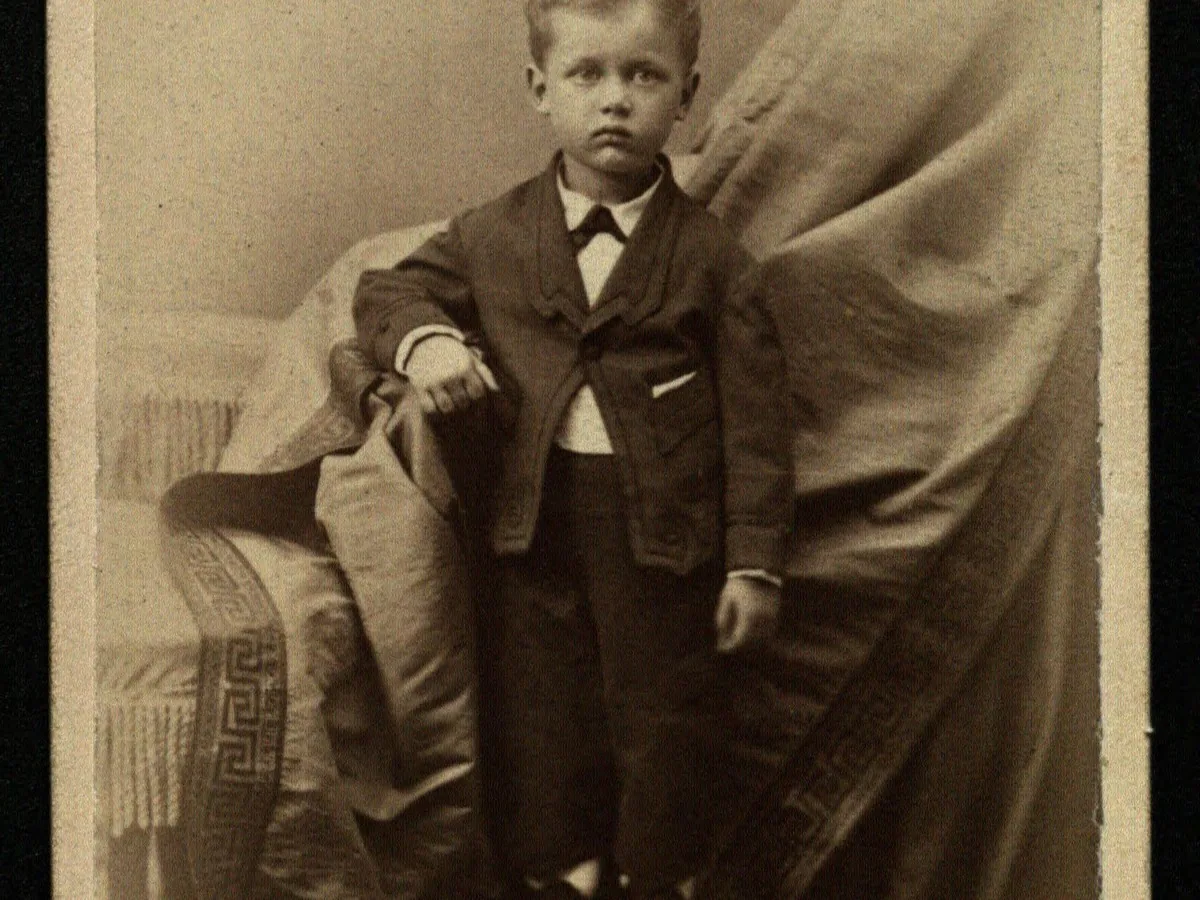
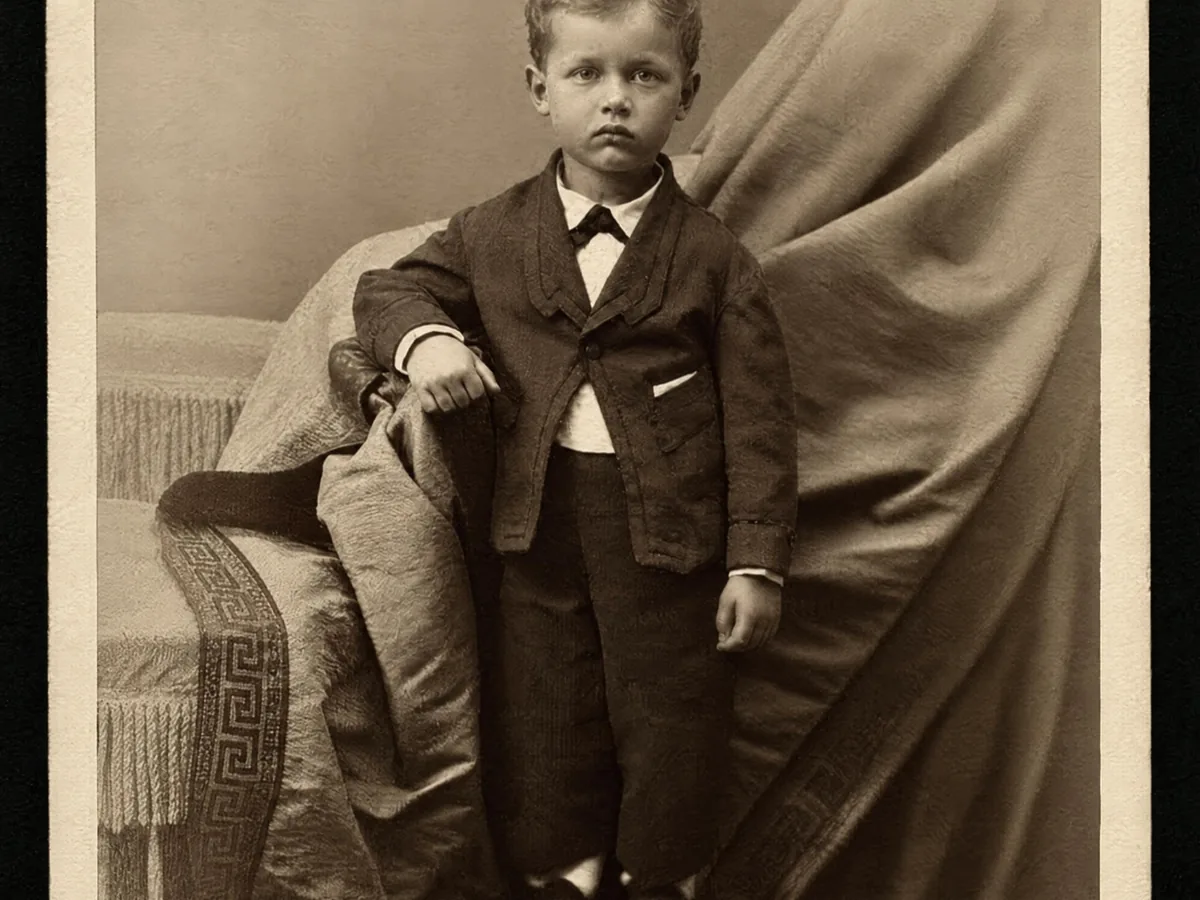
Faded cabinet card of a young boy, before enhancementFaded cabinet card of a young boy, after enhancement

Restore Old Photos

Clear scratches, dust and fading on scanned prints.

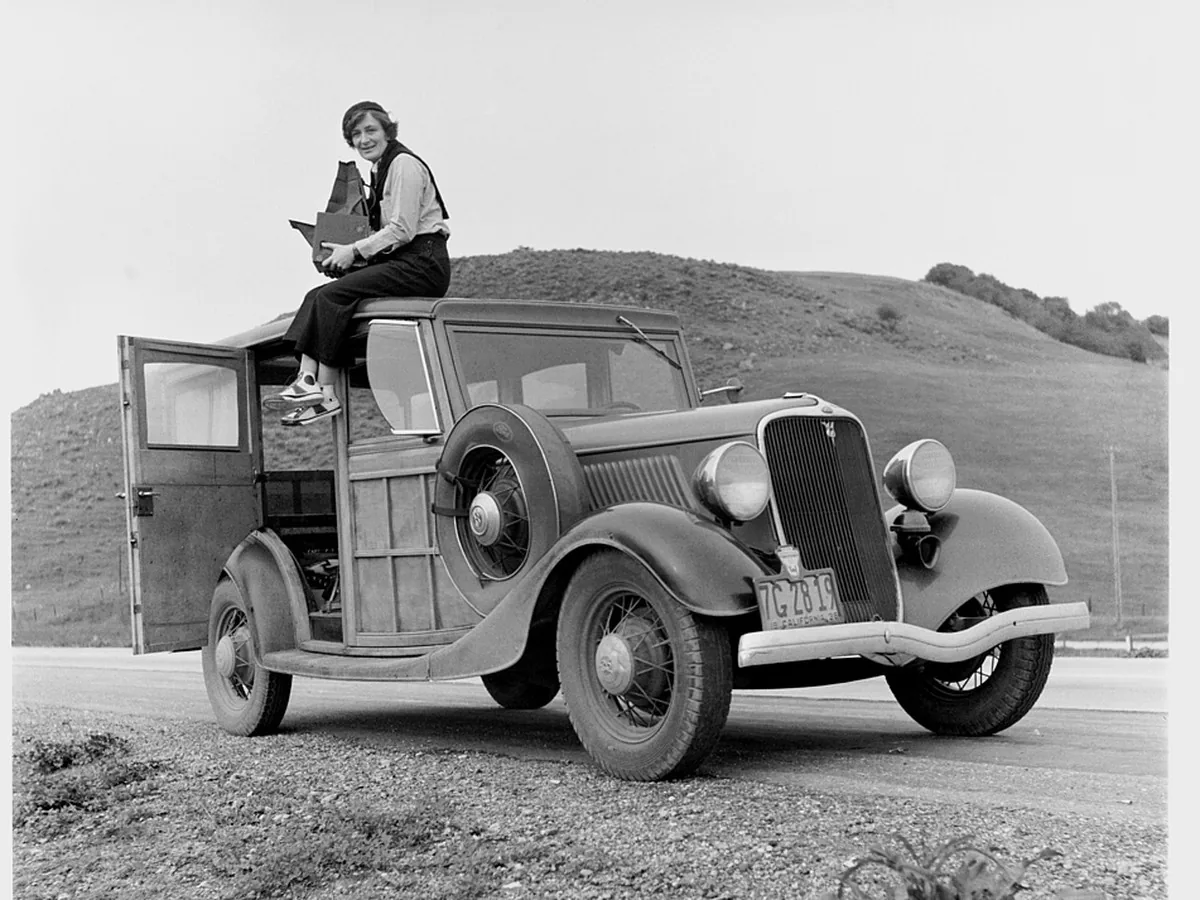
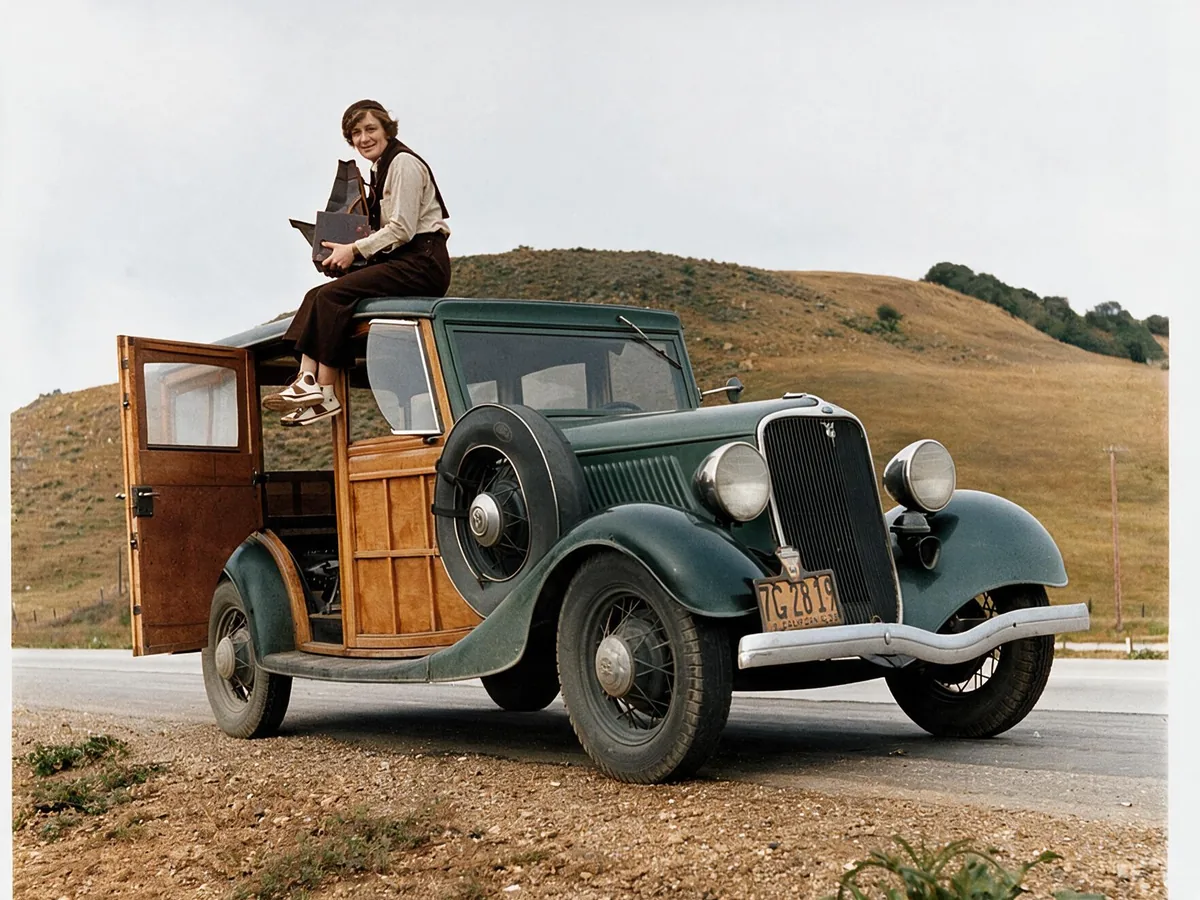
Black and white photo of a woman on a 1930s car, before enhancementBlack and white photo of a woman on a 1930s car, after enhancement

Colorize Photo

Turn black and white photos into natural color.

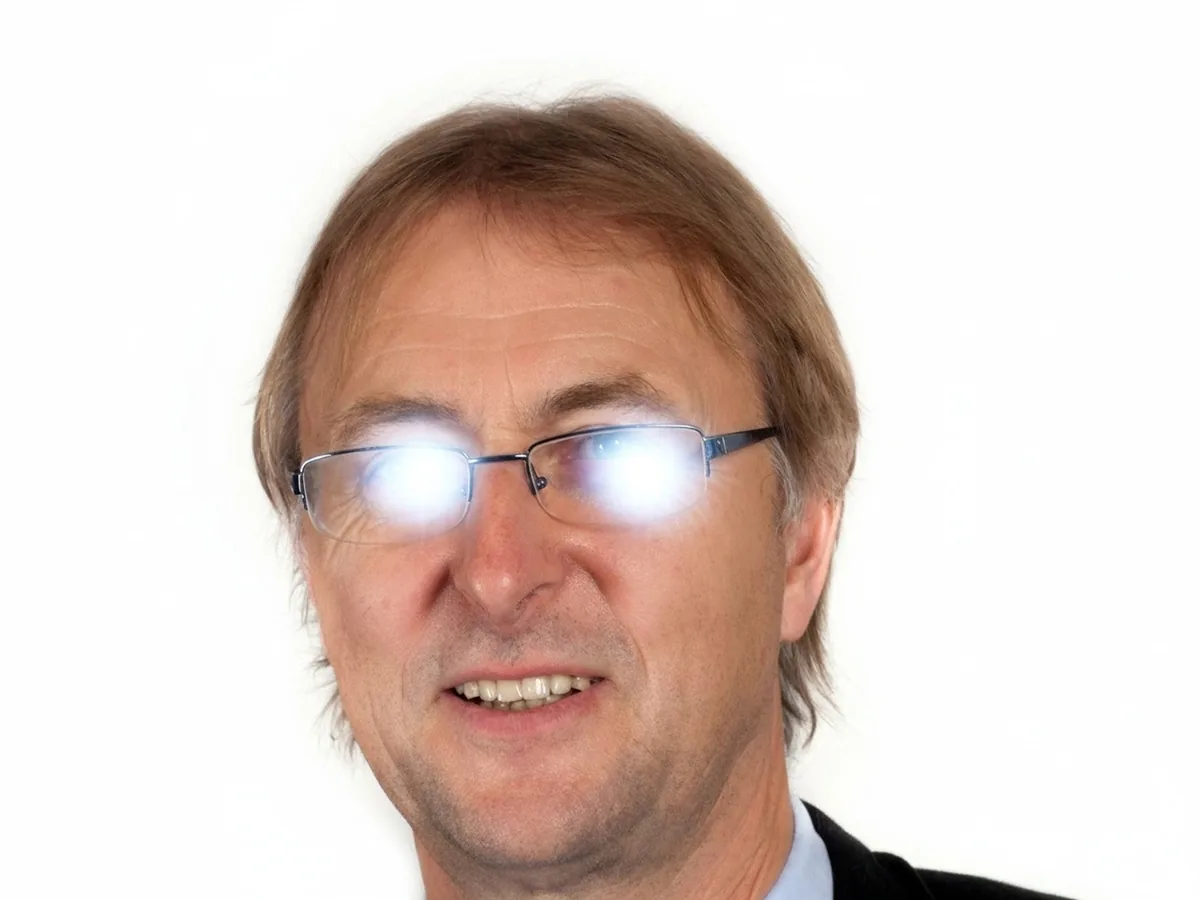
Portrait with flash glare on his eyeglasses, before enhancementPortrait with flash glare on his eyeglasses, after enhancement

Remove Glare

Clear glare on glasses, glass and flash spots.

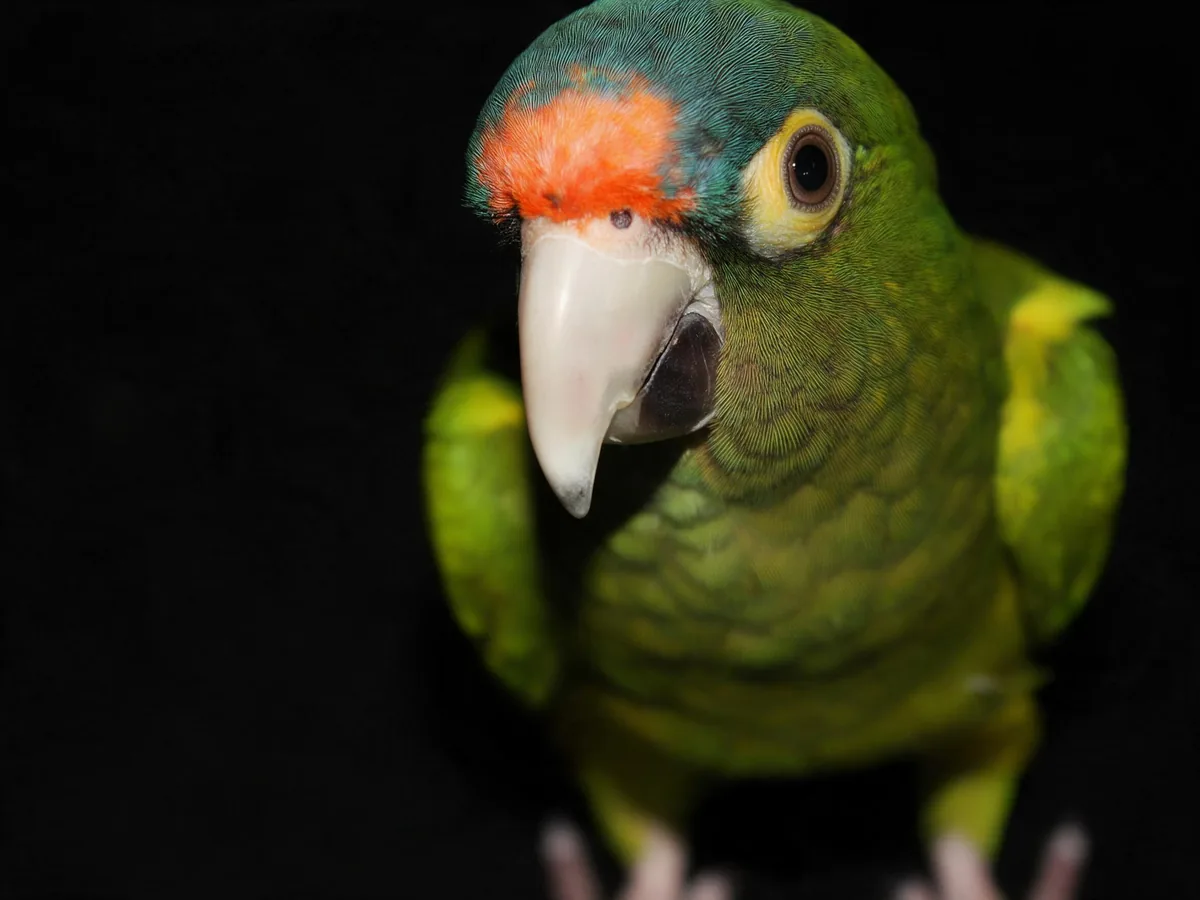
Close-up of a green parrot with an orange forehead, before enhancementClose-up of a green parrot with an orange forehead, after enhancement

Unpixelate Image

Turn blocky, pixelated photos smooth and sharp.

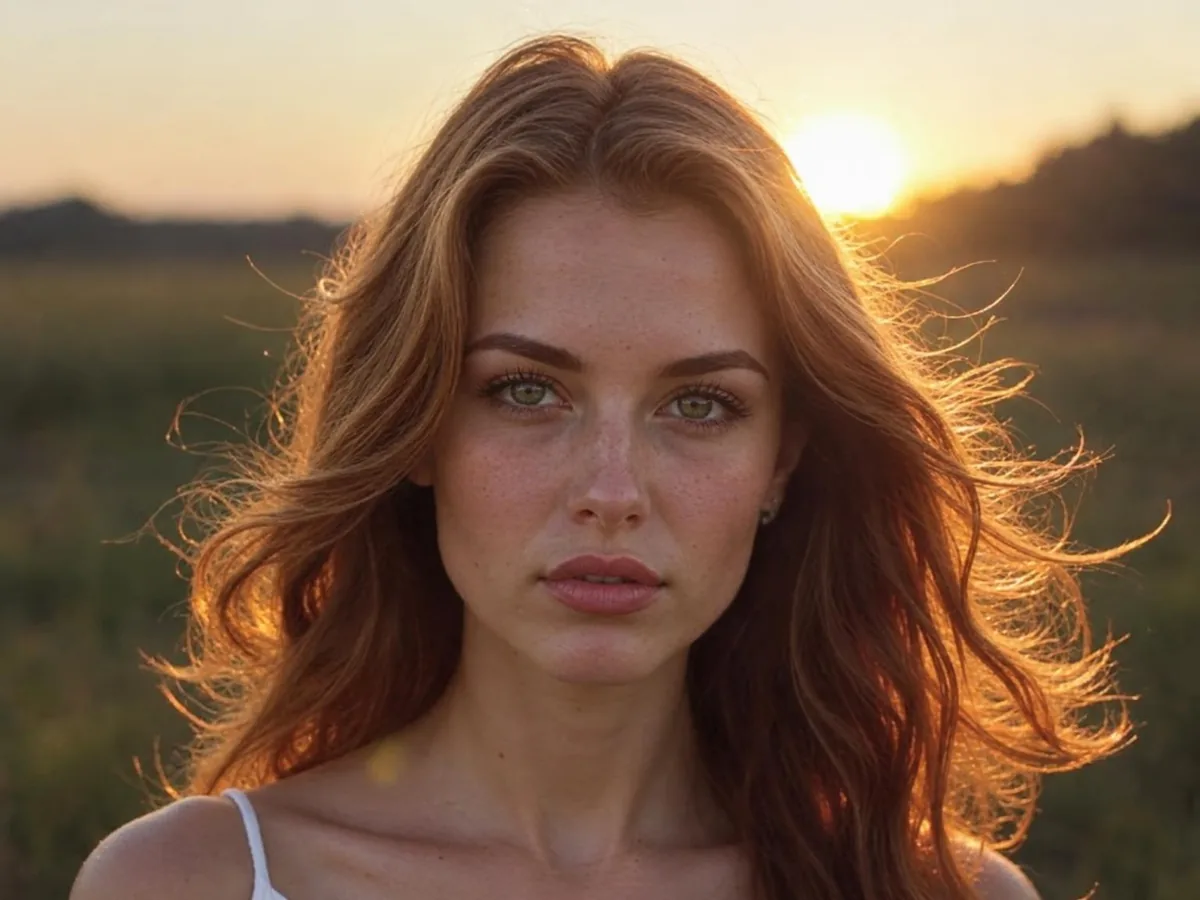
AI portrait of a woman with glowing golden backlight, before enhancementAI portrait of a woman with glowing golden backlight, after enhancement

AI Image Humanizer

Make AI images look like real photos.

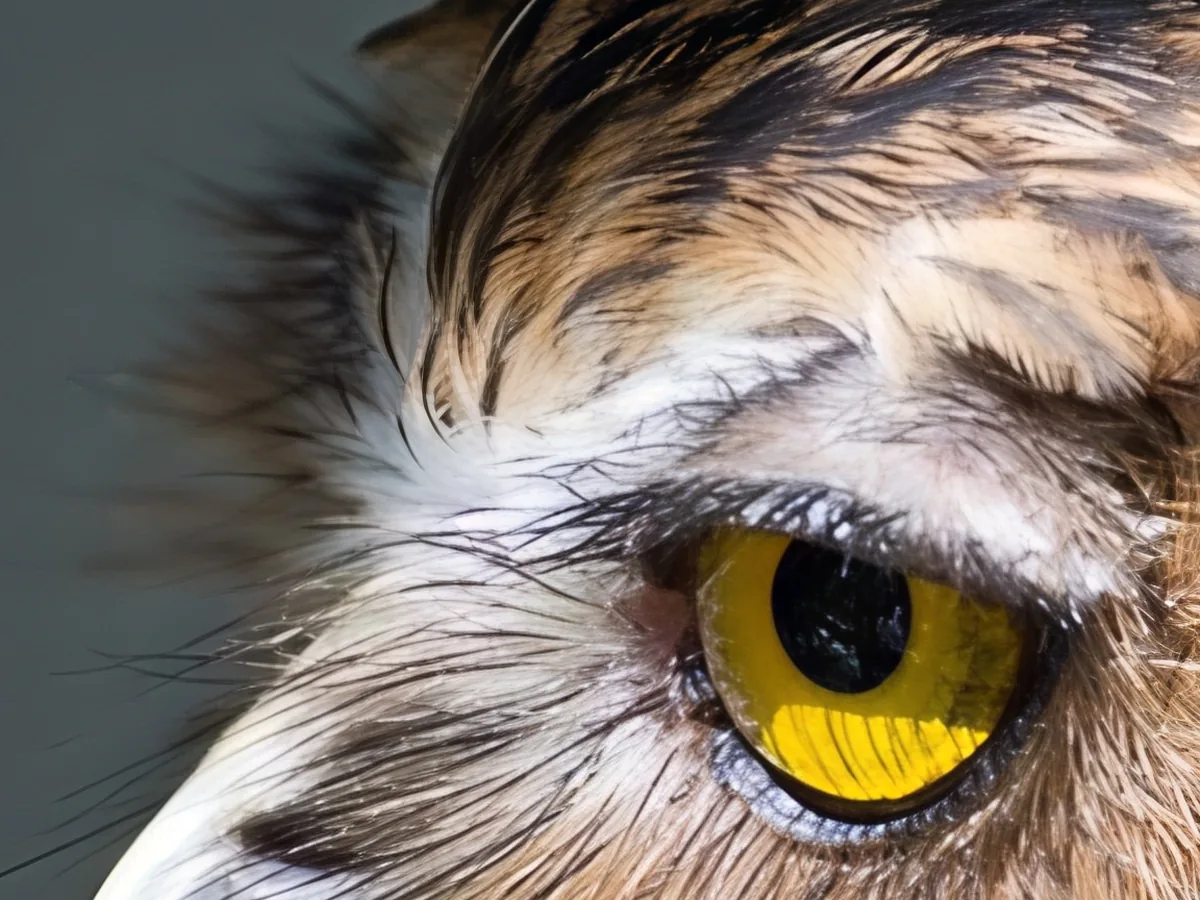
Close-up of an owl's yellow eye, before enhancementClose-up of an owl's yellow eye, after enhancement

Image Upscaler

Upscale photos to 2K, 4K or 8K with AI.

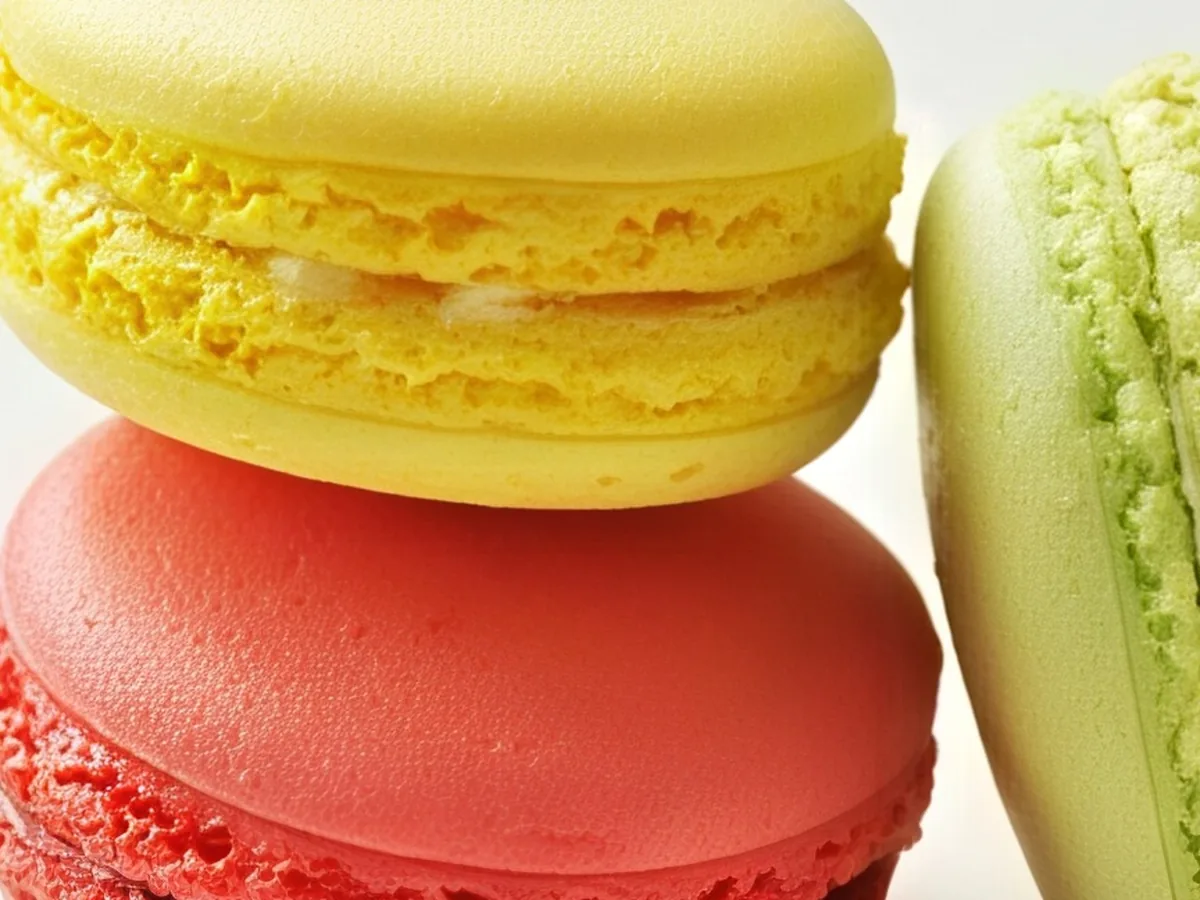
Close-up of yellow, pink and green macarons, before enhancementClose-up of yellow, pink and green macarons, after enhancement

HD Photo Converter

Turn low-res photos into 1080p, 2K or 4K.

Low-resolution photo of a pug in a blanket, before enhancementLow-resolution photo of a pug in a blanket, after enhancement

Photo Quality Enhancer

Upscale and clean up any photo in one go.