Clarpex

Unpixelate Image: Fix Pixelated Photos with AI

Unpixelate an image that turned into blocks: a photo saved too small, stretched, or squashed by heavy compression. Upload it and compare the smooth result before you save anything.

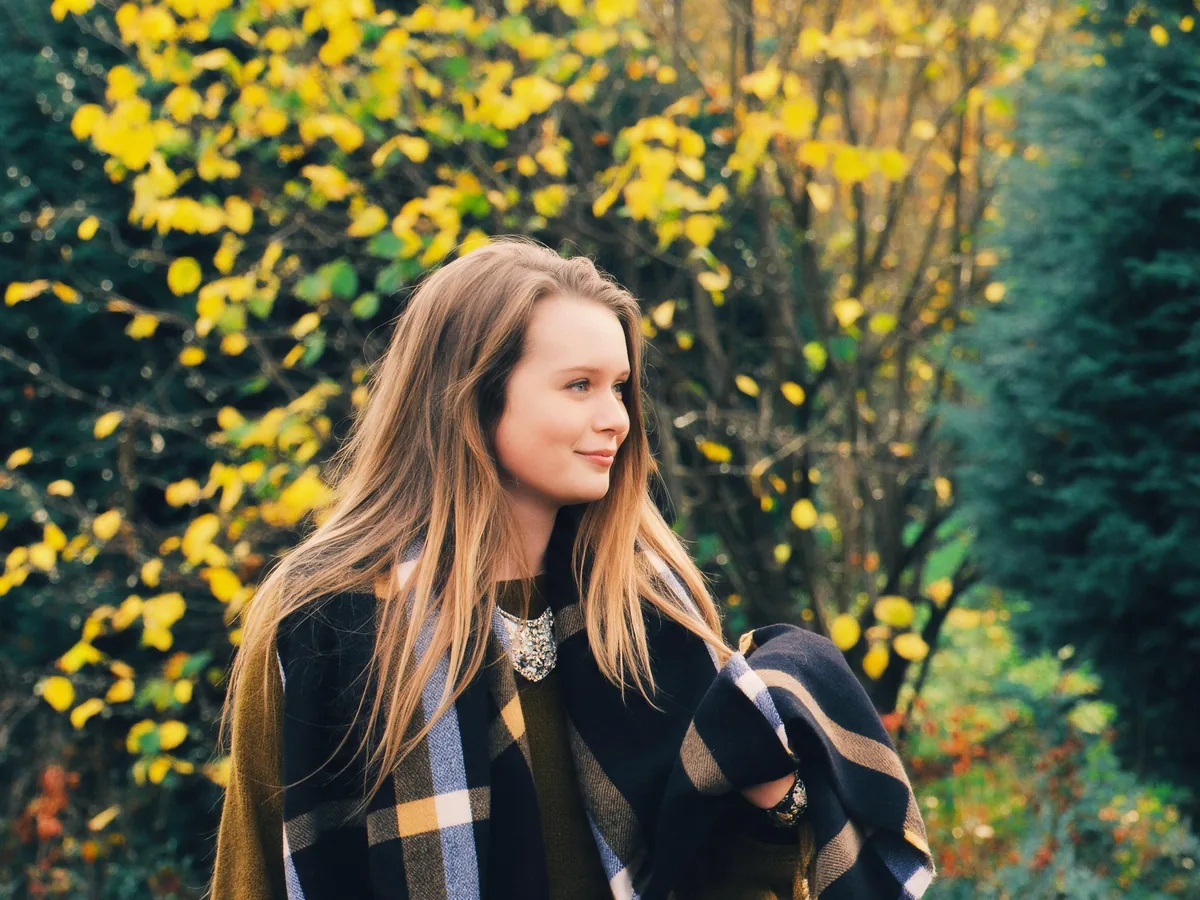
Pixelated photo of a smiling woman in front of autumn leaves, after enhancementPixelated photo of a smiling woman in front of autumn leaves, before enhancement
No photo? Try one:

Upload Image

Drag and drop, or click to browse

  • Free daily credits
  • No sign-up
  • Private

Fix pixelated pictures for sharing or for printing

Both versions remove the same blocks and keep faces and colors. Pro rebuilds the photo with almost twice as many pixels.

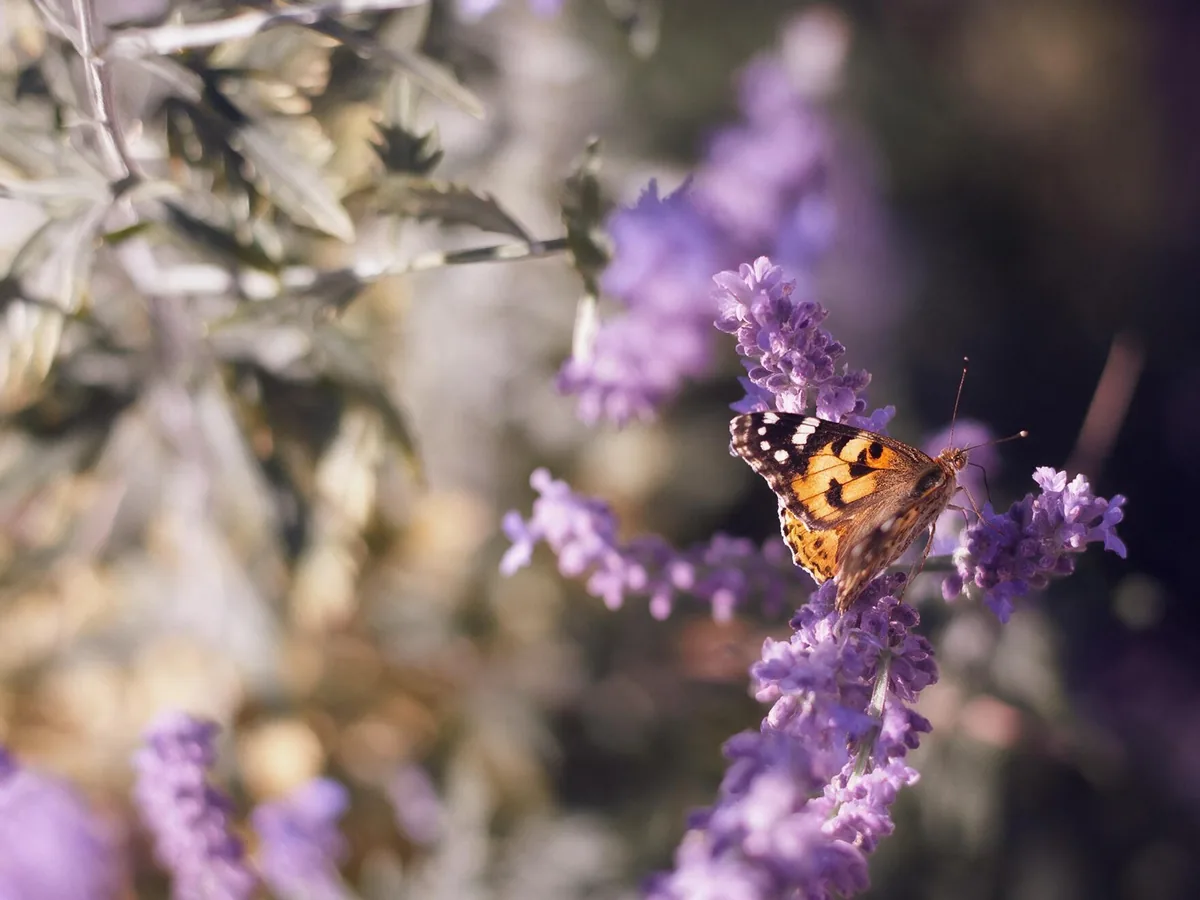
Pixelated close-up of a butterfly on purple flowers, after enhancementPixelated close-up of a butterfly on purple flowers, before enhancement

Standard for chat and social photos

Removes the pixel blocks and gives the photo back at about 2.4 megapixels, plenty for sharing and screens. Patterns, petals and edges are smooth again, and a soft background stays soft. Covered by the daily free credits.
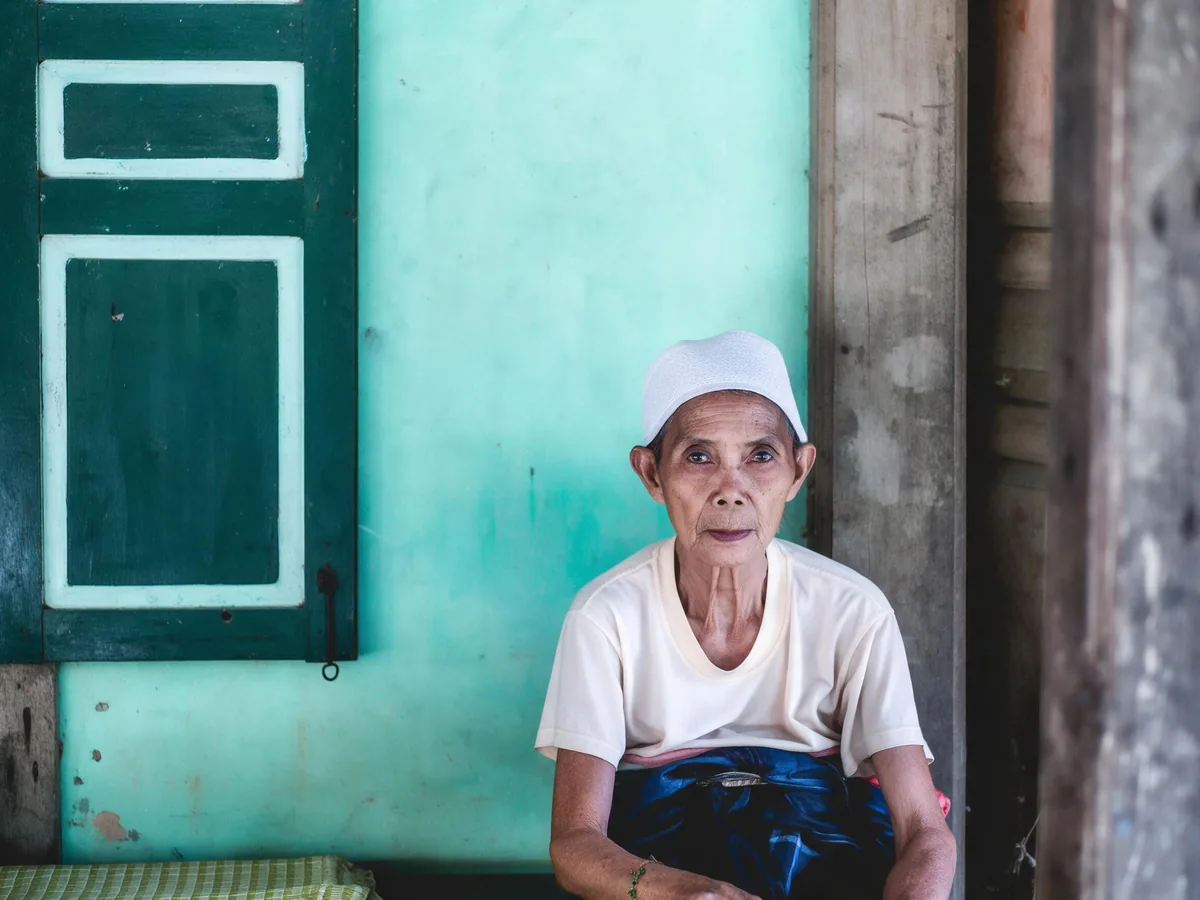
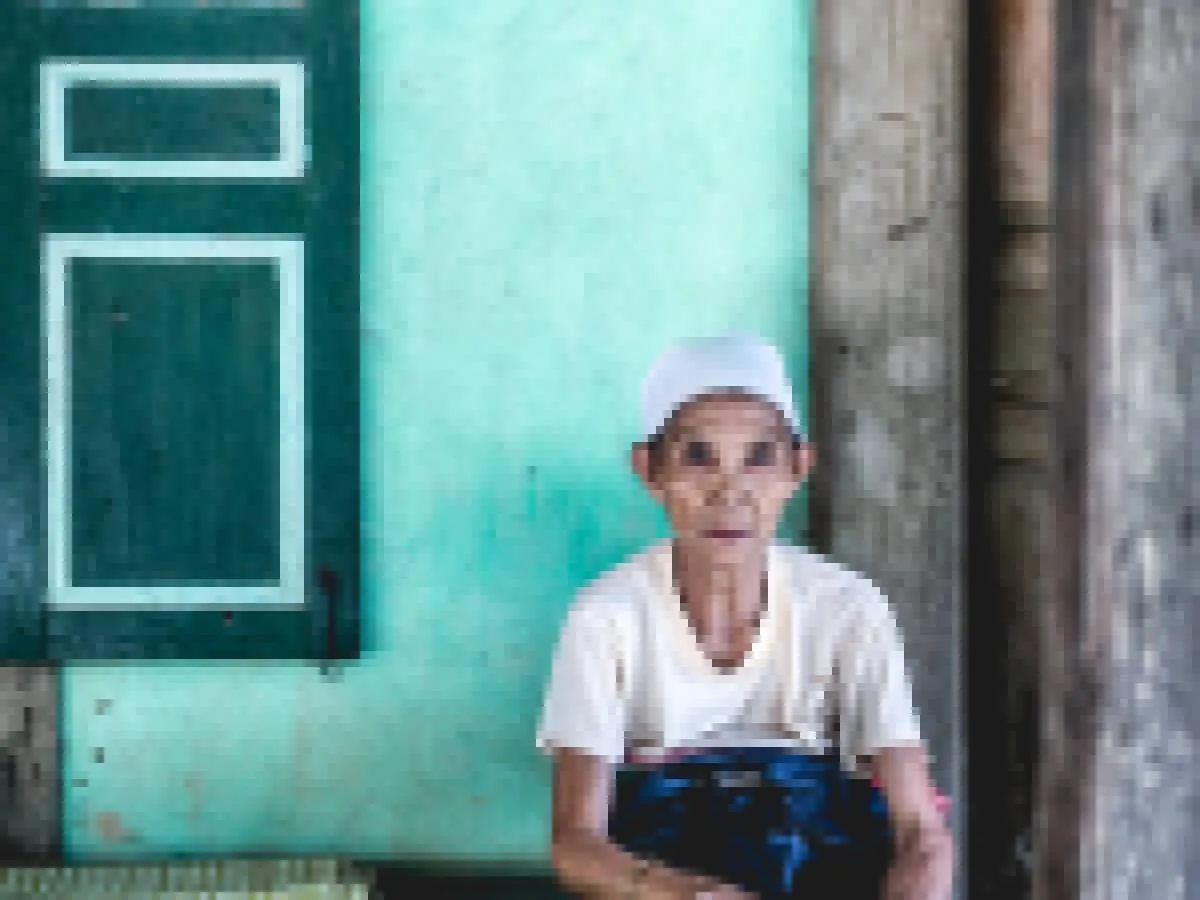
Pixelated portrait of an older woman by a green door, after enhancementPixelated portrait of an older woman by a green door, before enhancement

Pro for photos you want to print

The same fix at about 4.2 megapixels, so you can print the photo or crop in on a face. Faces, clothing and painted surfaces come back with clean edges and the same colors.

How to unpixelate an image online

Three steps. A run usually takes one to two minutes.

  1. Upload the pixelated photo

    JPG, PNG or WebP up to 20 MB. A small photo saved from a chat or an old phone works too.

  2. Pick how big the result should be

    Standard is enough to repost a photo or use it as a profile picture. Pro gives you room to print it or crop in on a face.

  3. Check the edges, then download

    Slide across faces and edges to see the blocks disappear, then save the smooth photo.

Where unpixelating a photo works best

Pixelation from a small or over-compressed photo fixes best. Faces, and anything hidden on purpose, need a closer look.

Small and over-compressed photos: the best case

Pictures that went blocky because they were saved small, enlarged or compressed come back smooth, with faces, fur, buildings and flowers looking natural again. Colors and framing stay the same.

The bigger the blocks, the more the AI fills in

Each block hides the detail inside it, so the AI redraws what most likely belonged there. With small blocks the result stays close to the real photo. With very large blocks, faces still look natural but may not look exactly like the person, so check them with the slider.

It can't reveal what was hidden on purpose

A face, license plate or text that someone pixelated to hide it has lost that information for good. The tool will draw something plausible there, not the real face or number. Use it to fix low-quality photos, not to identify anyone.

How to fix a pixelated picture without AI

Sometimes a better copy or a simple edit is enough. These work with any photo editor.

If you can get a bigger copy of the photo, that always gives the most faithful result. When you can't, this tool rebuilds the missing detail for you in a minute or two.

  1. 1

    Find a bigger copy first

    Pixelation usually means you have a small copy. Check the original phone or camera, the cloud backup, or ask the person who sent it to share the original file instead of a chat preview.

  2. 2

    Resize with a smart resampling option

    In Photoshop, use Image Size with Preserve Details 2.0. GIMP's Scale Image with the NoHalo or LoHalo option works too. Both enlarge more smoothly than a plain stretch.

  3. 3

    Soften the blocks slightly

    A light Gaussian blur or Reduce Noise hides the hard edges of the squares, then a little sharpening brings back some contrast. The photo looks smoother but no new detail appears.

  4. 4

    Show it smaller

    Pixels are only visible when a photo is shown bigger than it really is. Printing or posting it at a smaller size hides the blocks without any editing.

Unpixelate image FAQ

Yes. Standard costs 8 credits and is covered by the free credits everyone gets each day, no account needed. Pro uses 16 purchased credits. Downloads have no watermark.

No. Pixelating something on purpose deletes the detail, and no tool can bring it back. Here the blocks are replaced with a face or plate that looks plausible but is invented, so it can't show who or what was hidden.

Pixelated photos show hard square blocks; blurry photos are soft all over from focus or movement. Use this tool for blocks, and Unblur Image for soft, shaky or out-of-focus shots.

Photos inside a screenshot come back well. Small text, logos and drawn graphics may change shape, so for screenshots of documents or apps it's better to take a new screenshot at full size.

Large text that you can already read gets cleaner. Small text that is unreadable in the blocks may come back as wrong letters, so don't rely on the result for names, numbers or documents.

Your photos are used only to create your result, never to train AI. Without an account they're deleted after 24 hours. Signed in, they're kept in History for 72 hours, or until you delete them if you turn on "Keep my tasks". Details are in our Privacy Policy.

More ways to fix your photos

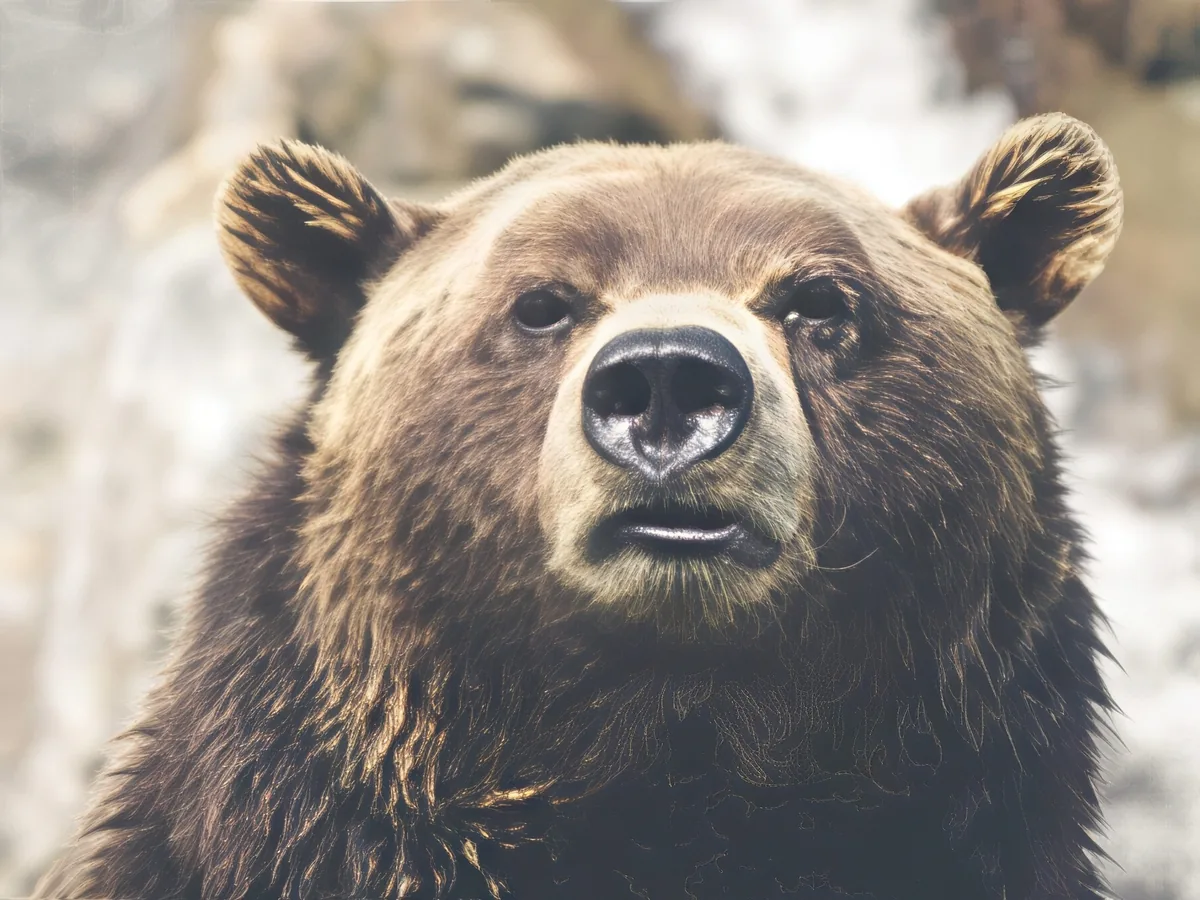
Soft close-up of a brown bear, before enhancementSoft close-up of a brown bear, after enhancement

Sharpen Image

Make a picture clearer when it is only slightly soft.

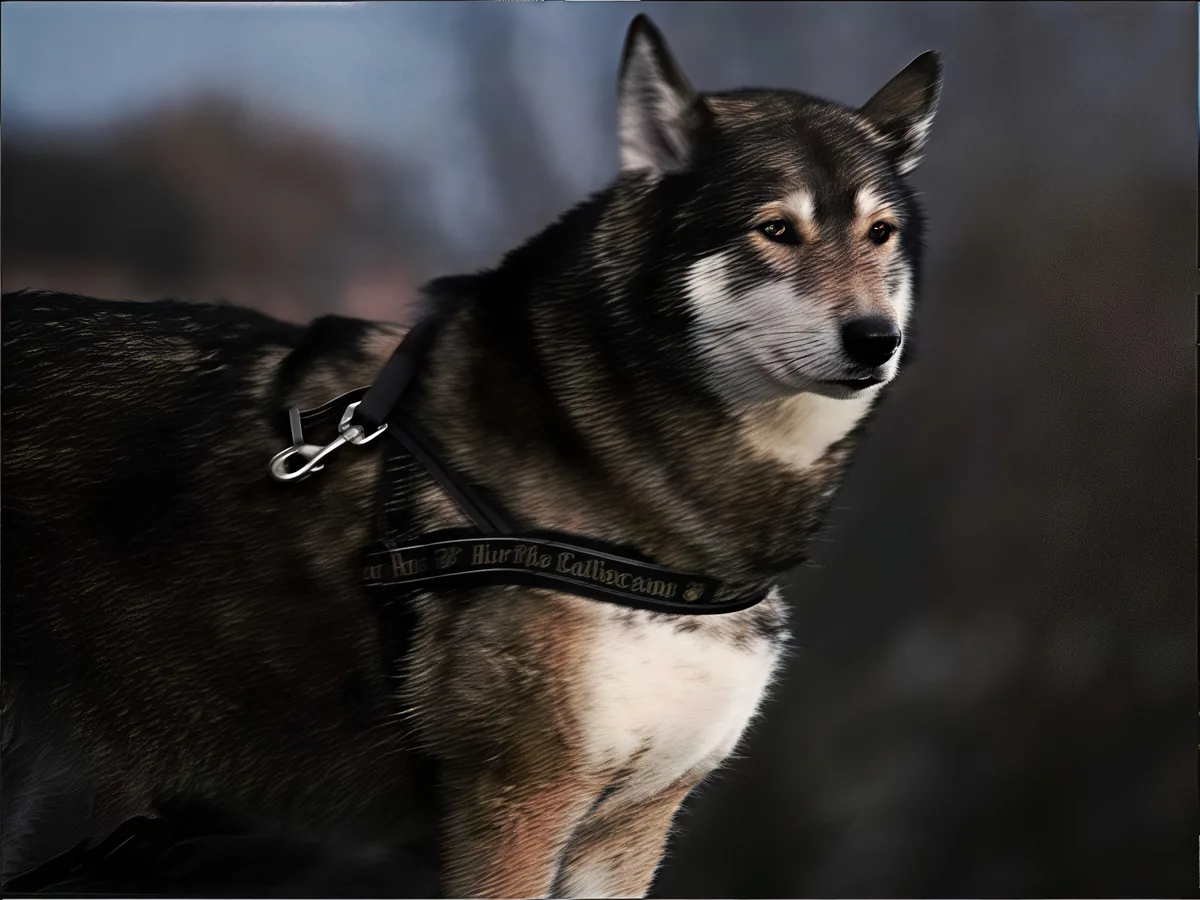
Shaky photo of a husky, before enhancementShaky photo of a husky, after enhancement

Unblur Image

Remove motion blur and out-of-focus blur from photos.

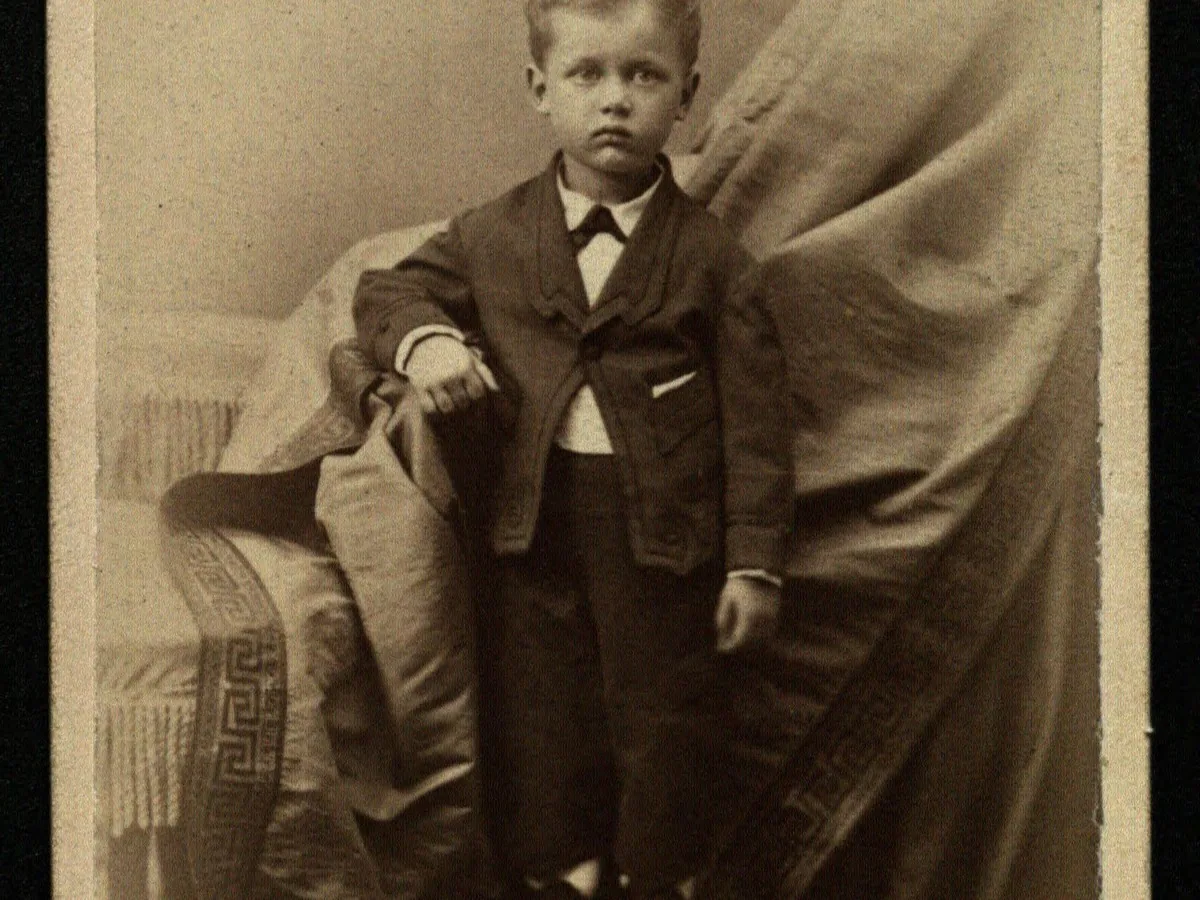
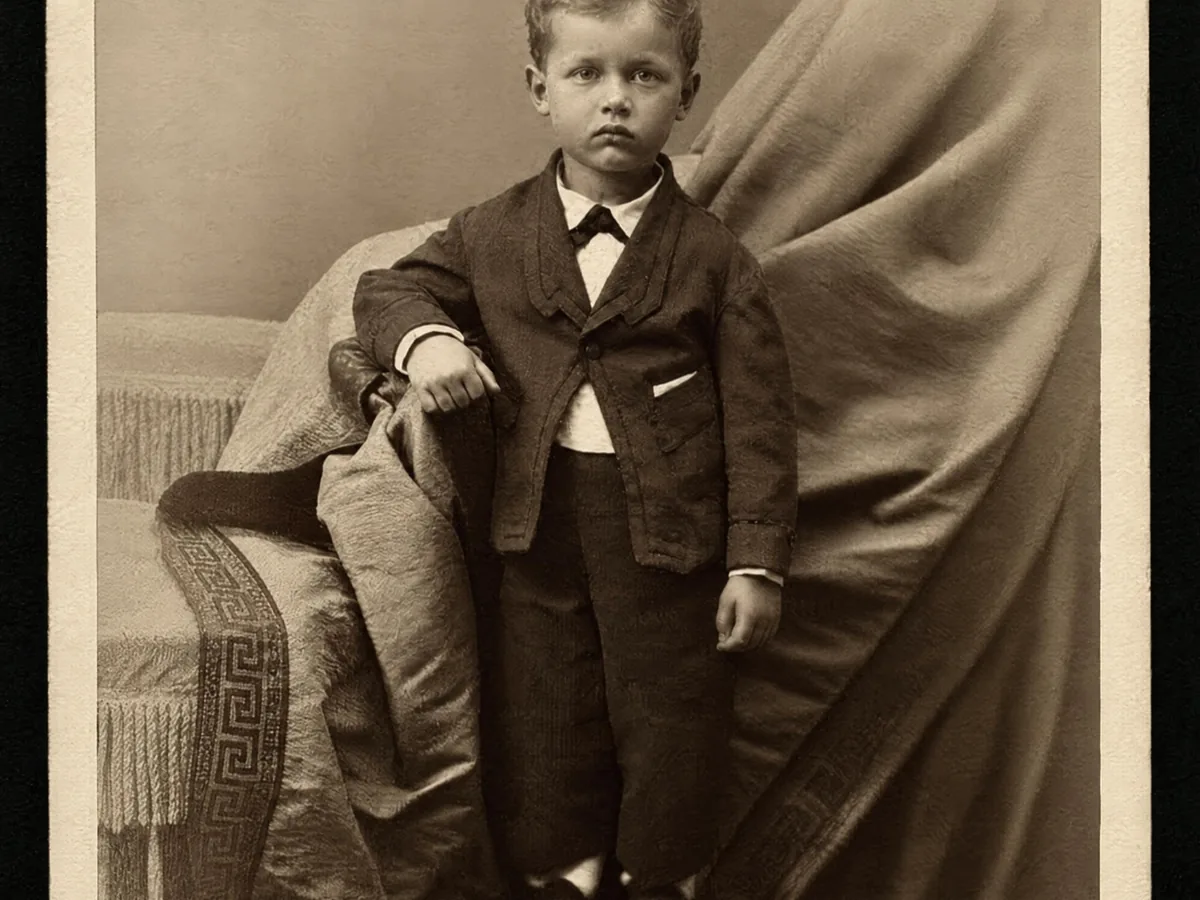
Faded cabinet card of a young boy, before enhancementFaded cabinet card of a young boy, after enhancement

Restore Old Photos

Clear scratches, dust and fading on scanned prints.

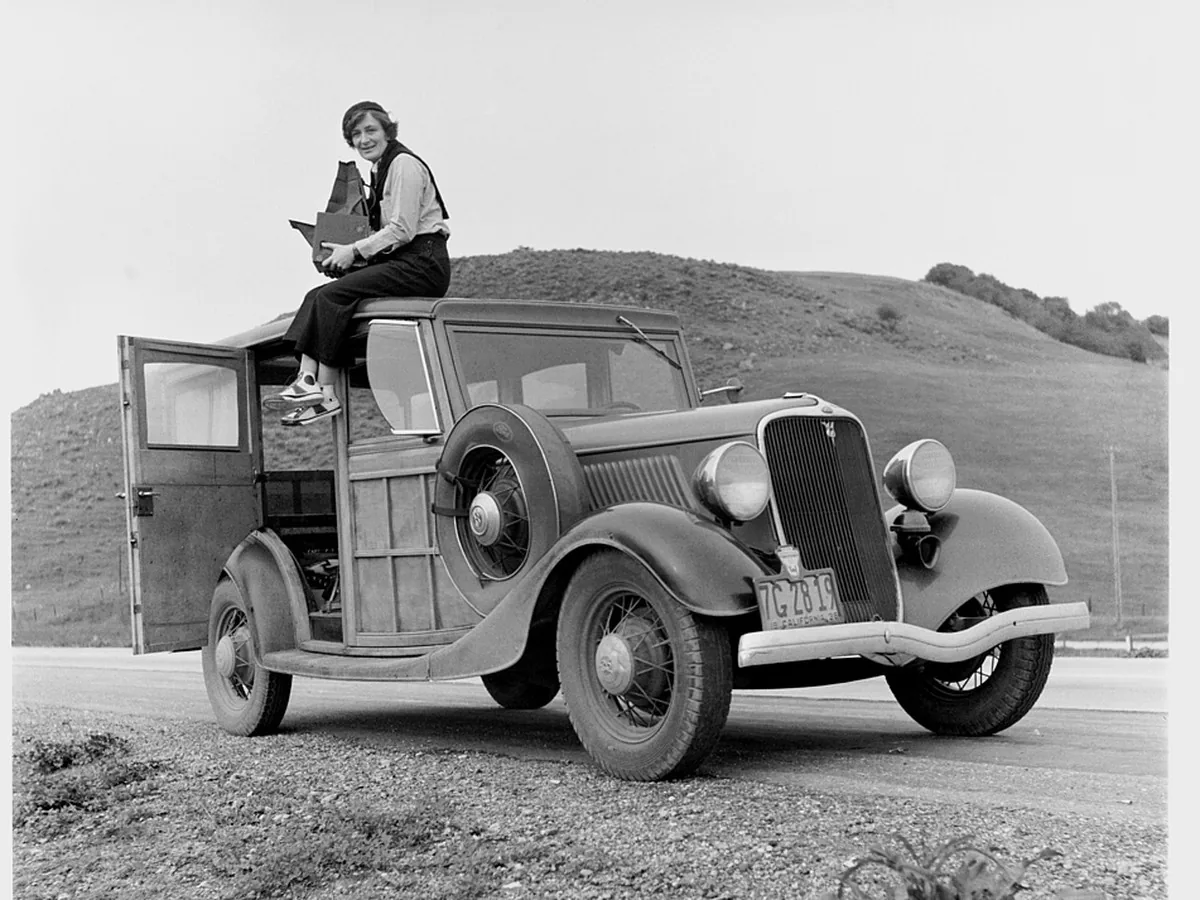
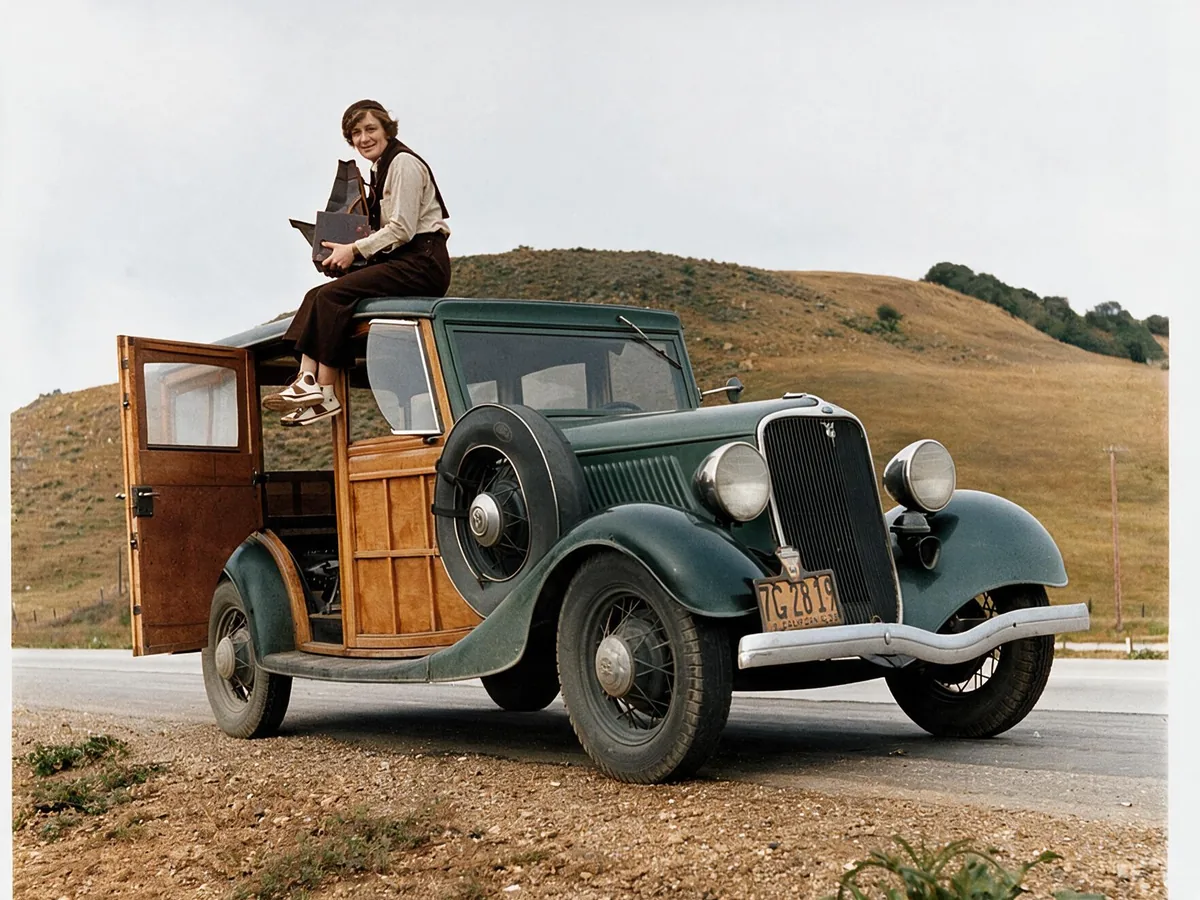
Black and white photo of a woman on a 1930s car, before enhancementBlack and white photo of a woman on a 1930s car, after enhancement

Colorize Photo

Turn black and white photos into natural color.

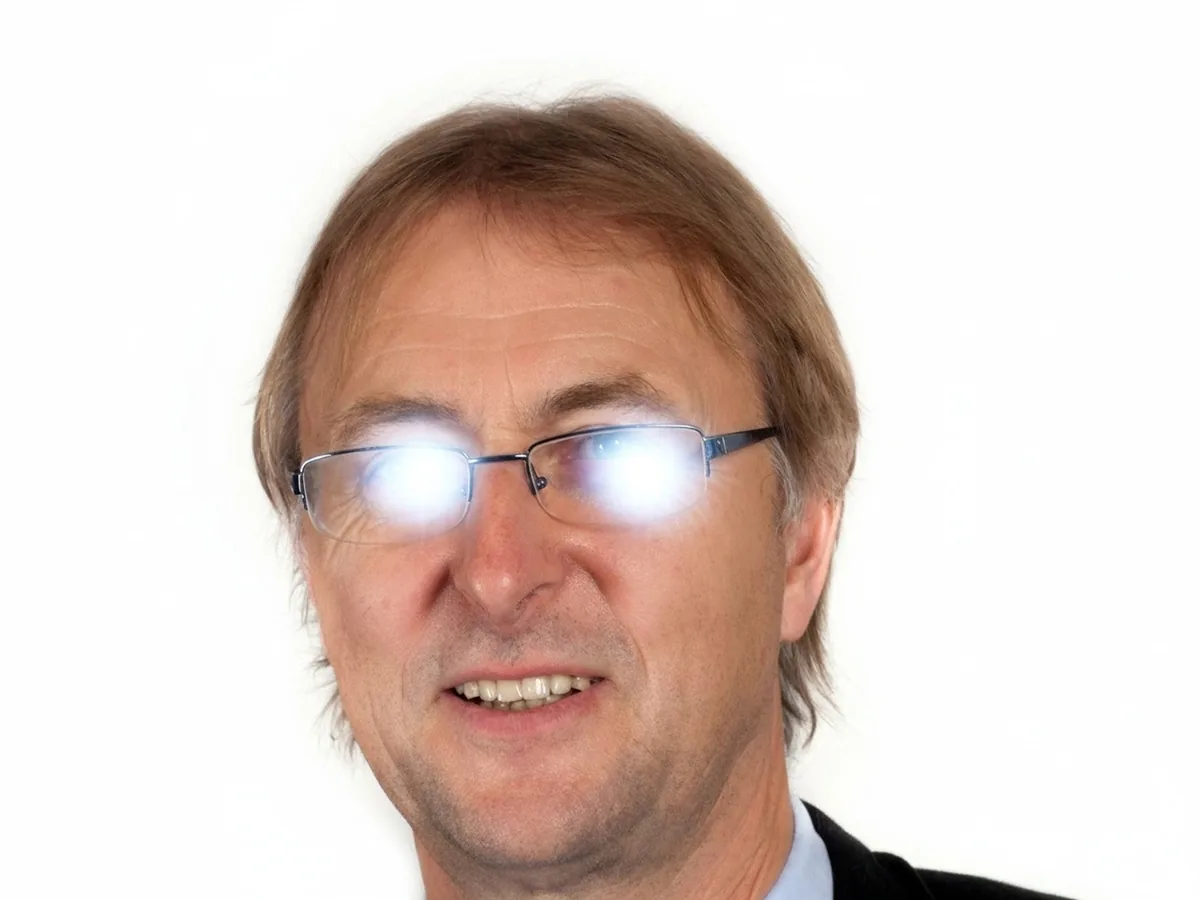
Portrait with flash glare on his eyeglasses, before enhancementPortrait with flash glare on his eyeglasses, after enhancement

Remove Glare

Clear glare on glasses, glass and flash spots.

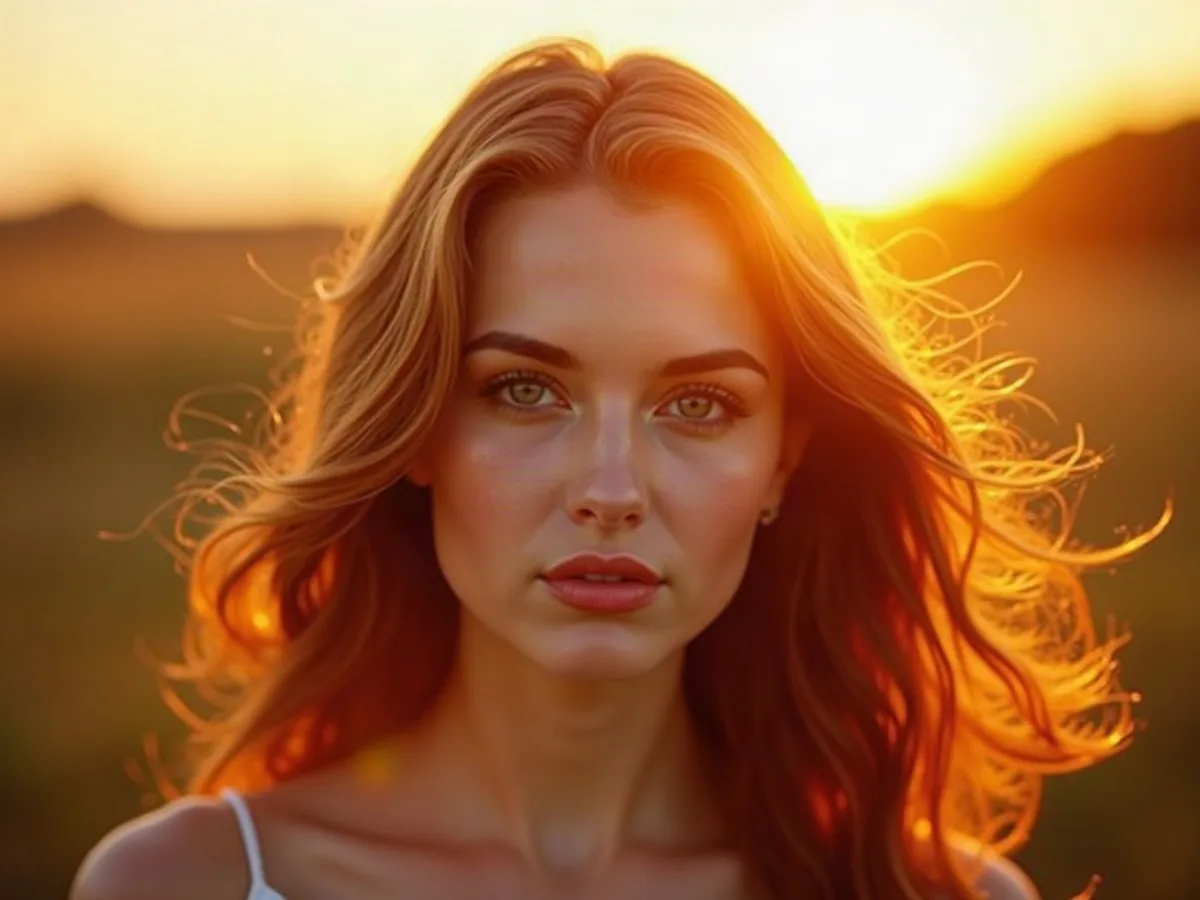
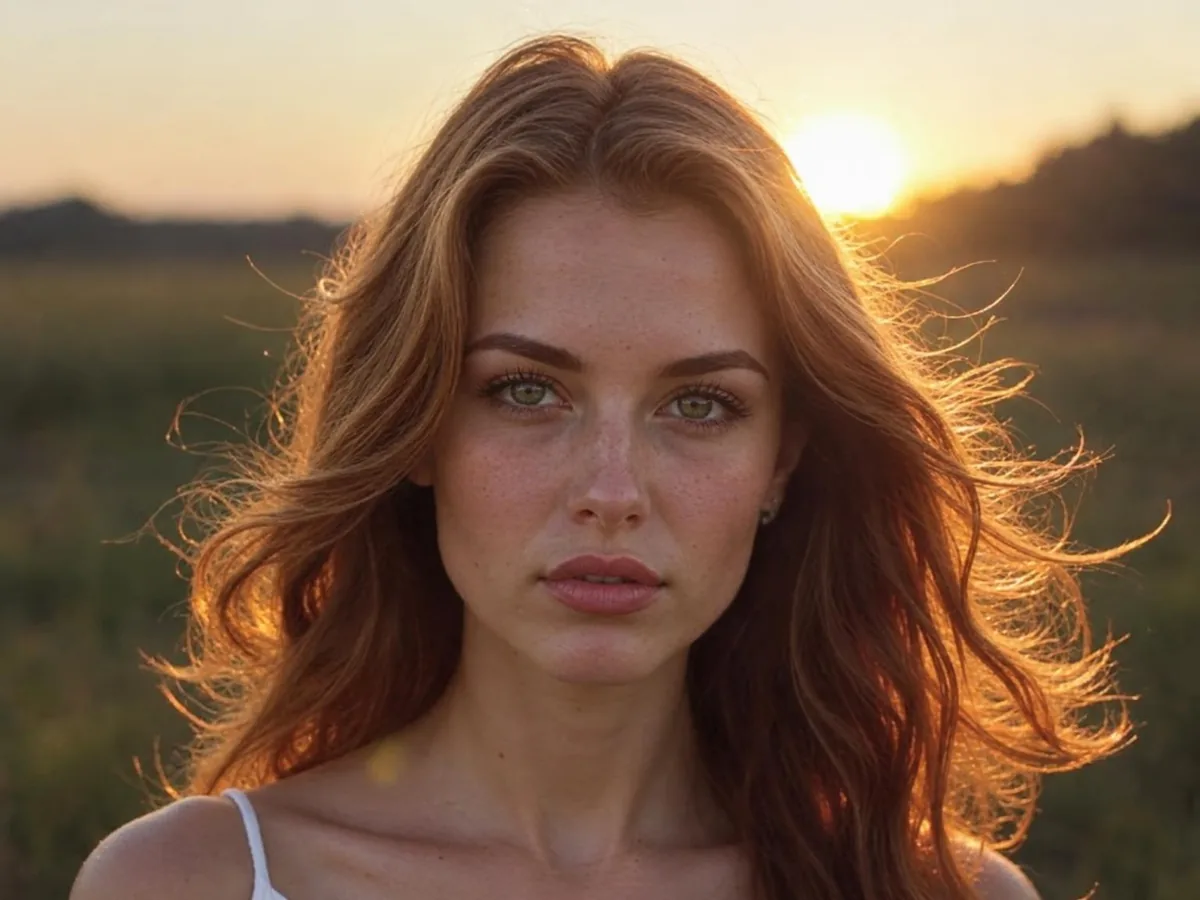
AI portrait of a woman with glowing golden backlight, before enhancementAI portrait of a woman with glowing golden backlight, after enhancement

AI Image Humanizer

Make AI images look like real photos.

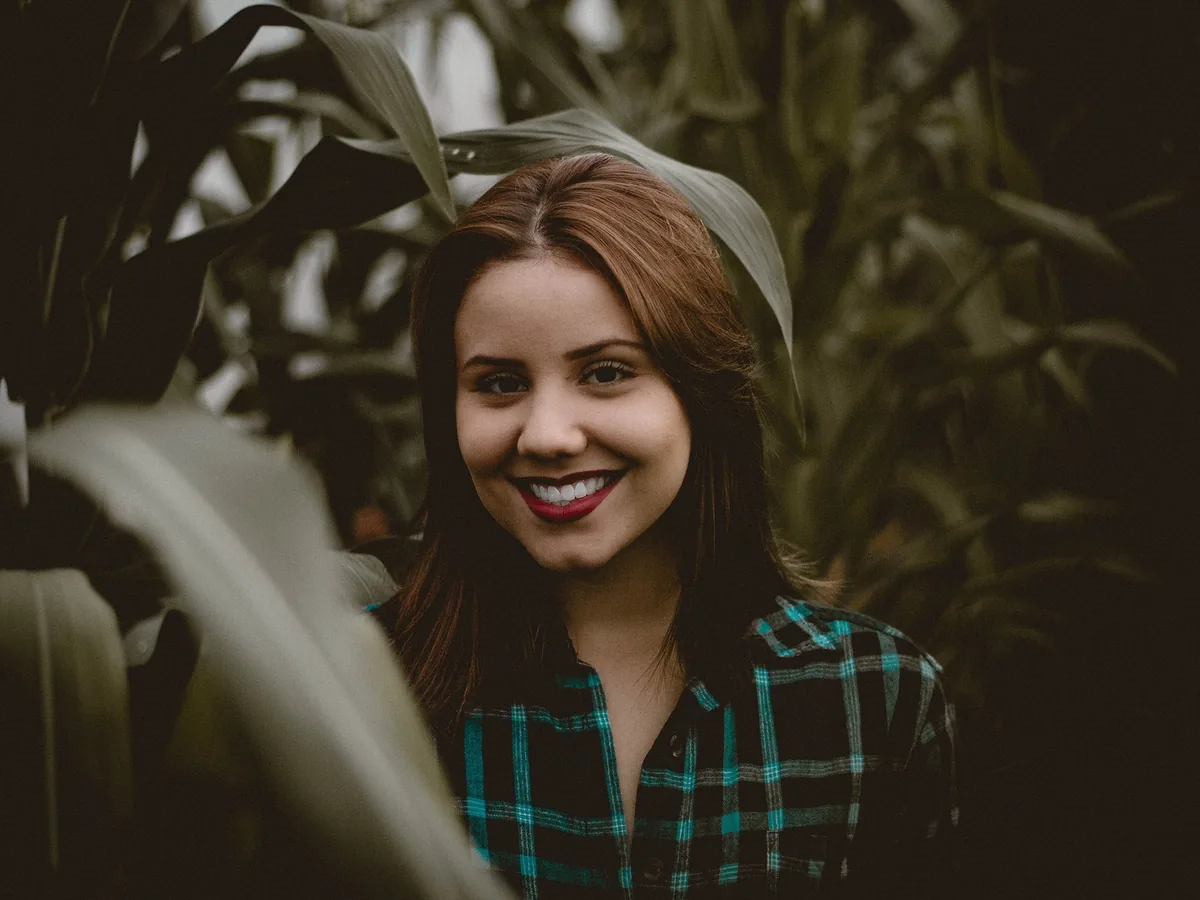
Smiling woman with red hair moved into a park, before enhancementSmiling woman with red hair moved into a park, after enhancement

Change Background Photo

Swap any photo background for a color, scene or image.

Close-up of an owl's yellow eye, before enhancementClose-up of an owl's yellow eye, after enhancement

Image Upscaler

Upscale photos to 2K, 4K or 8K with AI.

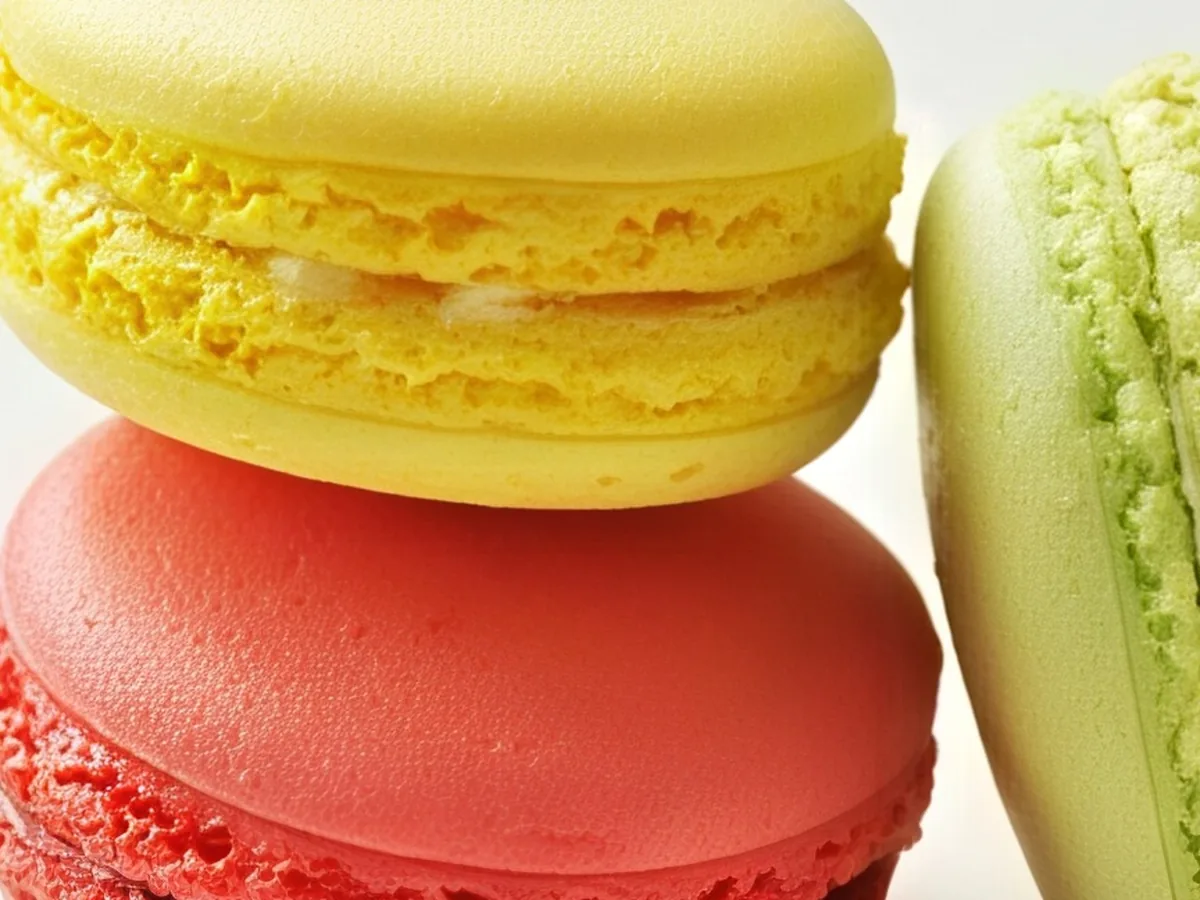
Close-up of yellow, pink and green macarons, before enhancementClose-up of yellow, pink and green macarons, after enhancement

HD Photo Converter

Turn low-res photos into 1080p, 2K or 4K.

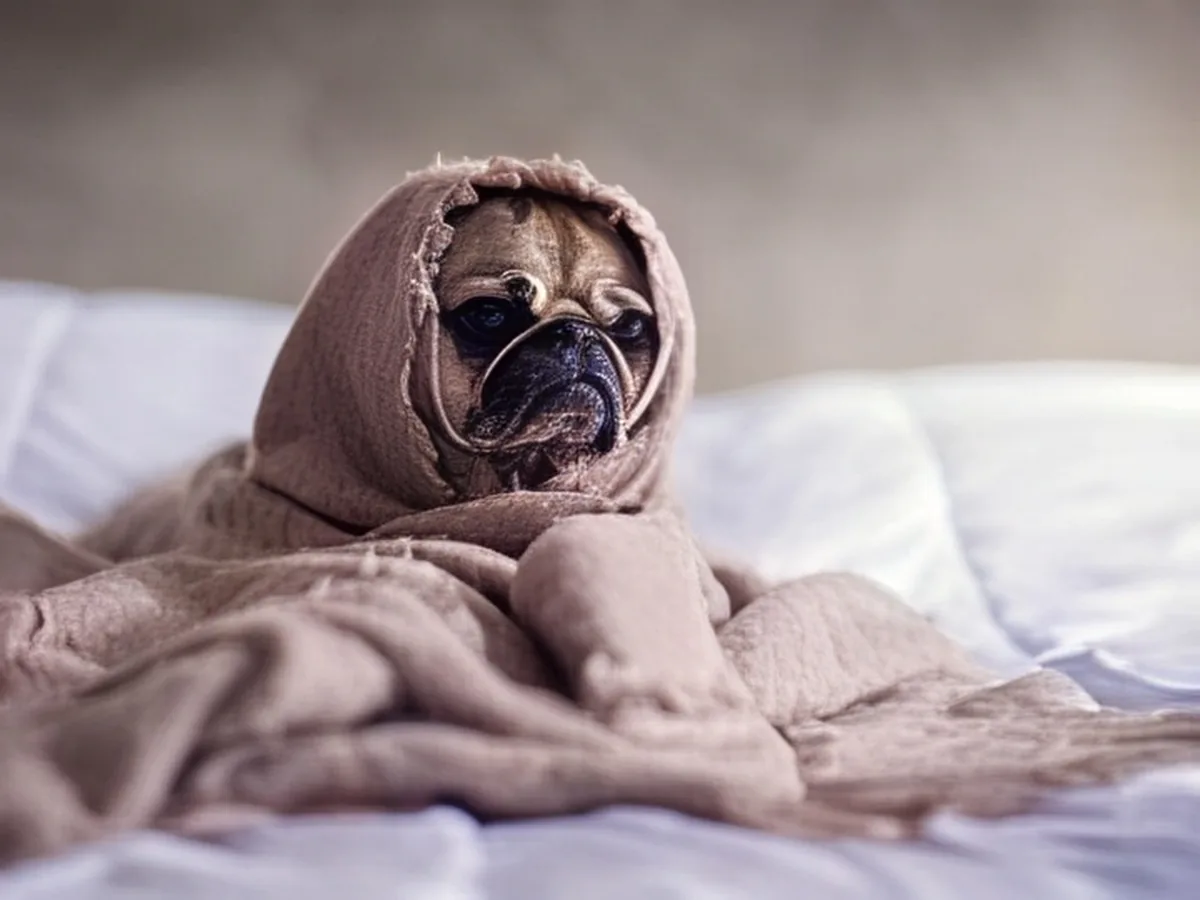
Low-resolution photo of a pug in a blanket, before enhancementLow-resolution photo of a pug in a blanket, after enhancement

Photo Quality Enhancer

Upscale and clean up any photo in one go.