How to Upscale an Image Without Losing Quality
Upscale a small photo to 2K, 4K or 8K with AI or by hand, pick the right size for screens and prints, and know when upscaling is the wrong fix.

Upscaling makes an image bigger: more pixels, so it can fill a large screen, print at a bigger size or survive a tight crop. Done the old way, a bigger image just looks softer. Done with AI, it can look sharp at the new size. This guide shows both, and how to pick the right size.
What upscaling actually does
A photo has a fixed number of pixels. Make it bigger and each pixel has to cover more space. A normal editor fills the gaps by averaging the pixels around them, which is why an enlarged photo looks smooth but blurry.
An AI upscaler has learned what real hair, fur, leaves, skin and edges look like. It predicts the missing detail and draws it in, so the bigger image has texture instead of mush. It's still a prediction, not the original detail, but for most photos it's very close.
Pick the right size first
Bigger isn't always better: large files load slowly and are harder to share. Choose by where the image is going.
- 2K (2560 px wide): social posts, websites, laptop wallpapers.
- 4K (3840 px wide): 4K monitors and TVs, phone wallpapers, prints up to about A4.
- 8K (7680 px wide): posters, large prints and heavy cropping.
For prints, aim for about 300 pixels per inch. Divide the pixel width by 300 to see how many inches wide it prints sharply: a 4K image is about 13 inches (33 cm), an 8K image about 25 inches (65 cm).
How to upscale an image with AI
- Open the Image Upscaler and upload the photo (JPG, PNG or WebP). No account is needed for the Standard version.
- Choose the output size: 2K, 4K or 8K. The exact pixel size appears before you start.
- Pick a version. Standard is a fast 4x upscale, up to 4K. Pro rebuilds finer texture and is the one that goes to 8K.
- Wait a minute or less, then drag the slider across faces and edges to compare with the original before you download.
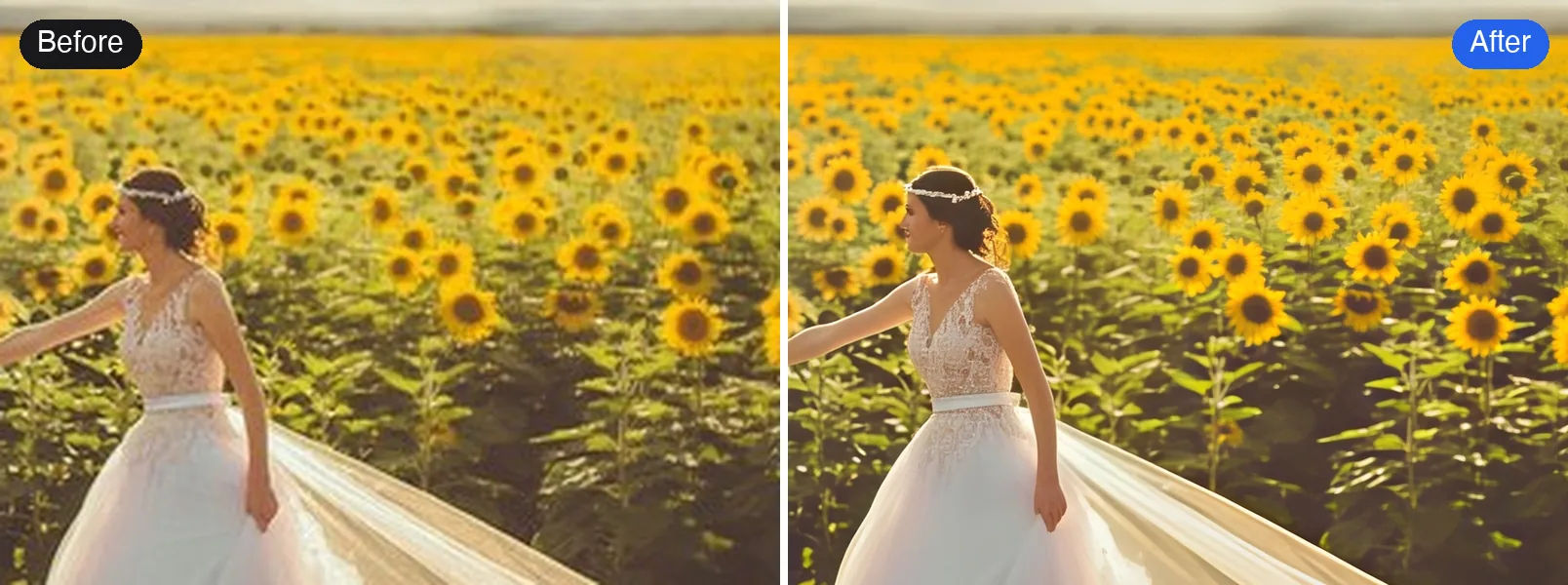
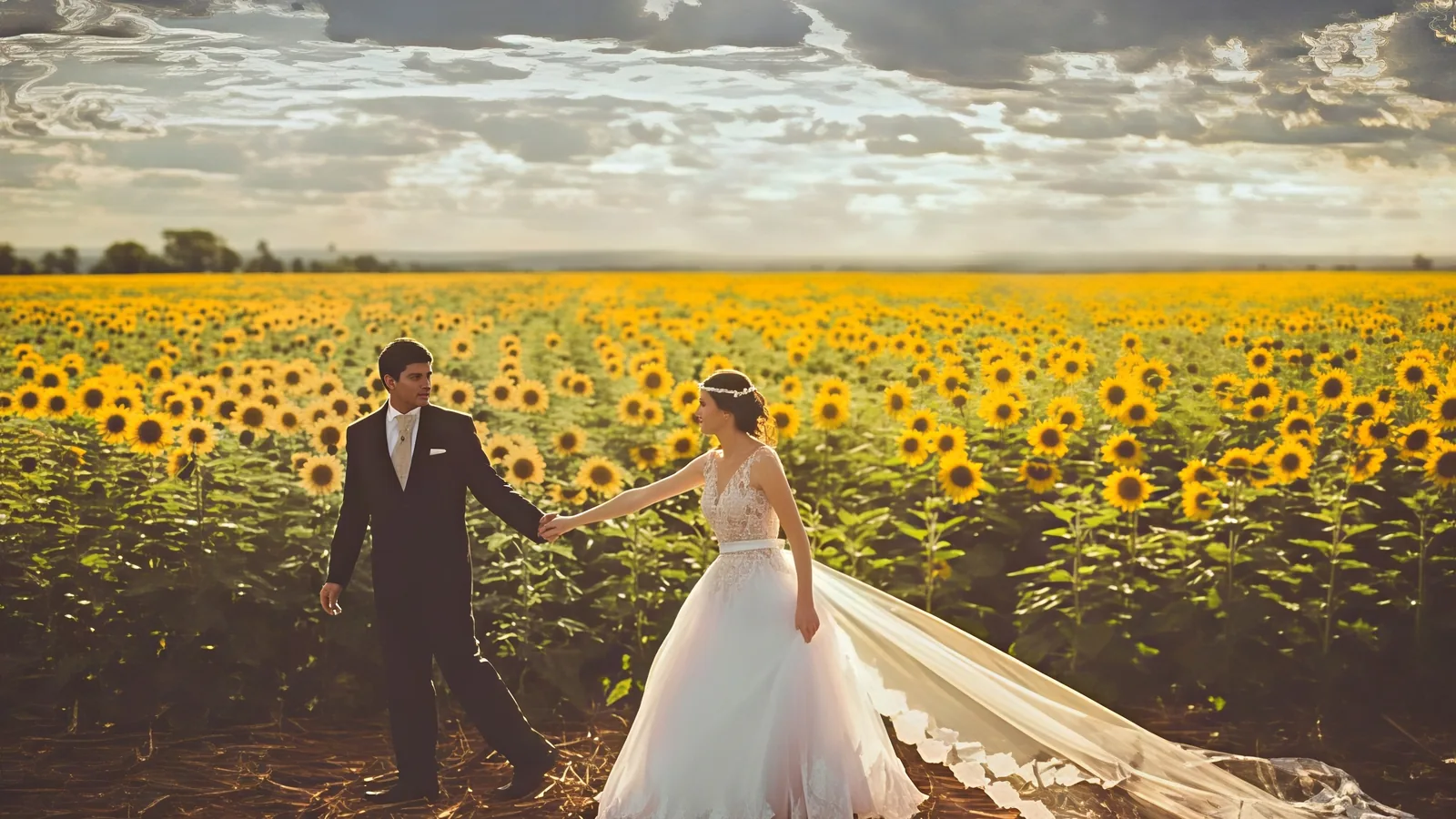
The lace on the dress, the bride's hair and the sunflowers in the background are all sharp again at 4K, and the colors match the original.
One limit to know: AI rebuilds detail up to about 4 times the original size. A 300-pixel thumbnail pushed to 4K needs far more than that, so the last part is a plain resize and fine detail stays soft. For tiny photos, a smaller target like 2K often looks better.
If you just need a common HD size such as 1080p for a screen or a wallpaper, the HD Photo Converter does the same thing with HD presets.
How to upscale an image without AI
You can enlarge a photo in any editor. It won't add detail, but these settings give the cleanest result.
Photoshop
- Open Image > Image Size and turn on Resample.
- Choose Preserve Details 2.0 and set the new width.
- Raise Reduce Noise slightly if the enlargement shows grain or blocks.
- Finish with Filter > Sharpen > Unsharp Mask, radius about 1 px.
GIMP (free)
- Use Image > Scale Image.
- Set Interpolation to NoHalo and enter the new size.
- Apply Filters > Enhance > Unsharp Mask lightly.
Preview on Mac
Use Tools > Adjust Size, enter the new width and keep Resample image on. It's quick, but the result is the softest of the three.
Enlarge in one step rather than several small ones: every resize step softens the image a little more.
When upscaling isn't the fix
- The photo is blurry. Motion blur or missed focus stays blurry when enlarged. Unblur it first, then upscale if you still need a bigger file.
- The photo is blocky. Visible squares from heavy compression need Unpixelate Image before anything else.
- A bigger copy exists. The original in your camera roll, a cloud backup or the sender's phone always beats an upscaled preview.
- Tiny faces. A face only a few pixels wide comes back looking like a face, but not always like that person.
Quick answers
Can I upscale an image for free? Yes. The Standard version of the Image Upscaler runs on the free credits everyone gets each day, no sign-up needed.
Does upscaling reduce quality? No. You get a new, larger file; the original is untouched.
Can I upscale on my phone? Yes. Open the page in your phone's browser and upload from your gallery.
Try it on your own photo
Upscale photos to 2K, 4K or 8K with AI.