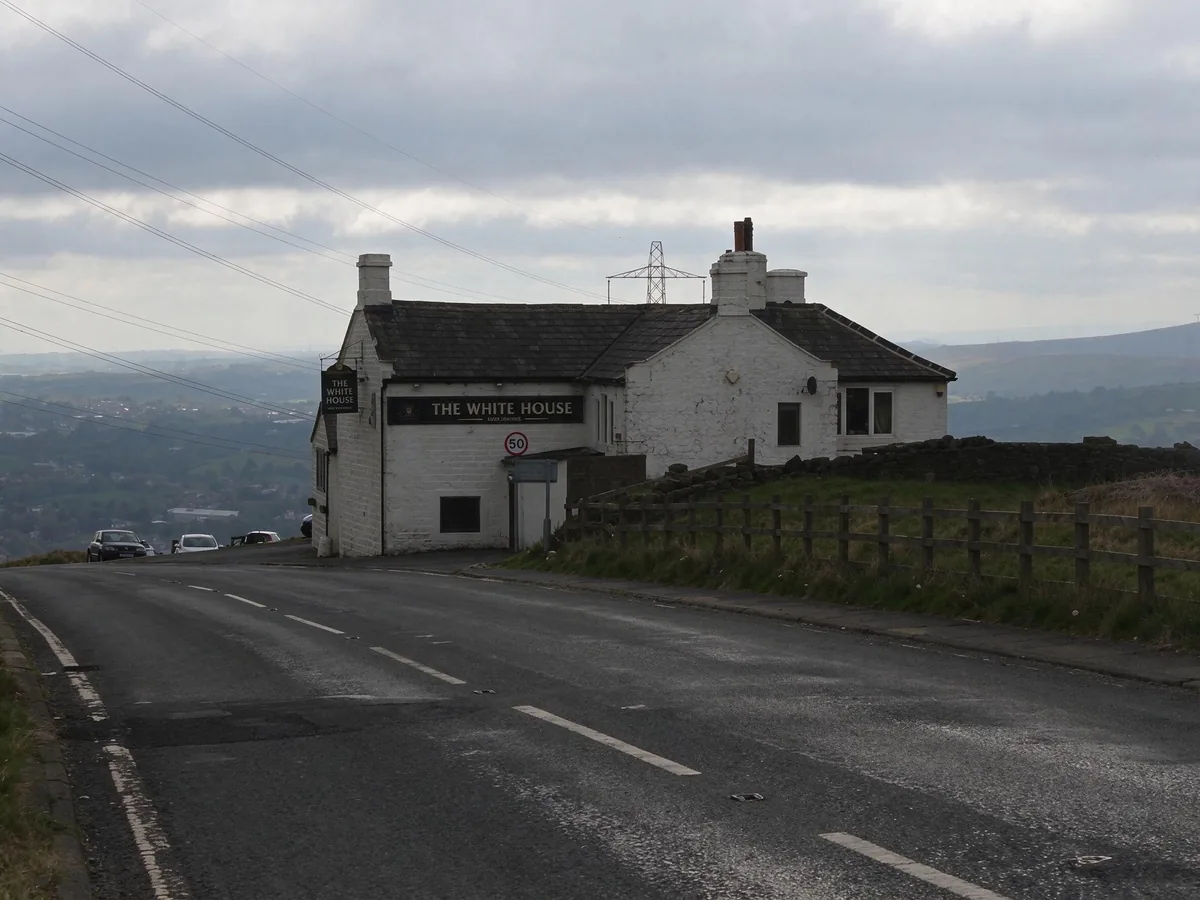
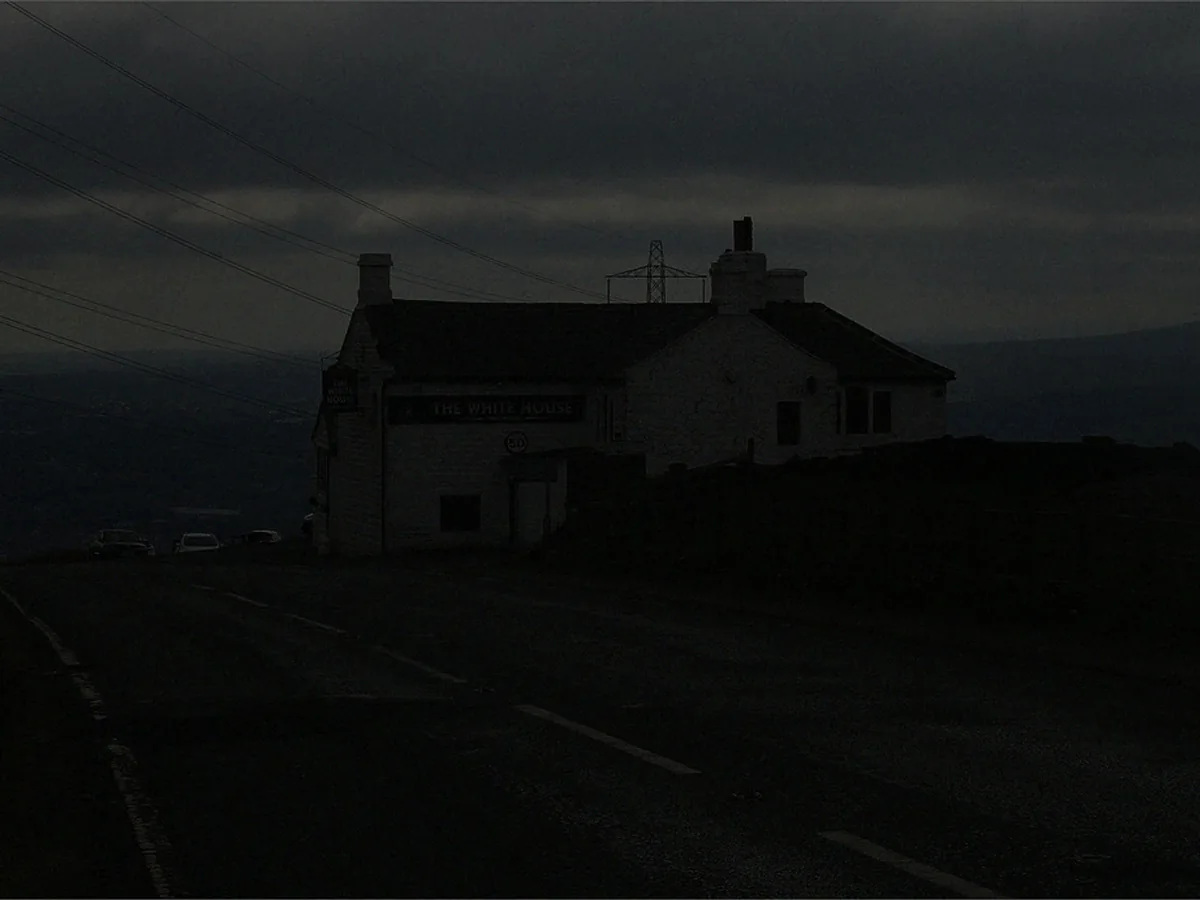
Brighten a dark landscape on a gloomy day
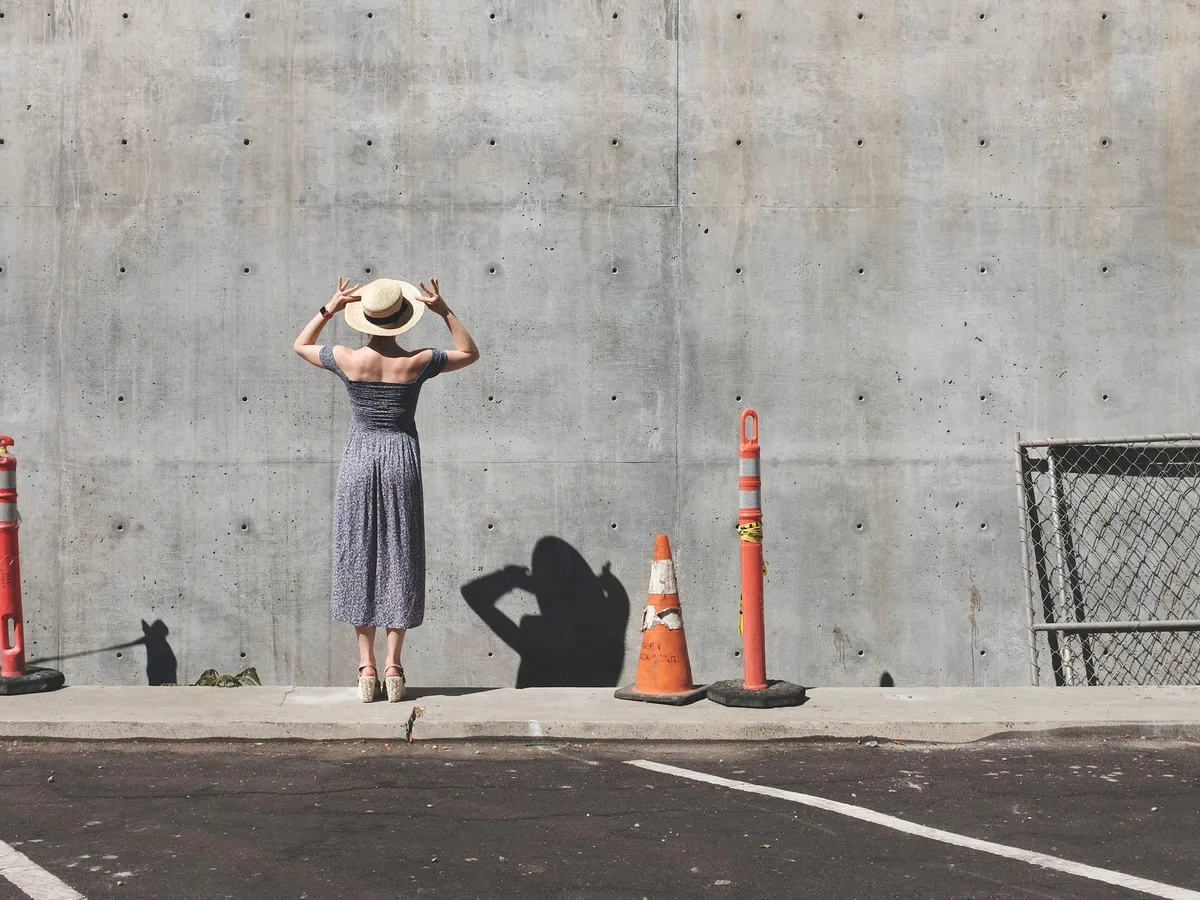
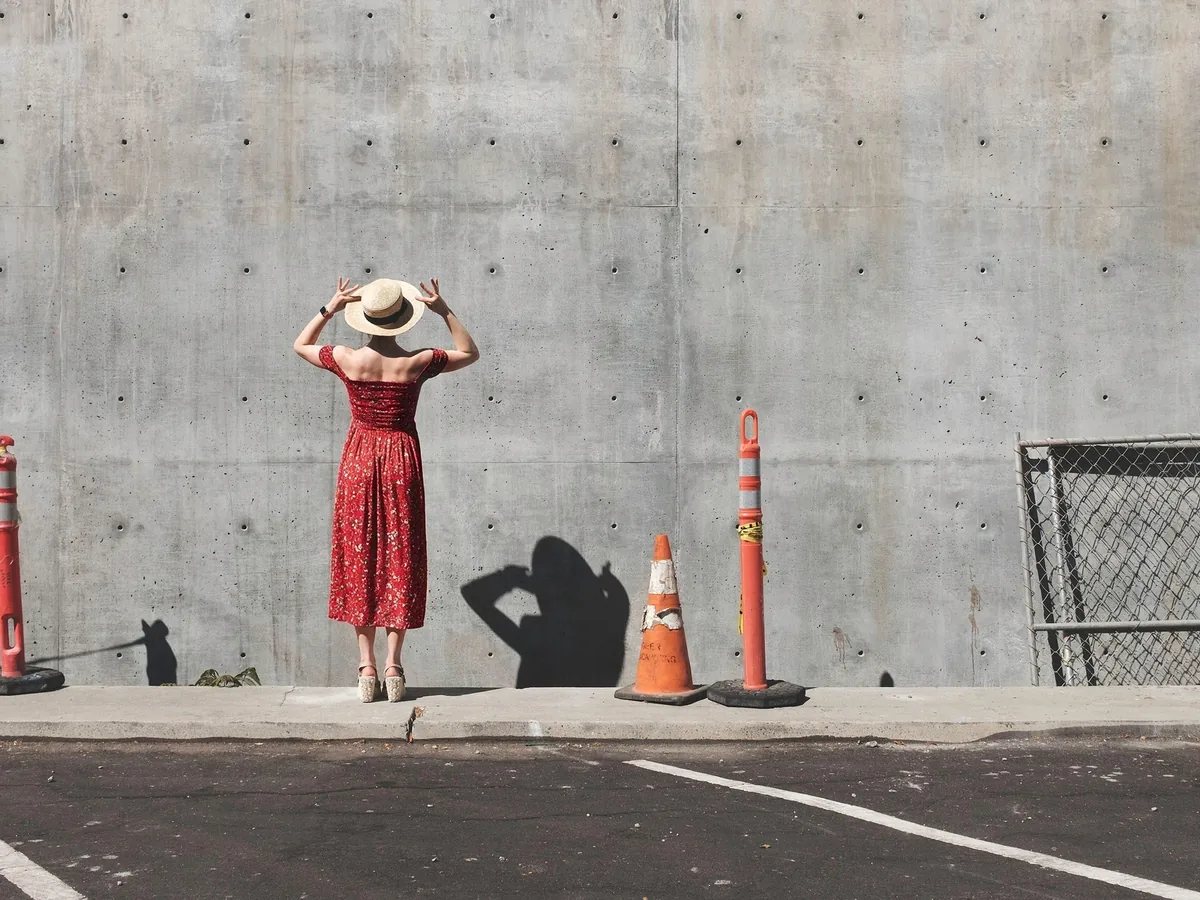
Overcast skies and dusk leave landscapes dark and flat. The AI fix lifts the ground, buildings and trees and keeps the clouds in the sky instead of washing them out to white.
- Outdoor
- Sky kept
- No gray haze
Brighten a photo that came out too dark: a dim room, a backlit subject, a gloomy day. AI lifts faces and details with true colors and no gray haze. Only a little dark? Scroll down for a free brightness slider.
Upload Image
Drag and drop, or click to browse
Free · Manual, no AI
This is a plain brightness and contrast adjustment, not AI. It runs in your browser: nothing is uploaded and no credits are used. For very dark photos, the AI fix at the top of the page gives a cleaner result.
This is a sample photo. Upload your own to download it or fix it with AI. JPG, PNG or WebP up to 20 MB; it stays on your device.
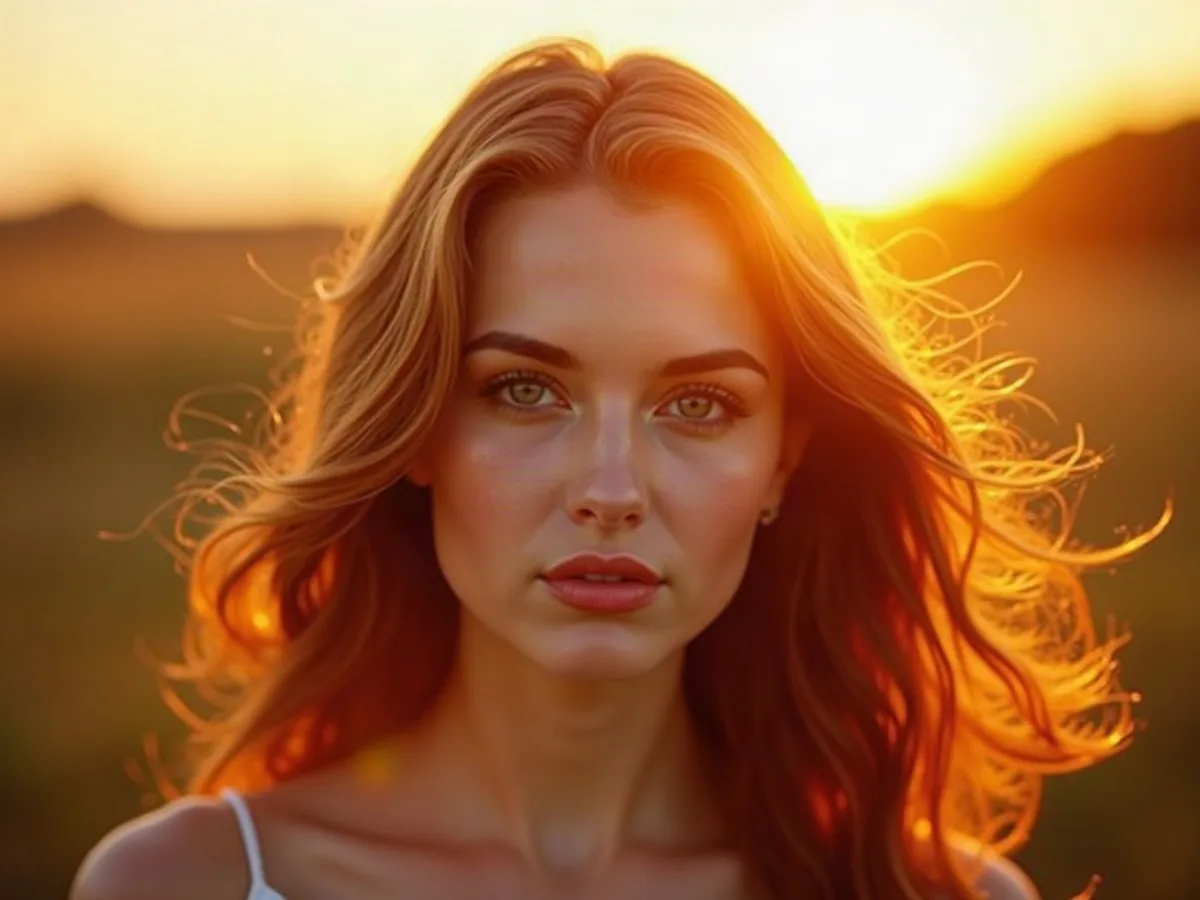
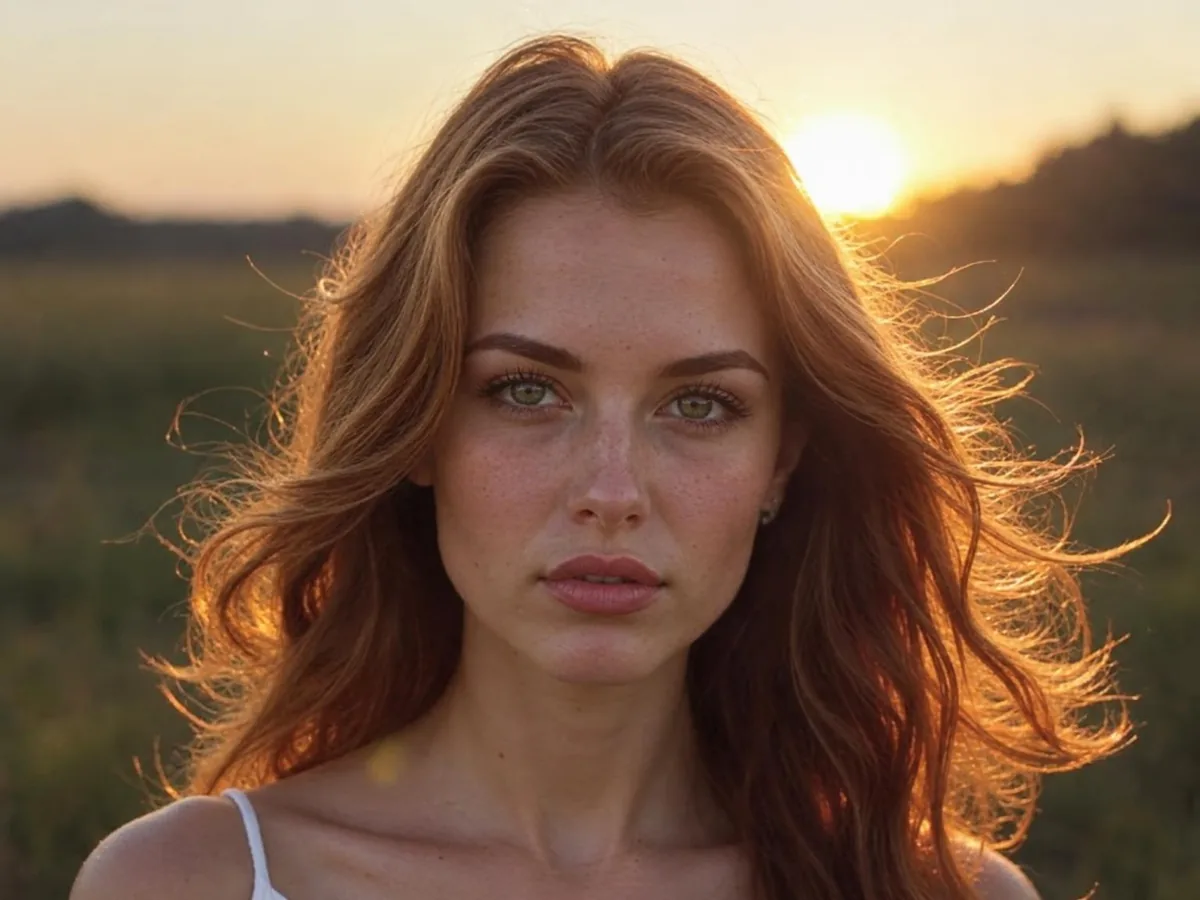
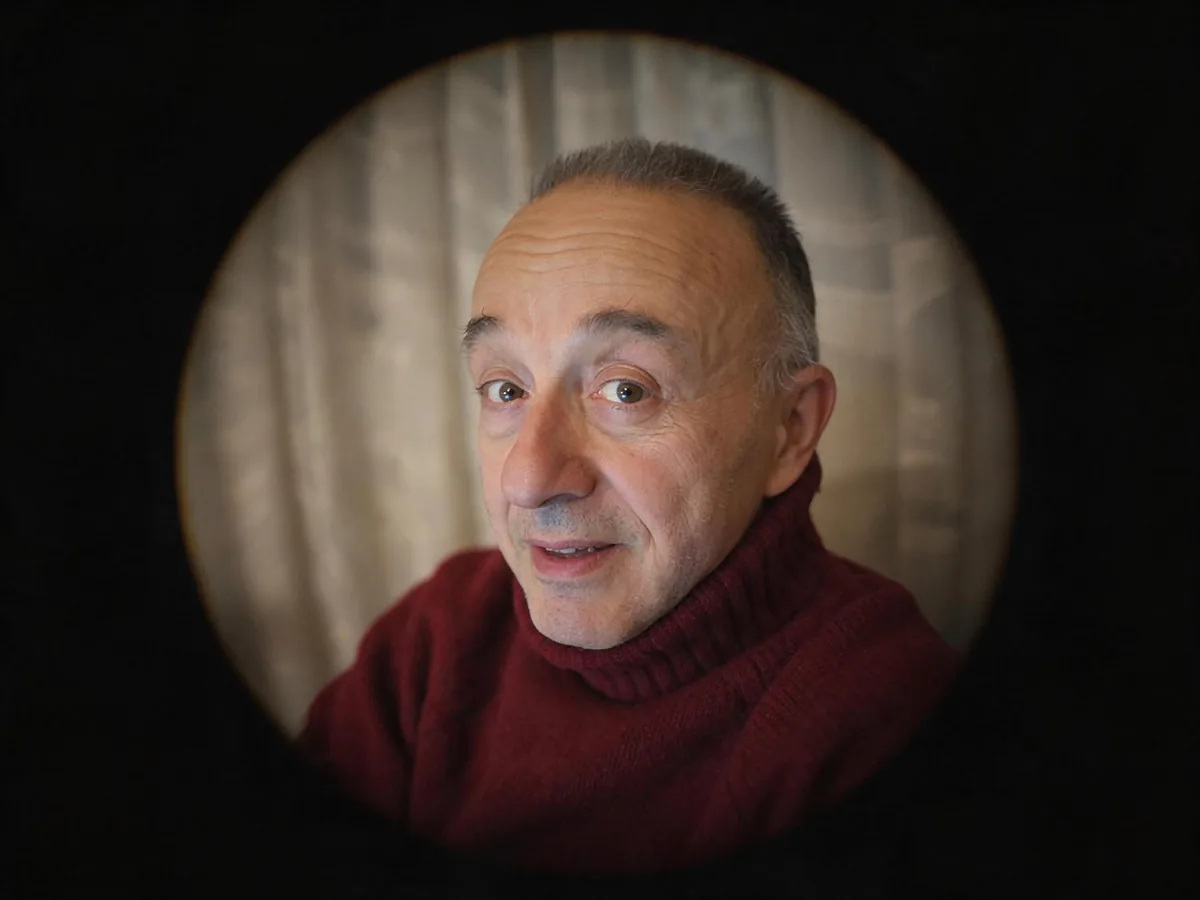
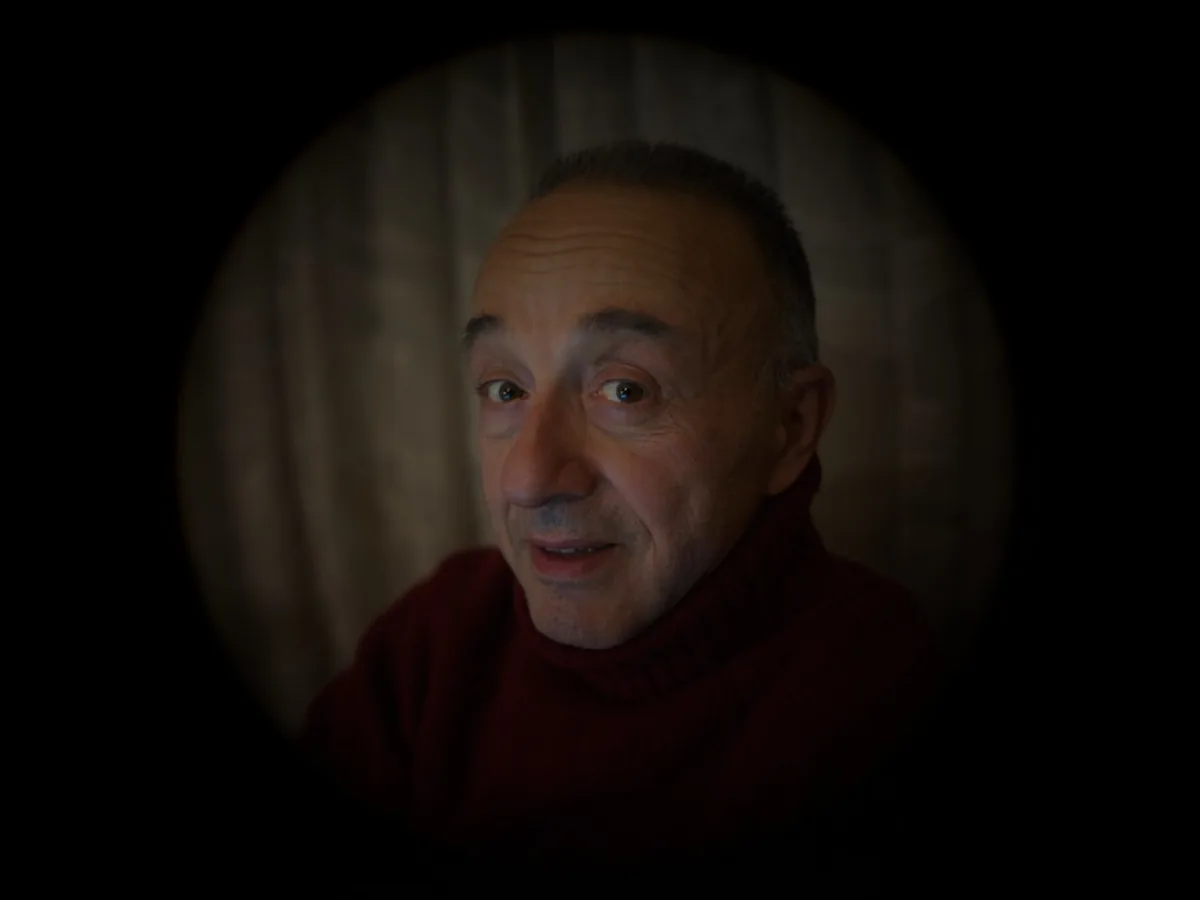
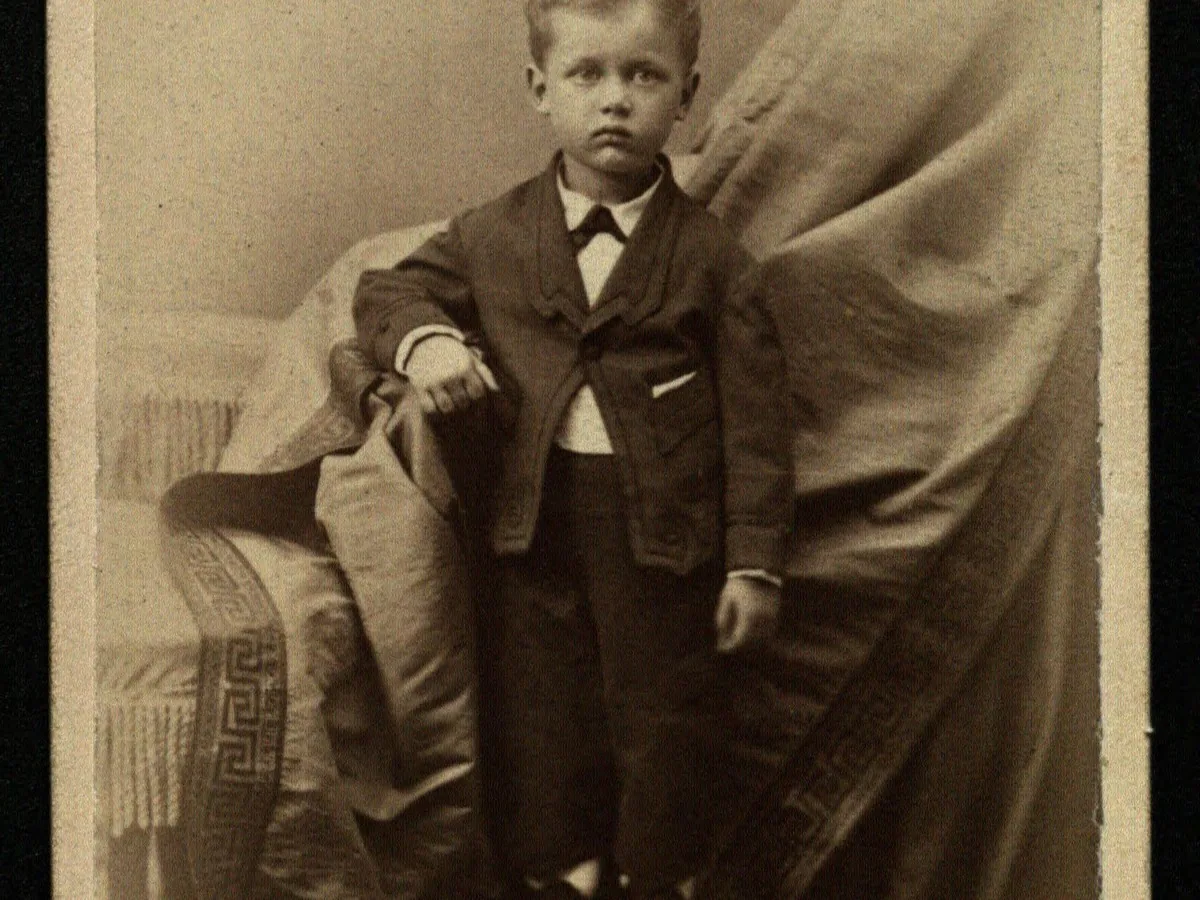
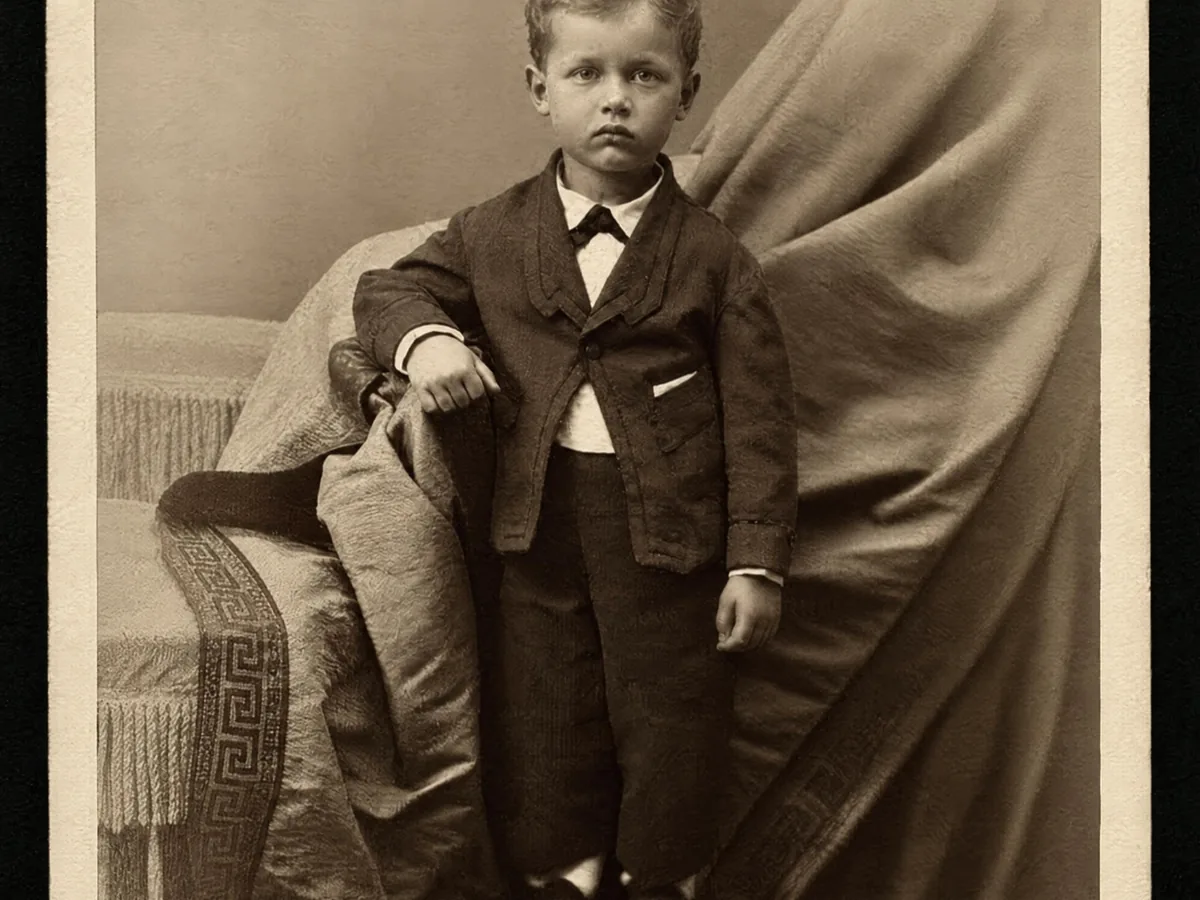
Drag the slider on each pair. Everything in the photo stays the same; only the light changes.
Overcast skies and dusk leave landscapes dark and flat. The AI fix lifts the ground, buildings and trees and keeps the clouds in the sky instead of washing them out to white.
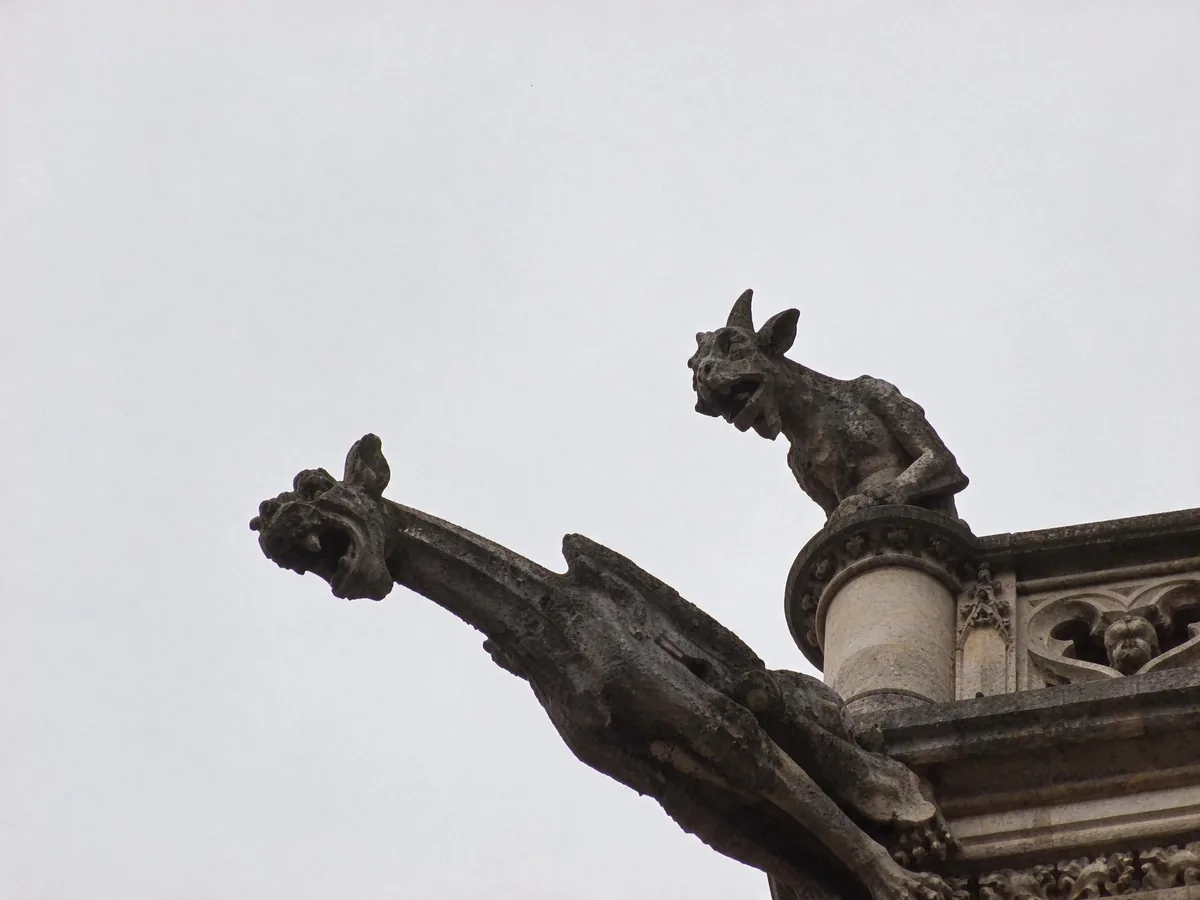
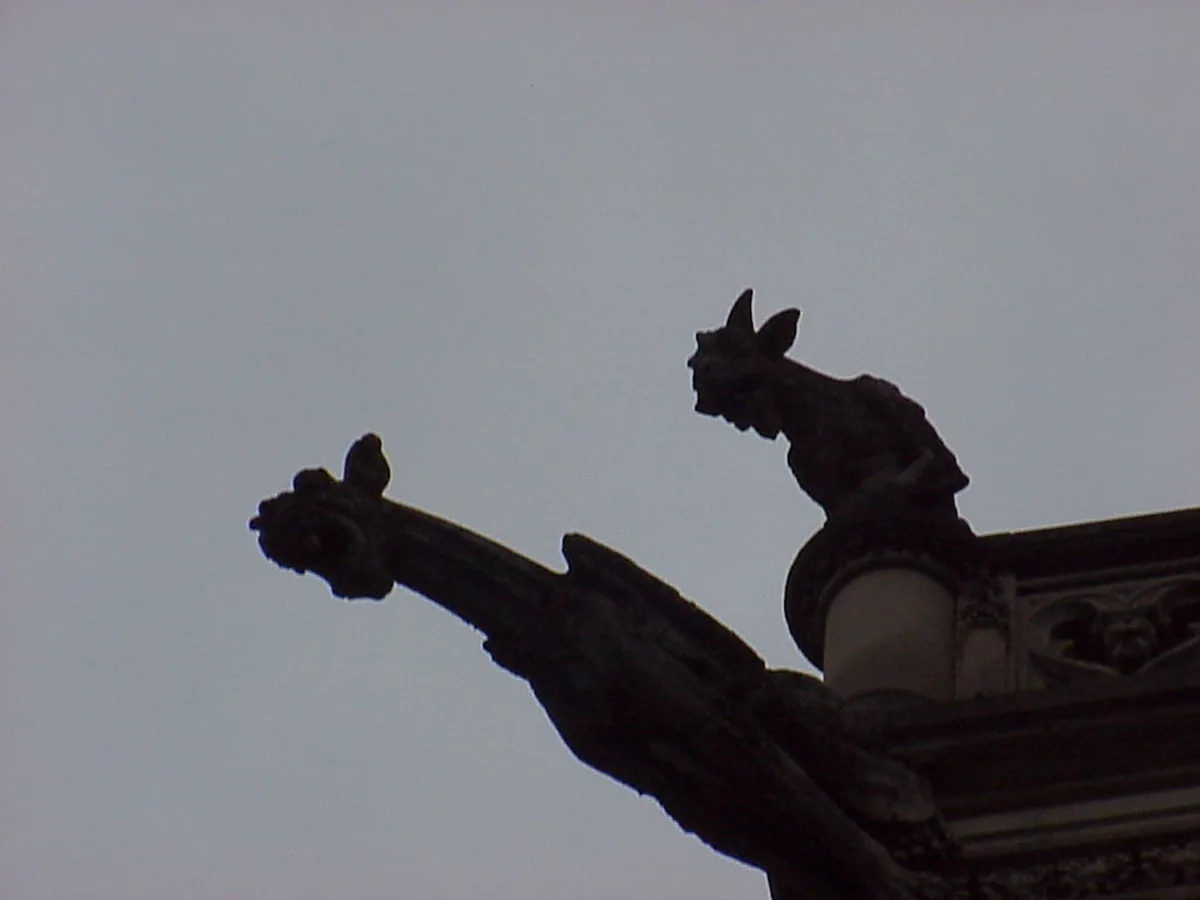
Shooting against a bright sky turns the subject into a black shape. The AI fix lifts the dark subject without blowing out the sky. Detail that was almost black is partly redrawn, so check small areas with the slider.
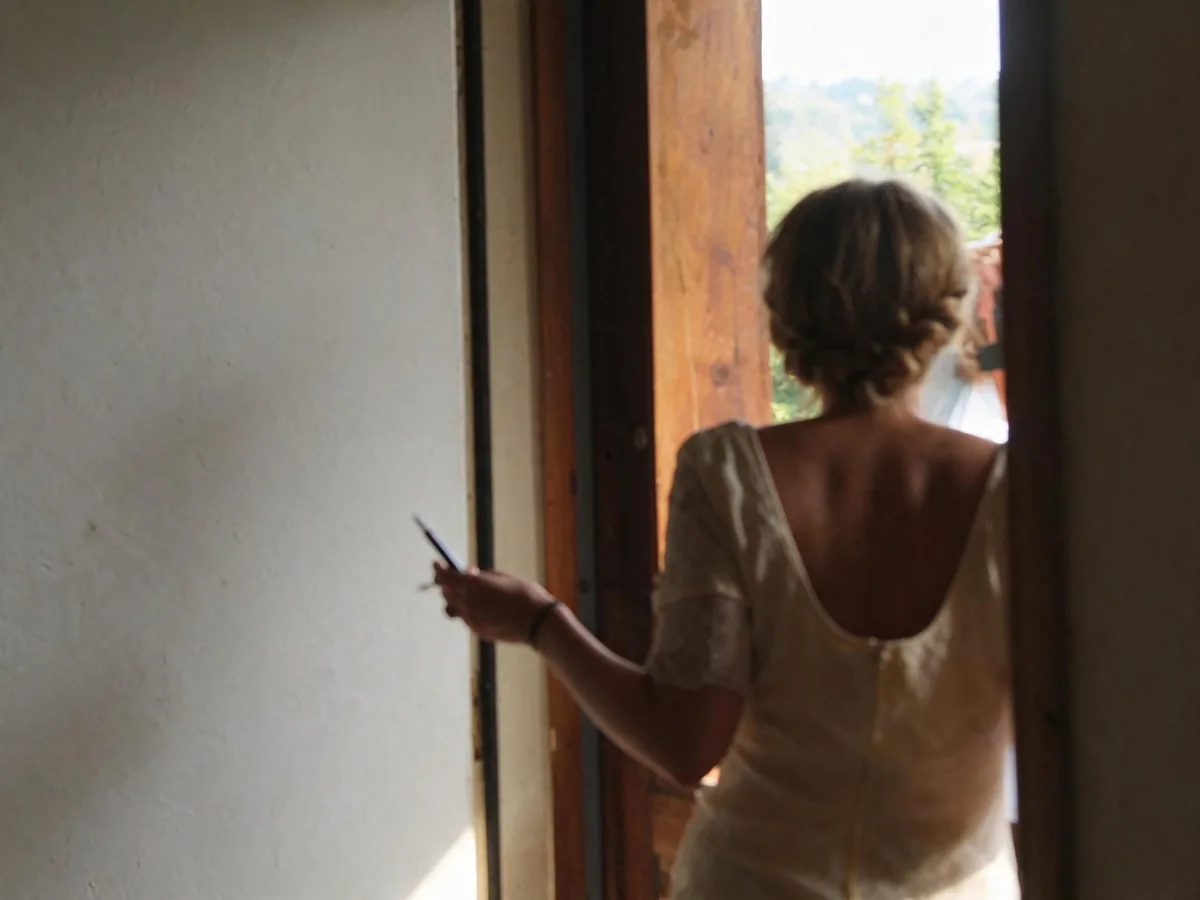
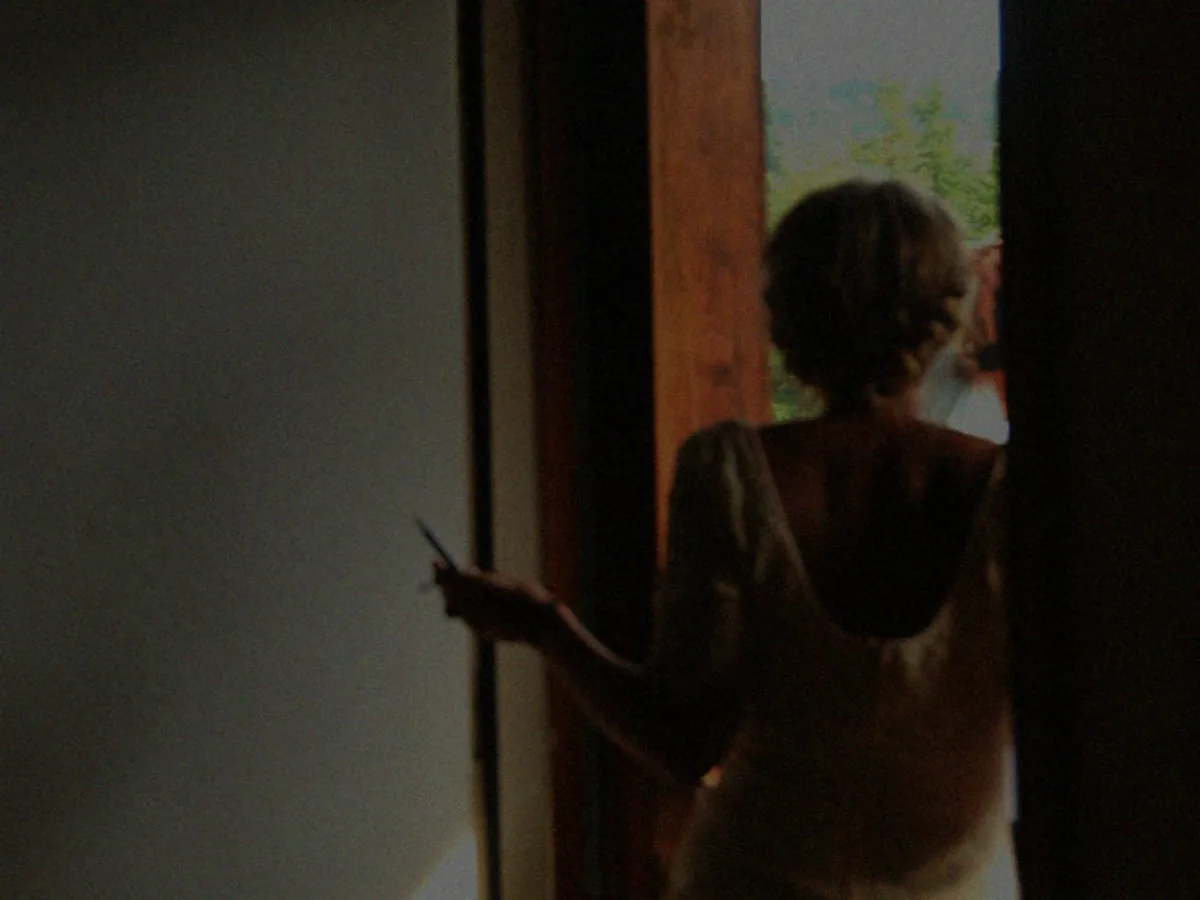
Indoors, a bright window makes the camera darken the whole room. Brightening lifts the room, the person and the skin tones, and the view outside stays visible.
Three steps, usually with under a minute of waiting.
JPG, PNG or WebP up to 20 MB. Phone photos are fine.
Shadows and dark areas are lifted, bright areas are kept, and colors stay true. Night photos stay night photos, only clearer.
Drag the slider to compare with the original, then save the photo at its full size.
Both make a photo brighter. Which one works better depends on how dark it is.
When a photo is mostly black, a brightness slider turns it gray, grainy and blotchy. The AI fix lifts faces and shadows and keeps the photo clean and the colors true.
If a photo is only a little dim, the free sliders on this page give almost the same result as the AI fix, without using credits.
Areas that came out pure white can't be brought back. Detail hidden in near-black shadows is partly redrawn, so compare small faces and text before you download. For a blurry dark photo, use Unblur Image after brightening.
Phone and desktop editors can brighten too. Here is what works and where they fall short.
Editors can only stretch the light that is already in the photo, so very dark photos turn gray and noisy. If the manual route leaves your photo muddy, that's the gap the AI fix fills.
On iPhone, open the photo in Photos, tap Edit and raise Exposure or Brilliance. In Google Photos, tap Edit > Adjust > Brightness. Raising them a lot adds noise to dark photos.
Raising Shadows brightens the dark areas while keeping the sky and windows from turning white. It looks more natural than raising overall brightness.
In Lightroom, raise Exposure and Shadows, lower Highlights, then add Detail > Noise Reduction to clean up the grain that brightening brings out.
Tap the subject's face before shooting so the camera exposes for it, turn on more lights, or move so the light falls on the subject instead of behind it.
Yes, in two ways. The brightness sliders on this page are free and unlimited, and run in your browser. The AI fix costs 4 credits a photo, and the 10 free credits everyone gets each day cover two photos, no account needed. Downloads have no watermark.
The slider brightens every pixel by the same curve, which is fine for a slightly dark photo. The AI fix lifts shadows and faces while keeping bright areas and colors, and keeps very dark photos from turning gray and grainy.
No. A night or candlelit photo stays a night photo, only clearer. Sunsets keep their colors. Only the exposure is fixed.
Yes. A person or object in front of a bright window or sky is lifted while the bright background stays as it is. When the subject is almost black, some of its detail is redrawn, so compare with the slider before you save.
This tool is made for photos that are too dark. For a photo that is a little too bright, move the free Brightness slider below zero. Areas that came out pure white have no detail left and can't be recovered.
Open this page in Safari and upload the photo from your library, either to the AI fix at the top or to the free sliders. Tap Download to save the result back to Photos.
Photos adjusted with the free sliders never leave your device. Photos sent to the AI fix are used only to create your result, never to train AI. Without an account they're deleted after 24 hours. Signed in, they're kept in History for 72 hours, or until you delete them if you turn on "Keep my tasks". Details are in our Privacy Policy.

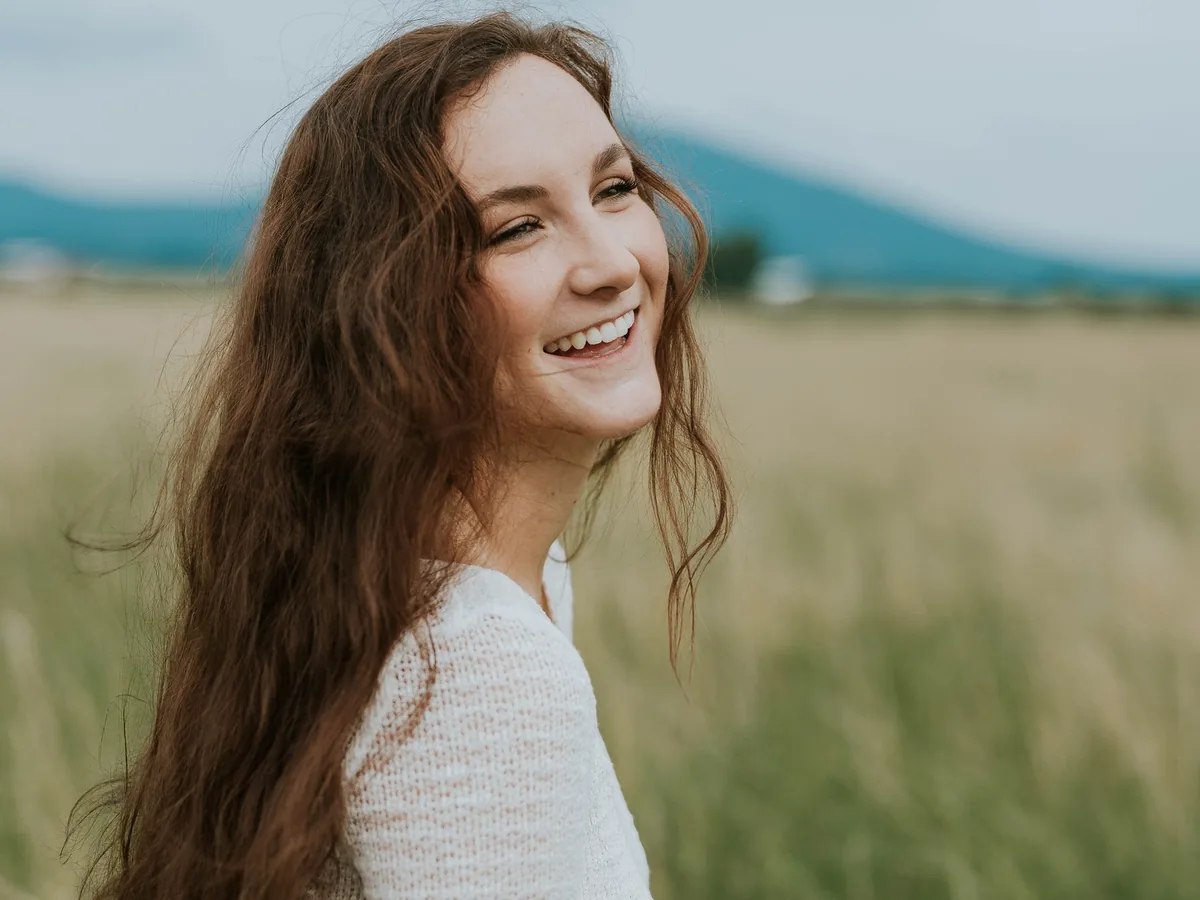
Put a person or product on pure white, with or without a soft shadow.
Make background white