

Clarpex

Remove Red Eye from Photo: Fix Flash Red Eyes Automatically

Remove red eye from a photo taken with flash: red pupils in people, glowing eyes in pets, every face in a group shot. Upload it, and only the eyes change.

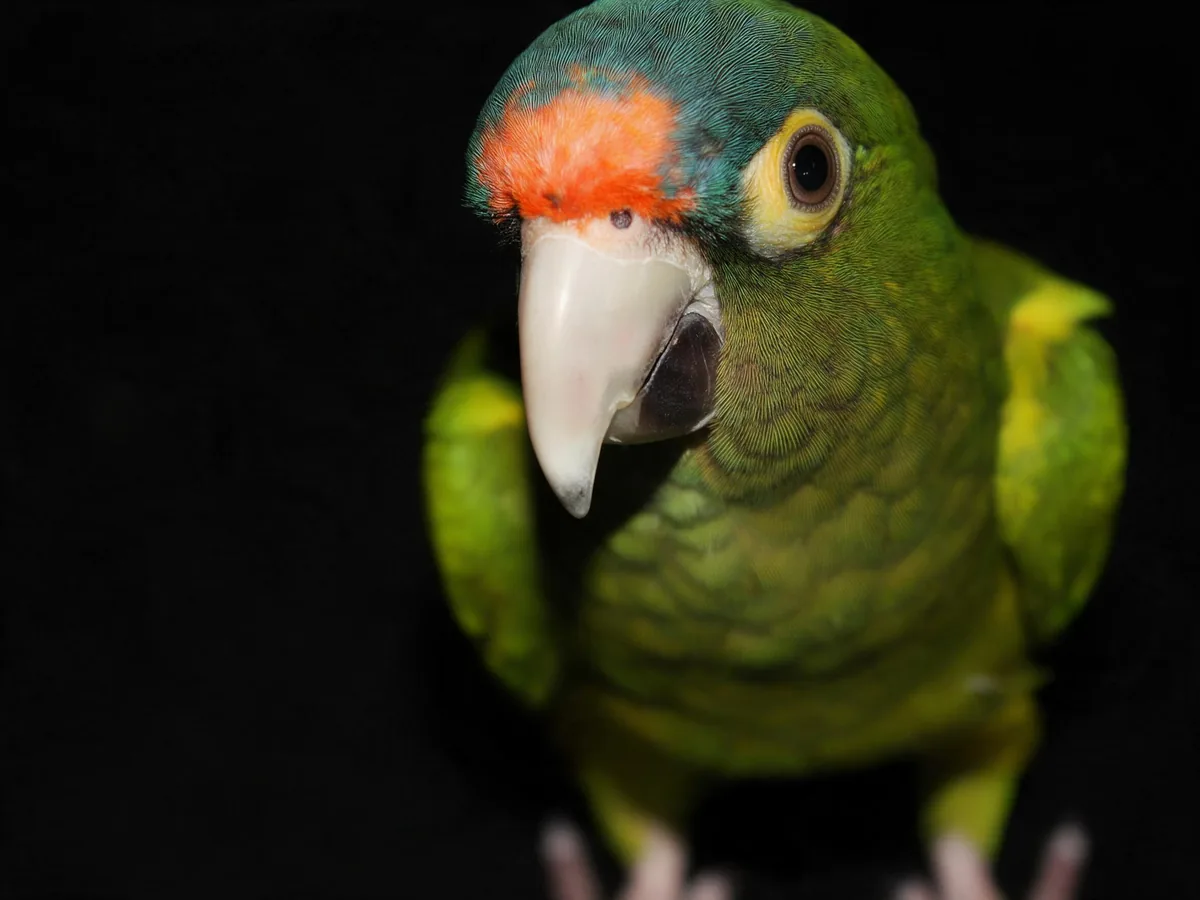
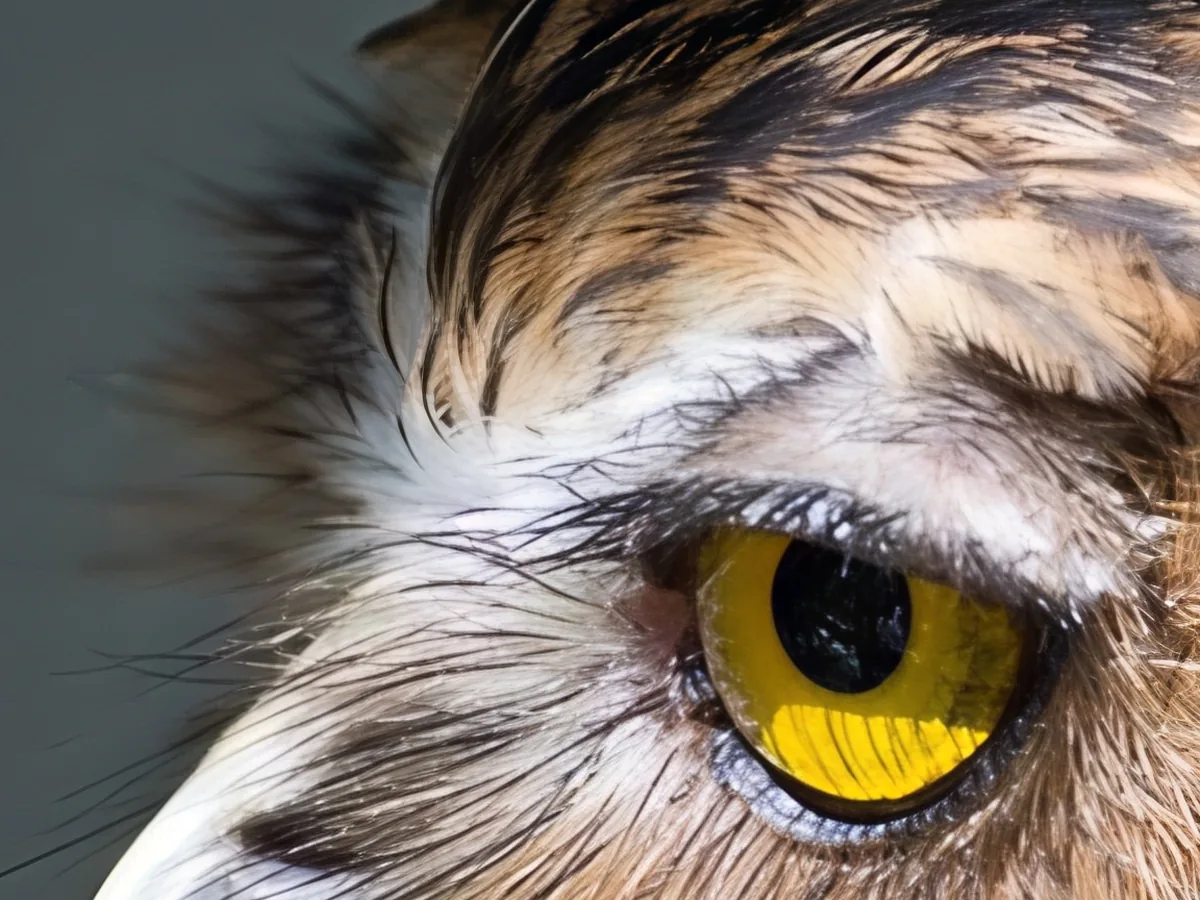
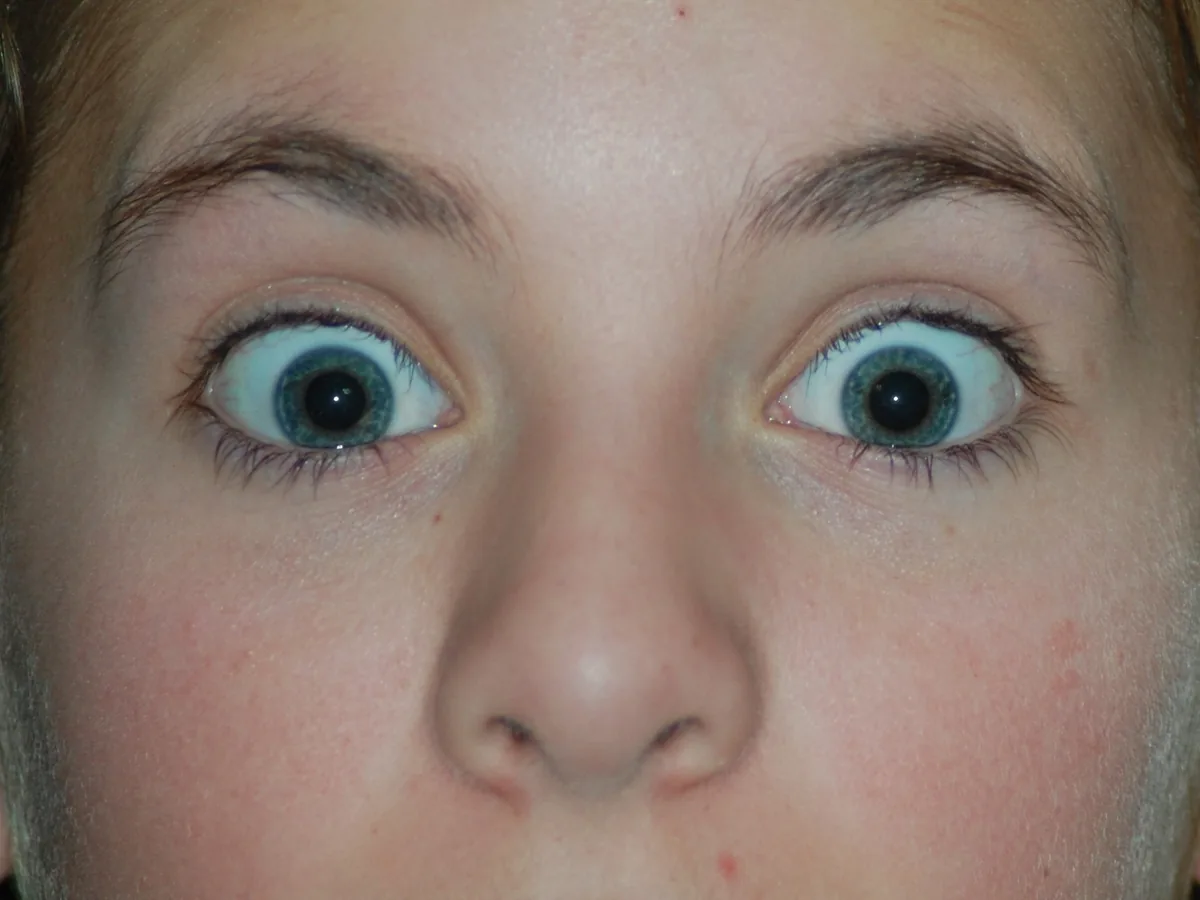
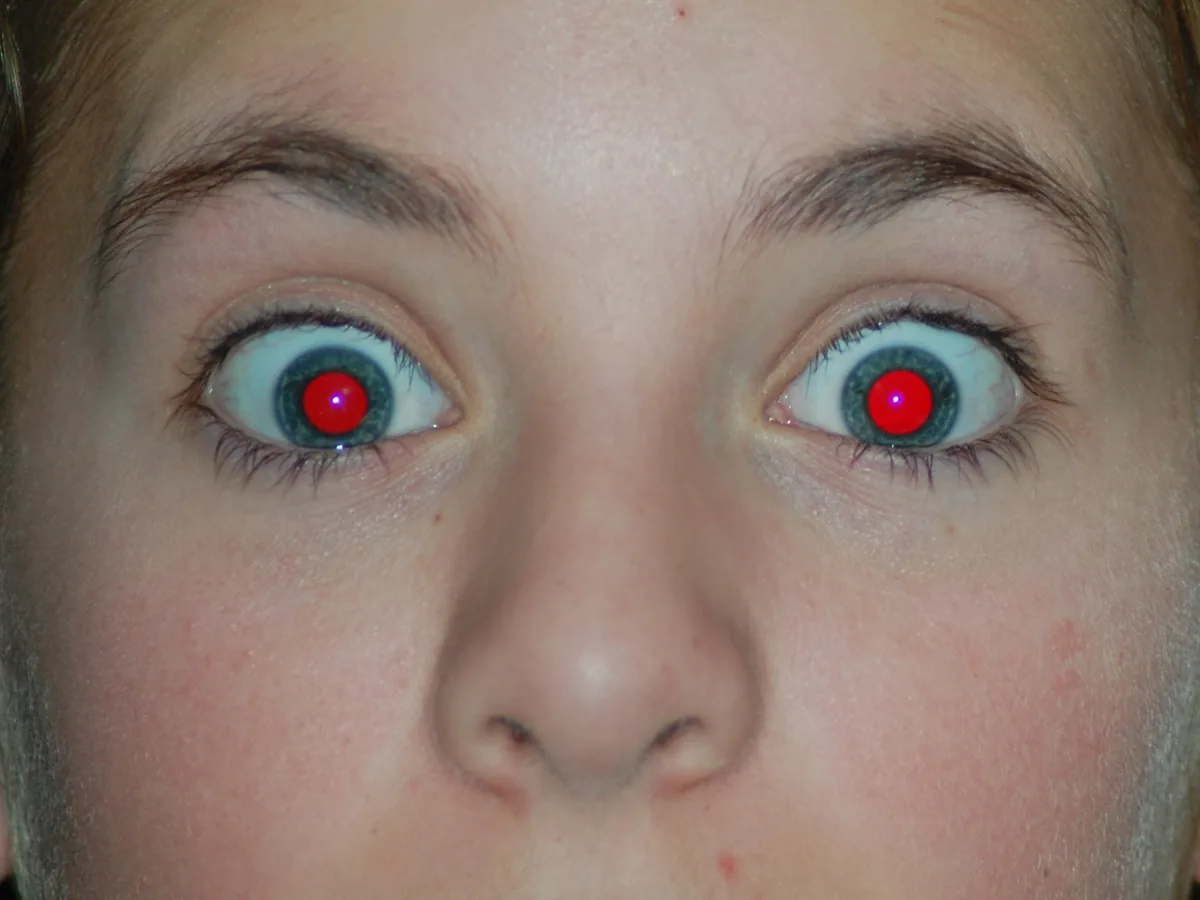
Close-up with flash red eyes, after enhancementClose-up with flash red eyes, before enhancement
No photo? Try one:

Upload Image

Drag and drop, or click to browse

  • Free daily credits
  • No sign-up
  • Private

What red eye you can fix

Drag the slider on each pair. Faces, colors and framing stay exactly the same; only the pupils change.

Family group photo at an indoor party with red flash pupils on several faces, after enhancementFamily group photo at an indoor party with red flash pupils on several faces, before enhancement

Fix red eyes on everyone in a group photo

A flash at an indoor party turns several pupils red at once. Upload the whole photo: every face that looks into the camera is fixed in one run, including people behind glasses. Eyes that are tiny in the frame are fixed too, but zoom in with the slider to check them before you download.

  • Group photo
  • Indoor flash
  • Faces kept
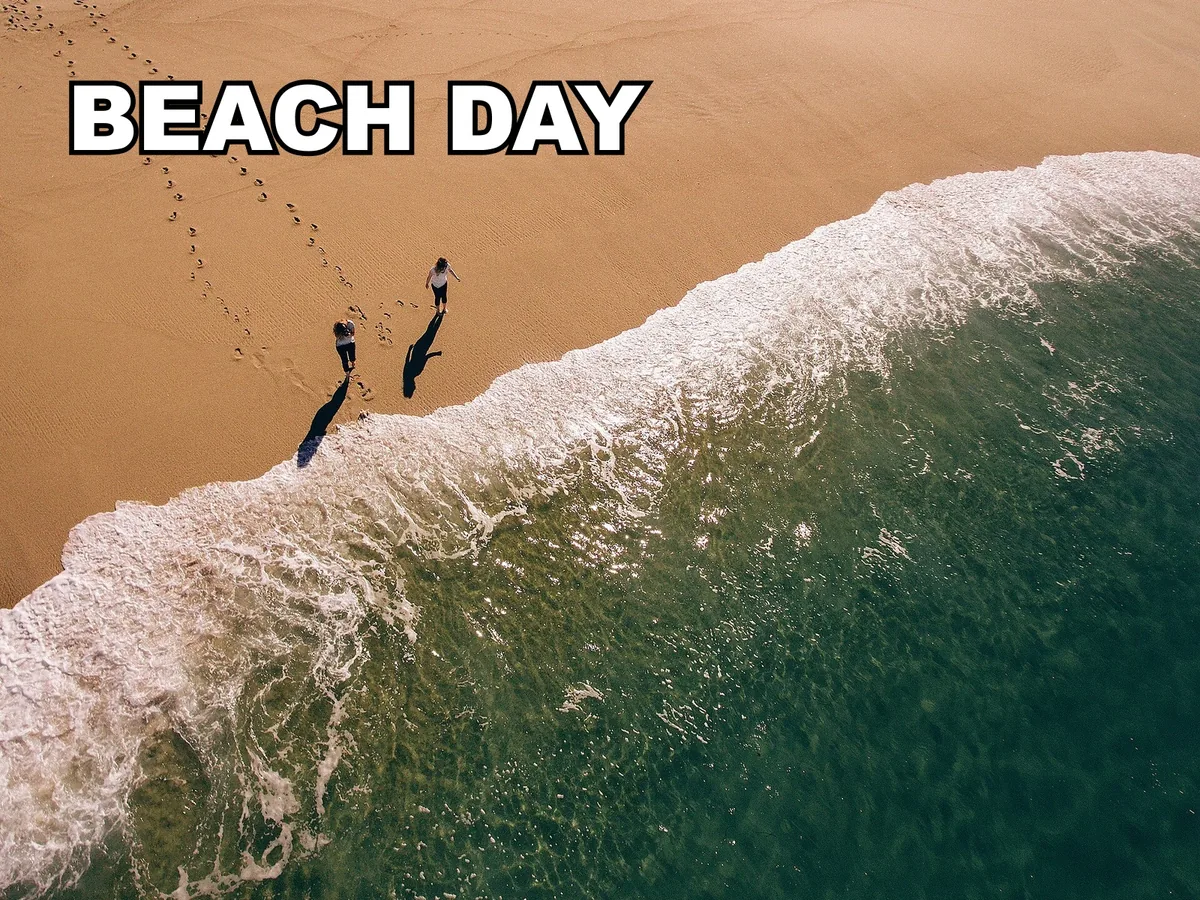
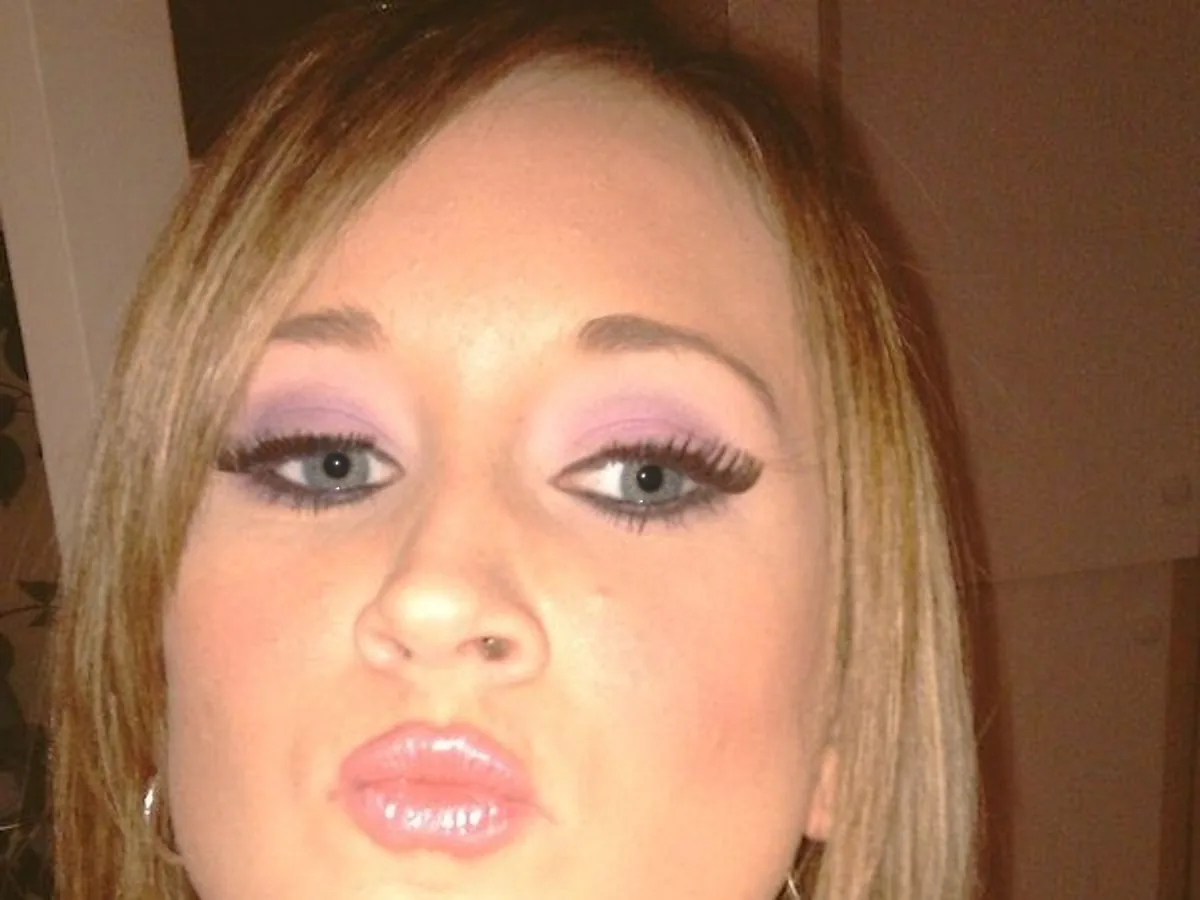
Flash selfie of a young woman with small red dots in her pupils, after enhancementFlash selfie of a young woman with small red dots in her pupils, before enhancement

Fix red pupils in a flash selfie

Red eye in a selfie is often just a small red dot in each pupil. The pupil becomes dark again and the iris keeps its own color, so blue eyes stay blue and makeup stays as it was.

  • Selfie
  • Iris color kept
  • Makeup kept
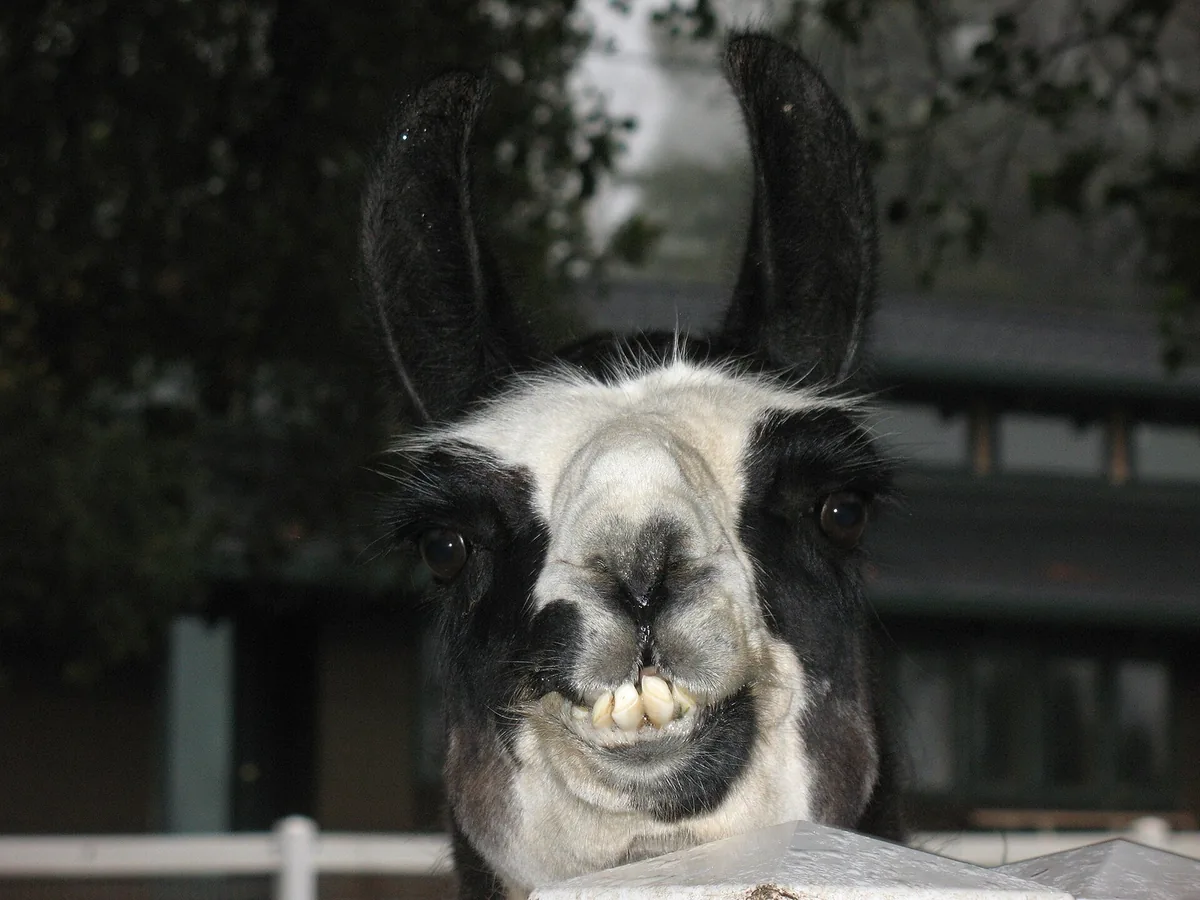
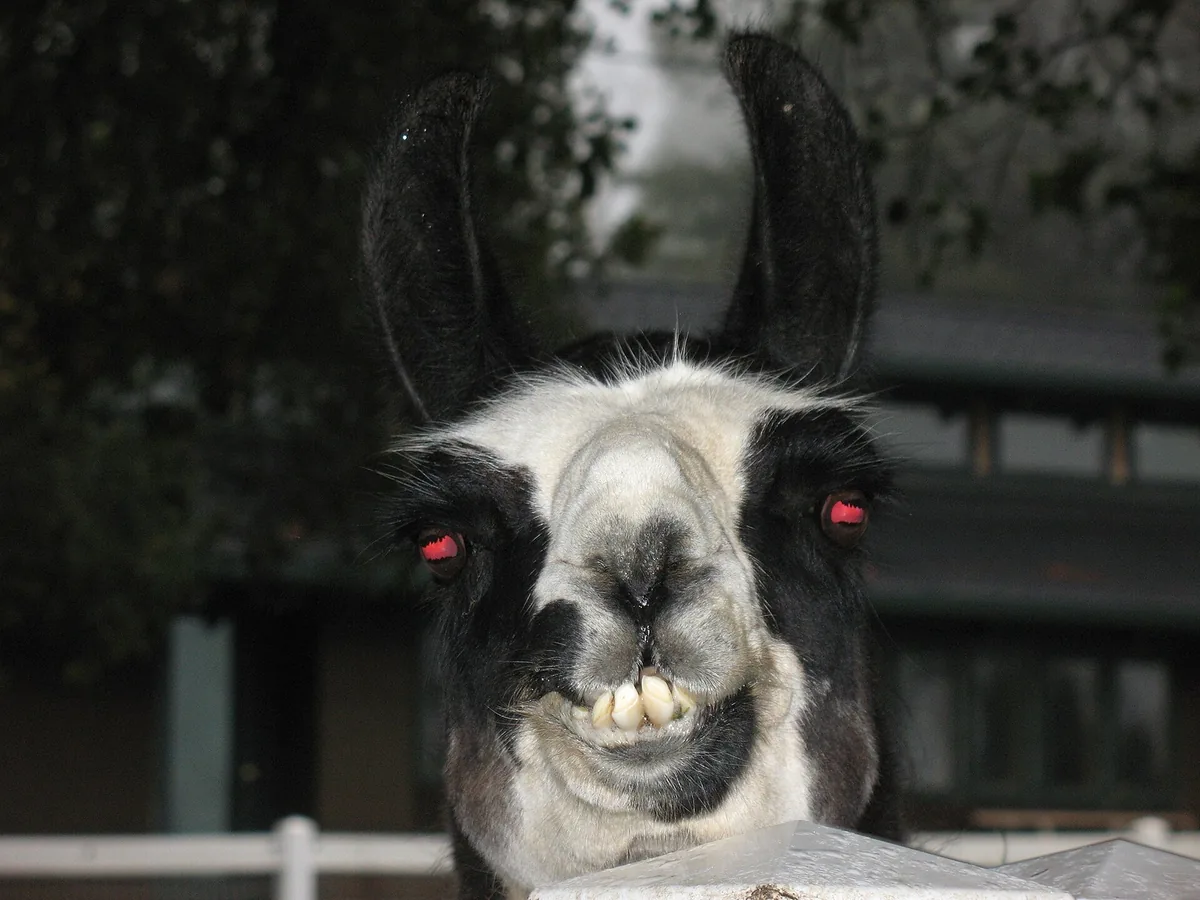
Llama photographed with flash, its eyes glowing red, after enhancementLlama photographed with flash, its eyes glowing red, before enhancement

Remove red eye from animals and pets

Animals get red eye from a flash too, often in a stronger red or orange. The glow is replaced with a dark, natural pupil, and fur and markings around the eyes stay untouched.

  • Animal
  • Strong red glow
  • Fur kept
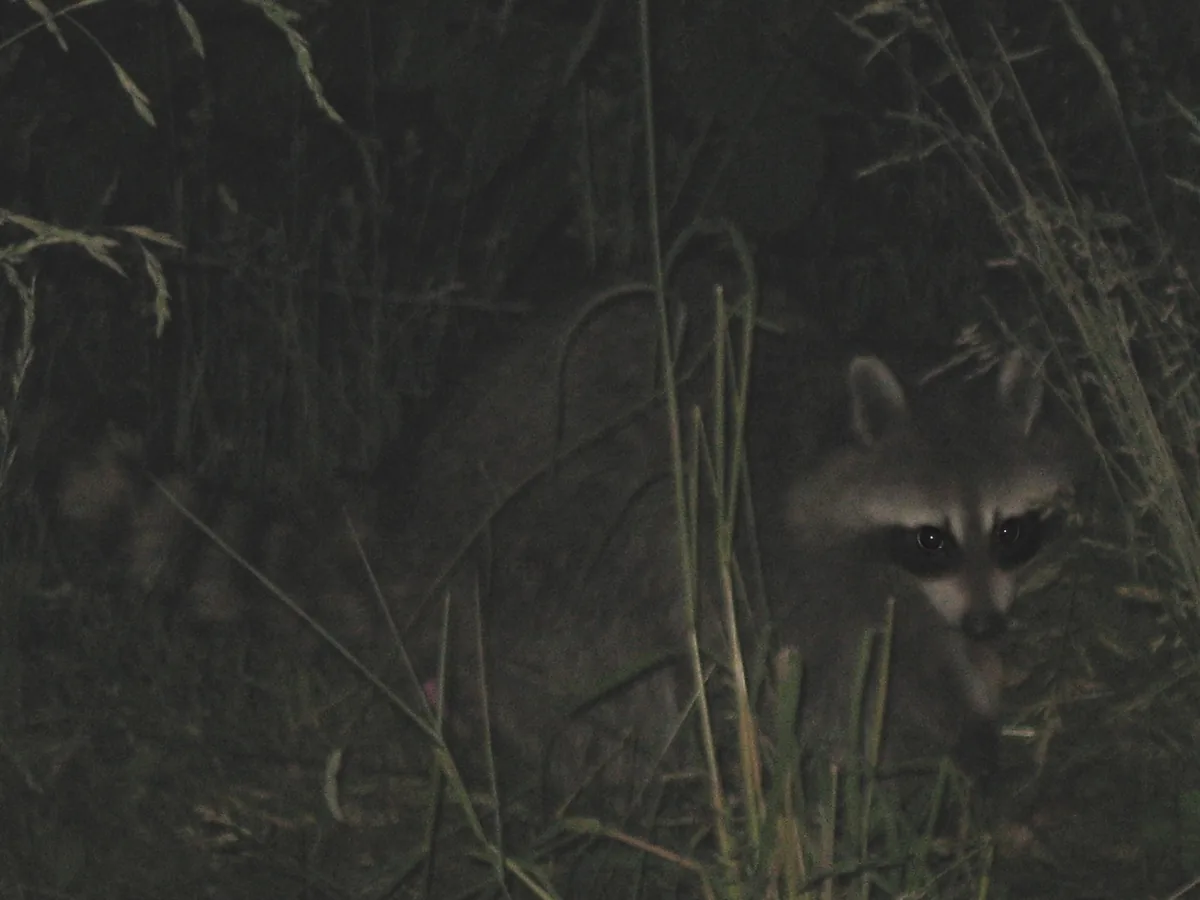
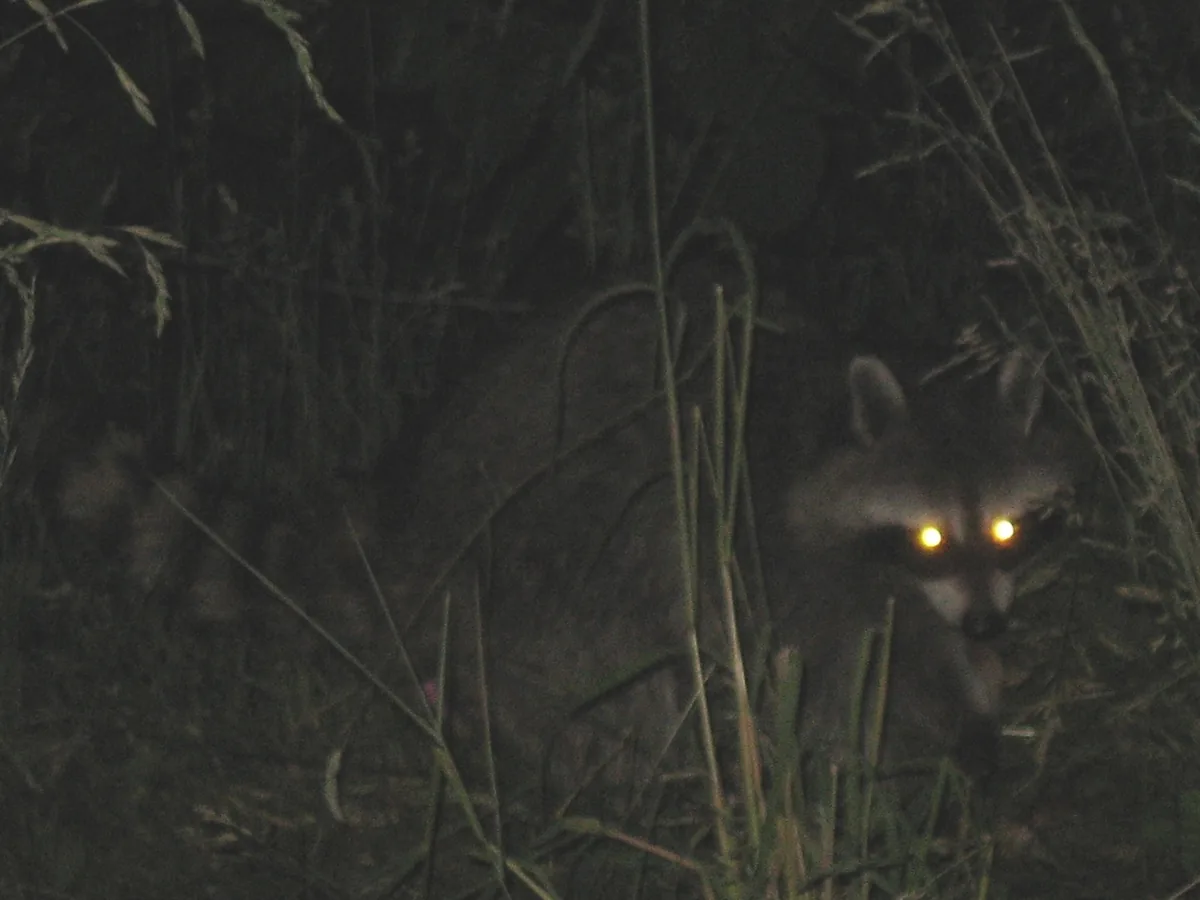
Raccoon at night in tall grass with eyes glowing yellow from a flash, after enhancementRaccoon at night in tall grass with eyes glowing yellow from a flash, before enhancement

Fix glowing eyes in a night photo

Cats, dogs and wild animals often glow yellow, green or white in flash photos taken at night. That glow is fixed the same way, and the dark scene keeps its brightness. When an animal is very small in the frame, crop the photo first so the eyes are easier to find.

  • Night photo
  • Glowing eyes
  • Brightness kept

How to remove red eye from a photo online

Three steps, usually with under a minute of waiting. Nothing to paint or select.

  1. Upload the flash photo

    JPG, PNG or WebP up to 20 MB. Phone photos and scans of old prints both work.

  2. Let it find and fix the eyes

    Red, orange, white and glowing pupils are found on their own, in people and animals. Everything outside the eyes is kept exactly as you uploaded it.
  3. Compare and download

    Zoom in with the slider to check each face, then save the photo. It keeps its original size.

What red eye removal can and can't fix

Red eye comes from the flash lighting up the back of the eye. Here is what to expect when you fix it with AI.

People: works on almost every photo

Red pupils in close-ups, selfies and group photos become dark and natural. The iris keeps its own color, and faces, skin and makeup don't change.

Pets and animals: works on glowing eyes too

Animal eyes reflect flash as red, yellow, green or white. Each is turned into a dark pupil. Pets with naturally pale or unusual eye colors may look a little darker than in real life, so compare with the slider.

Limits: tiny or closed eyes

Eyes only a few pixels wide can be missed or fixed only partly; crop closer and run it again. A red glow on glasses, a lamp or a bright reflection near the eyes is not red eye and is left as it is. For reflections on glasses, use Remove Glare from Photo.

How to remove red eye without AI

Phone and desktop editors have red-eye tools too. Here is how they work and where they fall short.

Manual tools paint pupils one at a time and can't tell red eye from a red earring. If a group photo has a dozen red eyes, this page fixes them all in one run. For old flash prints with scratches or fading too, use Restore Old Photos after the red eye is gone.

  1. 1

    iPhone and Android: check the editor

    On iPhone, open the photo in Photos, tap Edit and look for the red-eye button at the top, then tap each red eye. It only appears for some flash photos and often leaves a gray dot. On Android, Google Photos has no red-eye tool on most phones, so use this page or a desktop editor.

  2. 2

    Photoshop: the Red Eye tool

    Pick the Red Eye tool (grouped with the Spot Healing Brush, shortcut J), set Pupil Size and Darken Amount, and click each pupil. It works well on red pupils and poorly on yellow or green animal eyes.

  3. 3

    Snapseed: paint the color out

    Snapseed has no red-eye button. Open Tools > Brush > Saturation, set it to a negative value, zoom in and paint over each pupil until the red turns gray.

  4. 4

    Avoid red eye next time

    Turn on more lights so pupils get smaller, turn on red-eye reduction in the camera, ask people to look slightly away from the lens, or bounce the flash off the ceiling.

Red eye remover FAQ

Yes. Each photo costs 4 credits, and the 10 free credits everyone gets each day cover two photos, no account needed. Downloads have no watermark. Credit packs and plans for more are on the pricing page.

In dim light the pupils are wide open. The flash fires close to the lens, lights up the blood-rich back of the eye and bounces straight back to the camera, so the pupil shows up red. In animals a reflective layer behind the retina makes the glow yellow, green or white instead.

No. Only the pupil, the dark center of the eye, is changed. The iris keeps its color and pattern, and everything outside the eyes is kept exactly as you uploaded it.

Yes. Red, yellow, green and white flash glows in pet and animal eyes are turned into dark pupils. Pets with naturally pale eyes may come out a little darker, so check with the slider before you save.

Yes. Every face that looks into the camera is fixed in one run, including people wearing glasses. Very small faces at the back of a big group may be missed; crop the group closer and run it again.

Open this page in Safari, tap Upload and pick the photo from your library. When it's done, tap Download to save it back to Photos. The Photos app has a red-eye button only for some flash photos, and it often leaves a gray spot; this page works on any photo, including screenshots and scans.

Your photos are used only to create your result, never to train AI. Without an account they're deleted after 24 hours. Signed in, they're kept in History for 72 hours, or until you delete them if you turn on "Keep my tasks". Details are in our Privacy Policy.
More ways to fix your photos

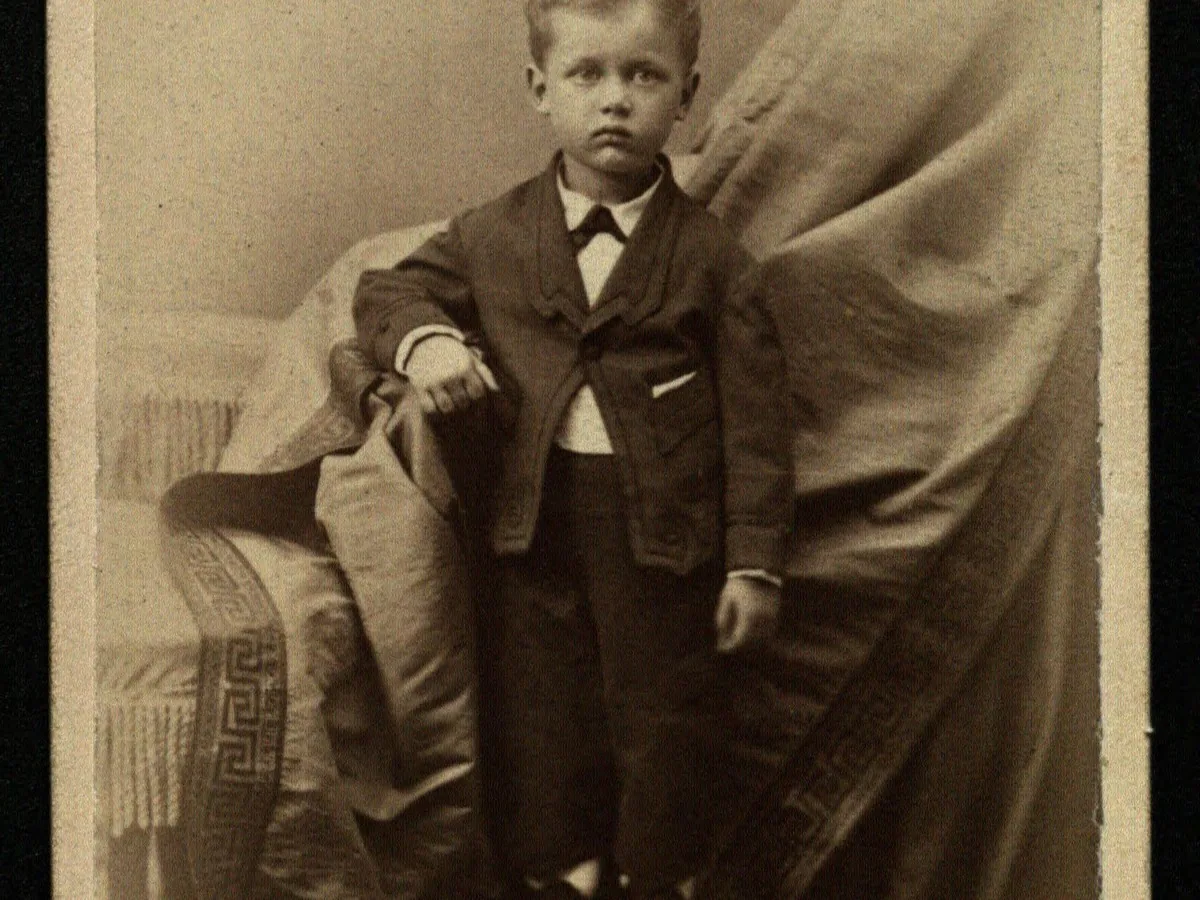
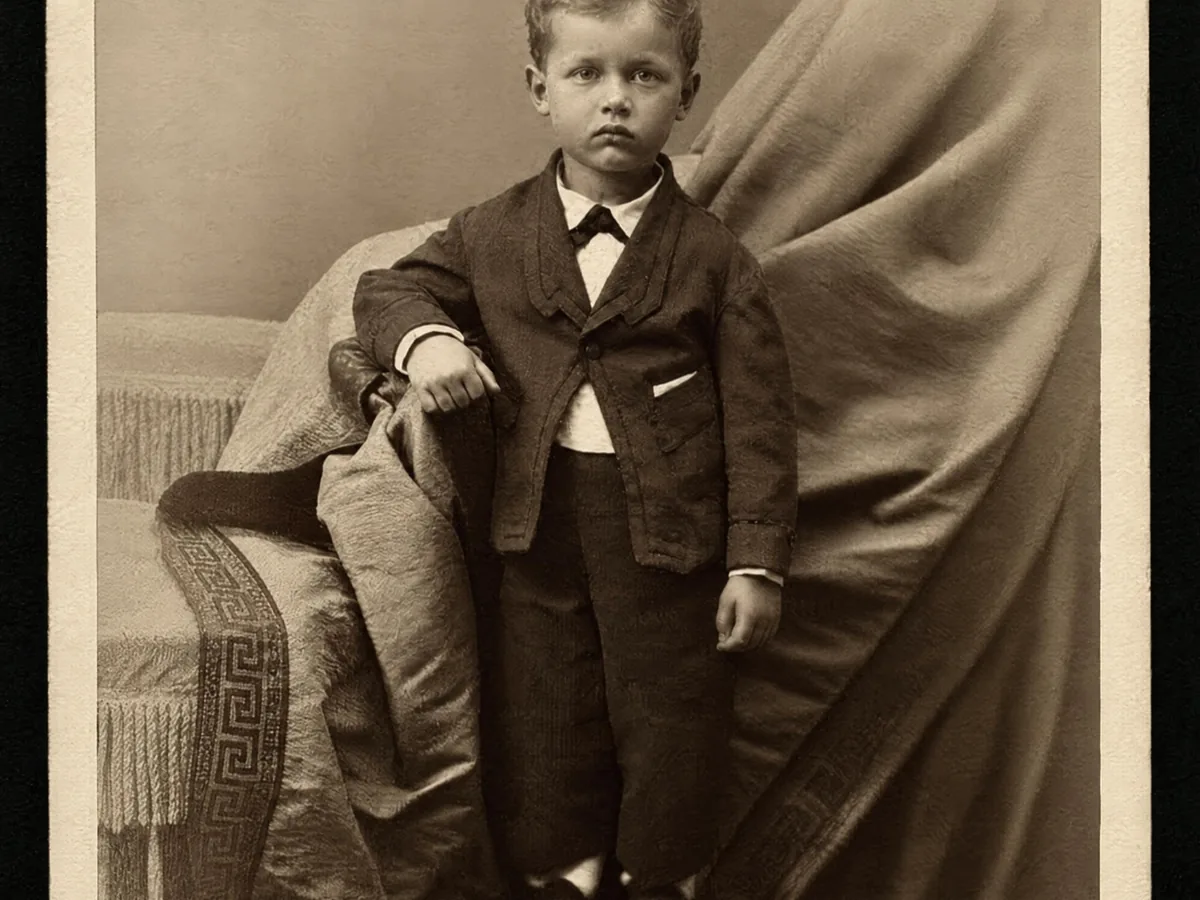
Faded cabinet card of a young boy, before enhancementFaded cabinet card of a young boy, after enhancement
Restore Old Photos

Clear scratches, dust and fading on scanned prints.

Restore photo
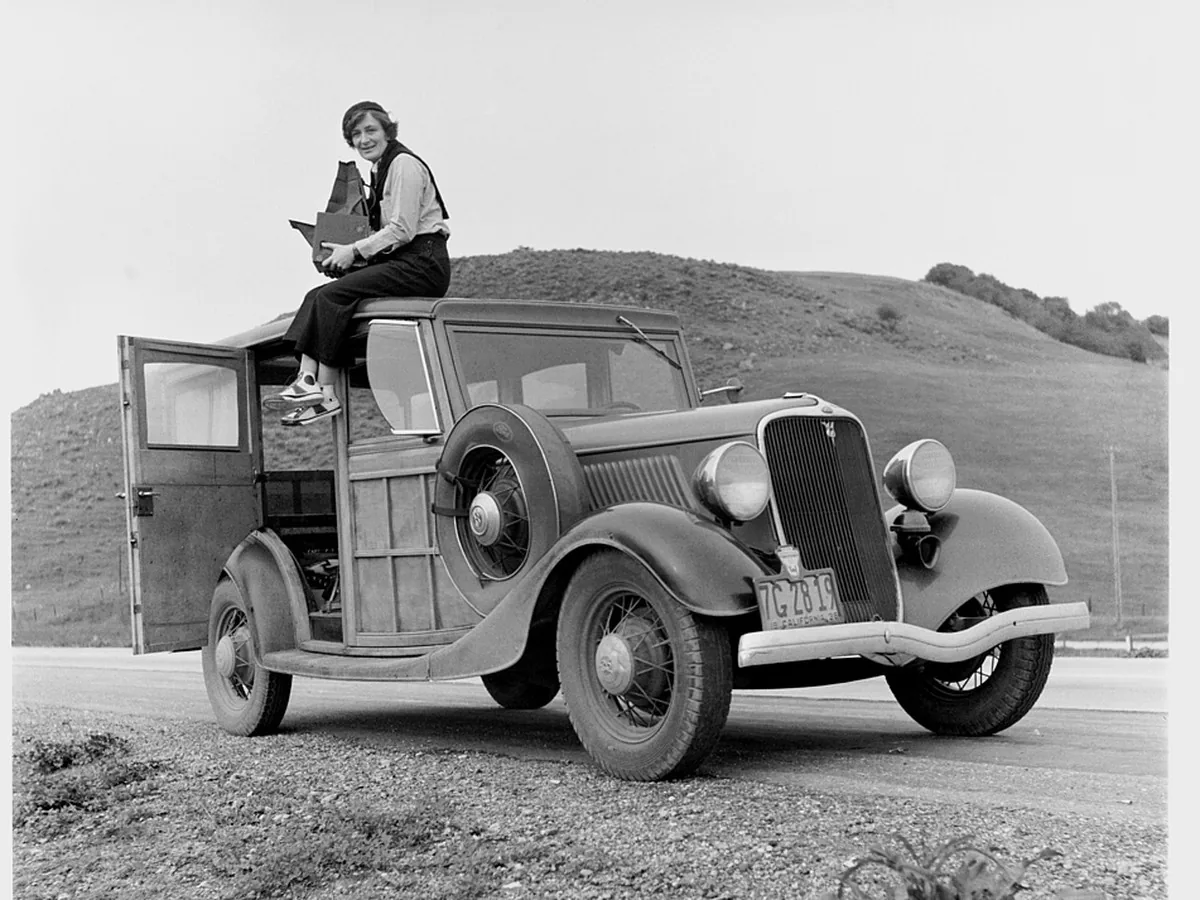
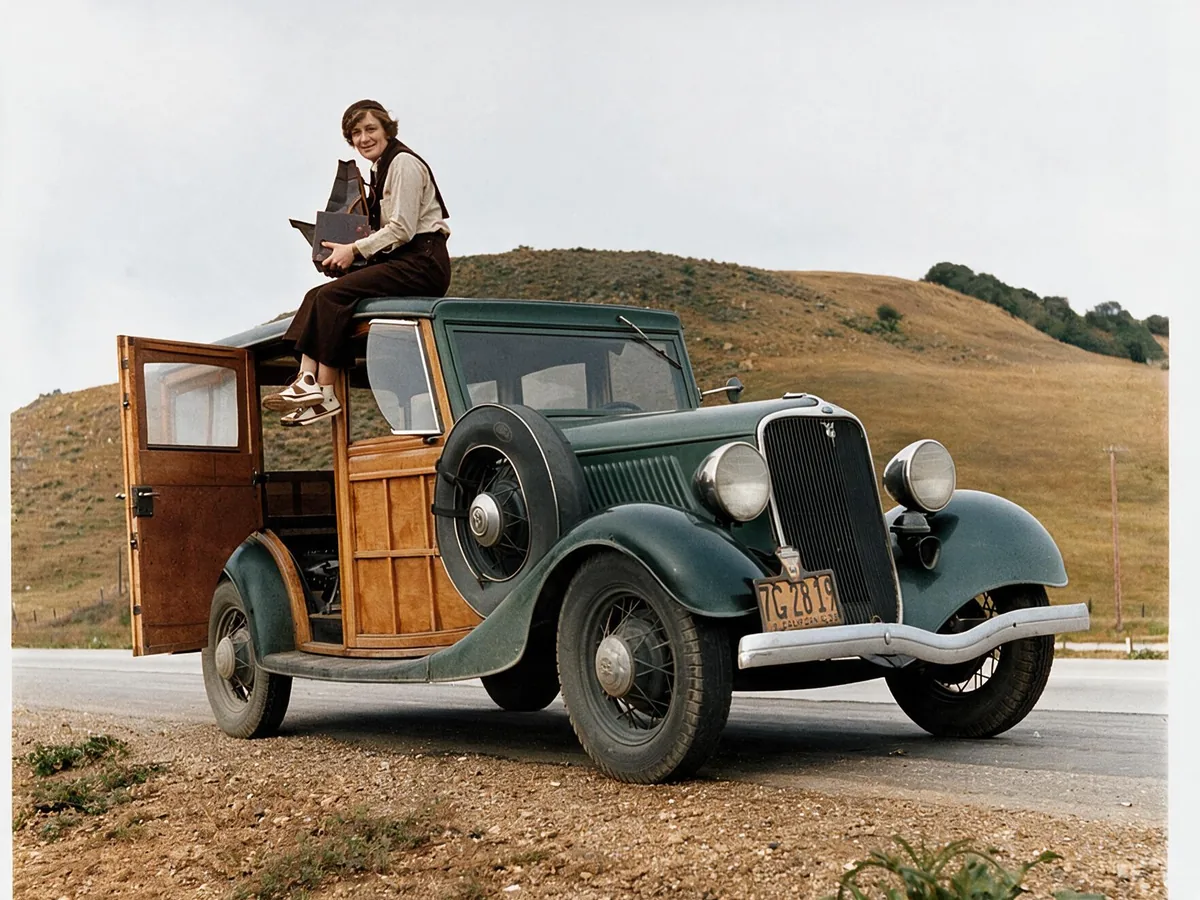
Black and white photo of a woman on a 1930s car, before enhancementBlack and white photo of a woman on a 1930s car, after enhancement

Colorize Photo

Turn black and white photos into natural color.

Colorize photo
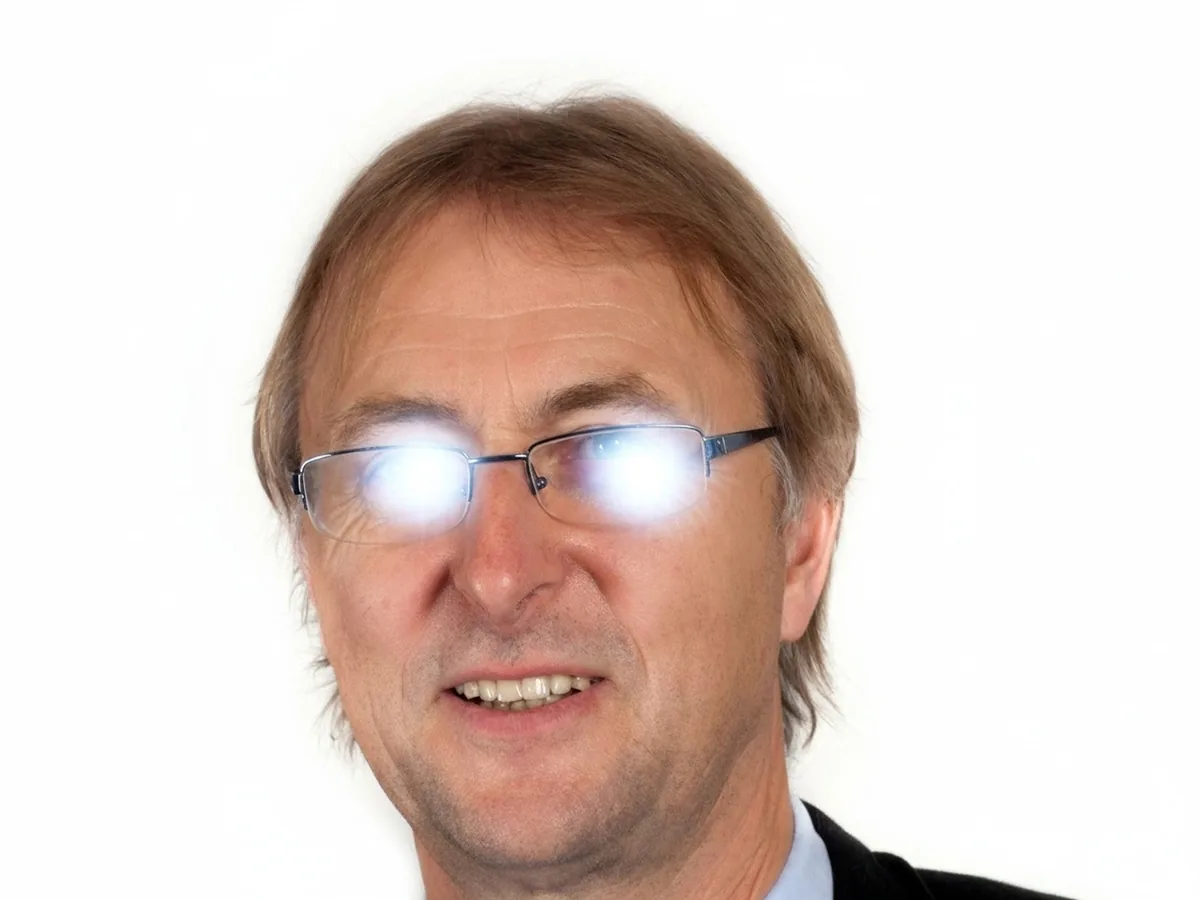
Portrait with flash glare on his eyeglasses, before enhancementPortrait with flash glare on his eyeglasses, after enhancement

Remove Glare

Clear glare on glasses, glass and flash spots.

Remove glare
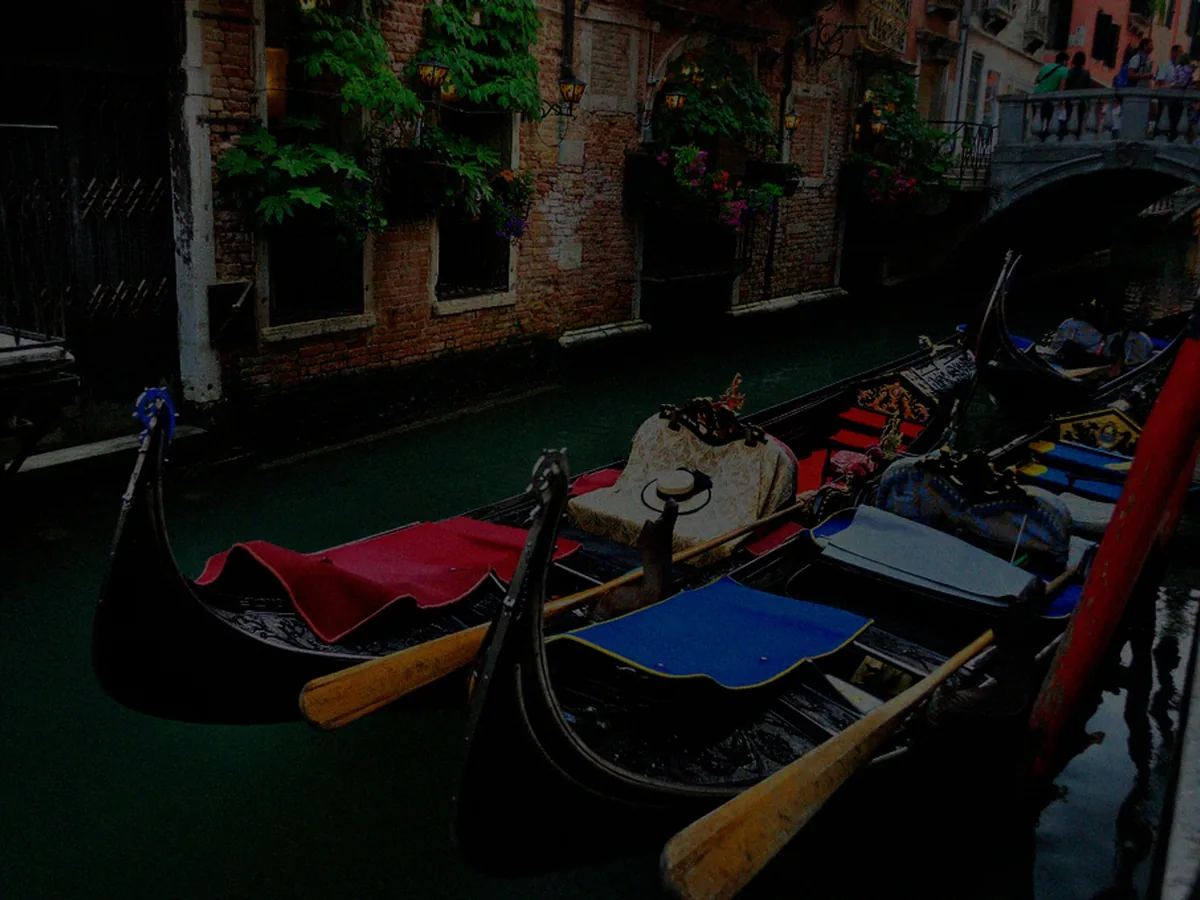
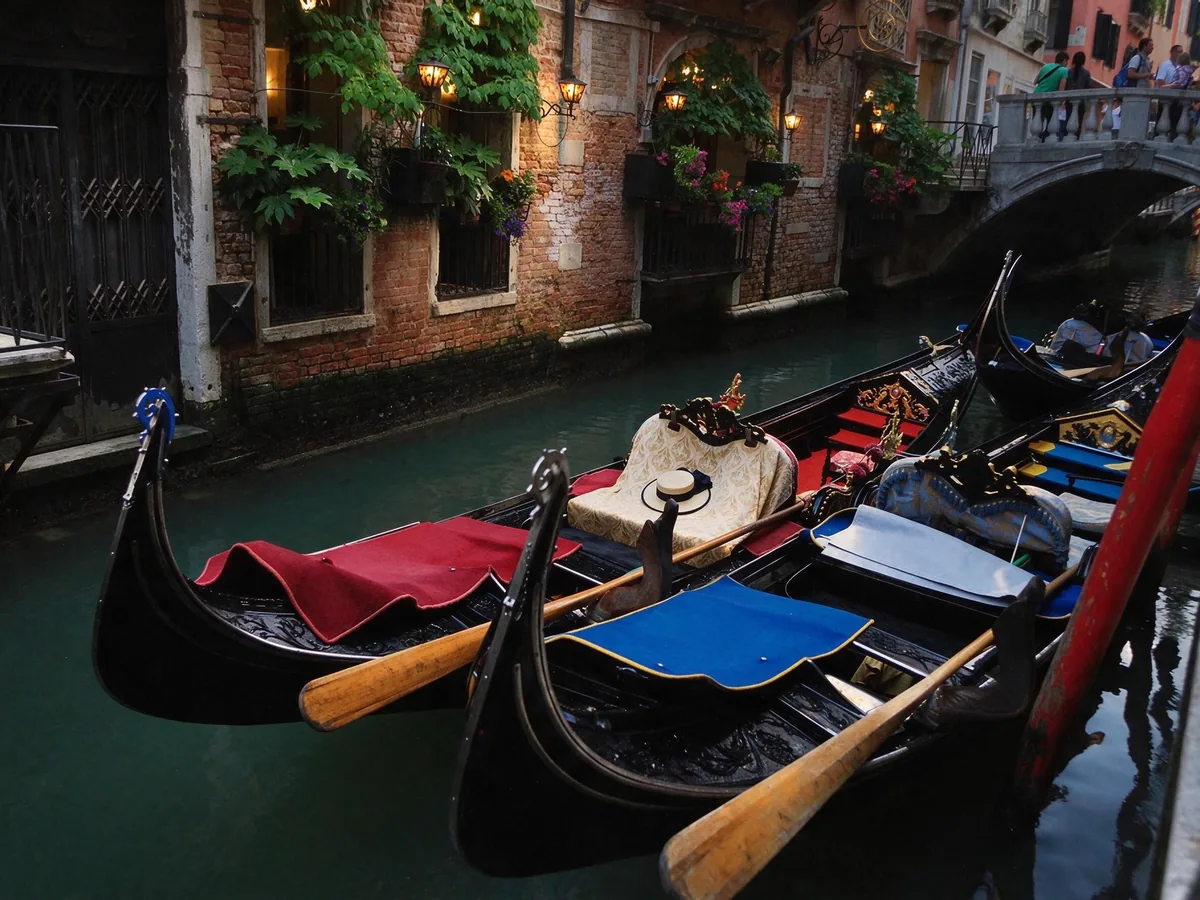
Gondolas on a Venice canal, brightened from a dark photo, before enhancementGondolas on a Venice canal, brightened from a dark photo, after enhancement

Brighten Photo

Fix dark, underexposed and backlit photos.

Brighten photo