Clarpex

Change Color of Image: Recolor Clothes, Cars and Products

Upload a photo, type what to recolor and pick the new color. The AI color changer keeps the material, folds, pattern and light of what you name, and every other part of the photo stays exactly as it was.

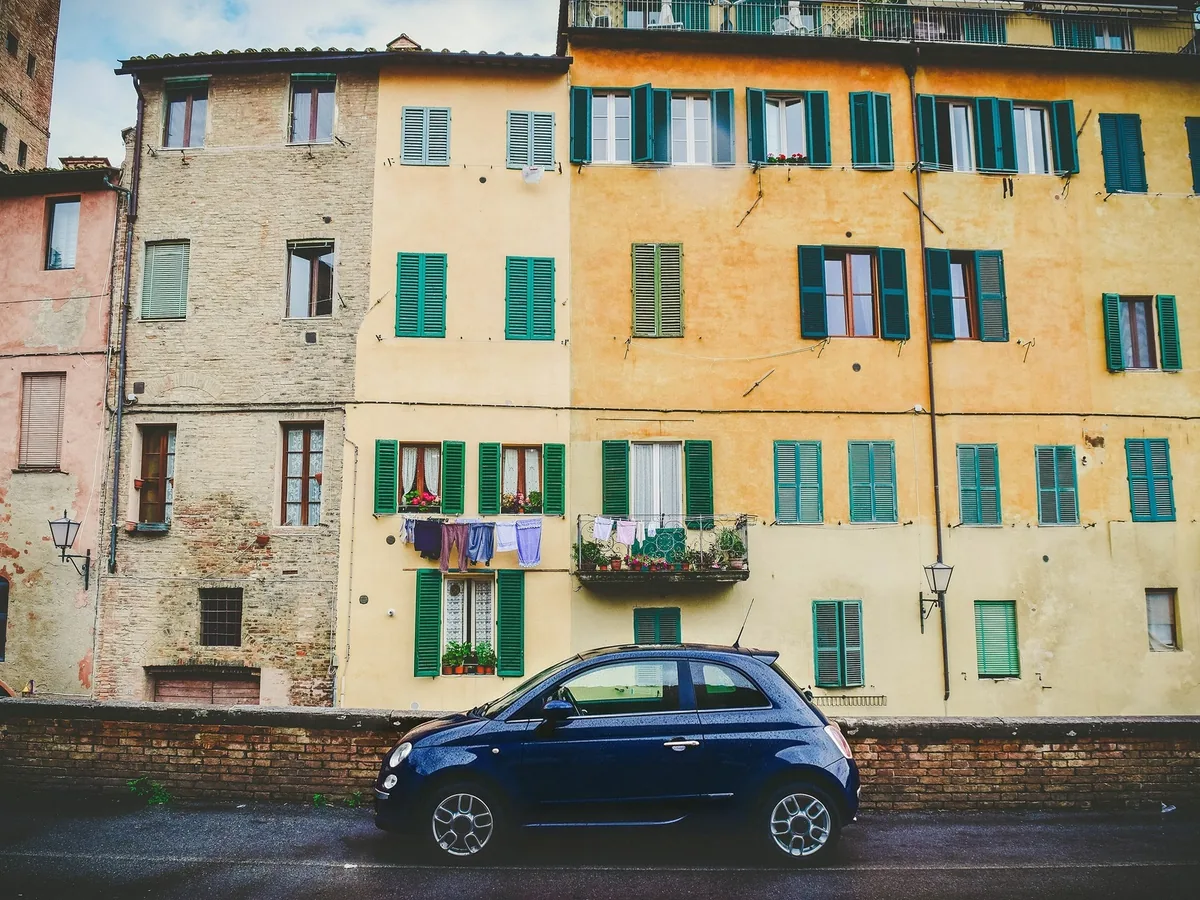
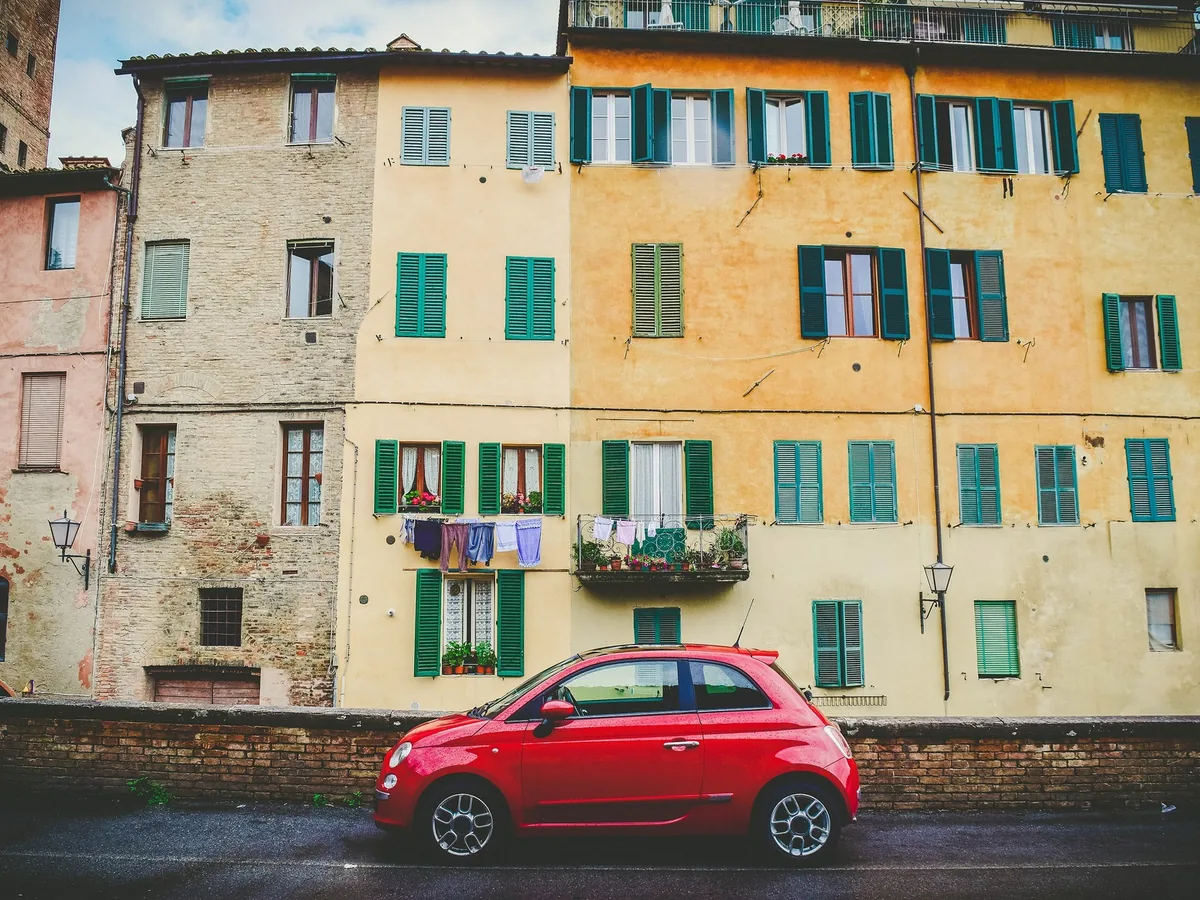
Small red car parked in front of old yellow buildings, after enhancementSmall red car parked in front of old yellow buildings, before enhancement
No photo? Try one:

Upload Image

Drag and drop, or click to browse

  • Free daily credits
  • No sign-up
  • Private

What can you recolor in a photo?

Clothes, cars, hair and products. Drag the slider on each pair to compare.

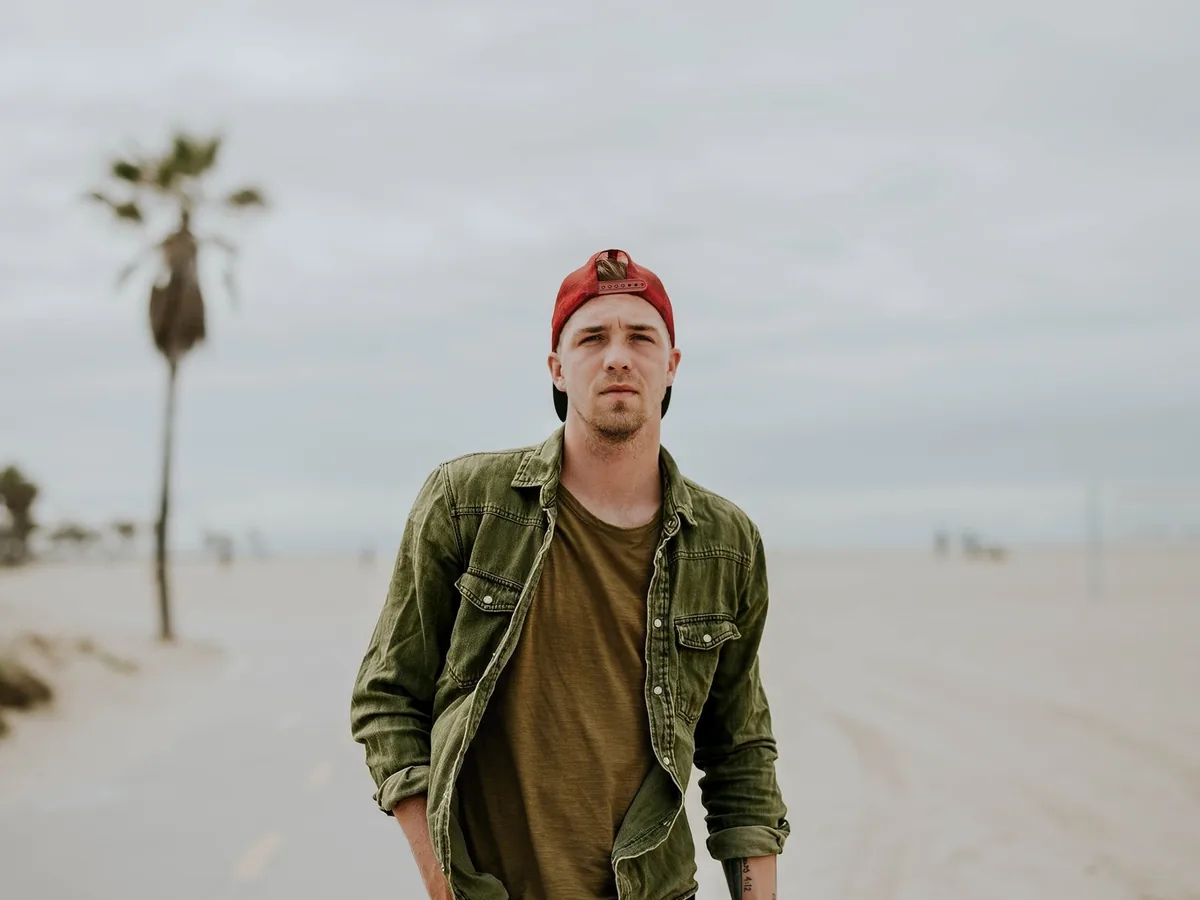
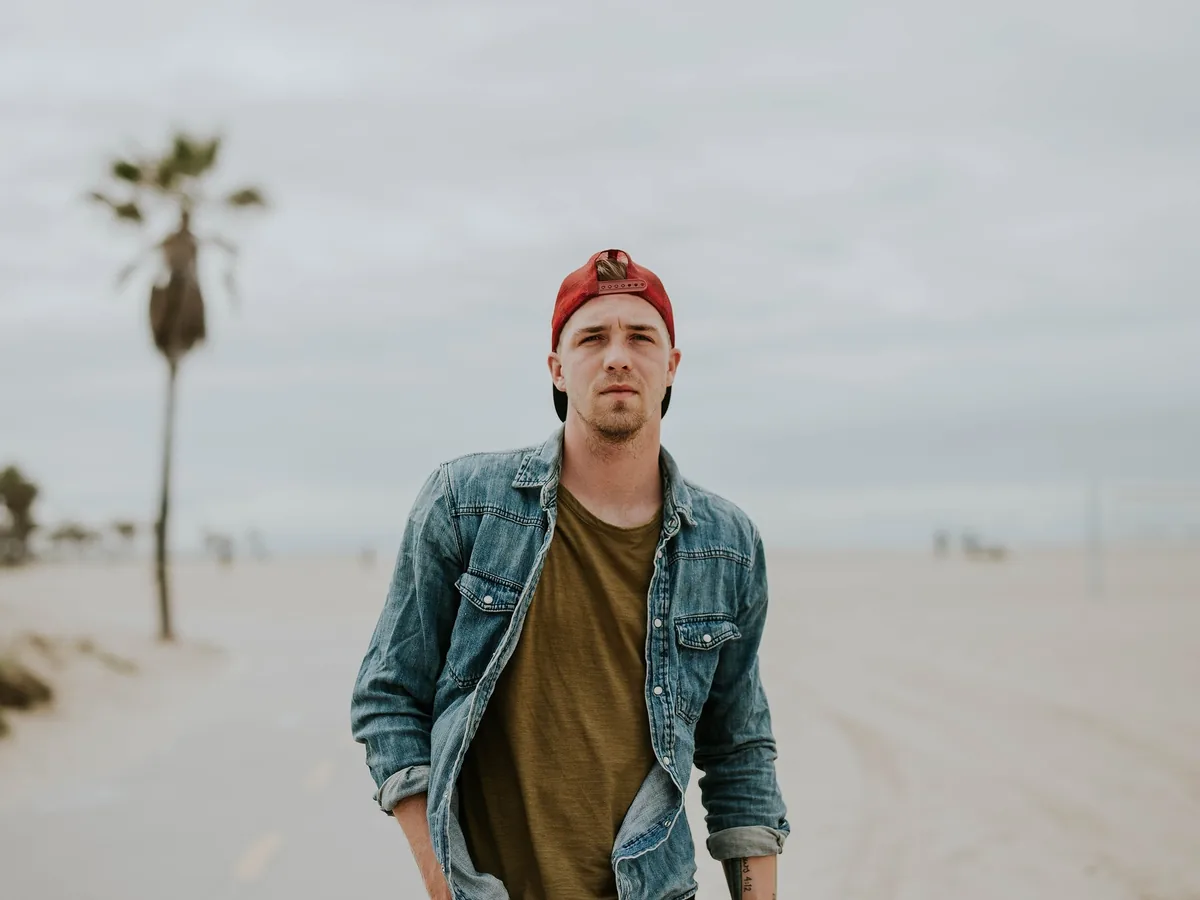
Man in a red cap on a beach, his denim jacket recolored olive green, after enhancementMan in a red cap on a beach, his denim jacket recolored olive green, before enhancement

Change the color of clothes in a photo

Type the piece you want, like "the denim jacket", and pick a color. Seams, buttons and the worn look of the fabric stay, and the shirt underneath keeps its own color. Name one garment at a time when the outfit has several.

  • Clothes
  • Texture kept
  • Person

Yellow vintage car on a street in front of a red and blue wall, recolored dark green, after enhancementYellow vintage car on a street in front of a red and blue wall, recolored dark green, before enhancement

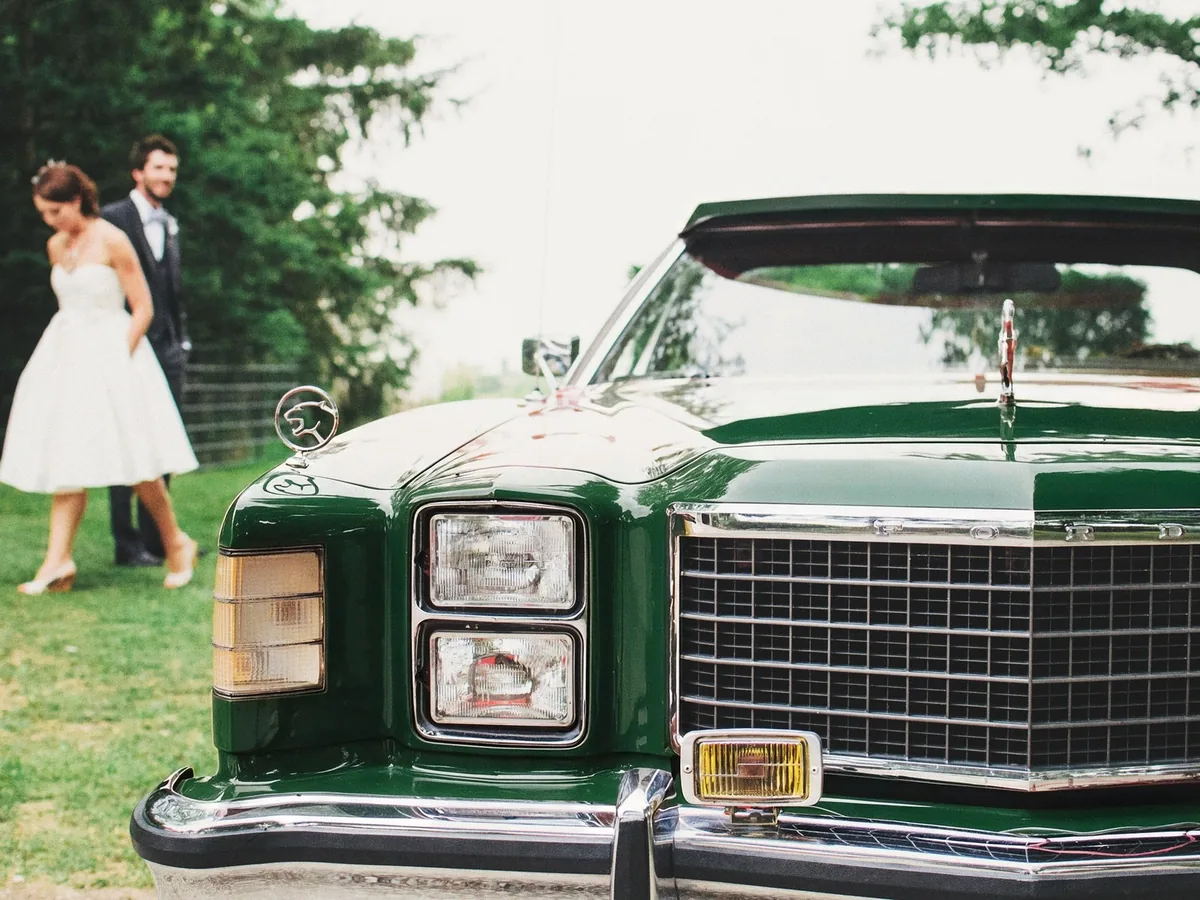
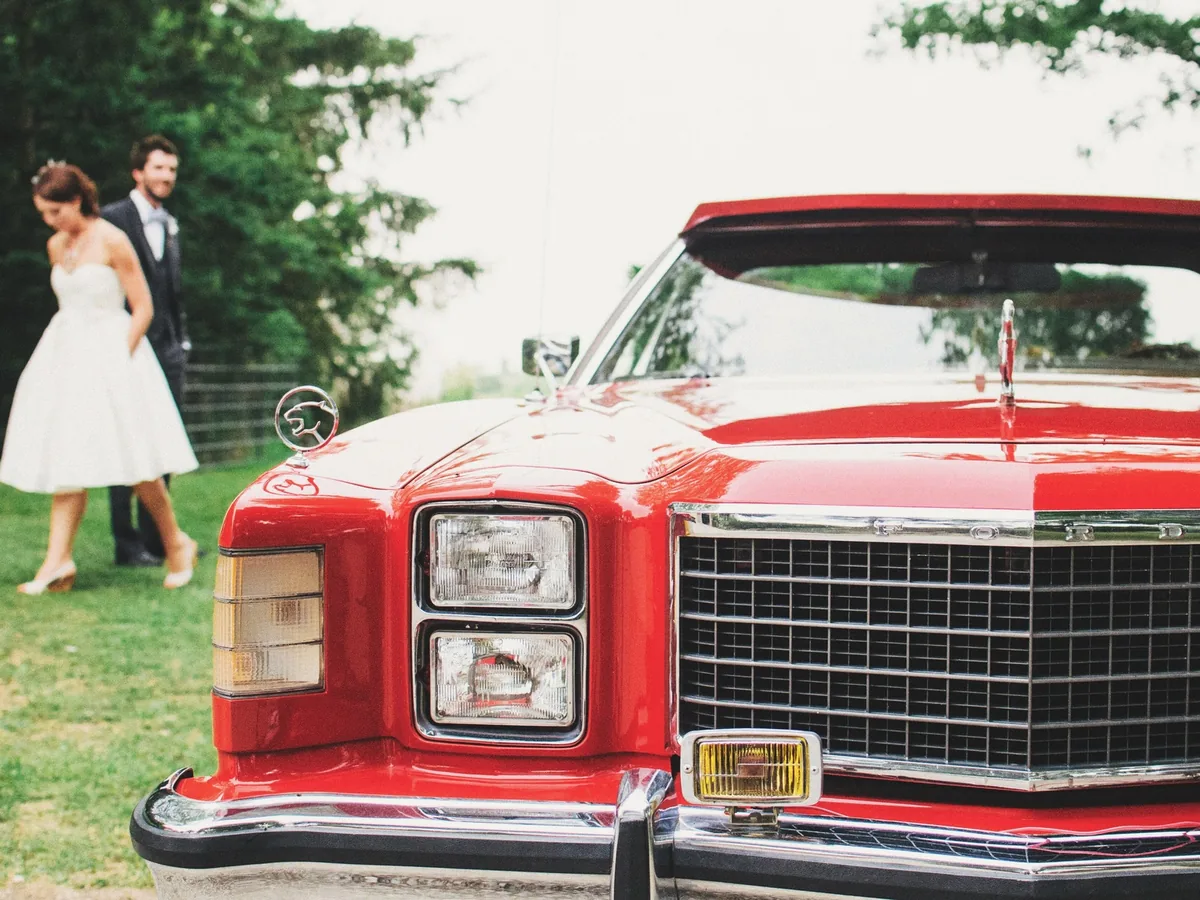
See your car in another color before you paint or wrap it

A side or three-quarter photo works best. Chrome, glass, tires and lights keep their own look, so the preview reads like a real paint job. Treat it as a preview: real paint and wrap colors vary by brand and finish.

  • Car
  • Preview
  • Chrome and glass kept
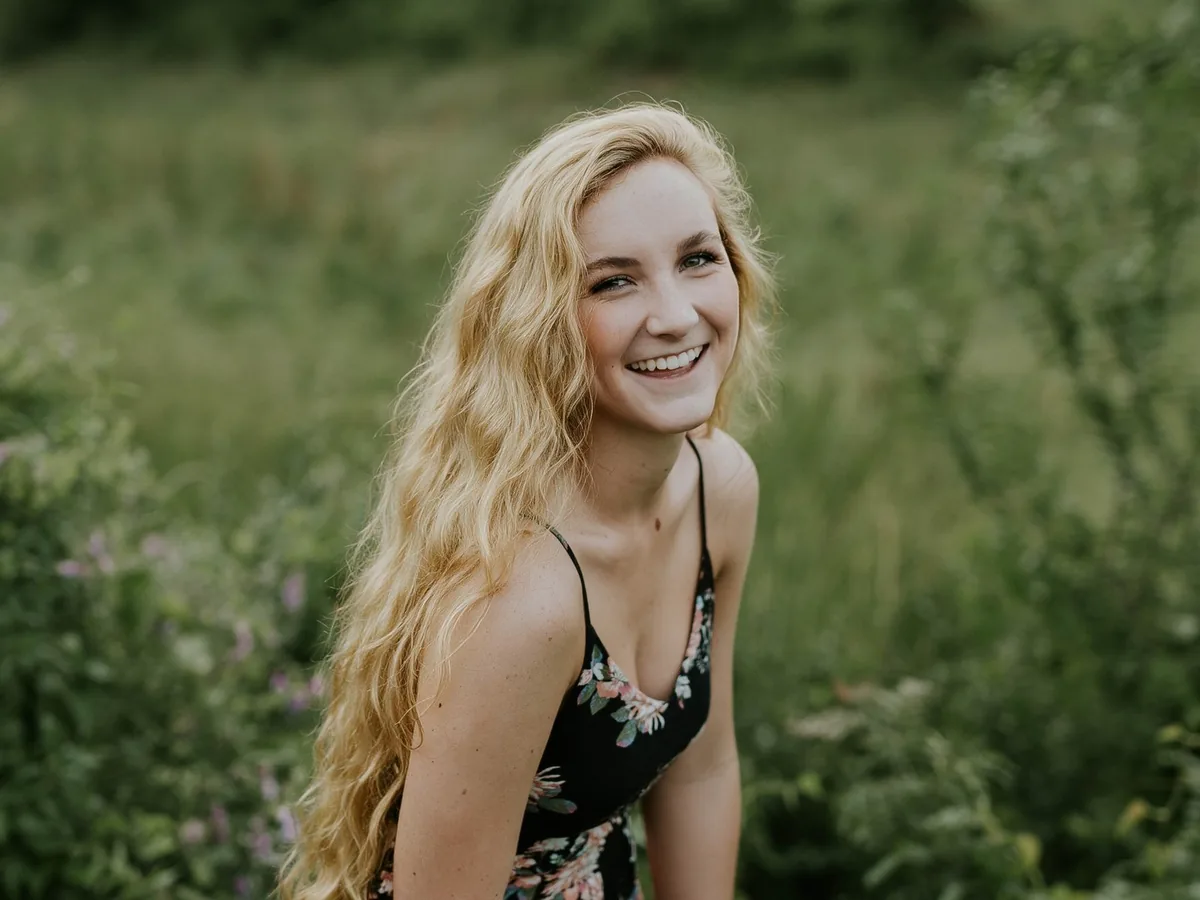
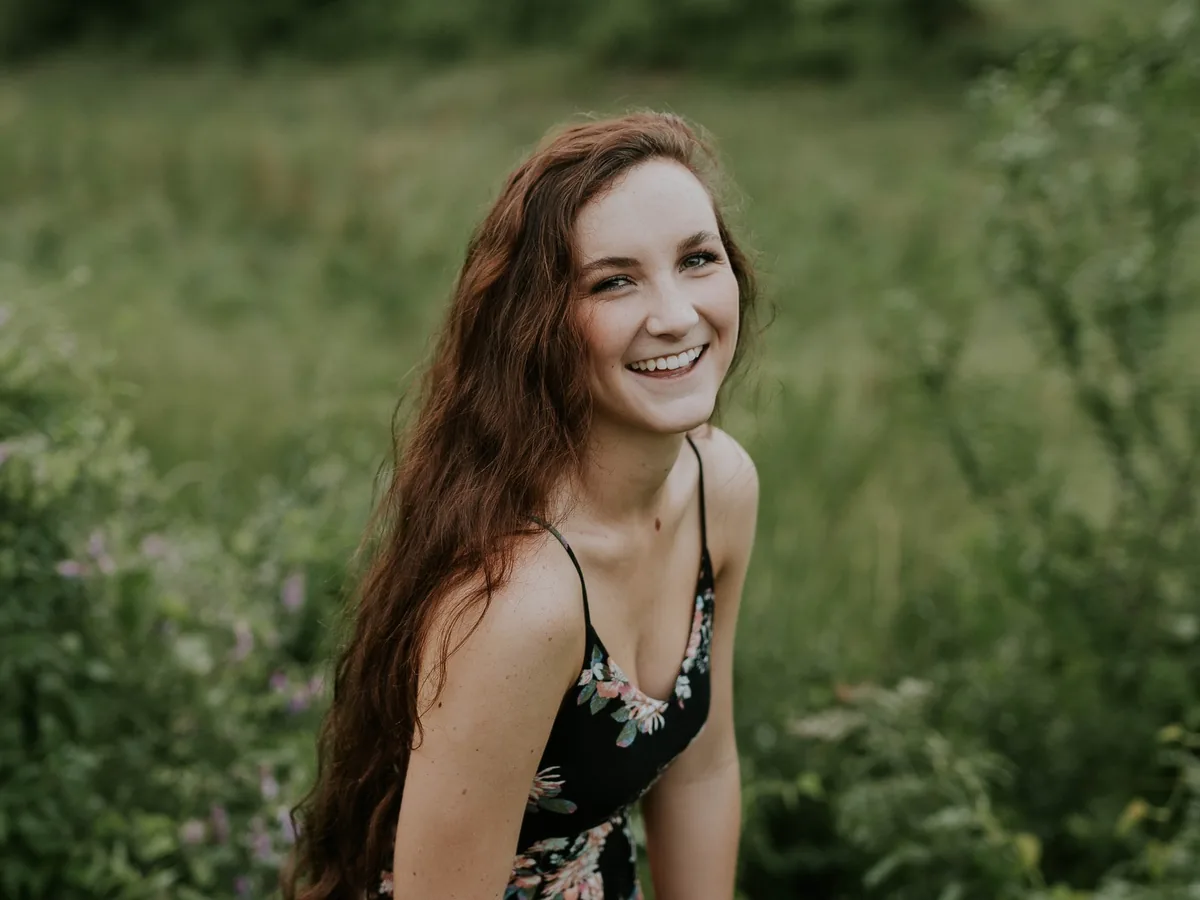
Laughing woman with long brown hair in a field, hair recolored golden blonde, after enhancementLaughing woman with long brown hair in a field, hair recolored golden blonde, before enhancement

Preview a new hair color on your own photo

Type "her hair" or "my hair" and pick a shade to see it on your own face and skin tone. Waves and loose strands keep their shape. Going from dark to very light is the hardest change, so check the roots and ends at full size.

  • Hair
  • Preview
  • Person
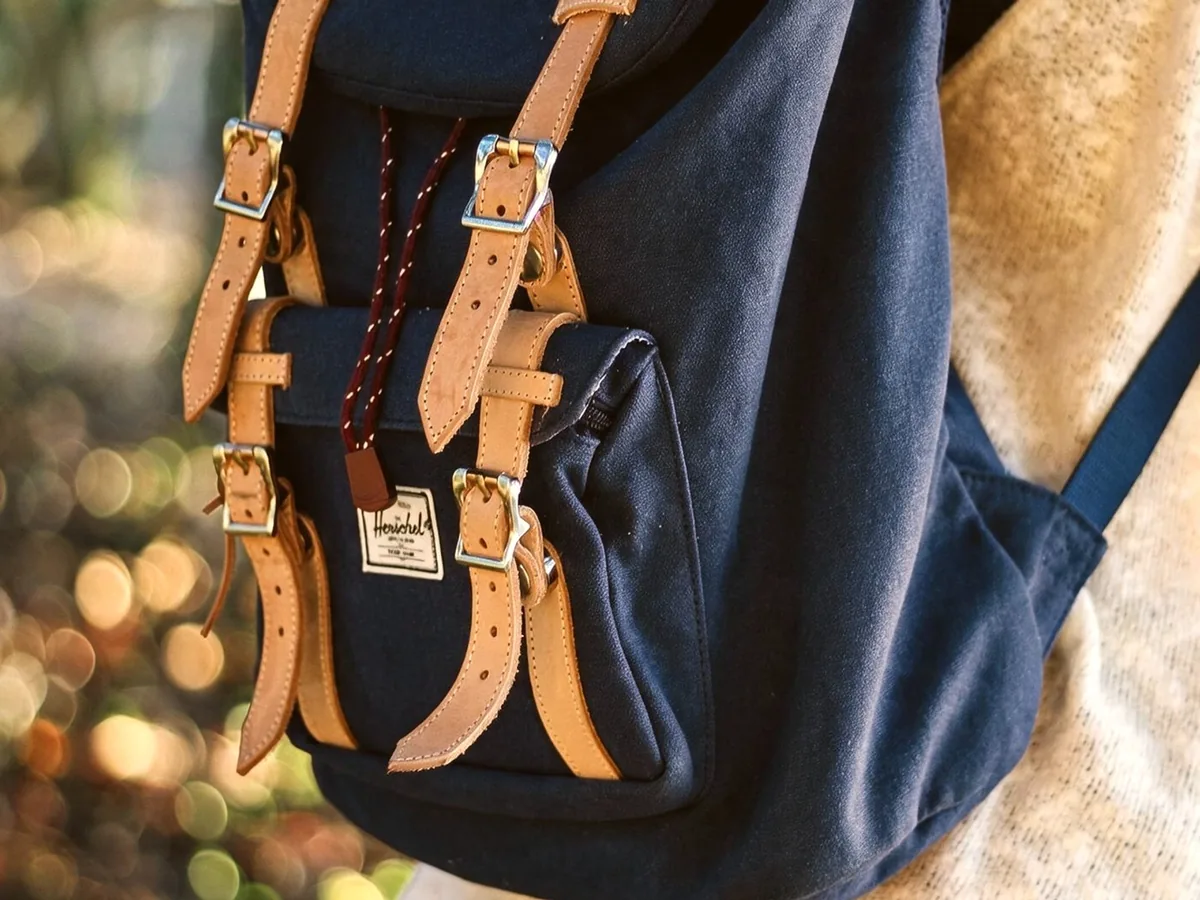
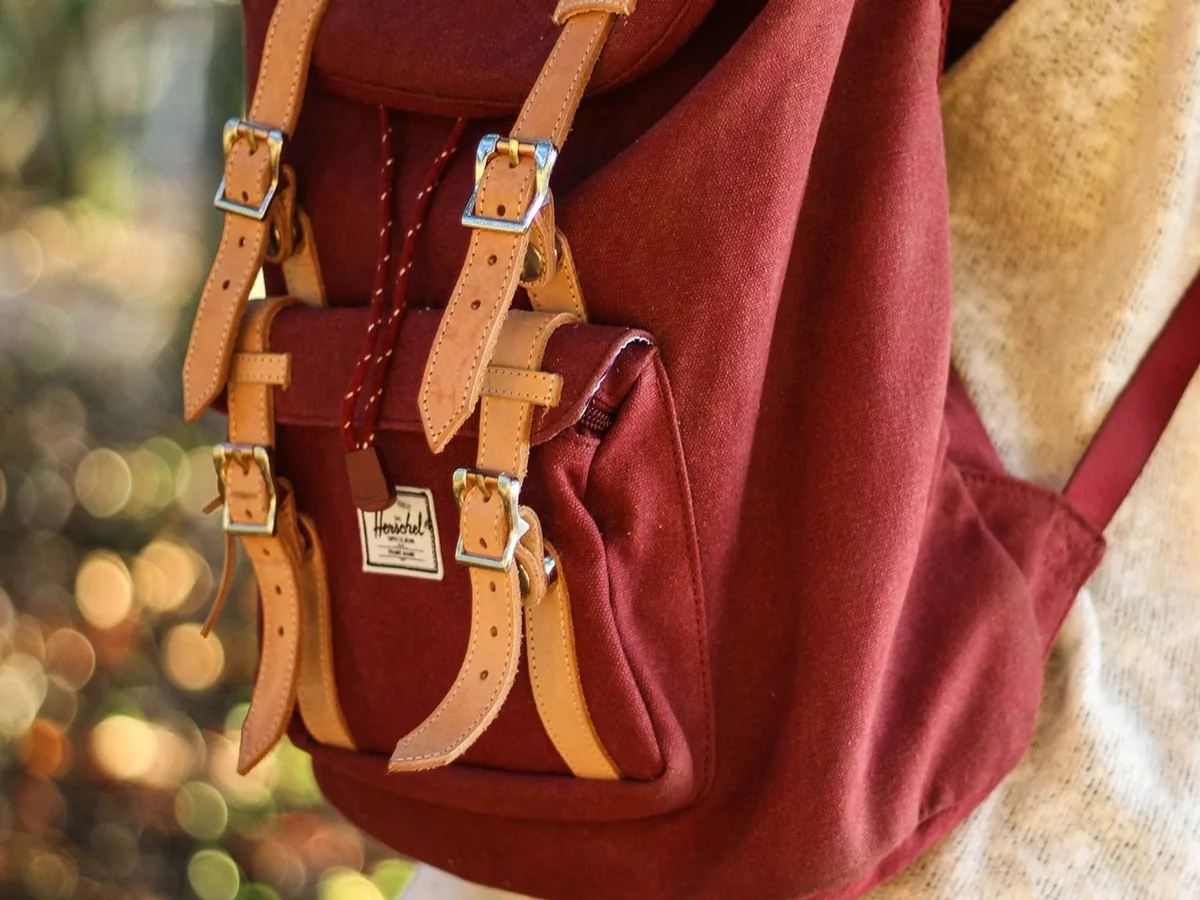
Red canvas backpack with tan leather straps, fabric recolored navy blue, after enhancementRed canvas backpack with tan leather straps, fabric recolored navy blue, before enhancement

Make color variants of one product photo

One shoot can cover every color you sell. Recolor the product for each variant and keep labels, leather trims and hardware as they are. Before a listing goes live, check the new shade against the real product.

  • Product
  • Color variants
  • Online store
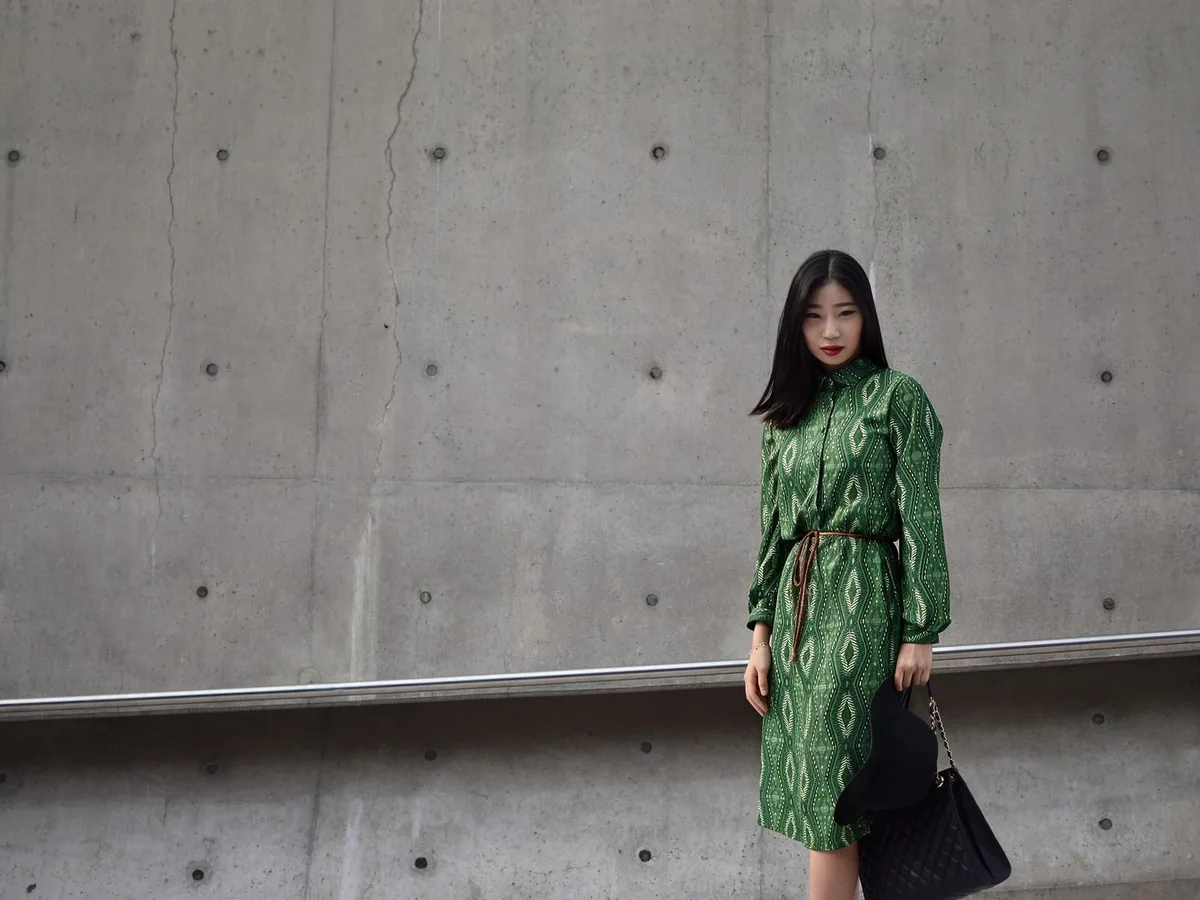
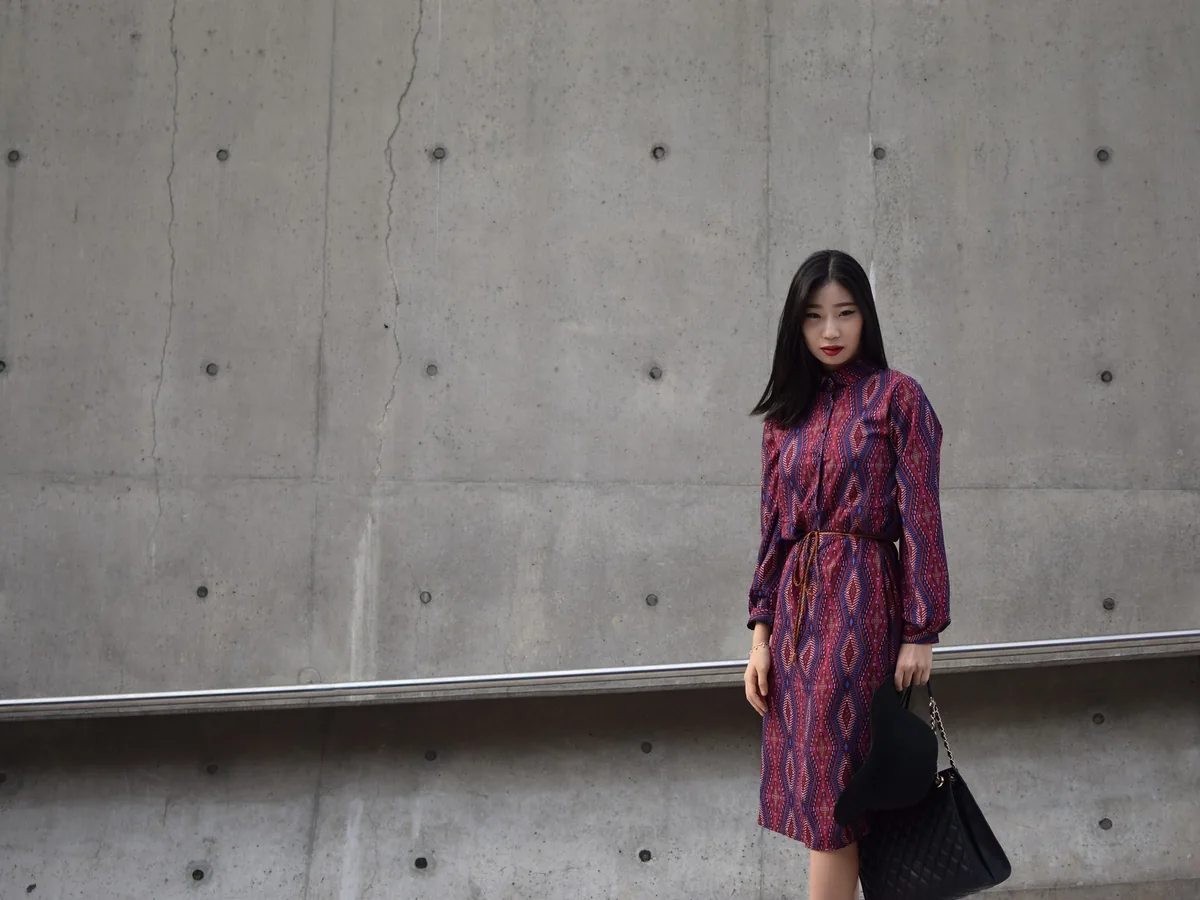
Woman in a purple patterned dress by a concrete wall, dress recolored emerald green, after enhancementWoman in a purple patterned dress by a concrete wall, dress recolored emerald green, before enhancement

Recolor a patterned dress and keep the pattern

Prints, weaves and embroidery keep their design in the new color instead of turning into a flat fill. Bags, shoes and skin nearby are left alone. Very fine multicolor prints may shift a little, so compare them with the slider.

  • Pattern
  • Clothes
  • Texture kept

How do you change the color of an image?

Three steps. A run takes about a minute.

  1. Upload the photo

    JPG, PNG or WebP up to 20 MB: clothes, a car, hair or a product.

  2. Say what to recolor and pick a color

    Type a few words like "the dress" or tap a quick pick, then choose a swatch or any color.

  3. Compare and download

    Drag the slider over edges and details. Try another color on the same photo if you like, then save it.

Does the rest of the photo change?

No. Only what you name gets a new color; the rest of the photo is kept exactly as uploaded.

What stays on the recolored part

Material, texture, folds, stitching, patterns, highlights and shadows stay, so the object looks made in the new color rather than painted over. Parts in other colors, like white laces, chrome or a leather strap, keep theirs.

Why the background stays exactly the same

AI image editors tend to shift the tone of a whole photo a little. The color changer keeps only the area the AI clearly recolored and puts back the original everywhere else, so faces, the background and the light match the upload.

When to check the result twice

Dark to very light changes, like black to white, are the hardest and can lose some detail. Very small objects in a wide shot are easy to miss. When the photo has several similar things, say which one, for example "the car on the left".

How to change the color of an image without AI

Photoshop, GIMP or Canva can recolor part of a photo by hand in four steps.

A flat logo or icon takes a minute by hand. Clothes with folds, hair and shiny cars take much longer to look natural, and that is where the AI color changer saves the most time.

  1. 1

    Select the object

    Use the Quick Selection tool or the Pen tool in Photoshop, or Foreground Select in GIMP. Refine the edge so hair, straps and gaps are right.

  2. 2

    Shift the color with a Hue/Saturation layer

    Add a Hue/Saturation adjustment layer clipped to the selection and move the Hue slider. Turn on Colorize for a specific shade.

  3. 3

    Use Replace Color for single-color graphics

    For logos and flat graphics, Image > Adjustments > Replace Color swaps one color for another in one step. Canva and most online PNG tools do the same.

  4. 4

    Fix light and dark parts

    Very dark or very light objects barely react to a hue shift. Paint the shade on a Color or Soft Light layer instead, then compare at 100%.

Change color of image FAQ

Yes, one photo a day. Each photo costs 8 credits, and everyone gets 10 free credits a day without an account. Downloads have no watermark. Credit packs and plans for more photos are on the pricing page.

Not to the exact code. Any color lets you pick the shade you want, and the result follows its color family and how light or dark it is. Light, shadow and the material still change how it looks, so check it against your real product or swatch.

Yes, for products you sell in those colors. Check the new shade against the real item before you publish, since screens and fabrics differ and buyers expect the color they see.

Yes. Upload a clear photo with your hair in good light, type "my hair" and pick a shade. The preview shows how the color sits with your skin and eyes; the real result also depends on your current hair and the dye.

Your photos are used only to create your result, never to train AI. Without an account they're deleted after 24 hours. Signed in, they're kept in History for 72 hours, or until you delete them if you turn on "Keep my tasks". Details are in our Privacy Policy.

More ways to fix your photos

Smiling woman with red hair moved into a park, before enhancementSmiling woman with red hair moved into a park, after enhancement

Change Background Photo

Swap any photo background for a color, scene or image.

Change background
Smiling woman with long hair, field background turned pure white, before enhancementSmiling woman with long hair, field background turned pure white, after enhancement

Make Background White

Put a person or product on pure white, with or without a soft shadow.
Make background white
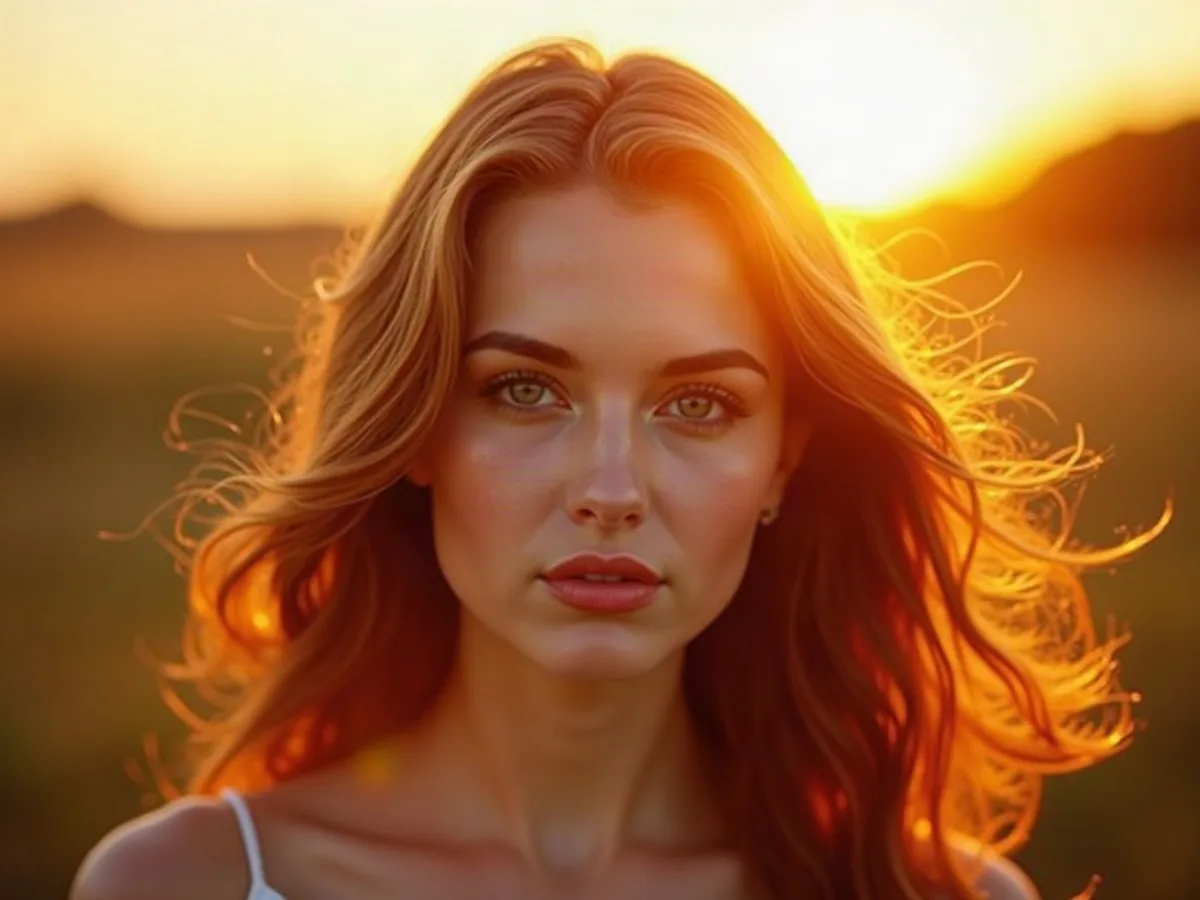
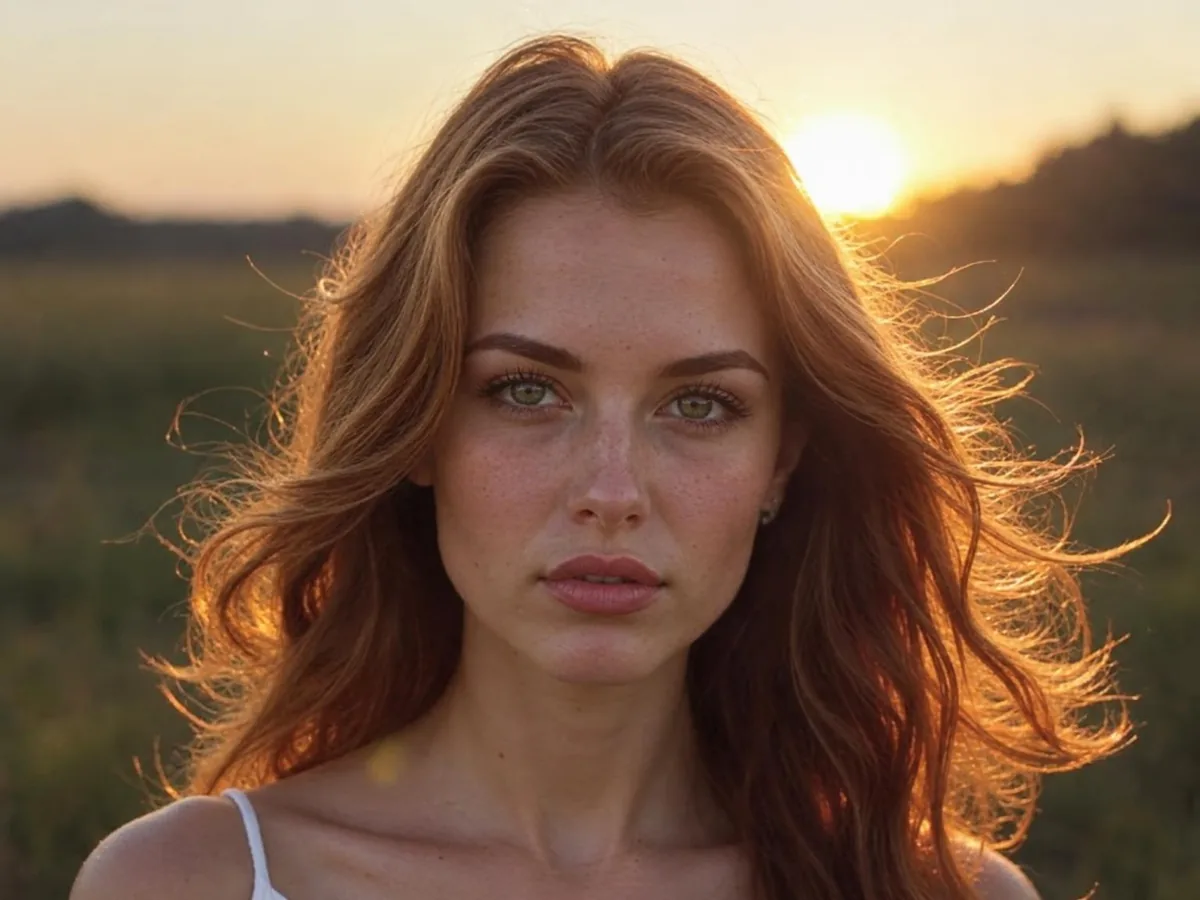
AI portrait of a woman with glowing golden backlight, before enhancementAI portrait of a woman with glowing golden backlight, after enhancement
AI Image Humanizer

Make AI images look like real photos.

Humanize AI image