
Clarpex

Remove Text from Image: Erase Words, Captions and Date Stamps

Upload a picture and let the AI text remover find every word, or paint over just the text you want gone. What was behind the letters is filled back in, so the photo looks as if nothing had been written on it.

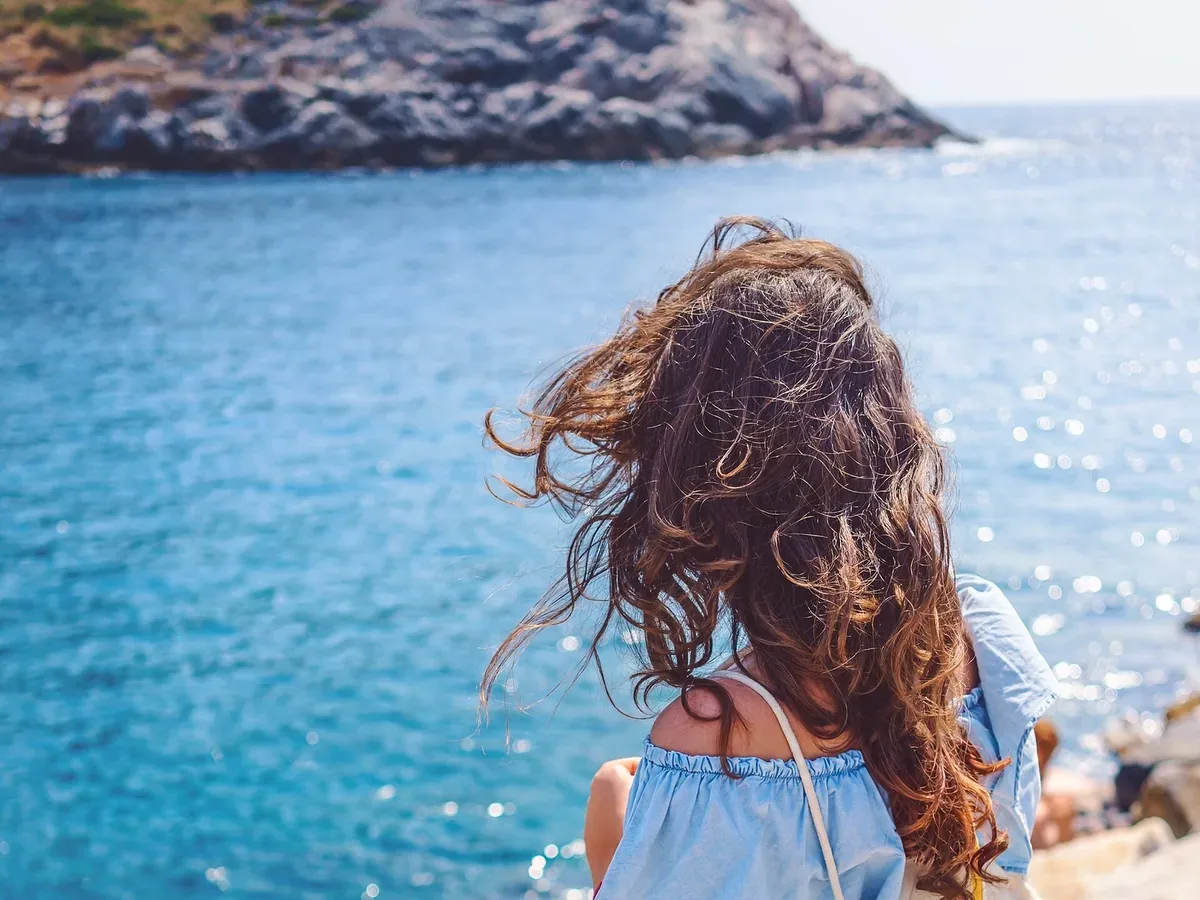
Woman by the sea with a large caption across the bottom, after enhancementWoman by the sea with a large caption across the bottom, before enhancement
No photo? Try one:

Upload Image

Drag and drop, or click to browse

  • Free daily credits
  • No sign-up
  • Private

What you can do when you remove text from a picture

Drag the slider on each pair. Remove all text uses one click; Paint over text removes only what you mark.

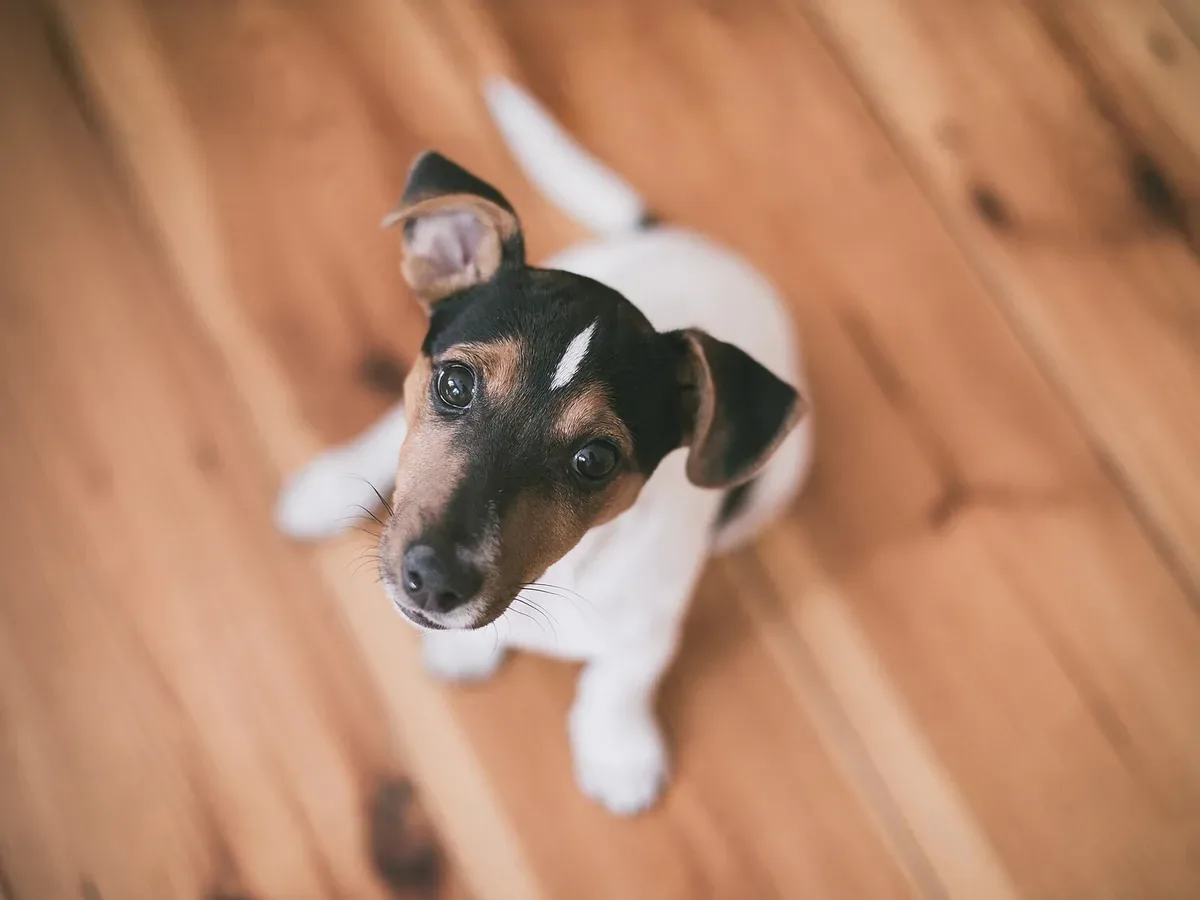
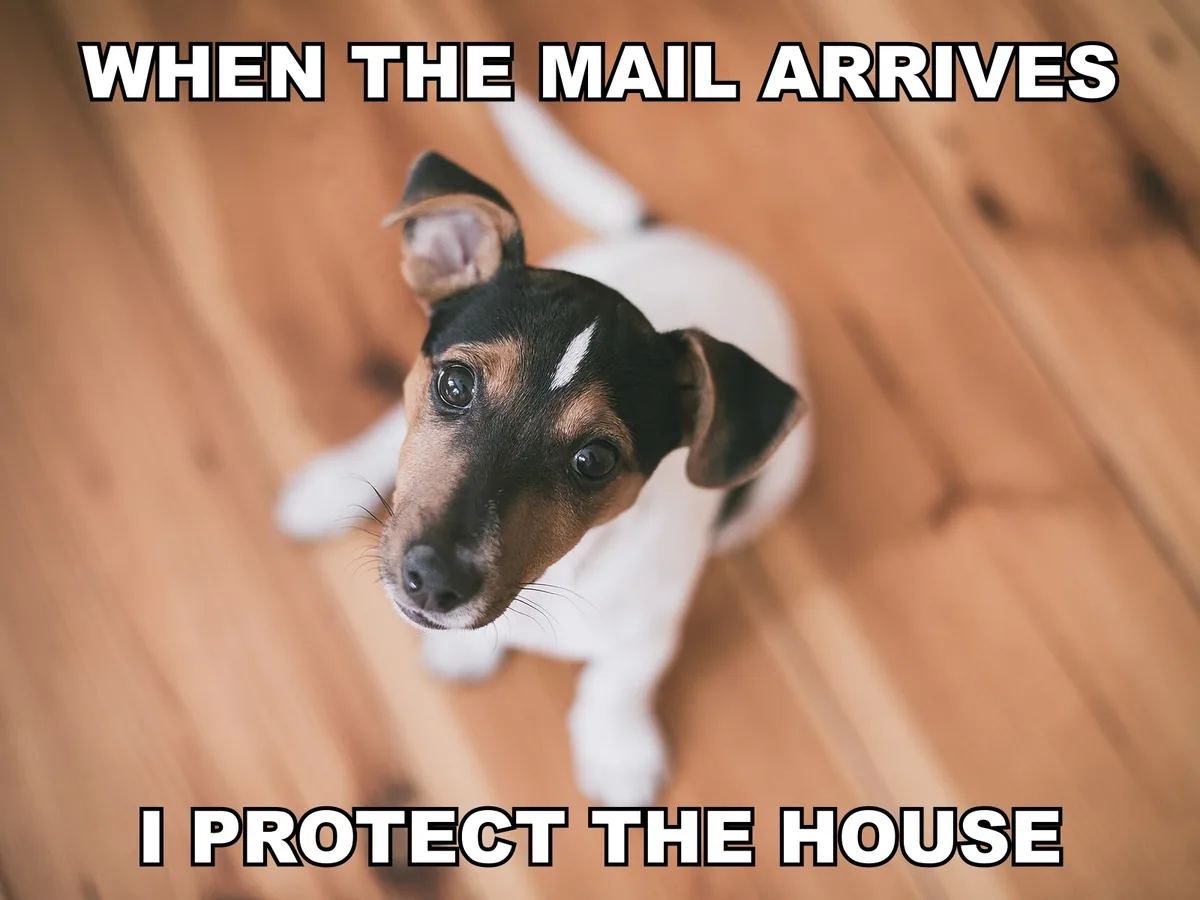
Puppy on a wooden floor, meme captions removed from the top and bottom, after enhancementPuppy on a wooden floor, meme captions removed from the top and bottom, before enhancement

Remove meme text and captions from a picture

Want the photo without the words from a meme or a captioned post? Keep Remove all text selected and run it: top and bottom captions are cleared and the background behind them is filled in. Thick outlined letters come off cleanly; text over a face is the hardest case, so check it with the slider.

  • Meme
  • Remove all text
  • Caption
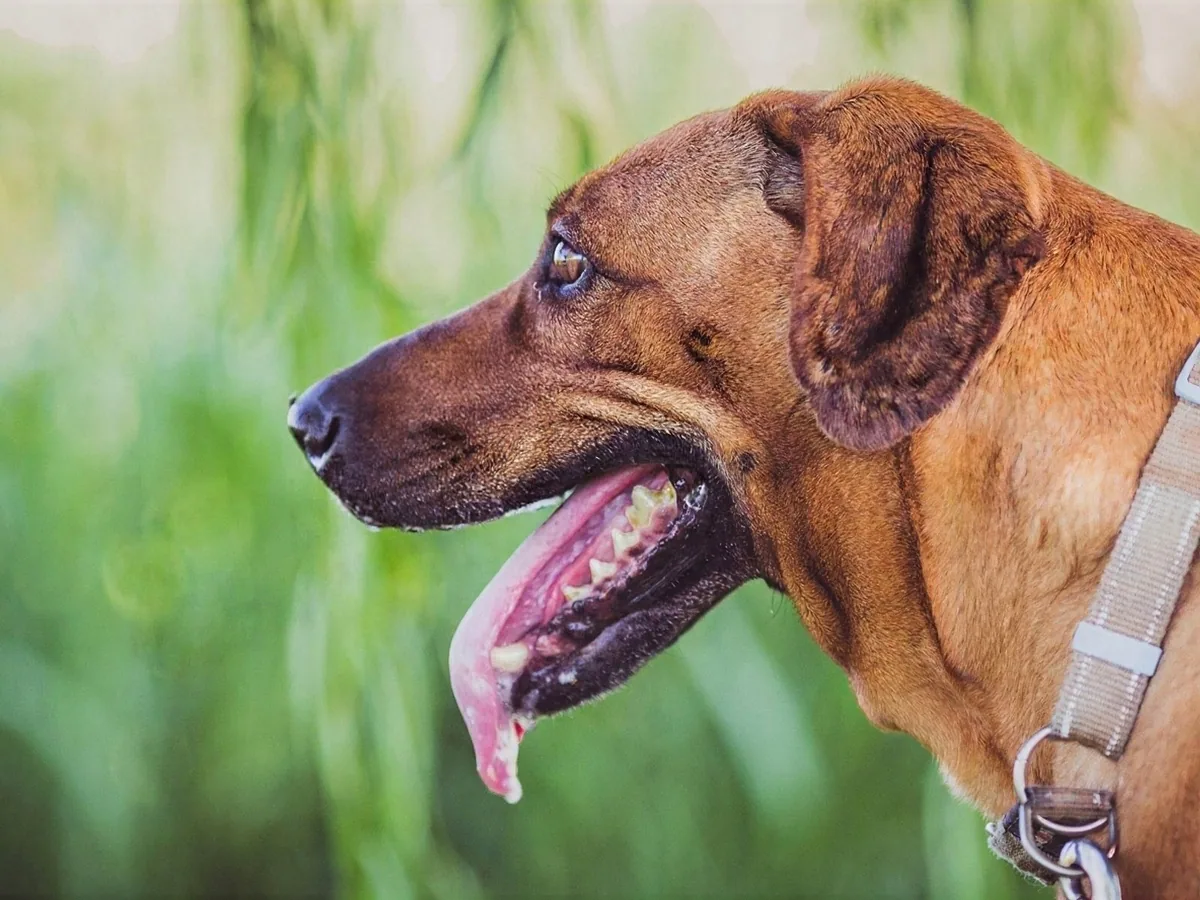
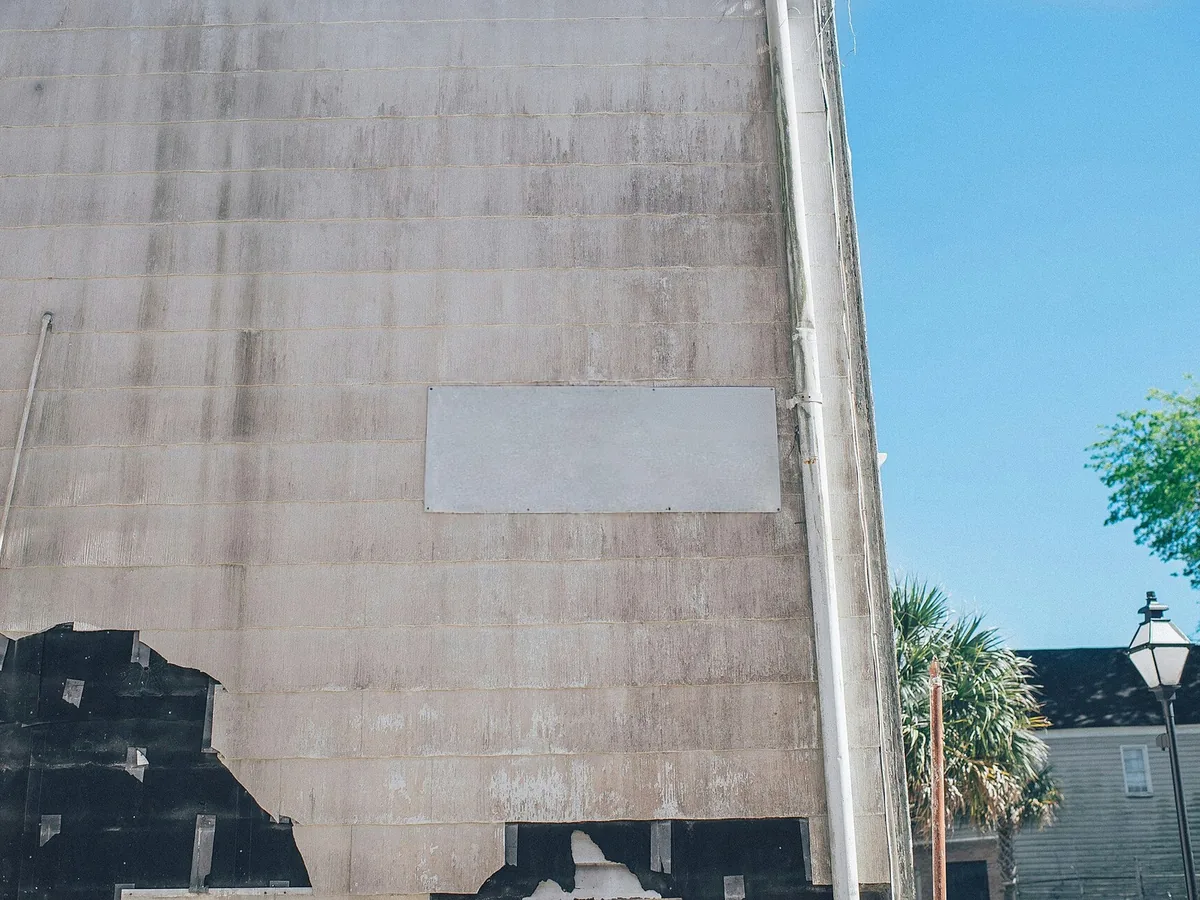
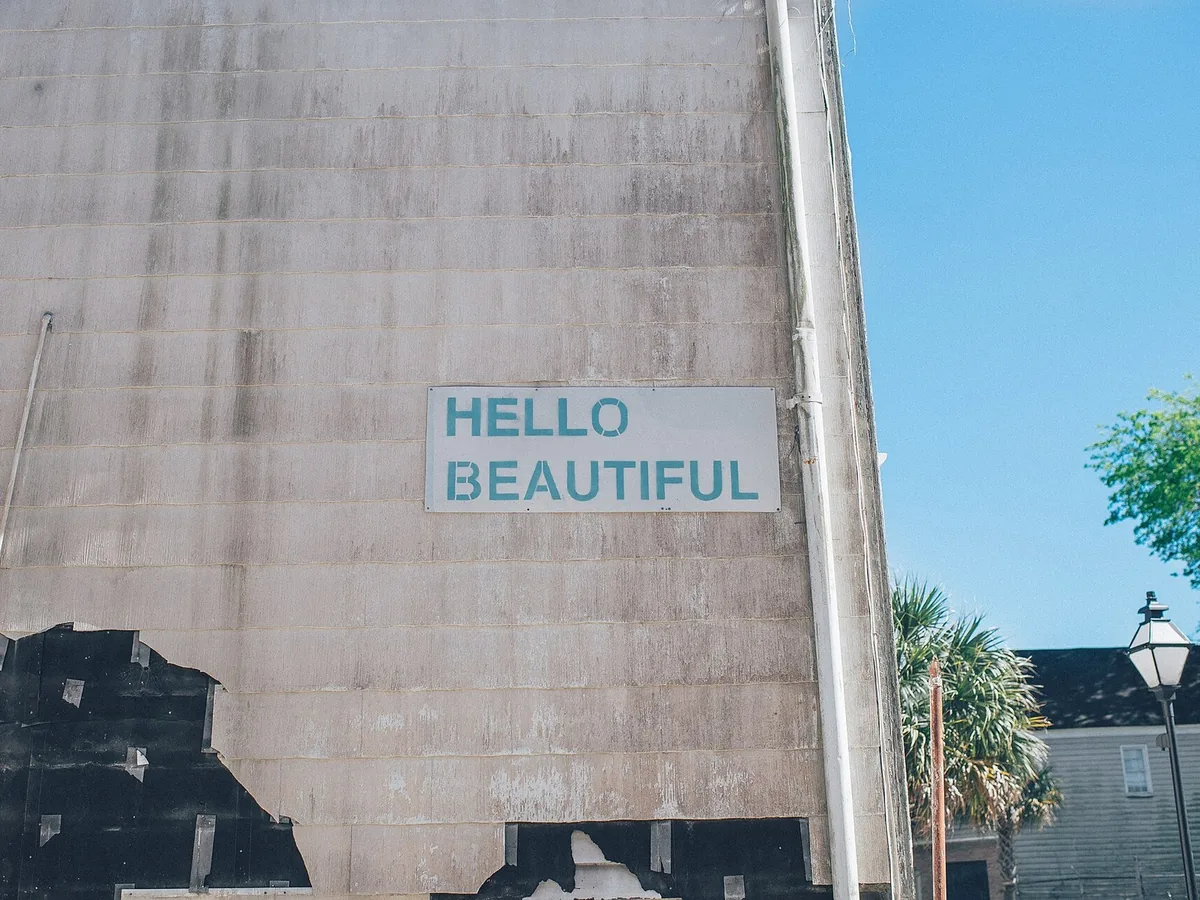
Sign on a concrete wall with its two lines of lettering removed, the blank board kept, after enhancementSign on a concrete wall with its two lines of lettering removed, the blank board kept, before enhancement

Remove words from a sign but keep the sign

To blank out a shop name or a slogan, pick Paint over text and brush over the letters only. Only the painted area changes, so the board, its frame and the wall around it stay, ready for a mockup or a new name.

  • Sign
  • Paint over text
  • Surface kept
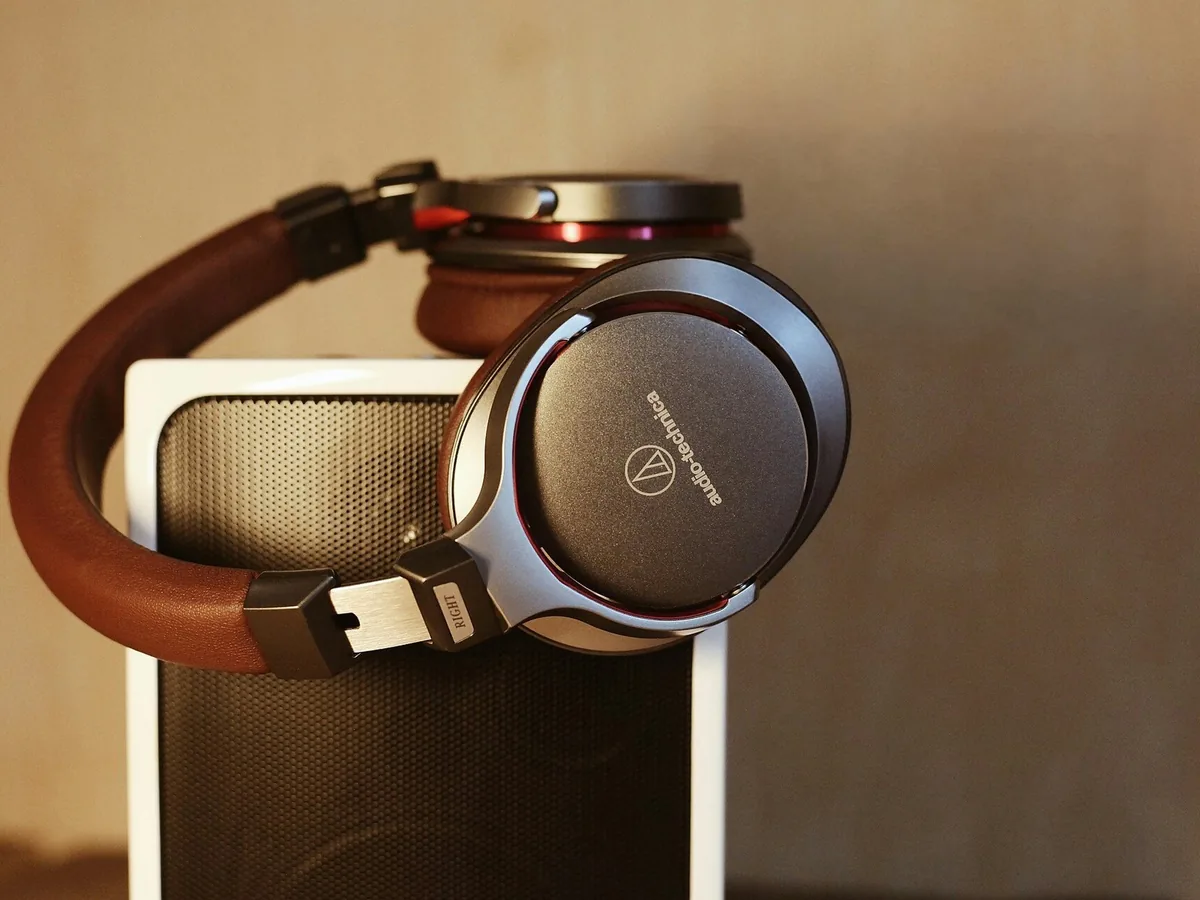
Headphones on a speaker with the sale text removed and the brand print kept, after enhancementHeadphones on a speaker with the sale text removed and the brand print kept, before enhancement

Delete promo text from a product photo and keep the brand

Old sale banners and price text date a product photo fast. Paint over the promo text and leave the product alone: printed brand names and labels on the product are kept because you didn't paint them.

  • Product photo
  • Paint over text
  • Brand kept
Neon croissant sign with the first word removed and the rest still glowing, after enhancementNeon croissant sign with the first word removed and the rest still glowing, before enhancement

Remove only some of the text in an image

When one word has to go and the rest should stay, paint over that word alone: the other letters and the sign's frame stay as they are. Paint a little past the letters so no glow is left behind.

  • Part of the text
  • Paint over text
  • Surface kept
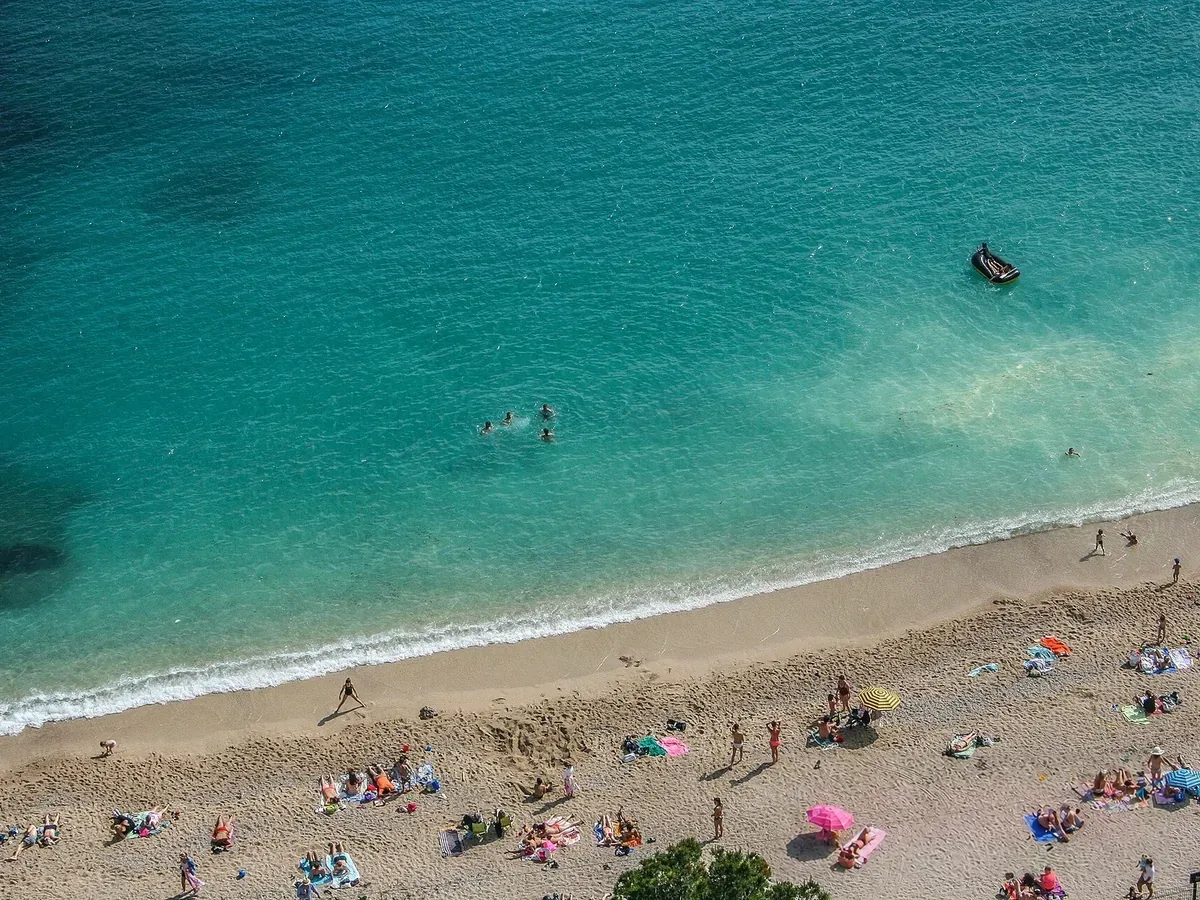
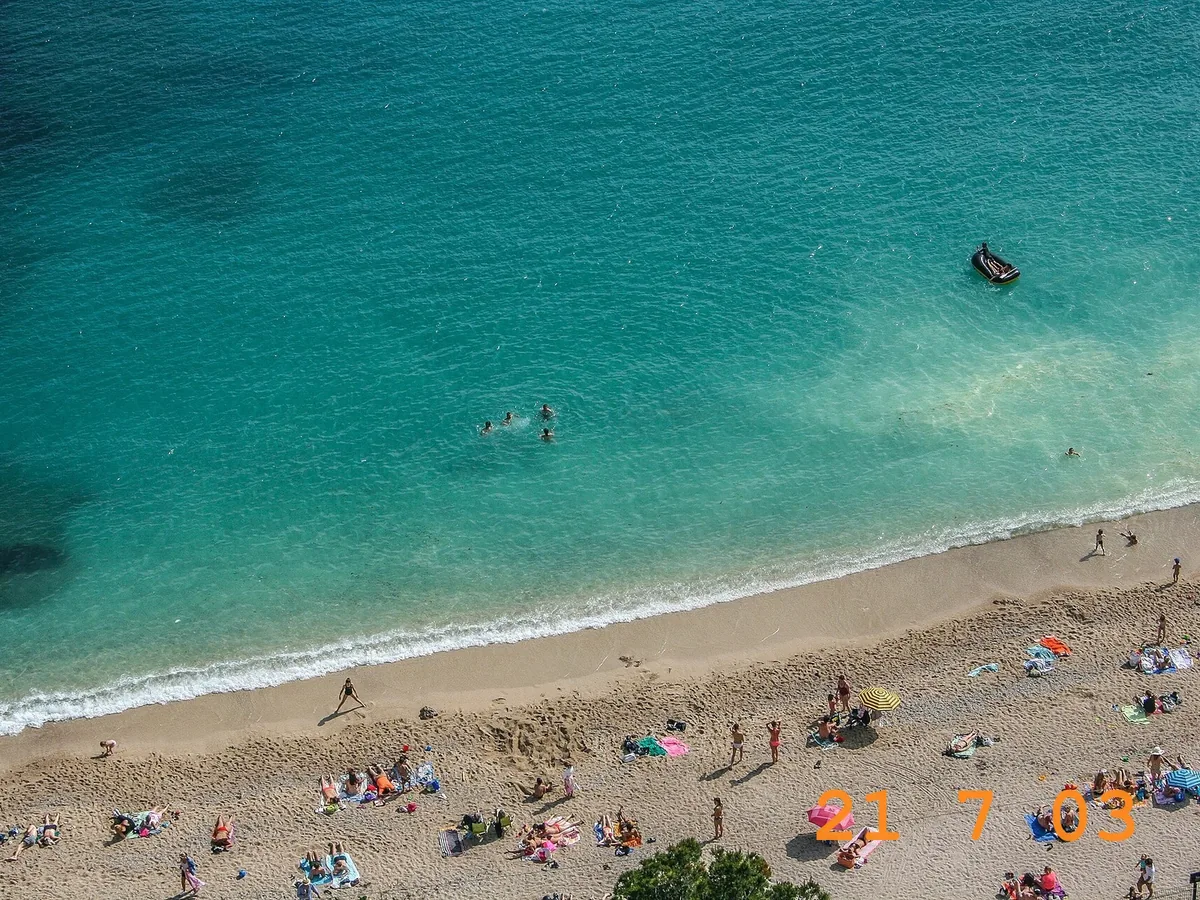
Aerial photo of a busy beach with the orange date stamp removed from the corner, after enhancementAerial photo of a busy beach with the orange date stamp removed from the corner, before enhancement

Remove a date stamp from vacation photos

Film cameras and some phones print the date in orange in a corner. Remove all text finds it and fills in what was underneath, even over a busy beach. On scanned prints, scan first and run the scan.

  • Date stamp
  • Remove all text
  • Busy background

How to remove text from an image

Three steps. A run takes under a minute.

  1. Upload the picture

    JPG, PNG or WebP up to 20 MB: a photo, a screenshot or a scan of a print.

  2. Remove all text, or paint over some

    Remove all text finds every word for you. Paint over text removes only what you brush, so other text stays.

  3. Compare and download

    Drag the slider over where the text was, paint again if anything is left, then save the photo.

Where removing text from a photo works best

Text added on top of a photo comes off cleanest. Text that is part of the scene needs a little more care.

Captions, date stamps and meme text

Text laid over the picture is removed, and the sky, water, sand or wall around it is continued into the spot where the letters were.

Signs, labels and lettering

With Paint over text, brush the letters, not the whole sign: the board and its edges are kept. Remove all text also clears the lettering on signs in the background, which is what you want for a clean photo but not if that lettering should stay.

What sits under the text is a guess

Where big letters cover a face, a hand or fine detail, the AI fills in something plausible, not what was really there. Either way, the rest of the photo away from the text stays as uploaded. Compare with the slider before you download.

How to remove text from a picture in a photo editor or on your phone

Any photo editor can do it by hand. This is the usual way.

A word on a plain sky takes a minute by hand. Long captions over detailed scenes, or a sign whose board should stay, take much longer, and that's where this tool saves the most time.

  1. 1

    Select the text

    Draw a selection a few pixels wider than the letters with the Lasso tool in Photoshop or the Free Select tool in GIMP.

  2. 2

    Fill it from the surroundings

    Use Edit > Content-Aware Fill in Photoshop, or Filters > Enhance > Heal Selection in GIMP. It works well on plain backgrounds like sky or a wall.

  3. 3

    Fix edges with the Clone Stamp

    Where the fill repeats a pattern or bends a straight line, clone from a nearby clean area and change the source point often.

  4. 4

    Check at 100% zoom

    Look for leftover outlines of the letters and blurry patches, especially on textured surfaces. On a phone, Google Photos' Magic Eraser and Clean Up in Photos on iPhones with Apple Intelligence can paint out small text too.

Remove text from image FAQ

Yes. Each photo costs 8 credits, and everyone gets 10 free credits a day without an account, enough for one photo a day. Downloads have no watermark. Credit packs and plans for more are on the pricing page.

Yes. Pick Paint over text and brush over the words you want gone. Everything you don't paint, other text included, stays as it is. Use the eraser or Undo to fix a stroke before you run it.

It fills the area with what would naturally be behind the text: the color and texture of the sign, wall, sky or water. Plain and repeating backgrounds come out best. Behind large text over detailed scenes the fill is a guess, so check it with the slider.

Away from the text, no: the photo keeps its content as uploaded, whichever way you remove it. Photos up to about 2.4 megapixels keep their size; bigger photos are scaled down to about 2.4 megapixels first. Your original file isn't changed.

For watermarks, logos and signatures laid over a photo, use the Watermark Remover: it removes the marks and keeps signs and labels that belong to the scene. Use either tool only on images you own or have the rights to edit; removing a watermark, credit or copyright notice from someone else's image can break copyright law.

Your photos and what you paint on them are used only to create your result, never to train AI. Without an account they're deleted after 24 hours. Signed in, they're kept in History for 72 hours, or until you delete them if you turn on "Keep my tasks". Details are in our Privacy Policy.

More ways to fix your photos

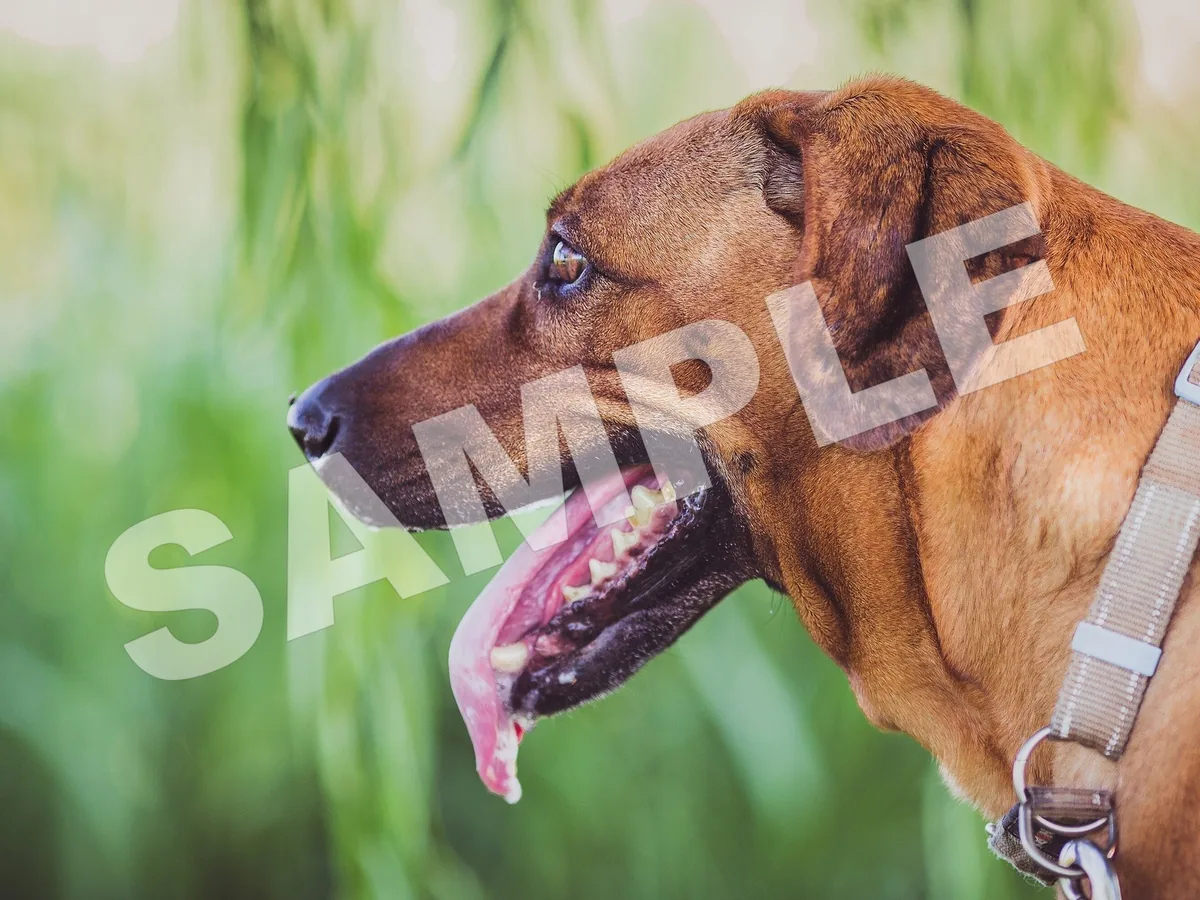
Brown dog in the grass with a large SAMPLE watermark removed, before enhancementBrown dog in the grass with a large SAMPLE watermark removed, after enhancement

Watermark Remover

Remove watermarks, logos and signatures from your photos.

Remove watermark
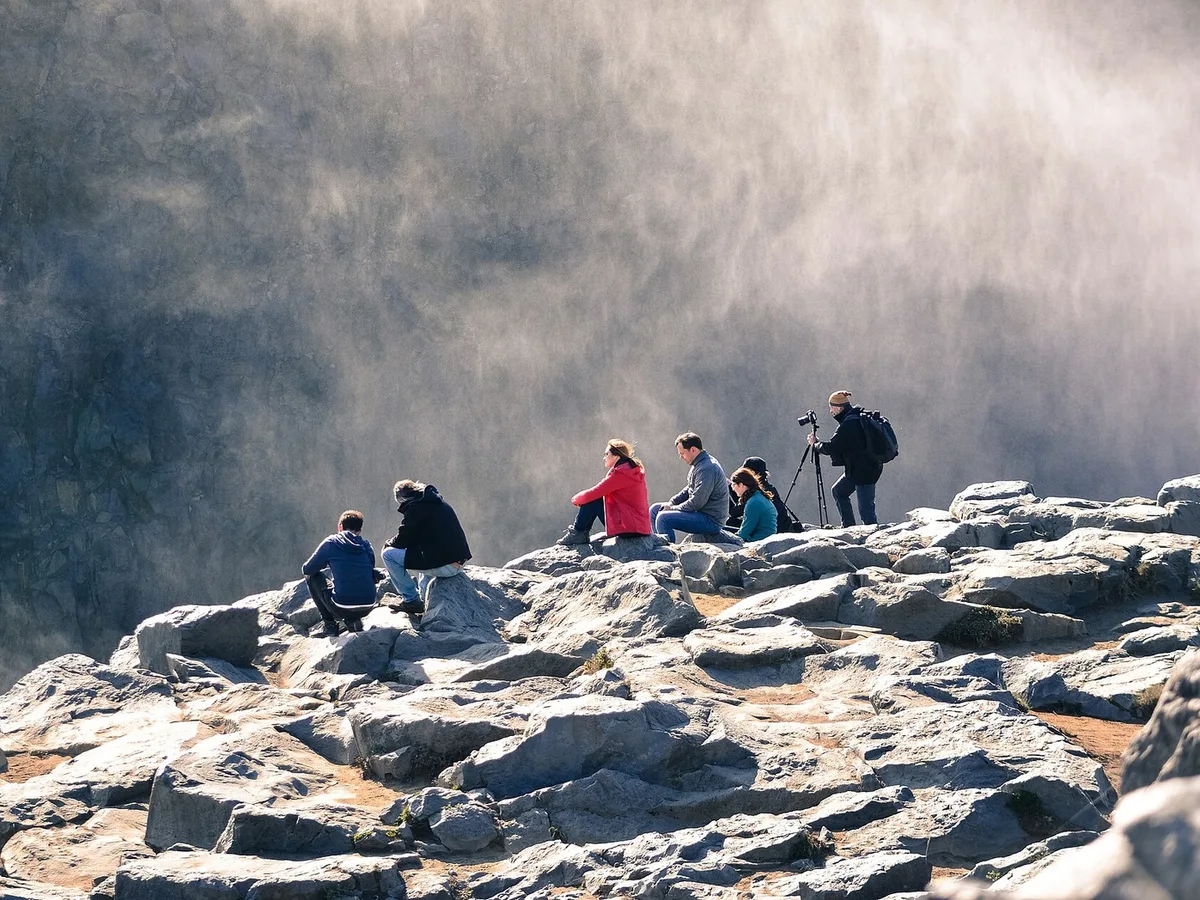
Rocky lookout with the people resting on the rocks removed, before enhancementRocky lookout with the people resting on the rocks removed, after enhancement

Remove Person from Photo

Erase strangers, photobombers and crowds from photos.

Remove a person