Clarpex

Remove Person from Photo: Erase Anyone, Keep the Moment

Paint over a photobomber, a stranger or an ex, or let the AI people remover clear every passerby behind you. What was behind them is filled back in, so the photo looks as if they were never there.

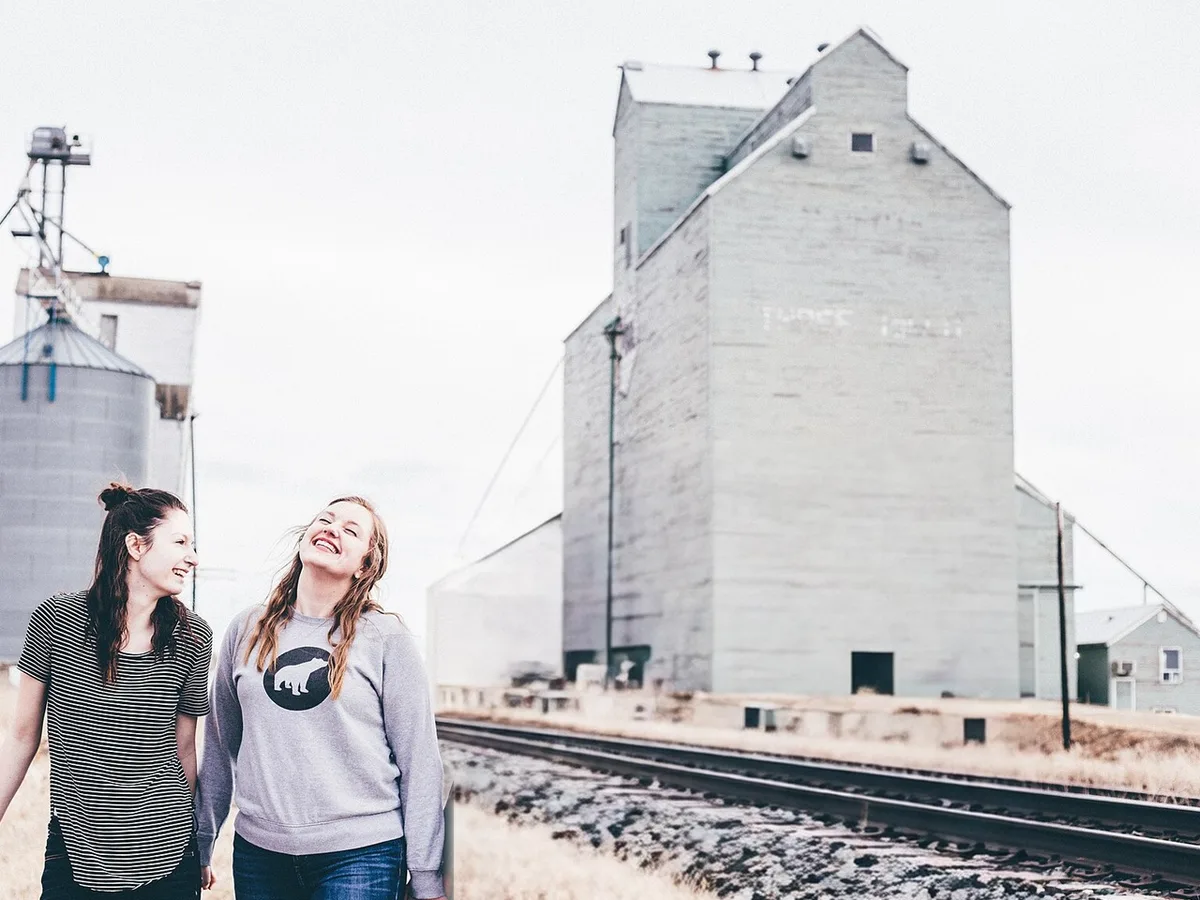
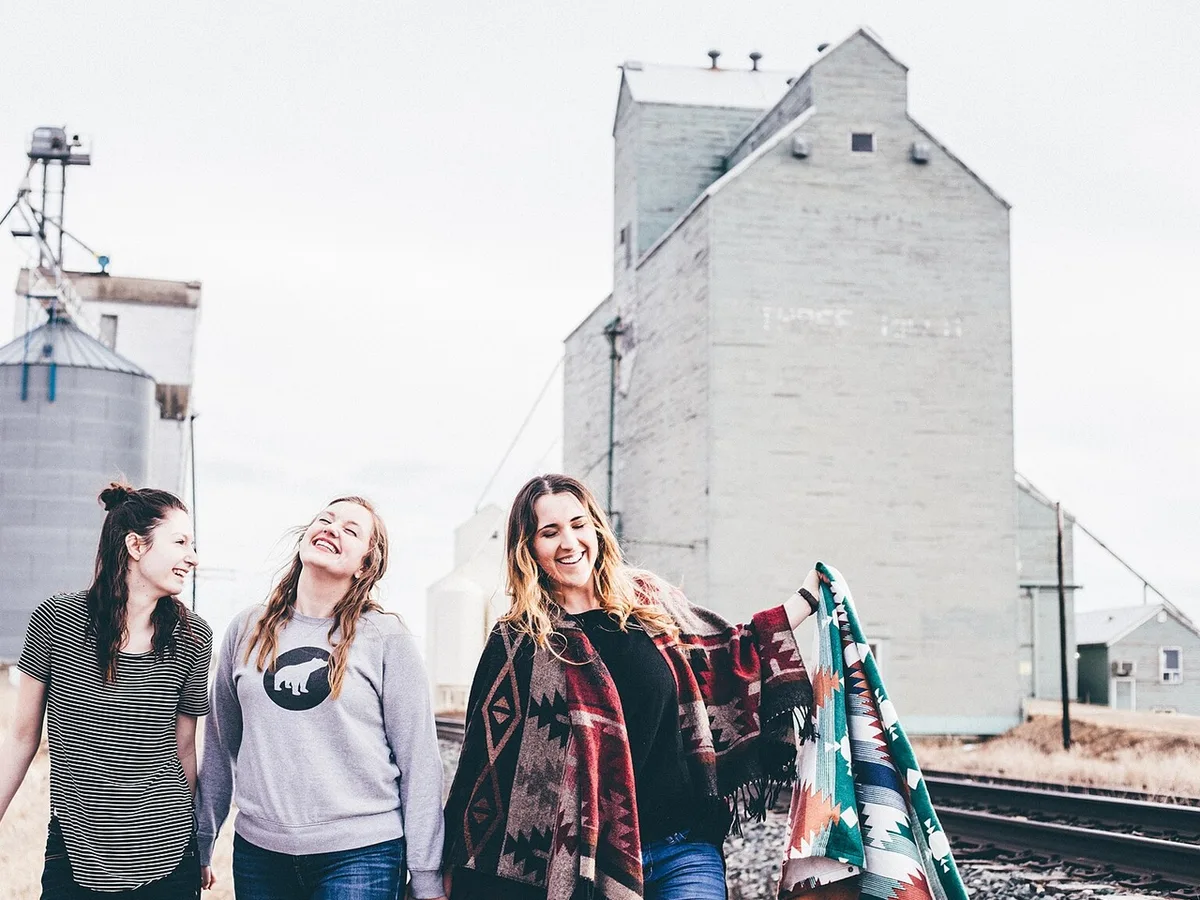
Three friends by train tracks, the friend on the right removed and the grain elevator filled in, after enhancementThree friends by train tracks, the friend on the right removed and the grain elevator filled in, before enhancement
No photo? Try one:

Upload Image

Drag and drop, or click to browse

  • Free daily credits
  • No sign-up
  • Private

What you can do when you remove people from photos

Drag the slider on each pair. Paint over a person removes only who you mark; Remove background people clears everyone around the main subject.

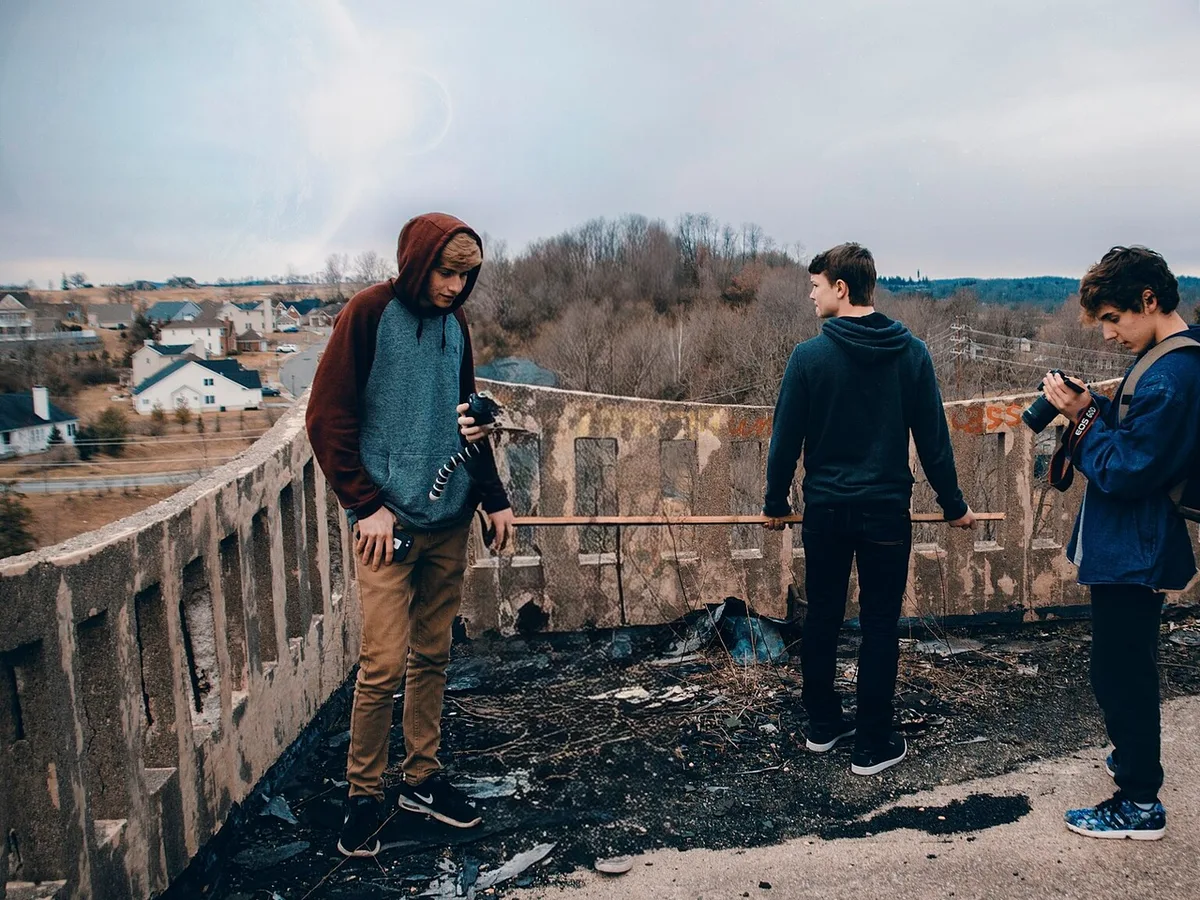
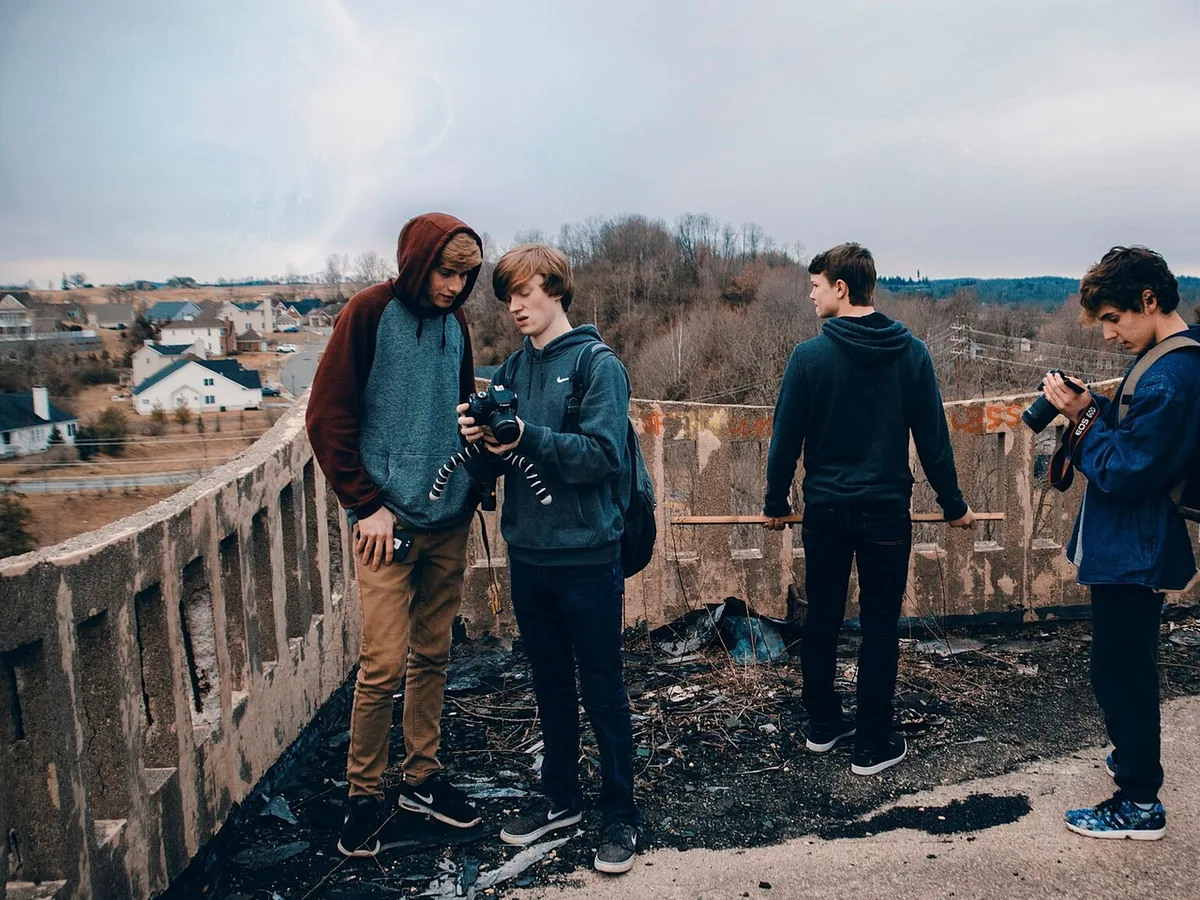
Four teenagers on a rooftop, the second boy from the left removed, after enhancementFour teenagers on a rooftop, the second boy from the left removed, before enhancement

Remove someone from a group photo

To take one person out of a group shot, pick Paint over a person and brush over them from head to shoes. Paint only that person: whatever you cover of a neighbor, an arm or a shoulder, is removed too, so stop where they touch.

  • Group photo
  • Paint over a person
  • People touching
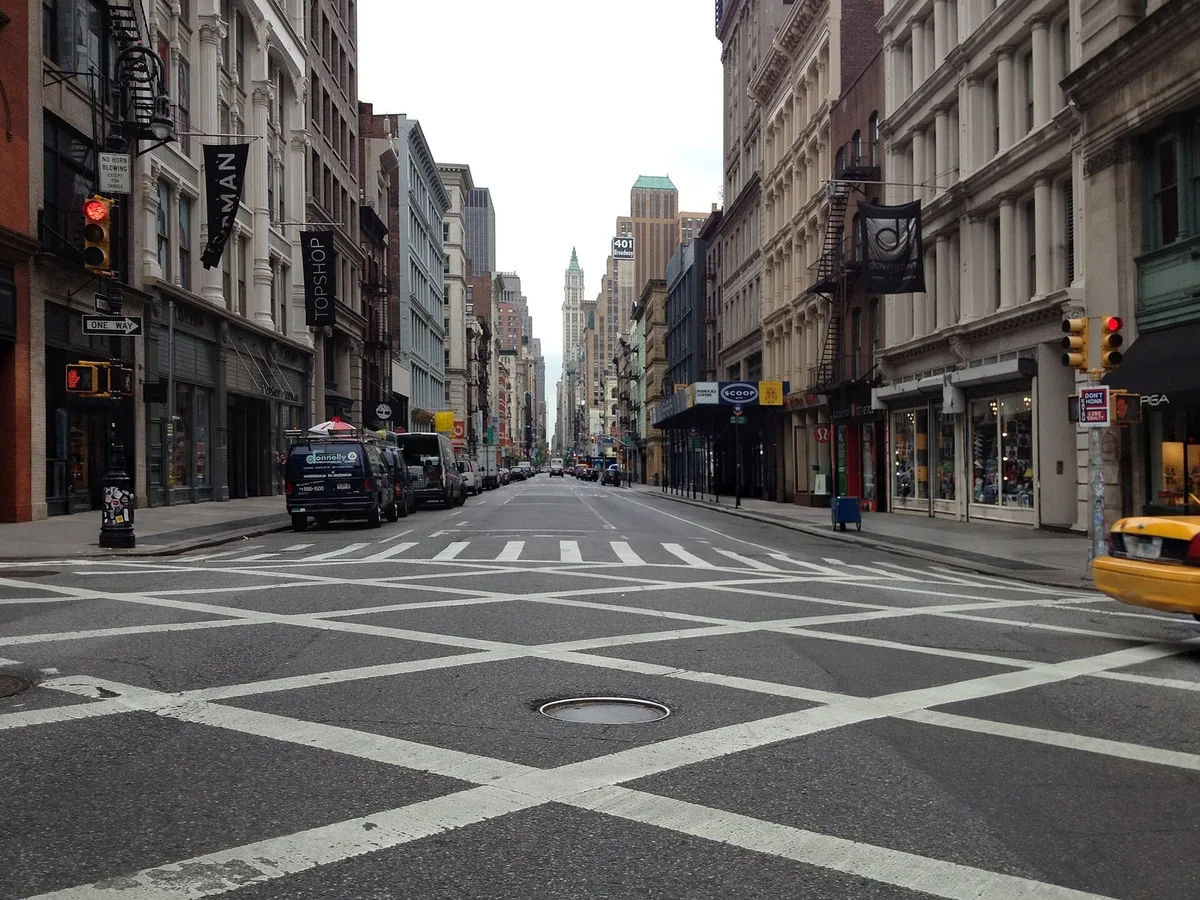
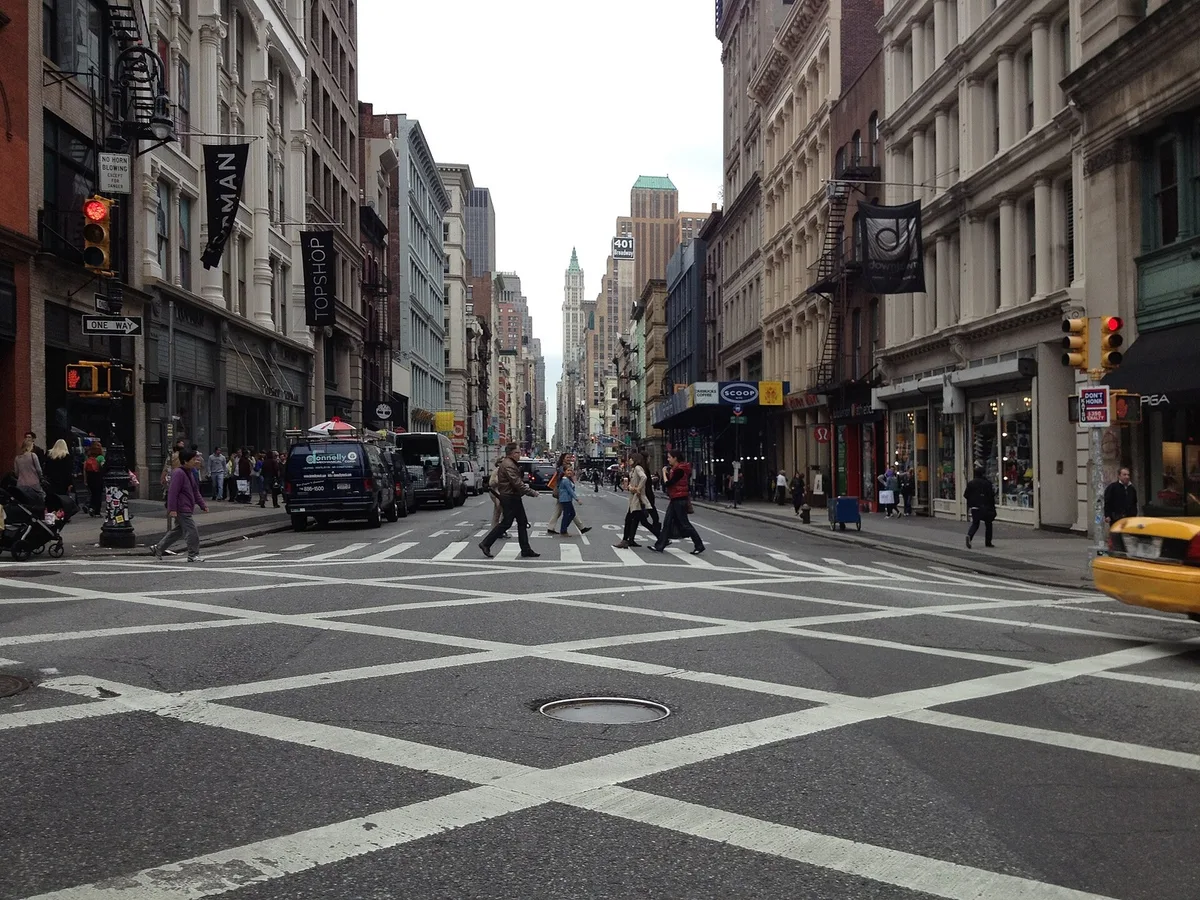
New York street crossing with all the pedestrians removed, after enhancementNew York street crossing with all the pedestrians removed, before enhancement

Remove people from the background of a street photo

Want an empty street or a clean shot of a building? Pick Remove background people and run it: pedestrians and crowds at the crossing are removed and the road behind them is filled in. Parked cars, signs and storefronts stay.

  • Street
  • Remove background people
  • Many people
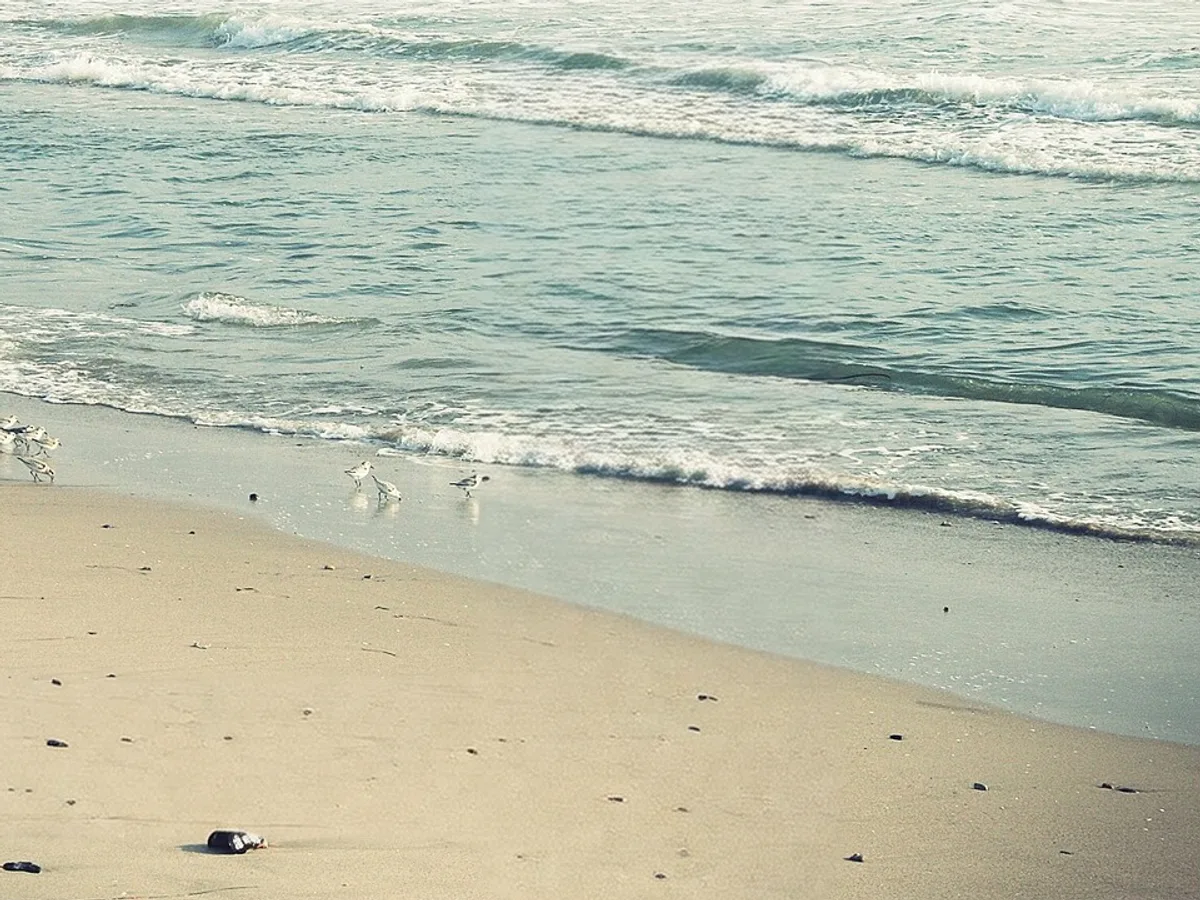
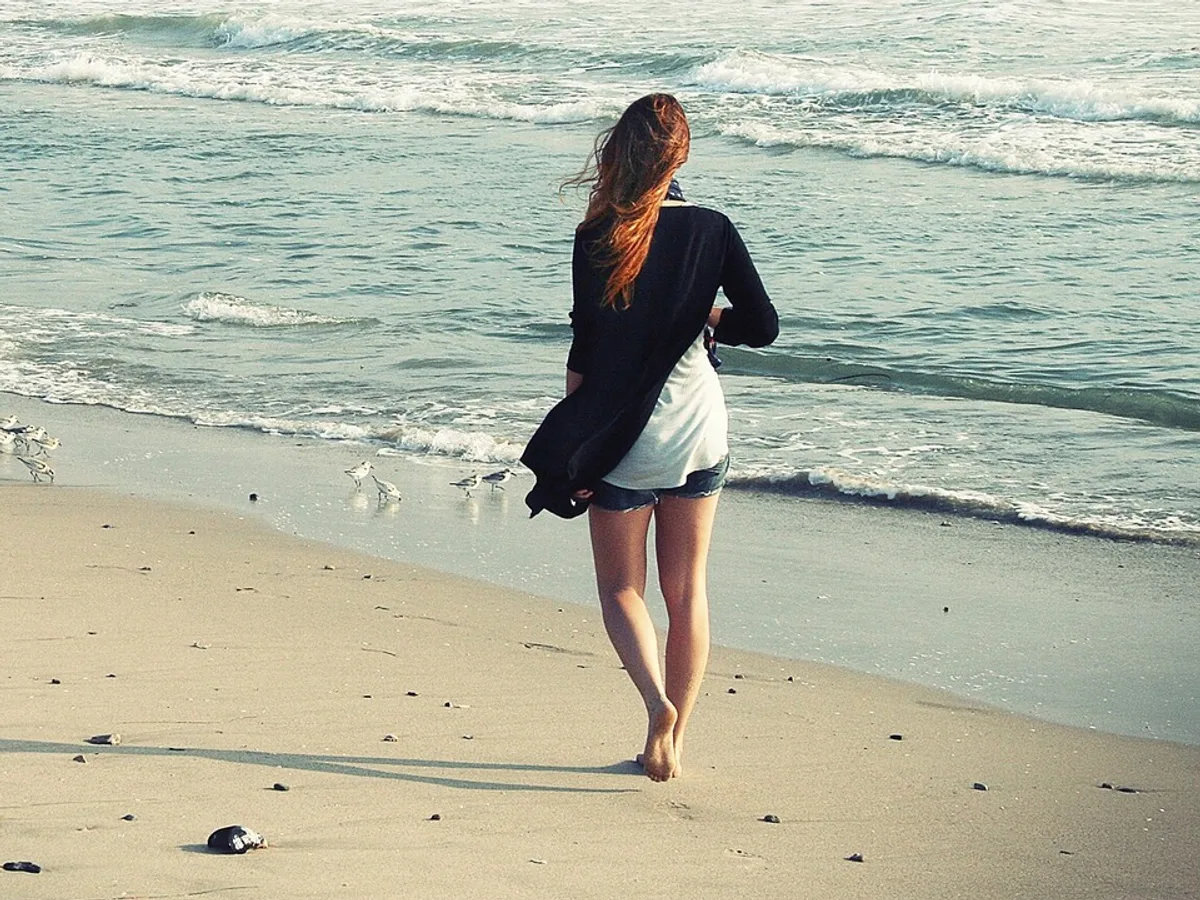
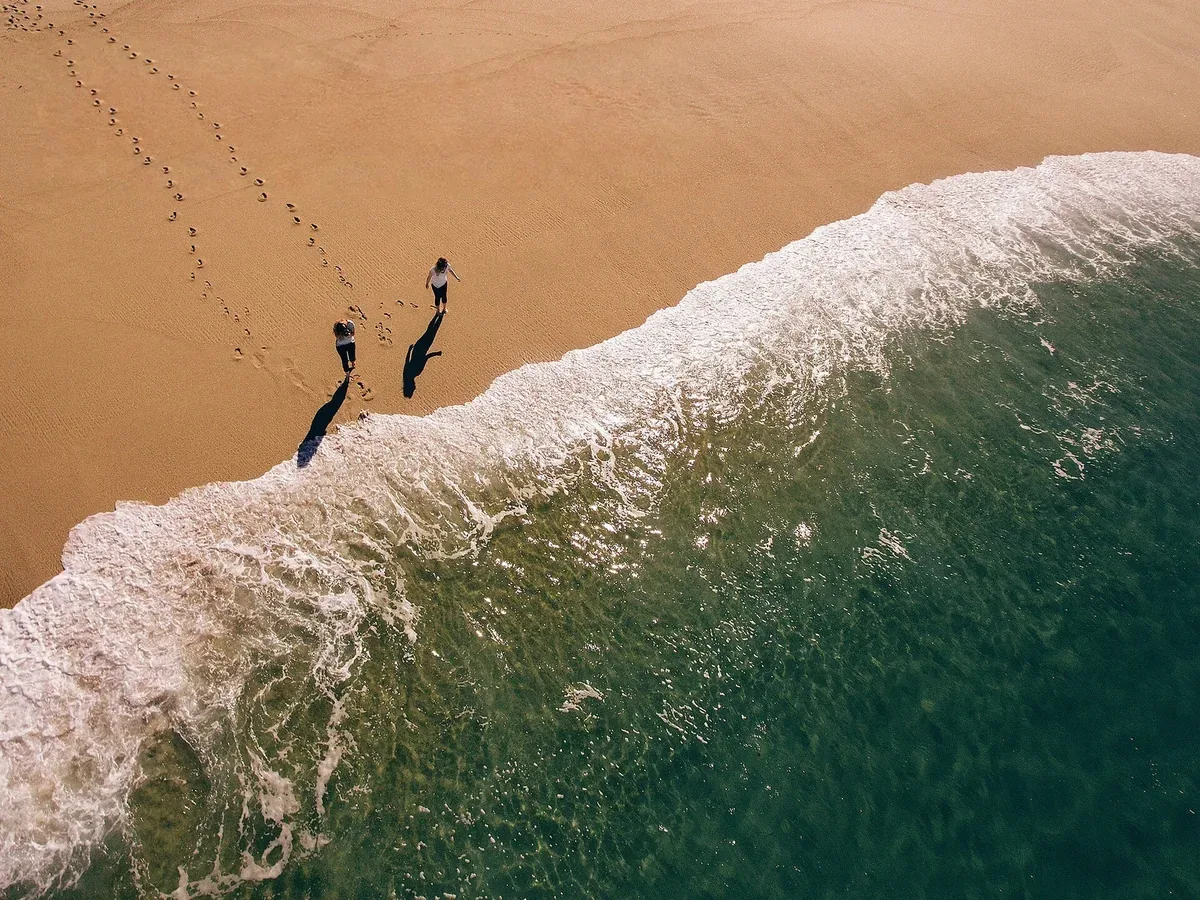
Beach at the waterline with a woman and her long shadow removed, after enhancementBeach at the waterline with a woman and her long shadow removed, before enhancement

Erase a stranger and their shadow from a beach photo

Low sun throws long shadows. When you paint over a person, brush along their shadow too, all the way to its tip: a shadow you skip stays on the sand with nobody attached.

  • Beach
  • Paint over a person
  • Shadow removed
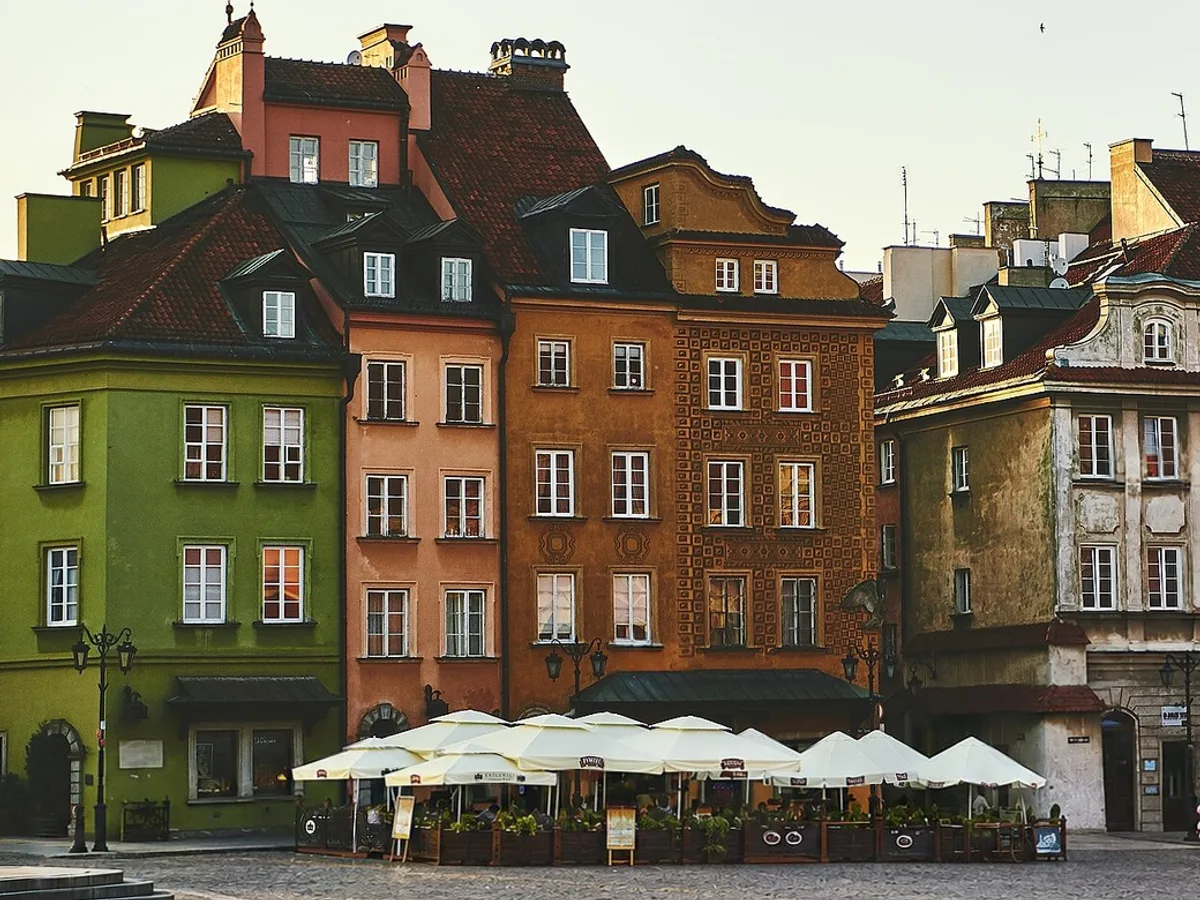
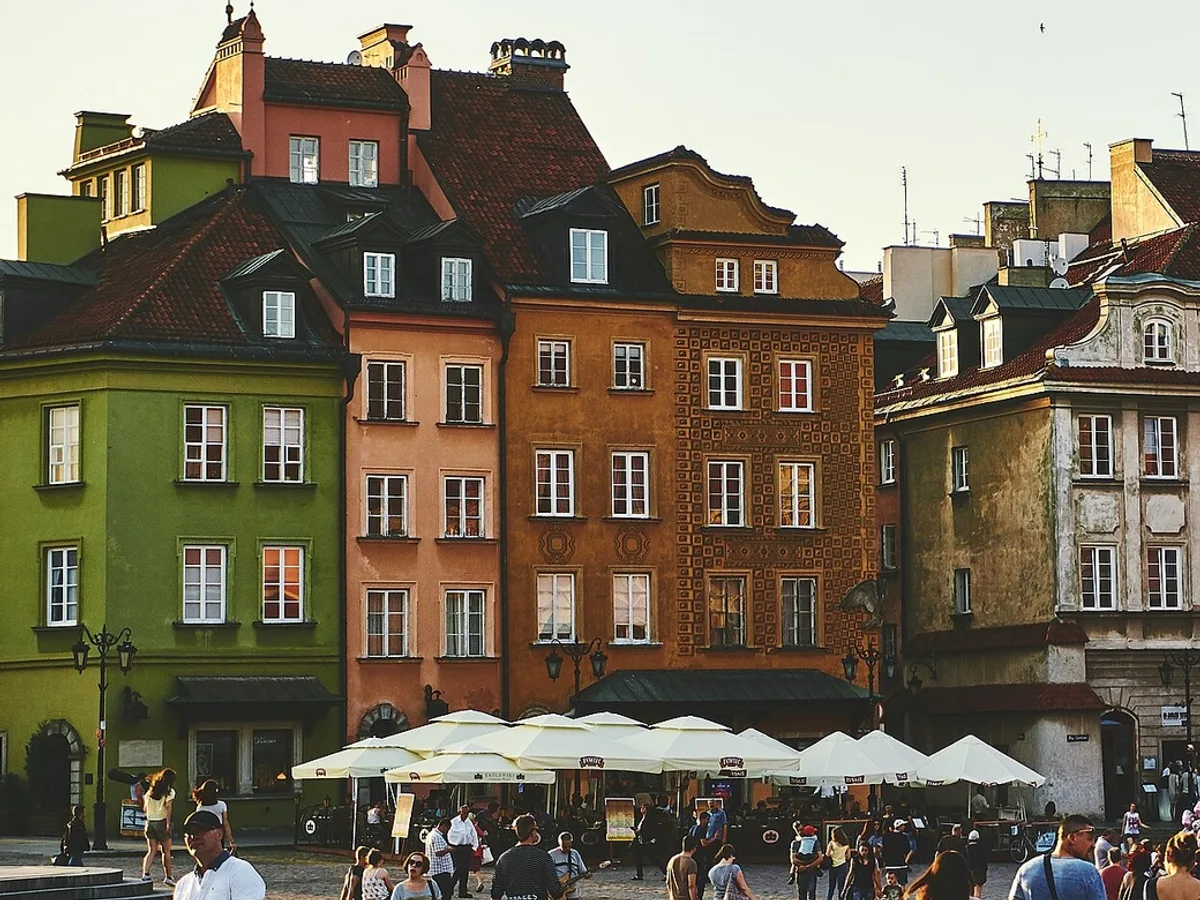
Colorful old town square with the crowd of tourists removed from the street, after enhancementColorful old town square with the crowd of tourists removed from the street, before enhancement

Remove a crowd of tourists from a photo

Old towns and landmarks are hard to shoot empty. Remove background people takes out dozens of tourists at once, even small ones far away, and fills in the street behind them. Things people carry, like a bunch of balloons, can be left floating, so look over the result with the slider.

  • Crowd
  • Remove background people
  • Far-off people
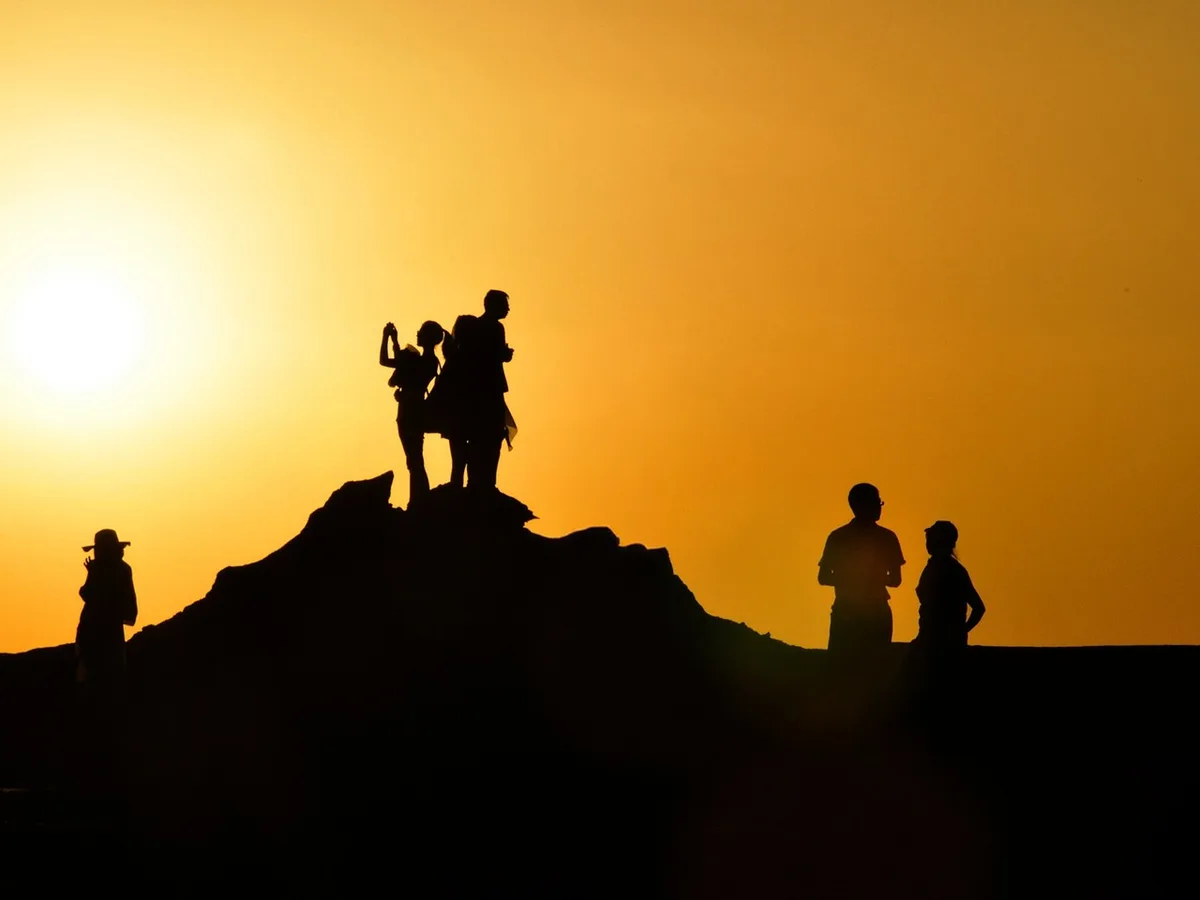
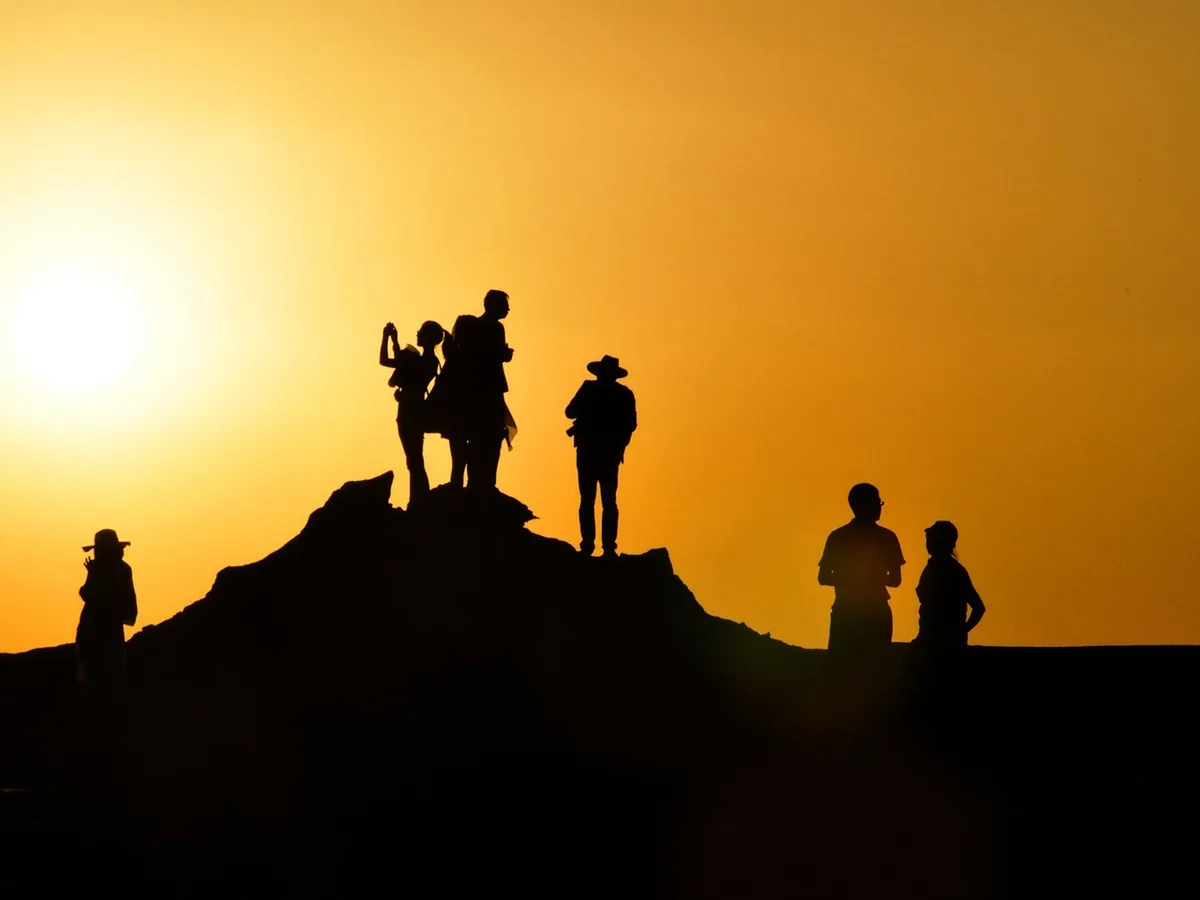
Silhouetted group on a rock at sunset, the man in the hat removed, after enhancementSilhouetted group on a rock at sunset, the man in the hat removed, before enhancement

Remove a person from a silhouette photo

Silhouettes against a sunrise or sunset sky clean up well because the sky behind is smooth. Paint over the person you want gone, down to their feet but not into the ground they stand on, and the sky is continued around the rest of the group.

  • Silhouette
  • Paint over a person
  • Smooth sky

How to remove a person from a photo

Three steps. A run takes under a minute.

  1. Upload the photo

    JPG, PNG or WebP up to 20 MB, from your phone or computer.

  2. Paint over the person, or clear the background

    Brush over whoever should go, shadow included. Or pick Remove background people to clear everyone around the main subject in one click.

  3. Compare and download

    Drag the slider over where the person was, paint again if anything is left, then save the photo.

Where removing people from photos works best
The more of the background shows around a person, the cleaner they come out. What they hid completely has to be guessed.

Passersby, tourists and photobombers

People behind you on a street, a beach or at a landmark are removed and the pavement, sand or wall behind them is continued, with the main subject untouched.

One person, picked by you

With Paint over a person, only the painted area changes: everyone and everything else stays exactly as uploaded. Paint the whole person with a small margin, plus their shadow or reflection.
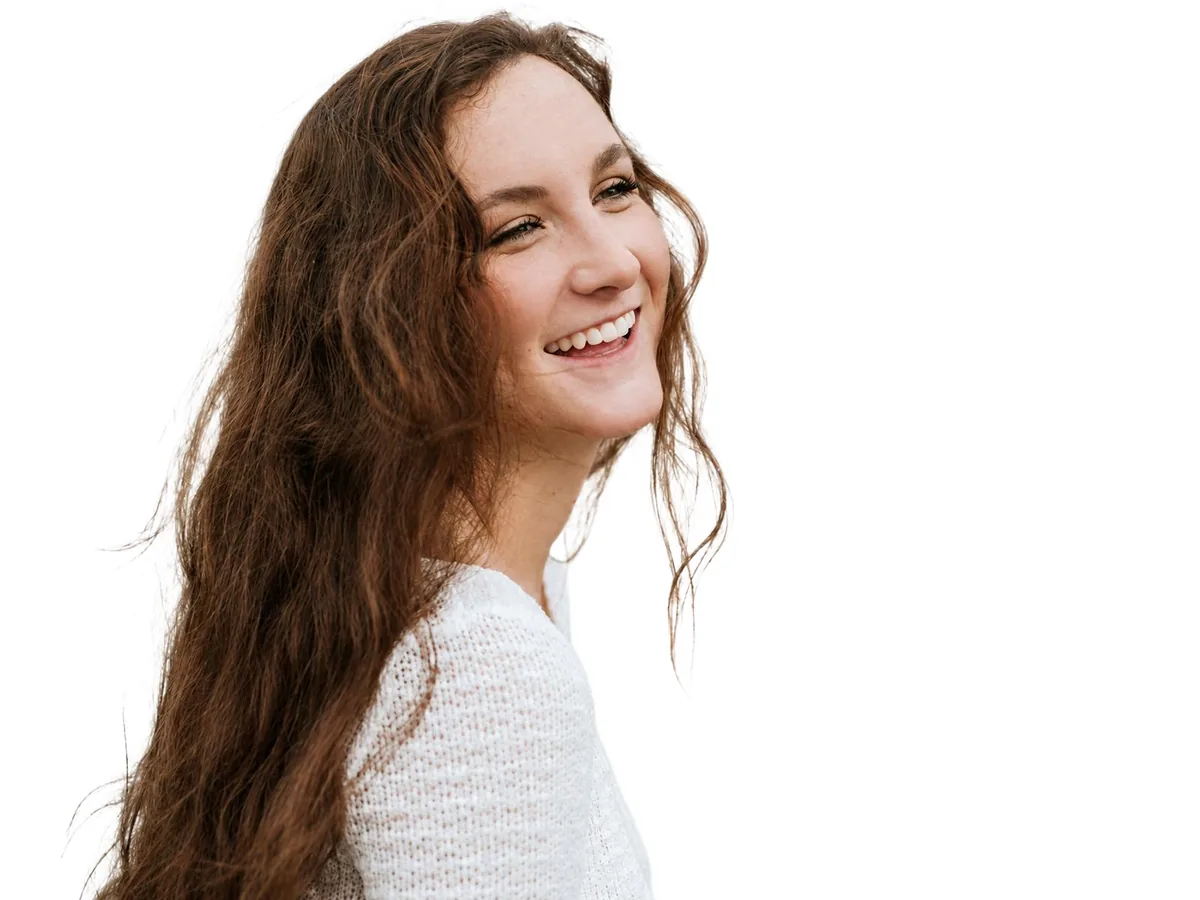
What was behind them is a guess

Where a person covered something that shows nowhere else in the photo, like part of a face, a hand or a sign, the AI fills in something plausible, not what was really there. People holding hands or with an arm around someone are the hardest case. Compare with the slider before you download.
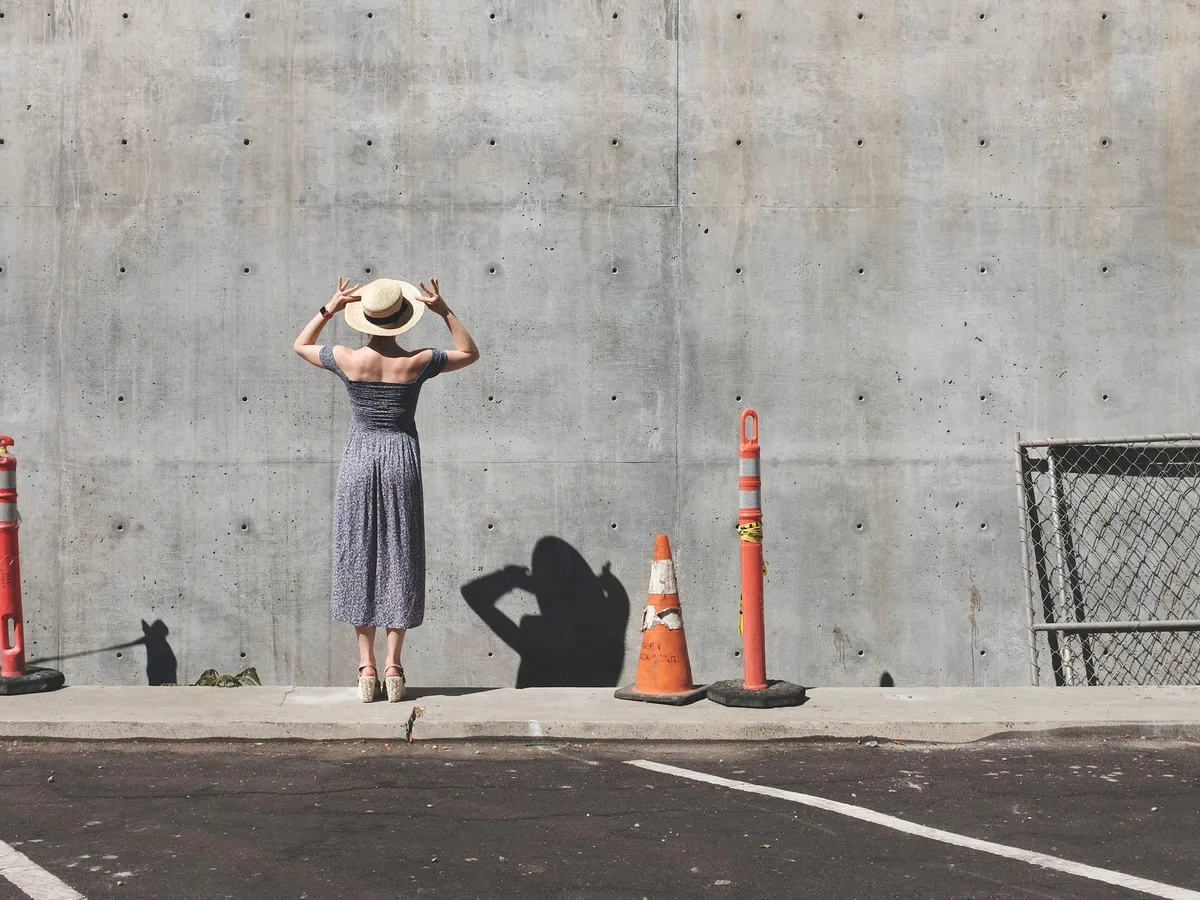
How to remove a person from a photo in a photo editor or on your phone

Any photo editor can do it by hand. This is the usual way.

A small figure on a plain background takes a minute by hand. A person in front of buildings, railings or other people takes much longer, and that's where this tool saves the most time.

  1. 1

    Select the person

    Draw a selection a little wider than their outline, shadow included, with the Lasso tool in Photoshop or Free Select in GIMP.

  2. 2

    Fill it from the surroundings

    Use Edit > Content-Aware Fill or the Remove tool in Photoshop, or Filters > Enhance > Heal Selection in GIMP.

  3. 3

    Rebuild lines with the Clone Stamp

    Where the fill bends a railing, a horizon or a tiled floor, clone from a clean area right next to it and keep the lines straight.

  4. 4

    Check at 100% zoom

    Look for ghost outlines, repeated patterns and leftover feet or shadows. On an iPhone with Apple Intelligence, the Clean Up tool in Photos handles small figures; on Android, Google Photos' Magic Eraser does.

Remove person from photo FAQ

Yes. Each photo costs 8 credits, and everyone gets 10 free credits a day without an account, enough for one photo a day. Downloads have no watermark. Credit packs and plans for more are on the pricing page.

Pick Paint over a person and brush over them. Only the painted area changes: everyone and everything you didn't paint stays exactly as uploaded.

Yes. Pick Remove background people. The AI keeps the main subject of the photo, for example you in a selfie, and removes the passersby and tourists around them. If it keeps someone you want gone, run it again with Paint over a person.

Yes, with Paint over a person. Paint only that person: whatever you cover of the people next to them is removed too. Where two people overlap, what the removed person hid is filled in from the surroundings, so check that spot with the slider.

Open this page in Safari, upload the photo, paint over the person with your finger and save the result to Photos. iPhones with Apple Intelligence also have a Clean Up tool in Photos, which works best on small figures.

Away from the people removed, no: the photo keeps its content as uploaded. Photos up to about 2.4 megapixels keep their size; bigger photos are scaled down to about 2.4 megapixels first. Your original file isn't changed.

Your photos and what you paint on them are used only to create your result, never to train AI. Without an account they're deleted after 24 hours. Signed in, they're kept in History for 72 hours, or until you delete them if you turn on "Keep my tasks". Details are in our Privacy Policy.

More ways to fix your photos

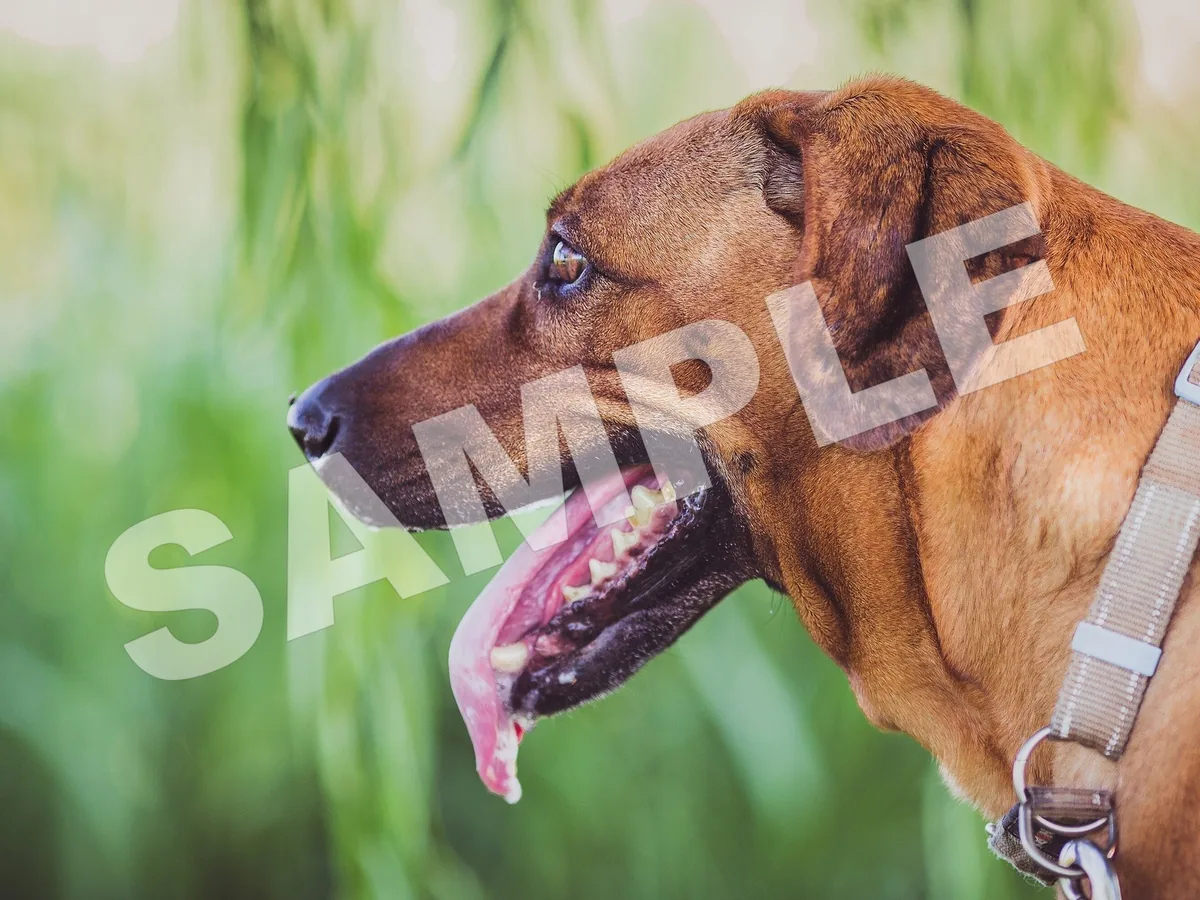
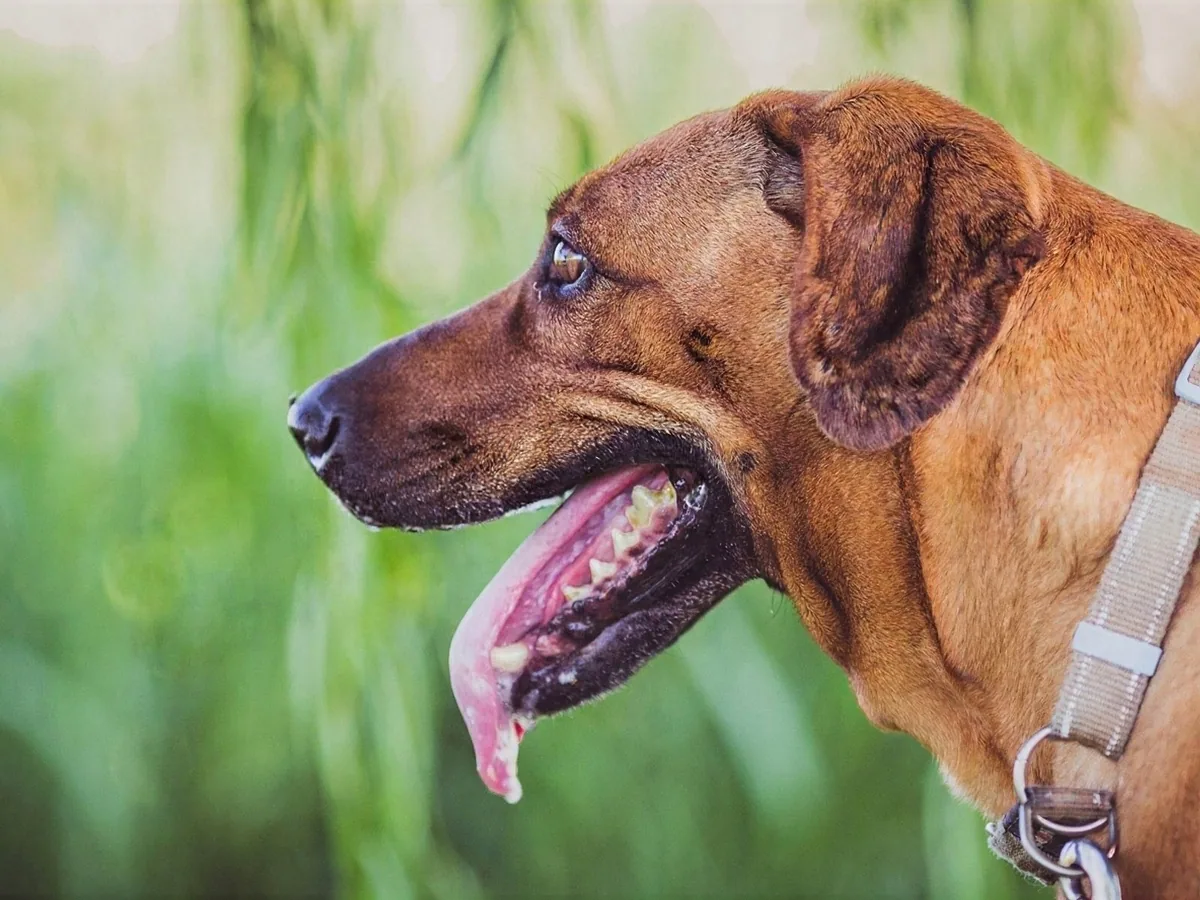
Brown dog in the grass with a large SAMPLE watermark removed, before enhancementBrown dog in the grass with a large SAMPLE watermark removed, after enhancement

Watermark Remover

Remove watermarks, logos and signatures from your photos.

Remove watermark
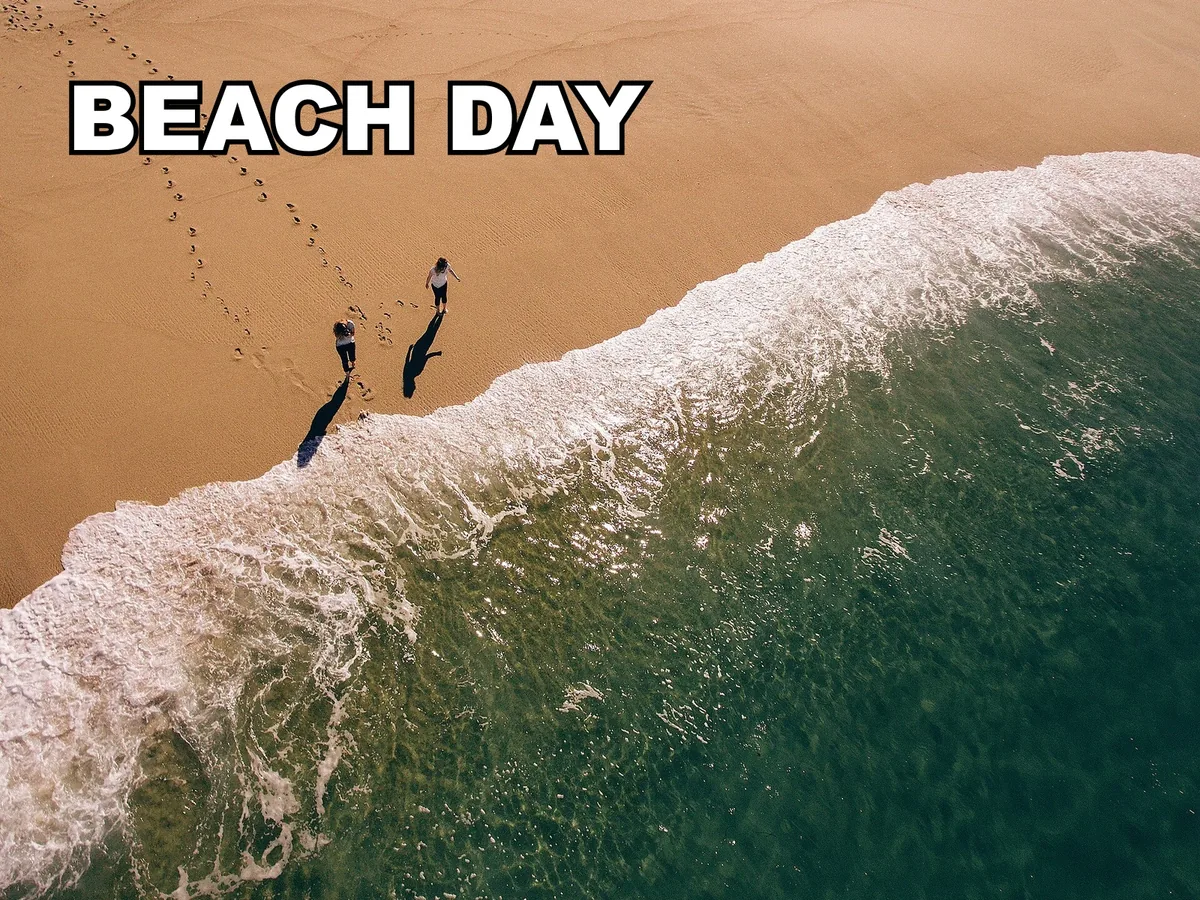
Aerial beach photo with its caption removed, before enhancementAerial beach photo with its caption removed, after enhancement

Remove Text from Image

Erase captions, date stamps and words from photos.

Remove text