How to Unblur a Photo on iPhone (Built-In Fixes and AI)
Why iPhone photos look blurry, the fixes already in the Photos app (Portrait blur, Live Photo frames, Sharpness), and how to unblur a photo in Safari with AI.

Want to fix your photo right away?Open Unblur Image
There's no single "unblur" button on the iPhone, but a blurry photo often isn't as lost as it looks. Some photos only look blurry, some can be fixed in the Photos app in a few taps, and the rest can be sharpened with AI right in Safari, no app needed. Start with the quick checks below; they take a minute and cost nothing.
First, check whether the photo is really blurry
Two things make iPhone photos look blurry when nothing is wrong with the shot.
- iCloud hasn't downloaded the full photo yet. With Optimize iPhone Storage turned on, your iPhone keeps a small preview and fetches the original when you open it. If a photo looks soft and then turns sharp after a second, or looks sharp only when you tap Edit, that's what's happening. Connect to Wi-Fi and wait, or go to Settings > Photos and choose Download and Keep Originals if you have the space.
- The blur is Portrait mode. Portrait photos blur the background on purpose, and sometimes part of the subject too (an ear, the top of a head, a hand). That blur can be turned off or moved, see the next section.
If the photo is still soft after it has fully loaded and it isn't a Portrait photo, it's real blur: missed focus, a shaky hand or a subject that moved.
Fix 1: Turn off or adjust Portrait blur
Portrait photos keep the depth information, so the blur isn't baked in.
- Open the photo in Photos and tap Edit.
- Tap Portrait at the top to switch the background blur off. The whole photo becomes as sharp as the camera caught it.
- To keep some blur but less of it, tap the f number and drag the slider to a higher value.
- On newer iPhones you can also tap a different spot in the photo to move the focus there.
Tap Done to save. You can switch Portrait back on later, because the original is kept.
Fix 2: Pick a sharper frame from a Live Photo
A Live Photo is a short clip of about three seconds, and the frame your iPhone chose isn't always the sharpest one.
- Open the photo and tap Edit.
- Tap the Live Photo button (the circles icon).
- Drag through the frames under the photo and stop where the face or subject is sharpest.
- Tap Make Key Photo, then Done.
This often rescues a photo of a kid or a pet that moved at the wrong moment. If you shot a burst, open it with Select and keep the sharpest frame the same way.
Fix 3: Sharpen in the Photos app
For a photo that's only a little soft, the built-in adjustments are enough.
- Open the photo and tap Edit, then the Adjust tab.
- Scroll to Sharpness and raise it a little at a time, around 20 to 40.
- Raise Definition a bit as well. It adds contrast in the midtones and makes the photo look crisper.
- If the photo was taken in low light and looks grainy after sharpening, raise Noise Reduction slightly.
Zoom in on a face or an edge before you tap Done. Too much sharpening draws bright outlines around edges and makes skin look rough. These sliders boost contrast along edges that are already there; they can't bring back detail the blur smeared away, so a clearly out-of-focus or shaky photo won't get much better here.
Fix 4: Unblur the photo with AI in Safari
When the photo is clearly blurred, an AI tool does what the sliders can't: it predicts the sharp version of the hair, skin, fabric and text in your photo. You can use Unblur Image in Safari without installing anything.
- Open clarpex.ai/unblur-image in Safari.
- Tap upload and choose the photo from your library. You don't need to convert HEIC photos first; Safari hands them over as JPG.
- Tap Unblur photo. Photos up to 6 megapixels come back at their own size, so the result still works for printing or cropping.
- Drag the slider to compare the result with the original, then tap Download.
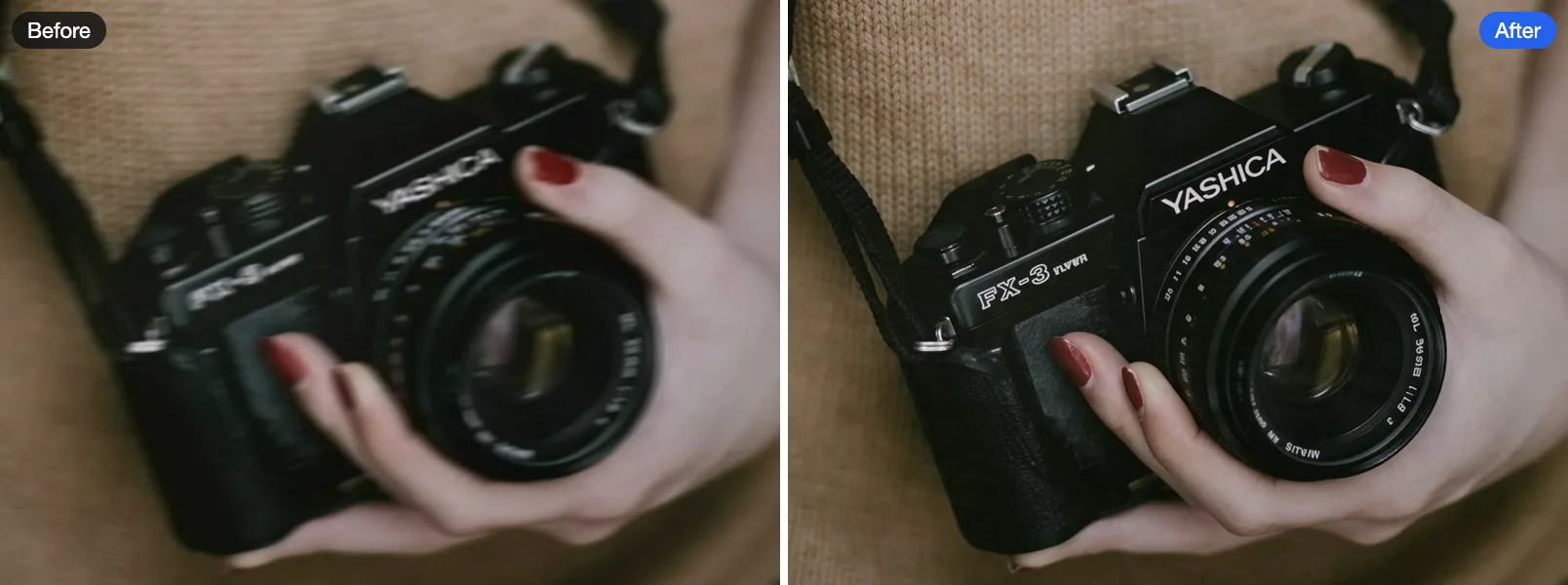
Safari saves downloads to the Files app, in the Downloads folder. To get the result into Photos, open it there, tap the share button and choose Save Image.
Missed focus and mild camera shake improve the most. With strong motion blur, the AI partly redraws faces, so always compare with the slider before you keep the result.
What no iPhone fix can bring back
- Faces only a few pixels wide, like people far in the background. AI will draw a plausible face, not the real person.
- Text you can't read at all. A photo unblurring tool may show letters that look right but say something else. For screenshots, receipts and documents, use Unblur Text, which keeps the letters it can read as written, and still check numbers against the original.
- Photos blurred on purpose, for example faces or screens blurred for privacy. Any "unblurred" version is a guess.
- Long motion streaks, where the subject is smeared across the frame. The original shape is gone.
How to take sharper photos on your iPhone
- Tap to focus on the subject before you shoot. Touch and hold to lock focus and exposure (AE/AF Lock) when the subject is off-center.
- Clean the lens. A fingerprint on the camera glass looks exactly like soft focus, and it's the most common cause of blurry iPhone photos.
- Hold still in low light. Brace your elbows against your body or lean on something, and keep still until the shutter sound ends. In Night mode, hold still for the whole countdown.
- Use burst for moving subjects. On recent iPhones, slide the shutter button to the left and hold it, then keep the sharpest frame.
- Keep Live Photos on for kids and pets, so you have frames to choose from later.
- Don't get too close. If the subject stays soft no matter where you tap, step back a little; the camera may not focus that close.
Quick answers
Does the iPhone have an unblur feature? Not as one button. The Photos app can turn off Portrait blur, let you pick a sharper Live Photo frame and sharpen slightly with the Sharpness slider. For real blur from shake or missed focus you need an AI tool.
Can I unblur a photo on my iPhone for free? Yes. Everything in the Photos app is free, and Unblur Image runs on the 10 free credits everyone gets each day, without an account. An unblur costs 8 credits, so that's one photo a day.
Why do photos people send me look blurry? Messaging apps shrink photos before sending them, and iMessage does it more when Low Quality Image Mode is on. That's low resolution, not blur. Ask for the original file, or use Sharpen Image, which is made for small, soft photos.
Do I need an app? No. Everything above works in the Photos app and Safari. If you'd rather work on a computer, How to Unblur a Picture covers Photoshop, Lightroom and GIMP.
Try it on your own photo
Remove motion blur and out-of-focus blur from photos.