50% OFFBlack Friday: 50% off your first month, 30% off your first yearSee plans
Clarpex

Change Text in Image: Edit Text in Any Photo

Paint over the words you want to change, type the new text, and the change text tool writes it in the same font, color, size and angle. Only the area you paint is edited. The rest of the photo stays exactly as uploaded.

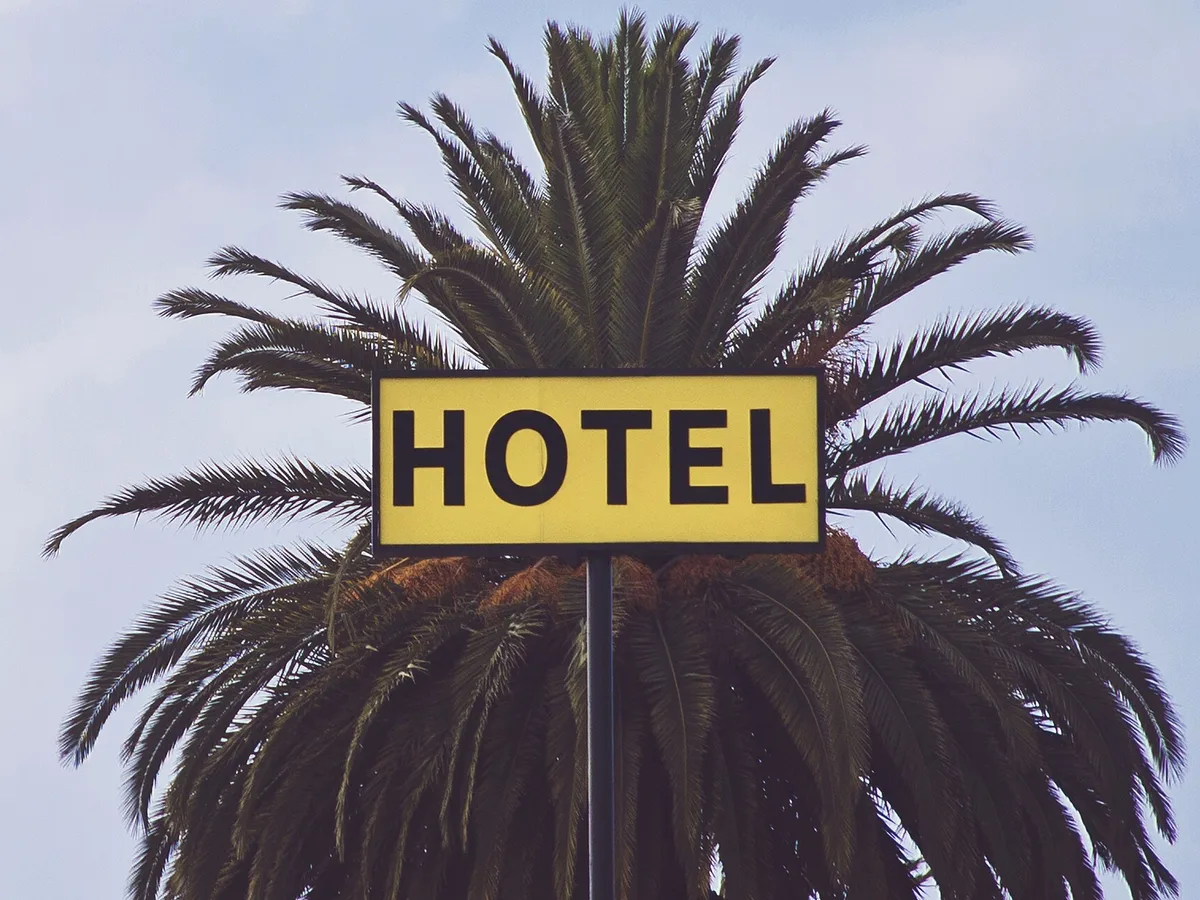
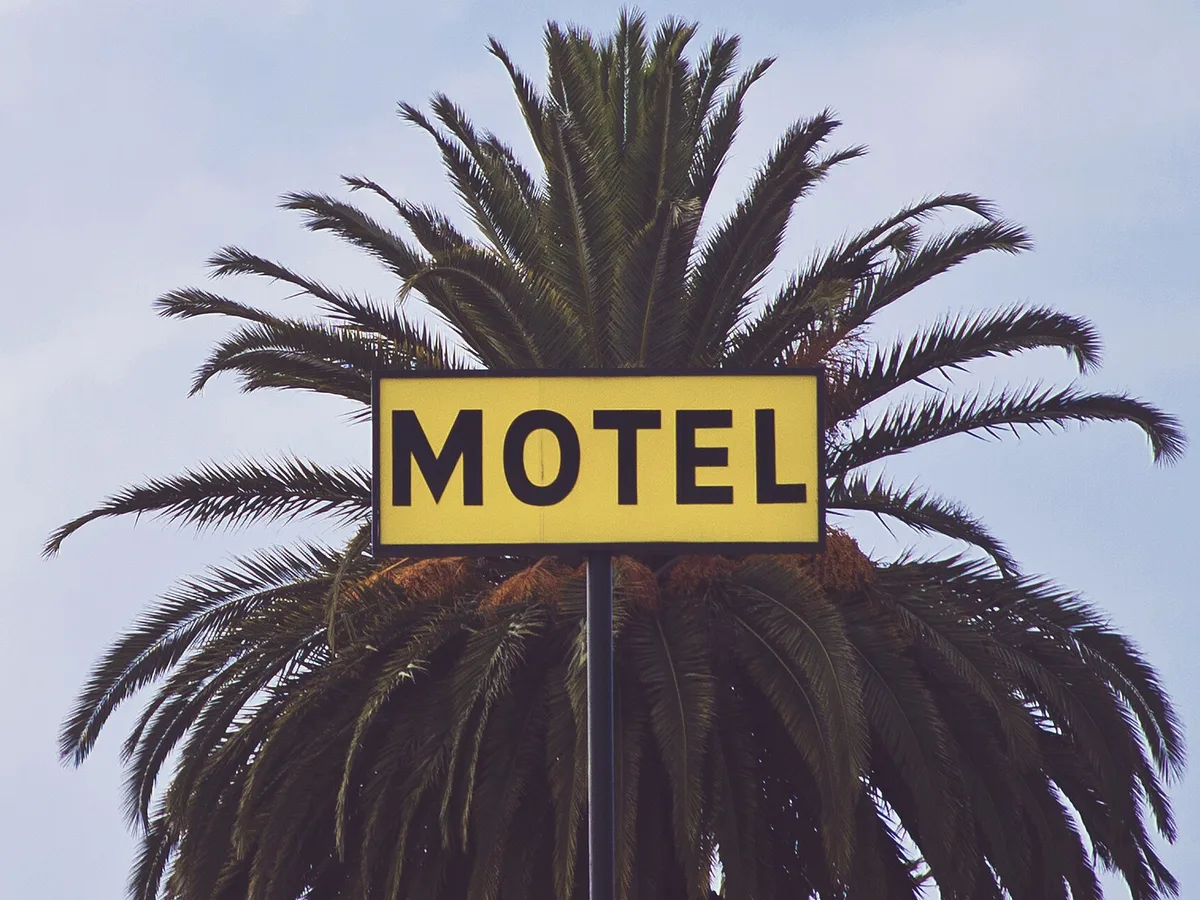
Yellow MOTEL sign in front of a palm tree, after enhancementYellow MOTEL sign in front of a palm tree, before enhancement
No photo? Try one:

Upload Image

Drag and drop or click to browse. JPG, PNG or WebP

  • Free daily credits
  • No sign-up
  • Private

What you can change when you edit text in an image

Drag the slider on each pair to compare. Every change takes one run: paint over the words, type the new text and run it.

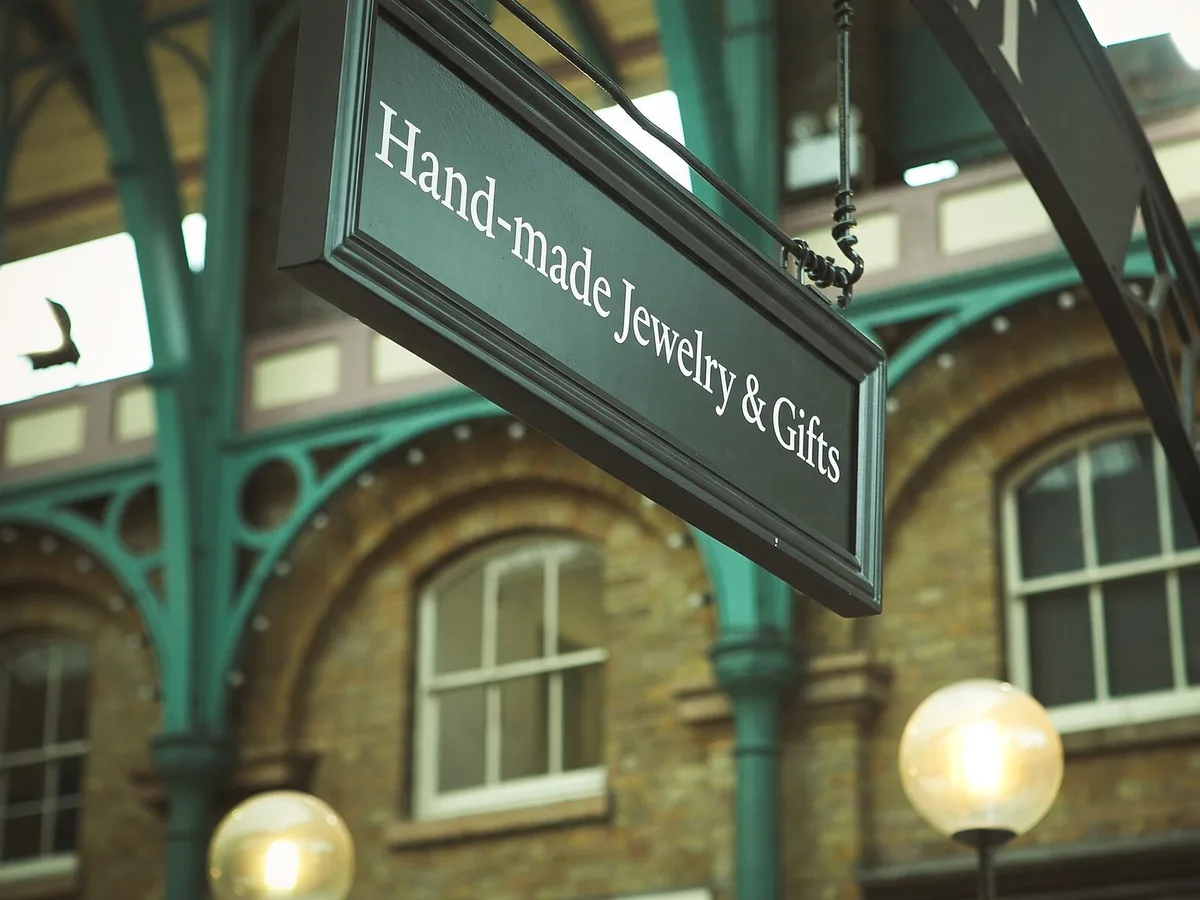
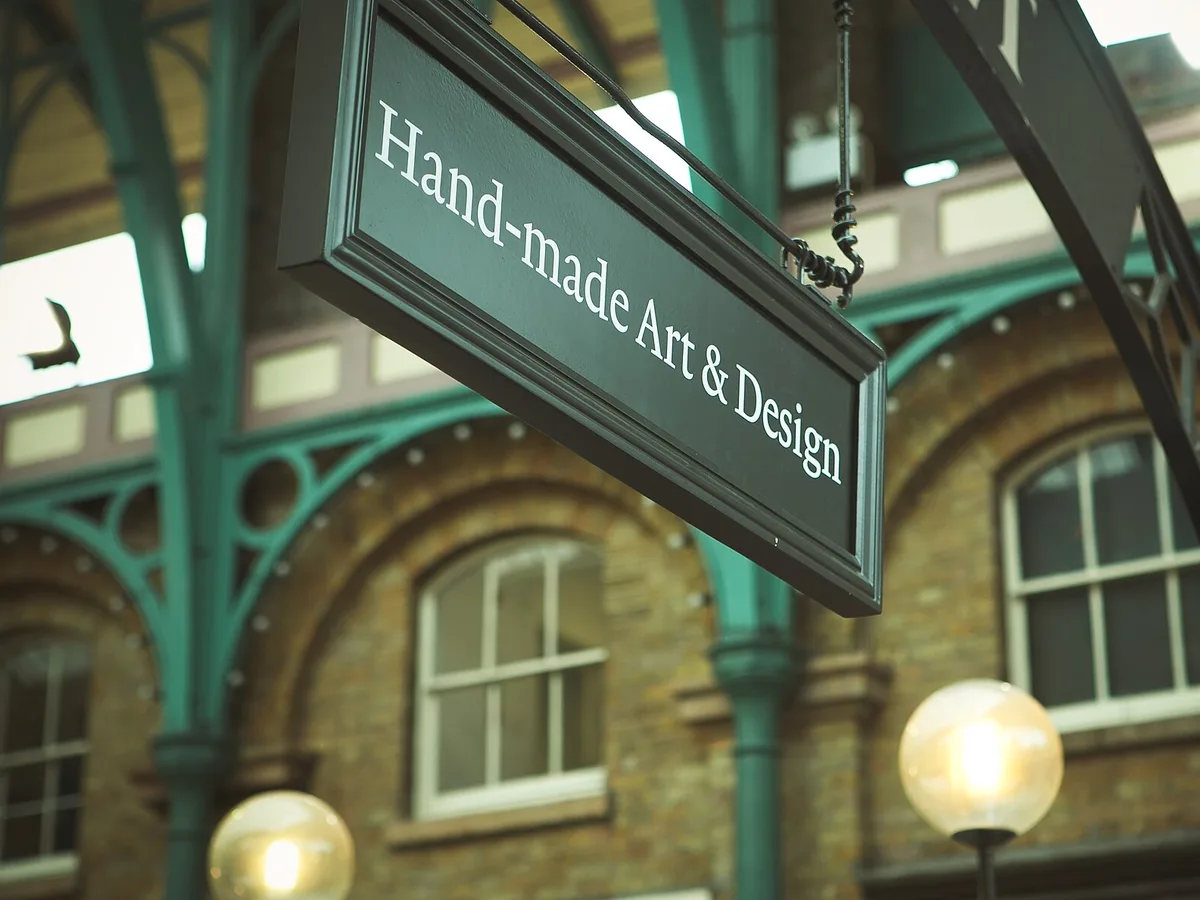
Hanging green market sign changed from Hand-made Art & Design to Hand-made Jewelry & Gifts, after enhancementHanging green market sign changed from Hand-made Art & Design to Hand-made Jewelry & Gifts, before enhancement

Change the name on a shop sign

To try a new name on a storefront or a hanging sign, paint over the old words and type the new ones. The change text tool writes the new letters along the sign's angle and keeps its paint and lighting. A name much longer than the old one is set a little tighter to fit, so keep the length close.

  • Shop sign
  • Follows the angle
Yellow banner on a white building, top line changed from NEEDED THINGS to VINTAGE THINGS, FOR SALE kept, after enhancementYellow banner on a white building, top line changed from NEEDED THINGS to VINTAGE THINGS, FOR SALE kept, before enhancement

Edit one line and keep the rest of the sign

When only one line of a sign is wrong, paint that line alone. The change text tool leaves every line you don't paint untouched, along with the rest of the sign and the wall behind it. Paint the whole line rather than single letters so the spacing stays even.

  • Change one line
  • Other lines kept
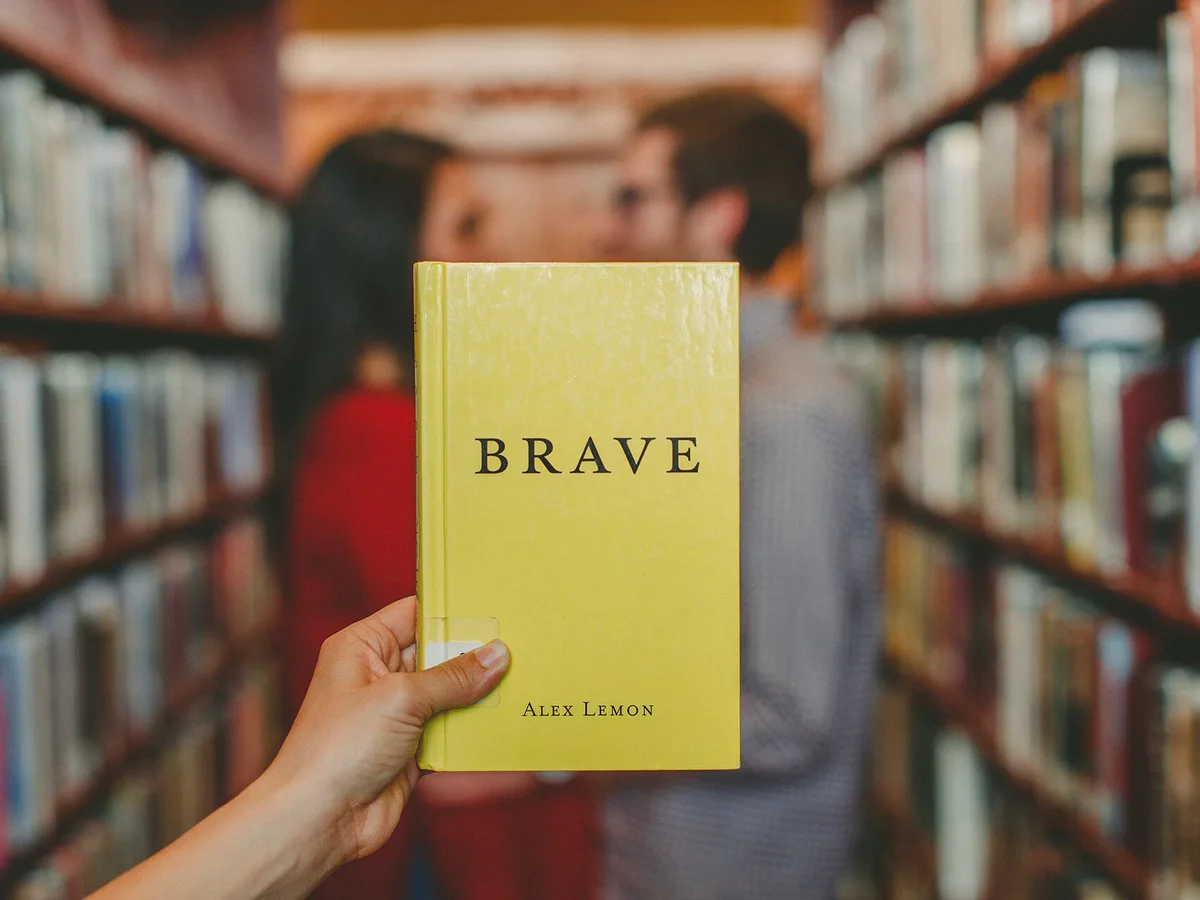
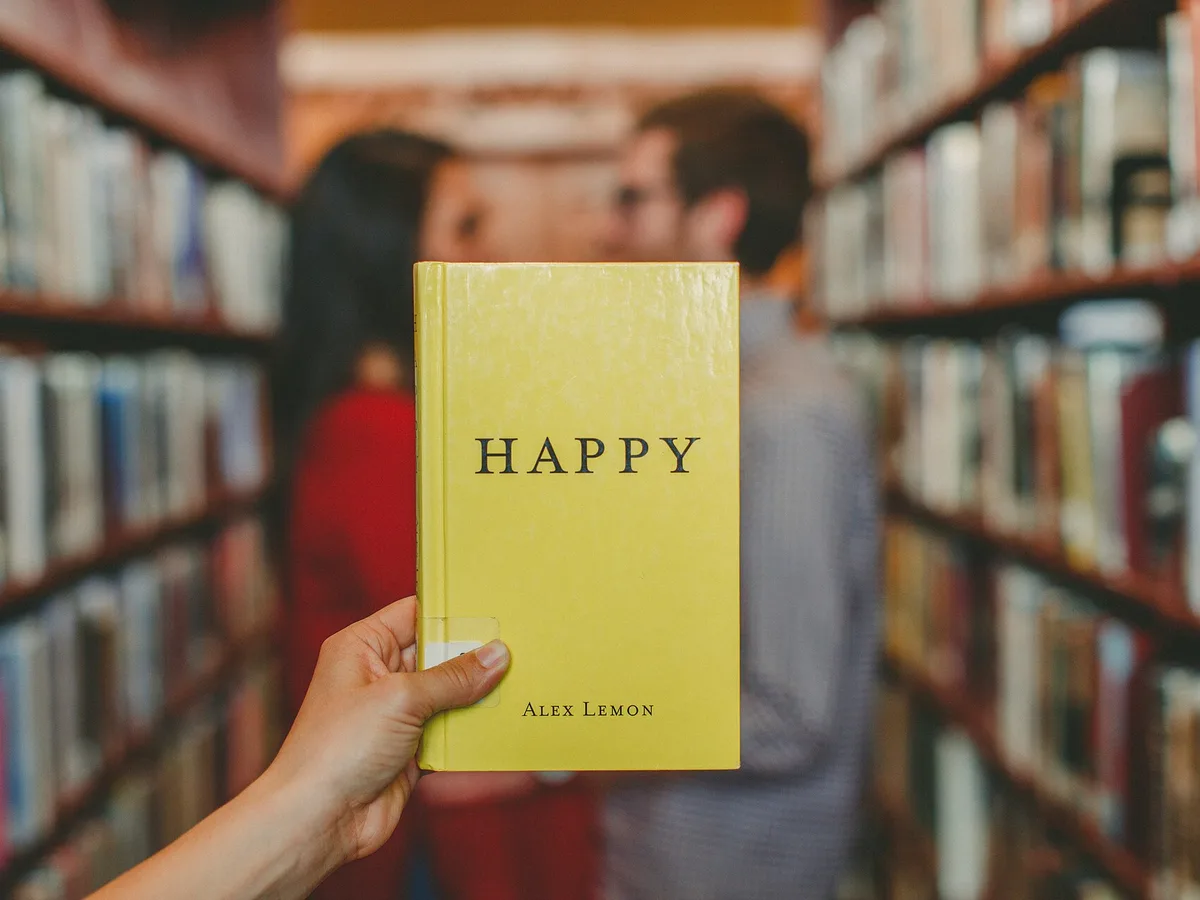
Yellow book held up in a library, title changed from HAPPY to BRAVE, after enhancementYellow book held up in a library, title changed from HAPPY to BRAVE, before enhancement

Change the title on a book cover

For a book cover mockup, paint over the title and type yours. The new title keeps the cover's typeface, letter spacing and print texture. Text you don't paint, such as the author's name, stays as it is.

  • Book cover title
  • Same font
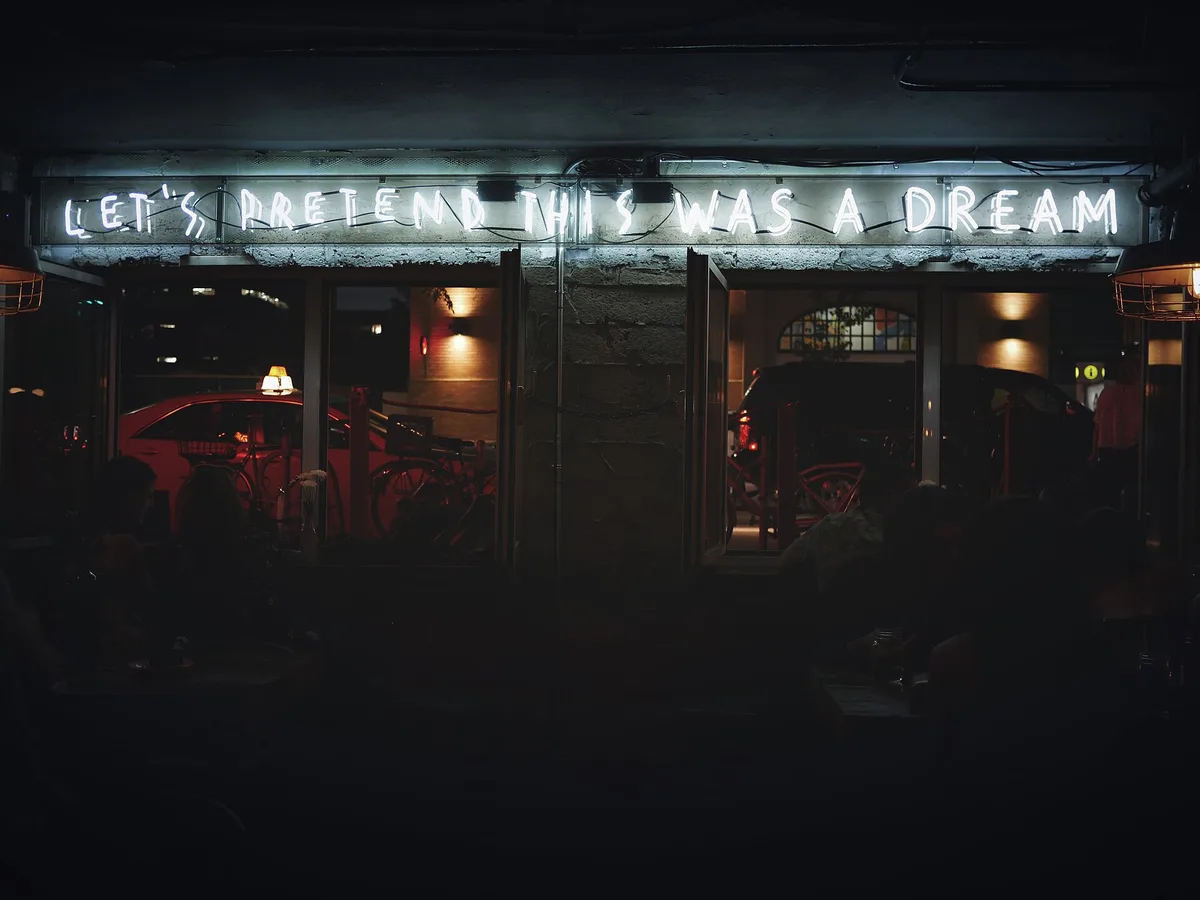
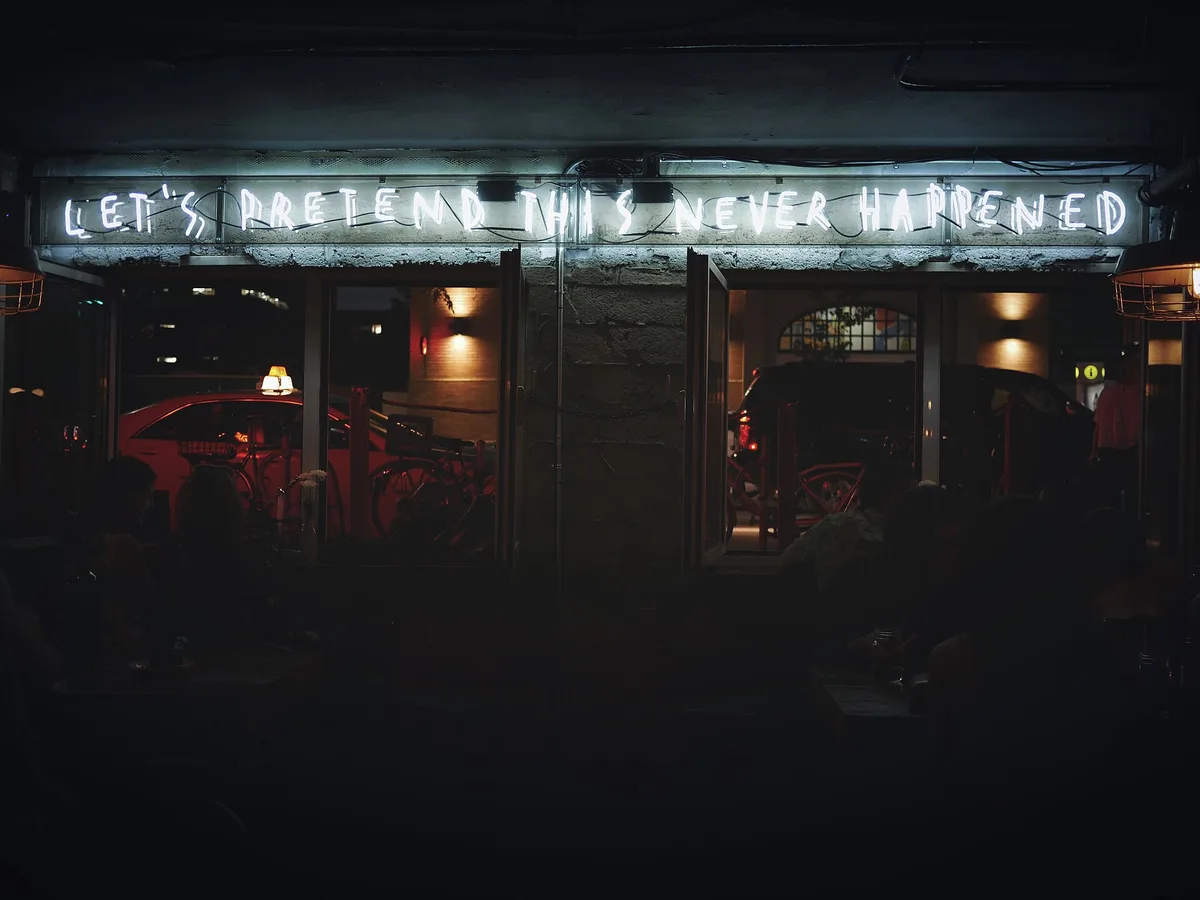
White neon sign at night changed from LET'S PRETEND THIS NEVER HAPPENED to LET'S PRETEND THIS WAS A DREAM, after enhancementWhite neon sign at night changed from LET'S PRETEND THIS NEVER HAPPENED to LET'S PRETEND THIS WAS A DREAM, before enhancement

Edit the words on a neon sign at night

To change the words on a neon sign, paint over the tubes and type the new text. The change text tool redraws the words as glowing tubes in the same style and keeps the glow and the dark scene. Paint a little past the tubes so no old glow is left at the edges.

  • Neon sign
  • Glow kept
Red neon shop window with the line SCRAP GOLD changed to OLD WATCHES and the other lines kept, after enhancementRed neon shop window with the line SCRAP GOLD changed to OLD WATCHES and the other lines kept, before enhancement

Replace one line of text among several

On a shop window or poster with many lines of text, paint only the line to change. The change text tool edits nothing outside your paint, so the other lines, small signs and the shop front stay as they were.

  • Multi-line text
  • Rest untouched

How to change text in an image

Three steps. A run usually takes under a minute.

  1. Upload the picture

    JPG, PNG or WebP up to 20 MB: a photo of a sign, a label, a poster or a cover.

  2. Paint over the words and type the new text

    Brush over the text you want to change, a little past the letters, then type what it should say instead.

  3. Compare and download

    Drag the slider to check the new words, run it again if you want a different take, then save the photo.

Where changing text in a photo works best

Changing text in a photo works best on clear lettering on a flat surface. Length, font and very small text need a little care.

What kind of text can you change in a photo?

The change text tool works on printed, painted and neon text, such as signs, labels, posters and covers. The new text gets a matching typeface, color and texture and follows the surface's angle. Short words and single lines match best.

How long can the new text be?

The new text can be up to 60 characters, and it has to fit the area you paint. Text much longer than the original is set smaller or tighter. Much shorter text leaves more blank space. Paint the whole line if you need more room.

Does the AI find the exact font?

No. The change text tool draws letters that look like the original but doesn't identify the font file. Handwriting is matched in style, not in the writer's own hand. Tiny or blurry text is harder to match, so compare with the slider before you download.

How to change text in a picture without AI

In Photoshop or GIMP you remove the old text, then rebuild the new text by hand. This is the usual way.

Changing one word on a flat label takes a few minutes in Photoshop or GIMP. Angled signs, neon glow and textured surfaces take much longer to blend by hand, and those are where the AI change text tool saves the most time.

  1. 1

    Remove the old text

    Select the letters with the Lasso tool and use Edit > Content-Aware Fill in Photoshop, or Filters > Enhance > Heal Selection in GIMP, so the background is filled in where they were.

  2. 2

    Find a matching font

    Crop the old text and run it through a font finder such as Photoshop's Match Font (Type > Match Font) or a font-identifier website, then install the closest match.

  3. 3

    Type and color the new text

    Add a text layer, set the size and spacing to match, and pick the color from the original letters with the Eyedropper tool.

  4. 4

    Match the angle and texture

    Use Edit > Transform > Perspective or Warp to follow the surface, then add a little noise or blur so the new text has the same grain as the photo.

Change text in image FAQ

Yes. Each text change costs 8 credits, and everyone gets 10 free credits a day without an account, enough for one change a day. Downloads have no watermark. Credit packs and plans for more changes are on the pricing page.

Very close, but not the exact font file. The change text tool draws the new text in the same style of typeface, weight, color, size, spacing and angle as the original. Check the shape of a few letters with the slider, especially on unusual or decorative fonts.
No. The change text tool edits only the area you paint and puts it back into your photo. Every pixel outside that area is the photo you uploaded. Other text on the same sign stays as long as you don't paint over it.

Yes. You can type the new text in other languages and scripts, such as Spanish, French or Chinese, and the change text tool draws it in a matching style. Short words come out most reliably. Check longer phrases letter by letter.

Your photo, what you paint and the text you type are used only to create your result, never to train AI. Without an account they're deleted after 24 hours. Signed in, they're kept in History for 72 hours, or until you delete them if you turn on "Keep my tasks". Details are in our Privacy Policy.

More ways to fix your photos

Smiling woman with red hair moved into a park, before enhancementSmiling woman with red hair moved into a park, after enhancement

Change Background Photo

Swap any photo background for a color, scene or image.

Change background
Smiling woman with long hair, field background turned pure white, before enhancementSmiling woman with long hair, field background turned pure white, after enhancement

Make Background White

Put a person or product on pure white, with or without a soft shadow.

Make background white
Yellow vintage car on a city street, recolored dark green, before enhancementYellow vintage car on a city street, recolored dark green, after enhancement

Change Color of Image

Recolor clothes, cars, hair or products and keep their texture.

Change color
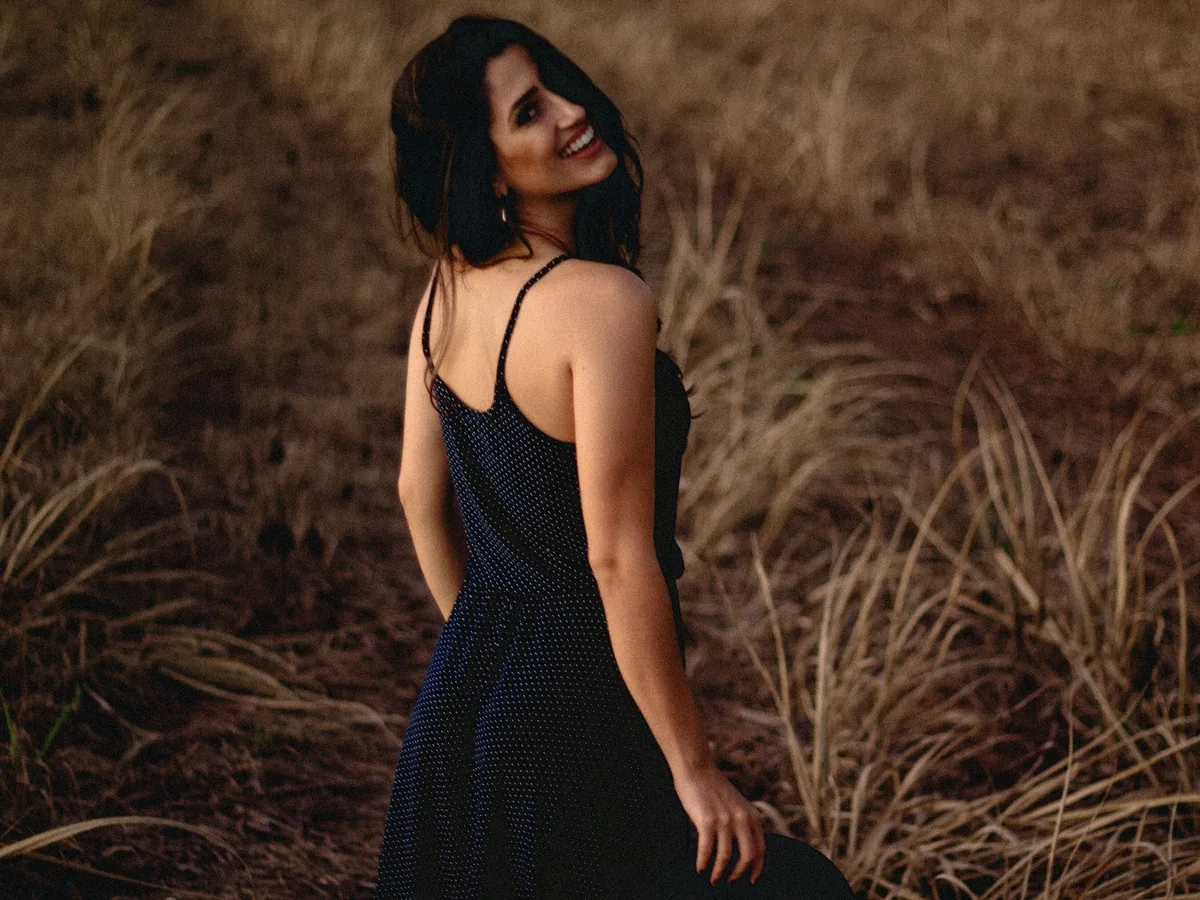
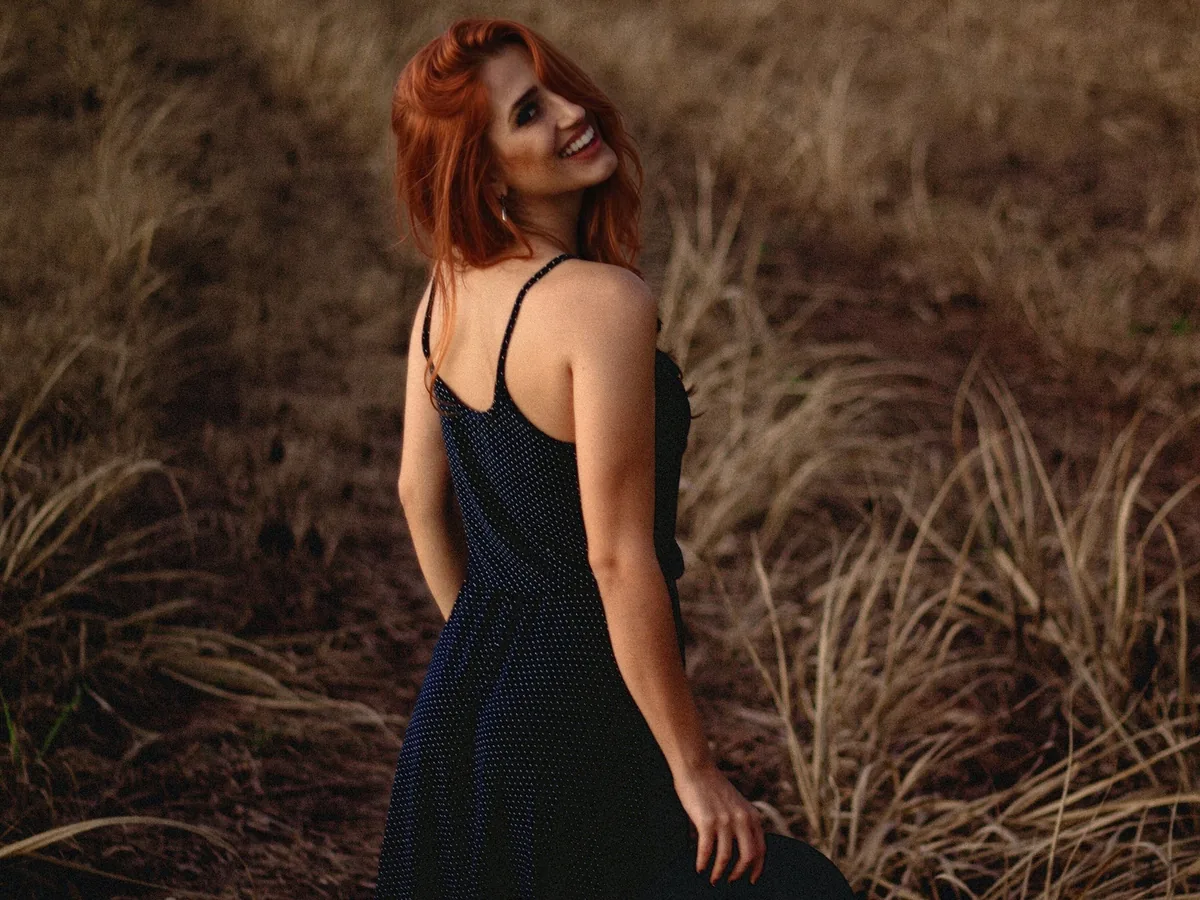
Smiling woman in a black dress looking over her shoulder, hair changed to copper red, before enhancementSmiling woman in a black dress looking over her shoulder, hair changed to copper red, after enhancement

Change Hair Color

Try any hair color or highlights on your own photo.

Change hair color
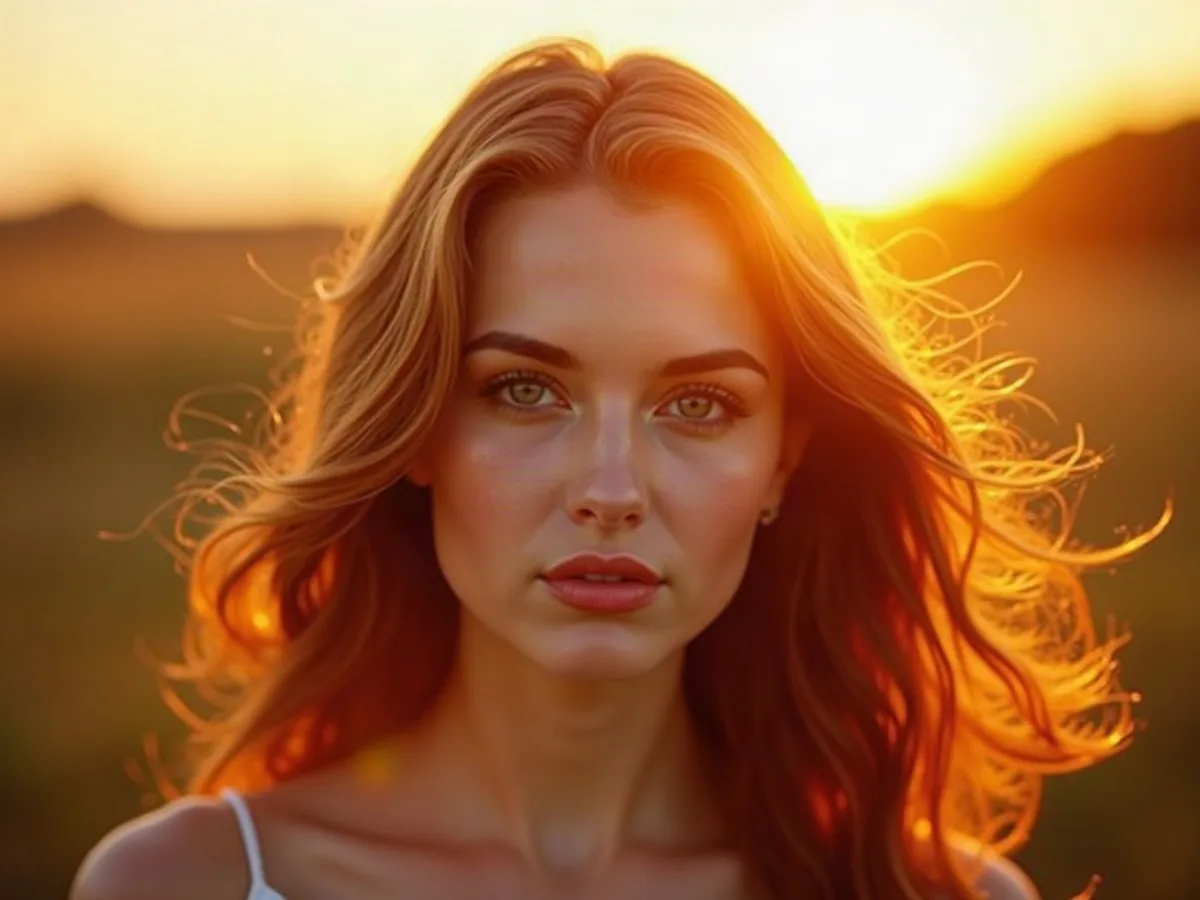
AI portrait of a woman with glowing golden backlight, before enhancementAI portrait of a woman with glowing golden backlight, after enhancement

AI Image Humanizer

Make AI images look like real photos.

Humanize AI image