50% OFFBlack Friday: 50% off your first month, 30% off your first yearSee plans
Clarpex

Remove Shadow from Photo: Erase Unwanted Shadows with AI

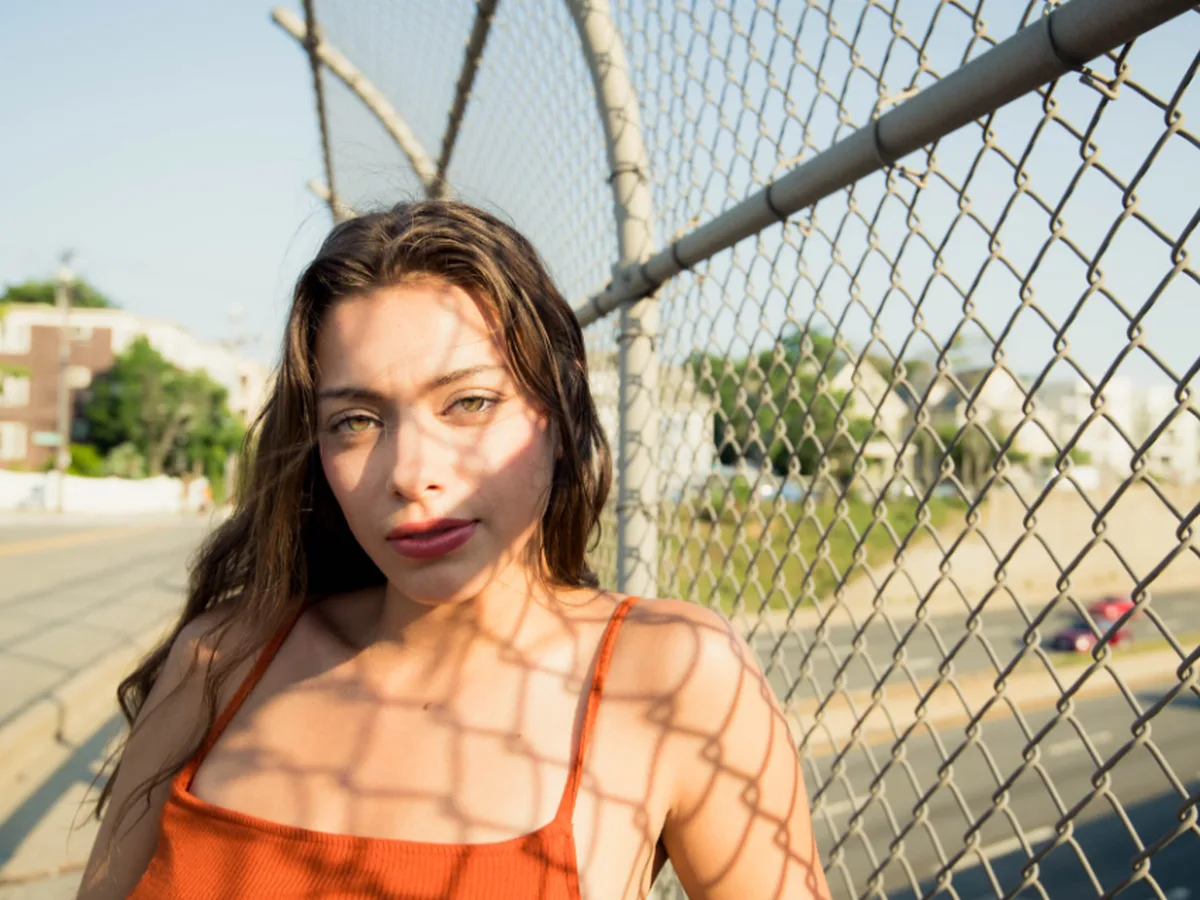
Upload a photo and the AI shadow remover lifts the shadows that fall across it: your own shadow, blind or fence stripes on a face, window light on a page. A face keeps the same person and expression, and the rest of the photo stays as it was.

Woman on a bridge with a chain-link fence shadow across her face, after enhancementWoman on a bridge with a chain-link fence shadow across her face, before enhancement
No photo? Try one:

Upload Image

Drag and drop or click to browse. JPG, PNG or WebP

  • Free daily credits
  • No sign-up
  • Private

What shadows can you remove from a photo?

Patterns on faces, your own shadow, and shadows on walls, ground and plants. Drag each slider to compare.

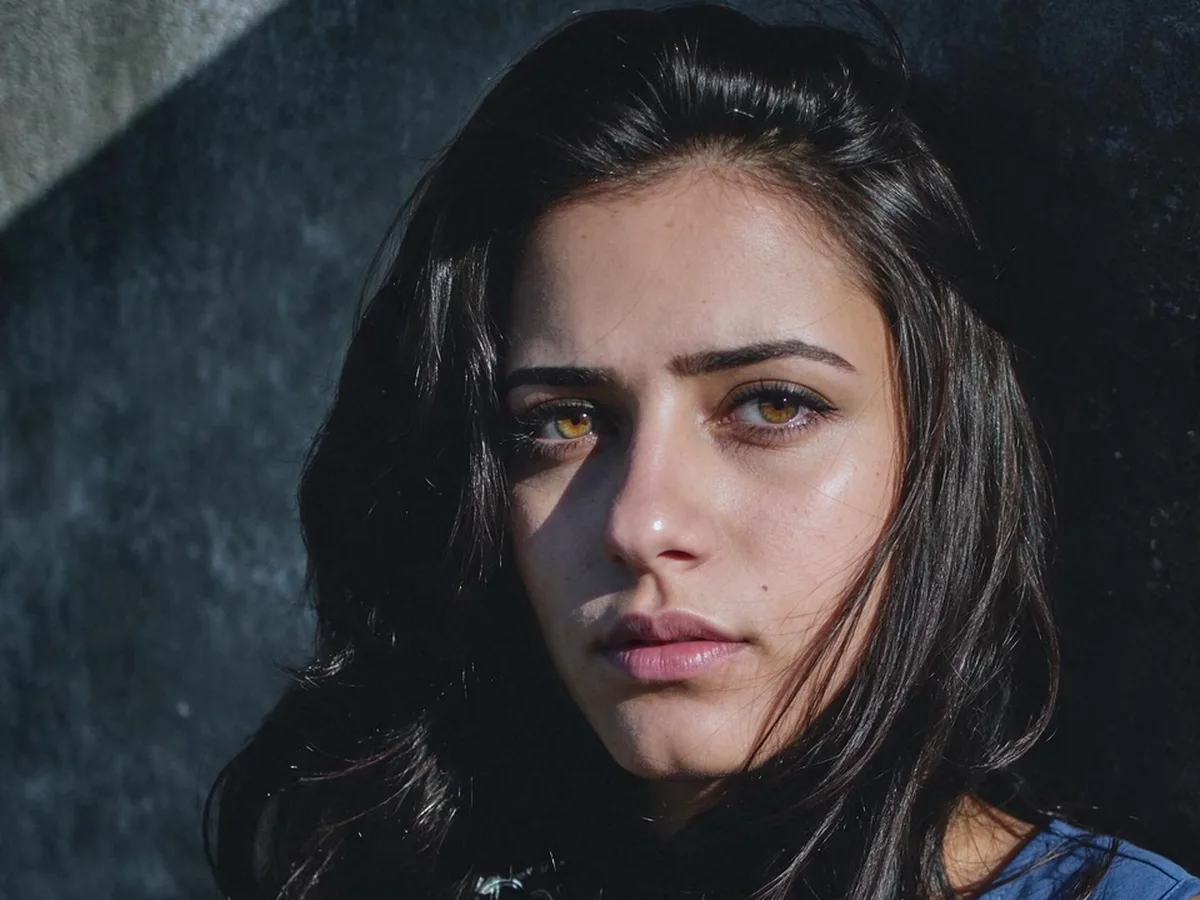
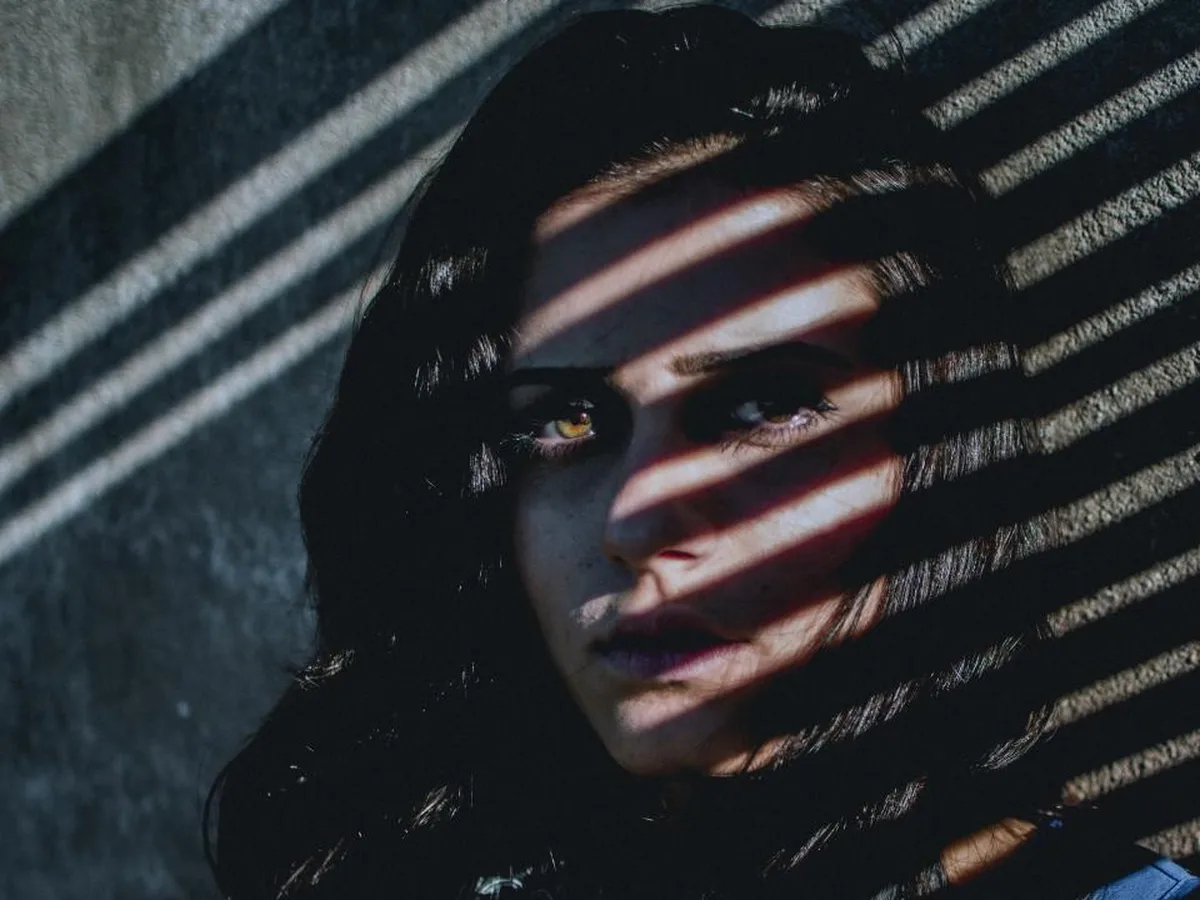
Woman with long dark hair against a concrete wall, the stripes of blind shadows removed from her face, after enhancementWoman with long dark hair against a concrete wall, the stripes of blind shadows removed from her face, before enhancement

Remove blind or window shadows from a face

Stripes from blinds or a window frame across a portrait come off in one run of Remove shadows. The face is relit evenly and keeps its expression, and the natural shading that shapes it stays.

  • Blind shadows
  • Face shadow
  • Expression kept
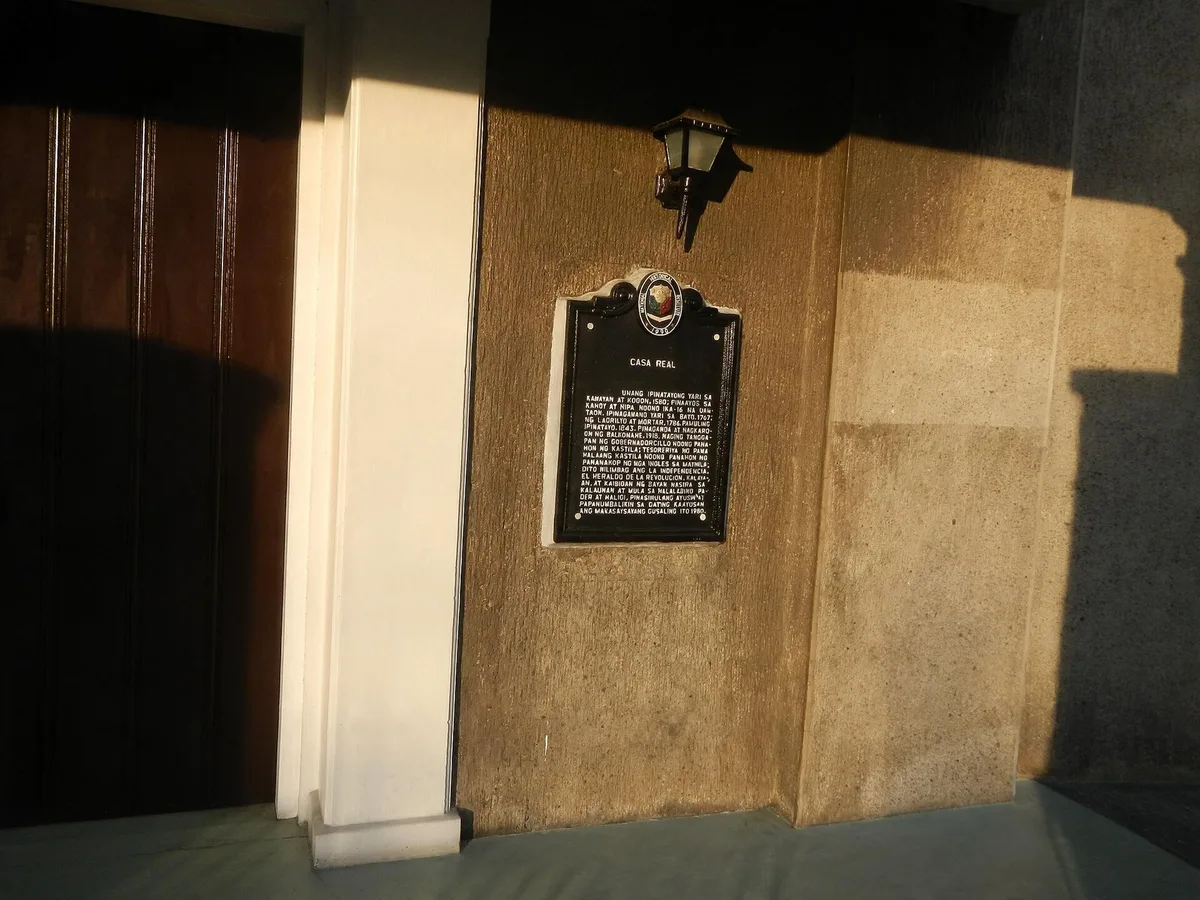
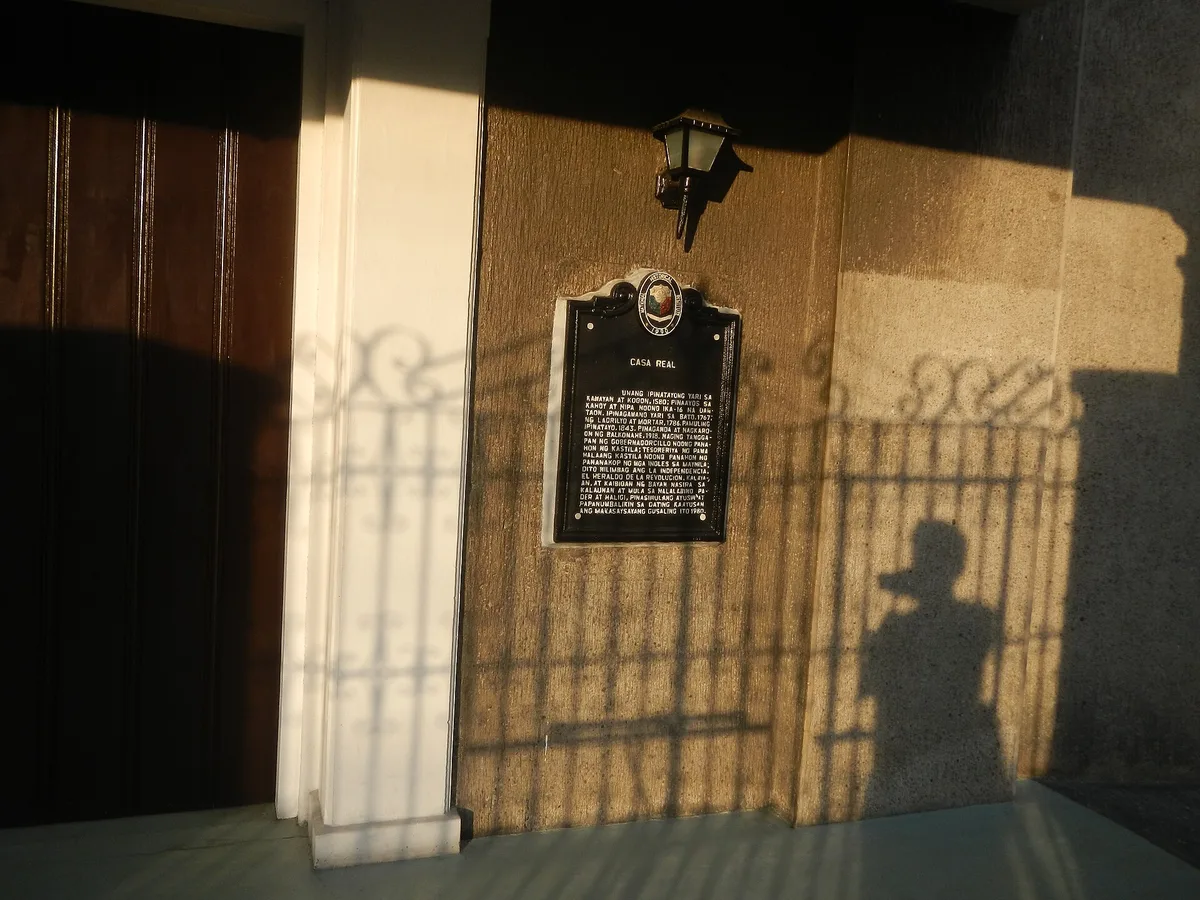
Historical marker on a stone wall, the photographer's shadow and the gate's shadow removed, after enhancementHistorical marker on a stone wall, the photographer's shadow and the gate's shadow removed, before enhancement

Remove your own shadow from a photo of a sign or wall

Remove shadows clears your own shadow from a photo of a sign or wall, along with a gate or railing shadow on the same wall. The text stays readable, and the building's own shadows stay.

  • Shadow on a wall
  • Text kept
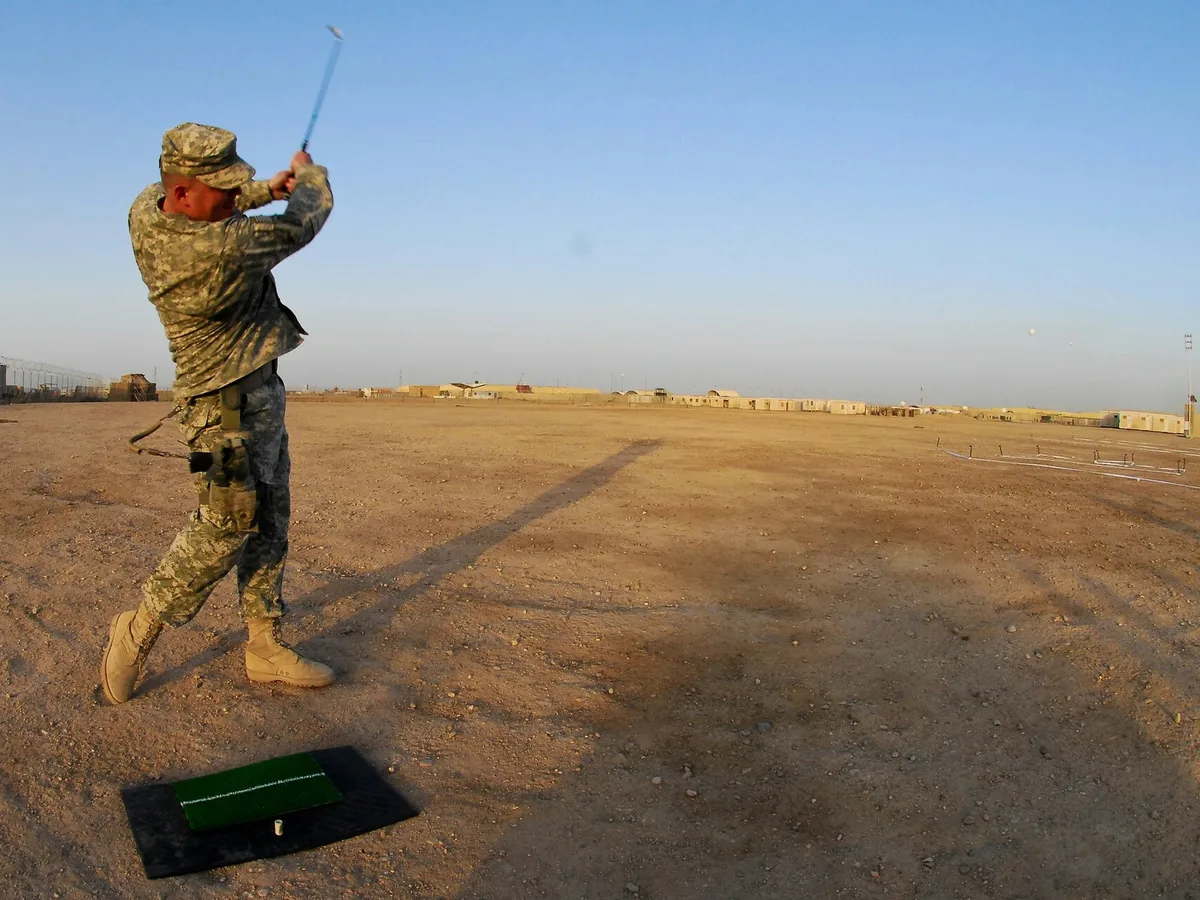
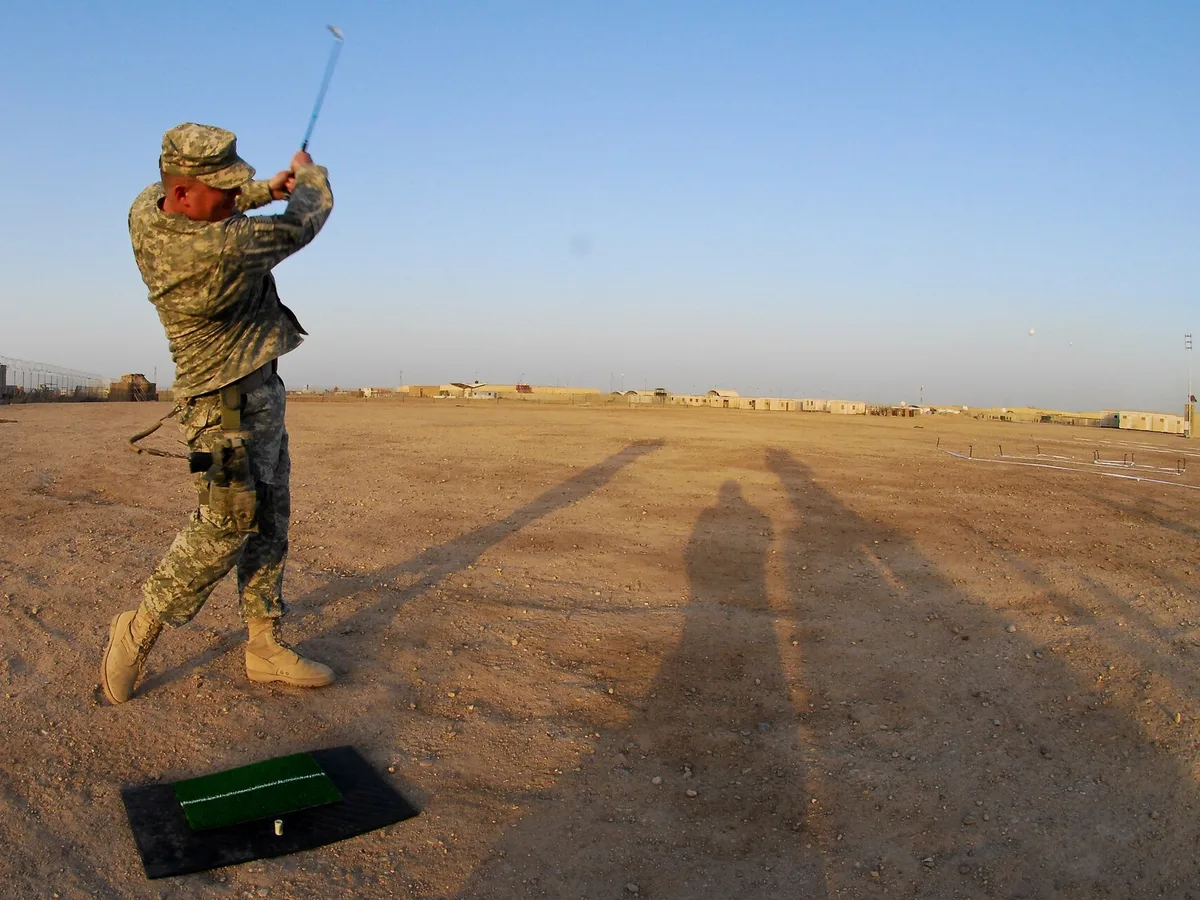
Soldier swinging a golf club on a desert range, the two photographers' shadows removed and the golfer's own shadow kept, after enhancementSoldier swinging a golf club on a desert range, the two photographers' shadows removed and the golfer's own shadow kept, before enhancement

Remove one shadow and keep the others

To choose which shadow goes, pick Paint over a shadow and brush only over it. Shadows you don't paint stay, so a person keeps their own shadow. Paint a little past the soft edge so no outline is left.

  • Paint over a shadow
  • Other shadows kept
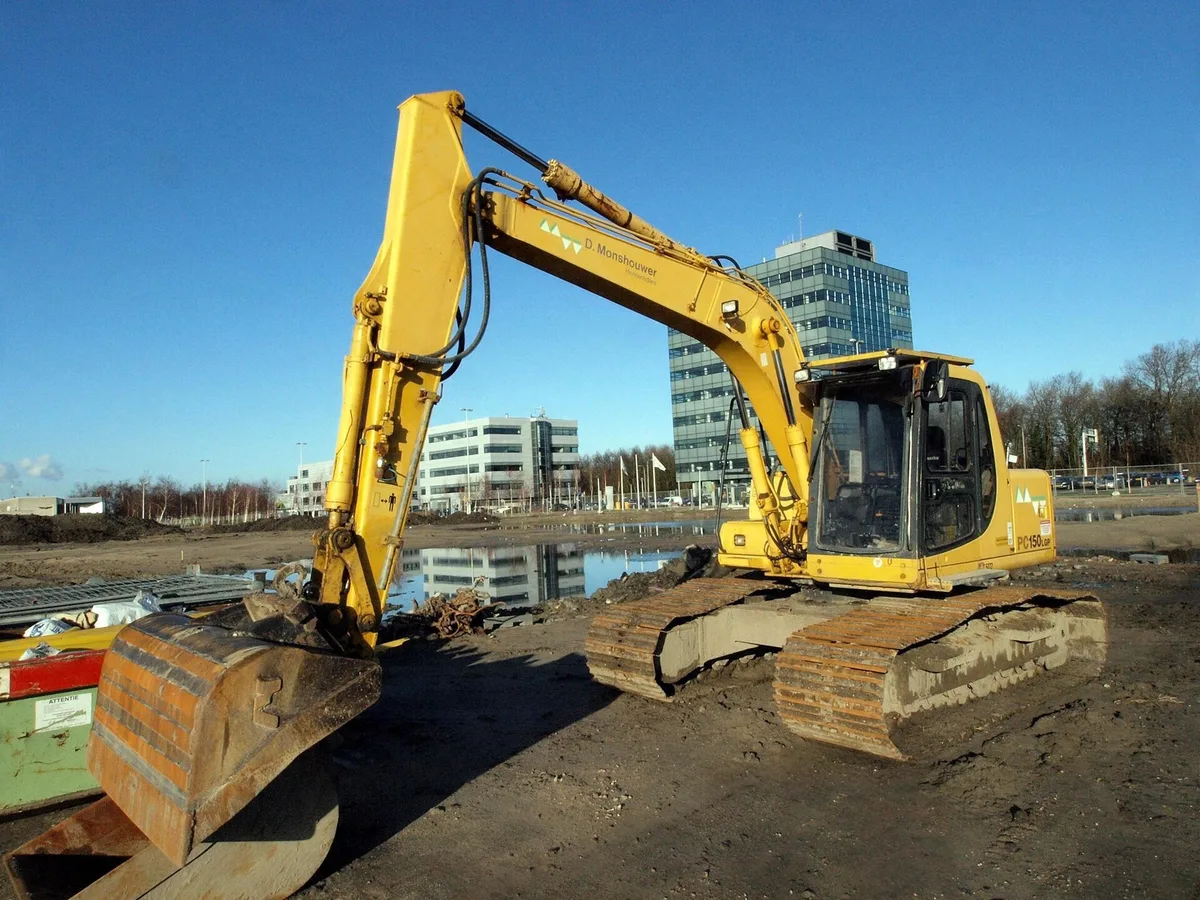
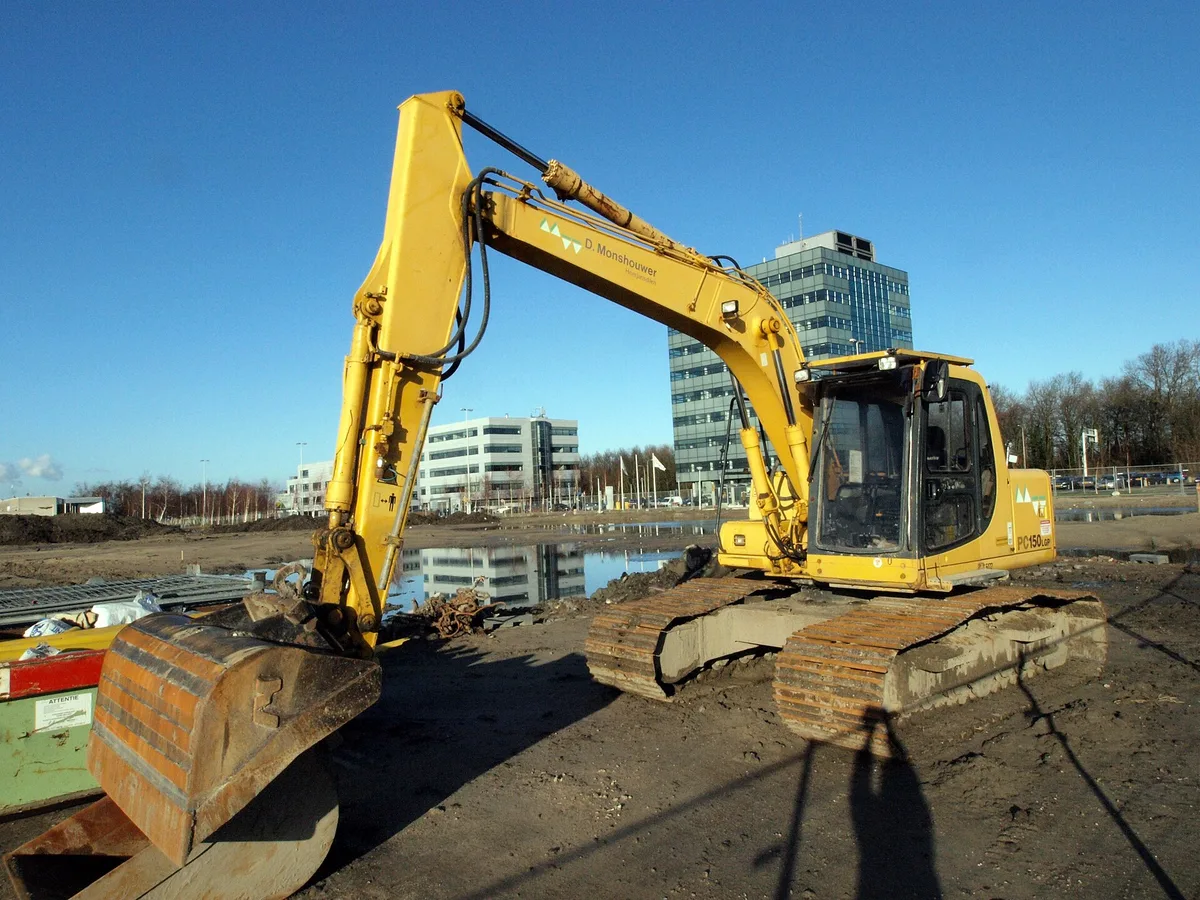
Yellow excavator on a building site, the photographer's shadow removed from the ground in front, after enhancementYellow excavator on a building site, the photographer's shadow removed from the ground in front, before enhancement

Remove your shadow from the ground in a photo

Remove shadows fills the ground where your shadow fell with the same soil, gravel or pavement around it. Shadows that machines, cars and people in the scene cast stay in place.

  • Your own shadow
  • Ground filled in
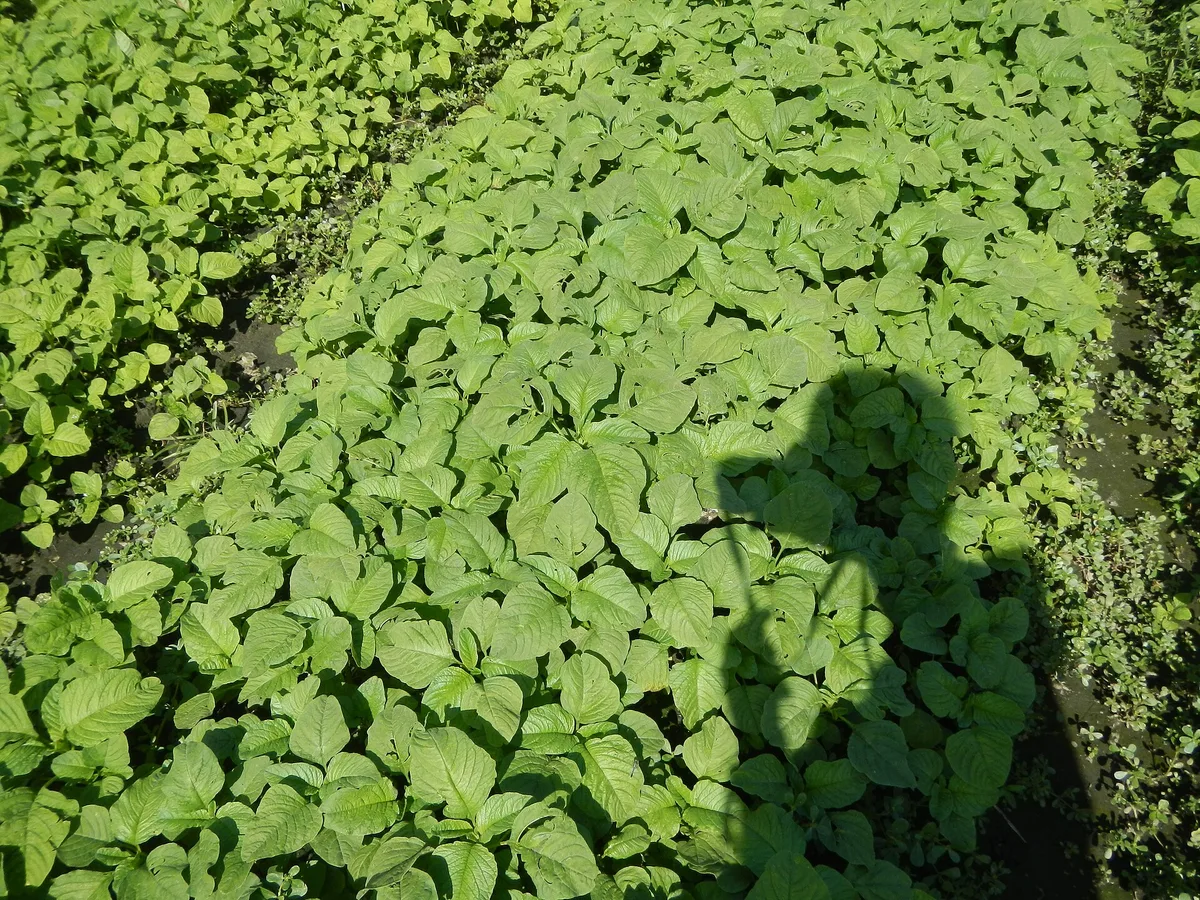
Rows of green vegetable plants in sunlight, the photographer's shadow removed from the leaves, after enhancementRows of green vegetable plants in sunlight, the photographer's shadow removed from the leaves, before enhancement

Remove a shadow from grass, plants or leaves

On grass, crops or leaves, the shadow remover relights the area to match the sunlit leaves around it. A very large shadow may only fade in one run; run it again or paint over what's left.

  • Shadow on grass
  • Relit to match the sun

How do I remove a shadow from a photo?

Removing a shadow takes three steps. A run usually takes under a minute.

  1. Upload the photo

    JPG, PNG or WebP up to 20 MB: a portrait, a photo of a page, a product or a street.

  2. Remove shadows, or paint over one

    Remove shadows finds the shadows that fall across the photo for you. Paint over a shadow changes only what you brush.

  3. Compare and download

    Drag the slider over where the shadow was, run Remove shadows again or paint over anything left, then save the photo.

When does the shadow remover work best?

The shadow remover works best on hard shadows that fall across a lit subject.

Which shadows come off cleanly?

Your own shadow and the striped shadows of fences, blinds and window frames come off cleanly. Faces keep the same person and expression, and text and colors stay the same, except detail hidden in a deep shadow, which can change.
What if a faint shadow is left?

Run Remove shadows again, or brush over what's left with Paint over a shadow. A very large or soft shadow, such as a long sunset shadow across most of the frame, can fade rather than vanish in one run.

What can the shadow remover not restore?

The shadow remover can't recover detail in a near-black shadow: a face or fine print in deep shade is redrawn as a plausible guess. The shadow remover also can't tell which shadows you want to keep, so when one should stay, pick Paint over a shadow and brush only the shadows you want gone.

How do I remove a shadow in Photoshop or GIMP?

Photoshop or GIMP can remove a shadow by hand in four steps.

Lifting one even shadow on a plain wall takes a few minutes by hand. A fence pattern across a face or a shadow over grass takes much longer, and that's where the AI shadow remover saves the most time.

  1. 1

    Select the shadow

    Select the shadow with the Quick Selection or Lasso tool in Photoshop, or Free Select in GIMP, and feather the edge by a few pixels.

  2. 2

    Brighten it to match

    Add a Curves or Levels adjustment (Colors > Curves in GIMP) and lift the brightness until the shadow matches the lit area next to it.

  3. 3

    Match the color

    If the area looks blue next to the sunlit part, warm it with Color Balance; if it looks dull, raise saturation with Hue/Saturation. Adjust until it blends with the colors around it.

  4. 4

    Clean up the edges

    Paint out leftover dark rims with the Healing Brush or Clone Stamp, sampling the lit area nearby.

Remove shadow from photo FAQ

Yes. Everyone gets 10 free credits a day without an account, enough for one photo a day at 8 credits. Downloads have no watermark, and more credits are on the pricing page.

Remove shadows takes away shadows cast across the photo from outside the subject, for example your own shadow or the striped shadows of a fence, blinds or branches. The shadow remover keeps the soft shading that shapes faces and objects, and the shadows people and objects in the scene cast on the ground.

Yes. Hard shadows on a face, such as blind, fence or leaf stripes, are relit to match the rest of the face, and the face keeps the same person and expression. Small details like the eyebrows can come out slightly different, so compare with the slider.

Yes. Pick Paint over a shadow and brush only over the shadow you want gone. Everything outside your paint stays exactly as uploaded, other shadows included.

Yes, for a window frame, hand or phone shadow across a page. The page is relit evenly and the words stay as written, but text lost in a very dark shadow can't be recovered exactly. For blurry text, use unblur text.

Yes. The shadow remover runs in Safari or Chrome on a phone with no app to install. Upload from your camera roll, run Remove shadows and save the result.

Your photos and what you paint on them are used only to create your result, never to train AI. Without an account they're deleted after 24 hours. Signed in, they're kept in History for 72 hours, or until you delete them if you turn on "Keep my tasks". Details are in our Privacy Policy.
More ways to fix your photos

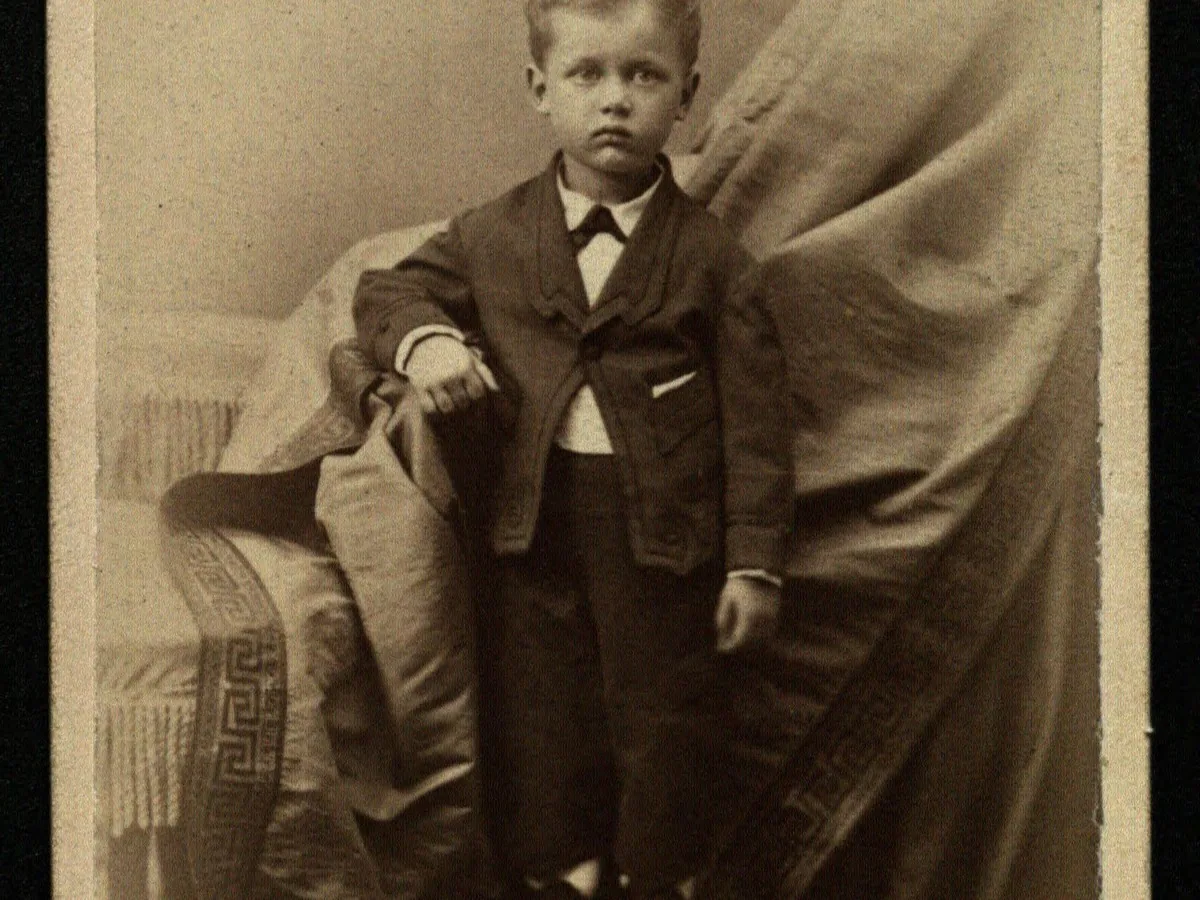
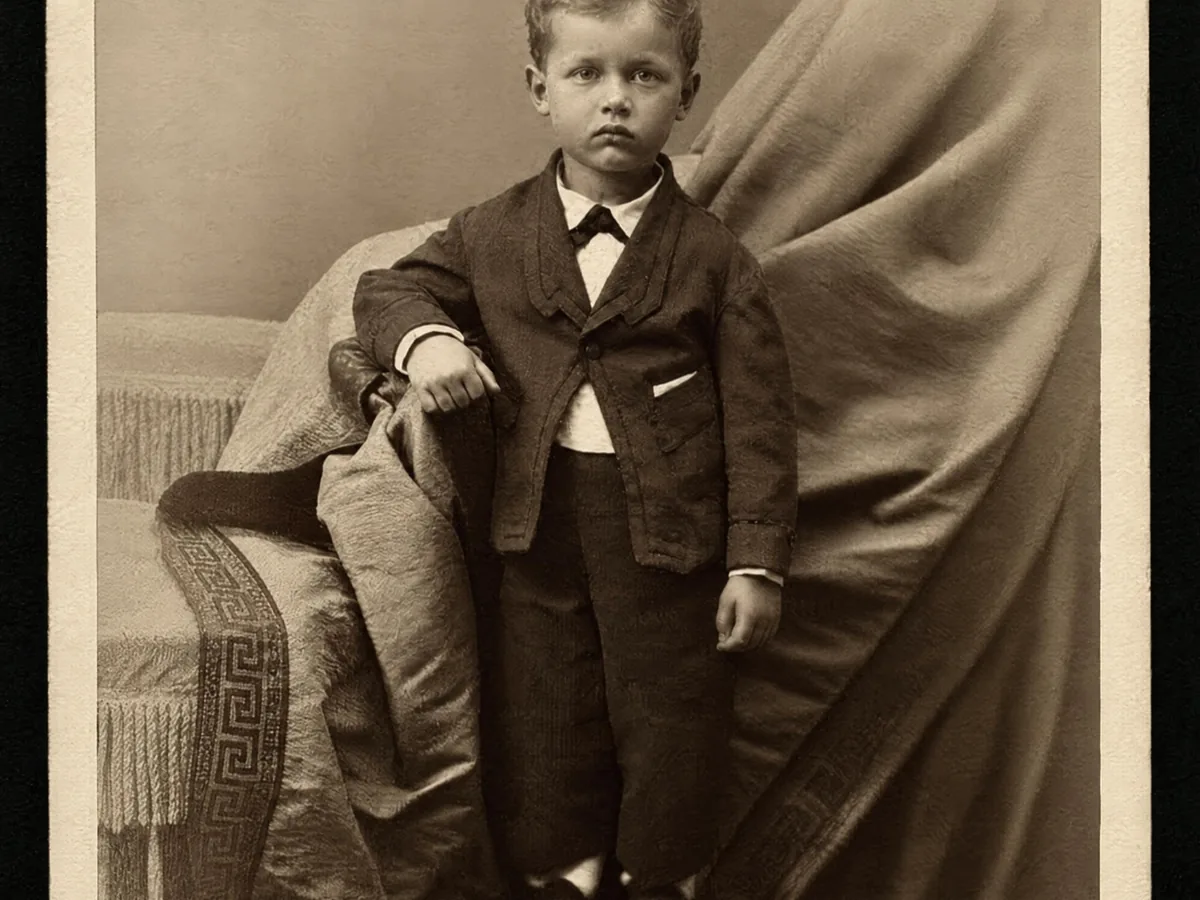
Faded cabinet card of a young boy, before enhancementFaded cabinet card of a young boy, after enhancement

Restore Old Photos

Clear scratches, dust and fading on scanned prints.

Restore photo
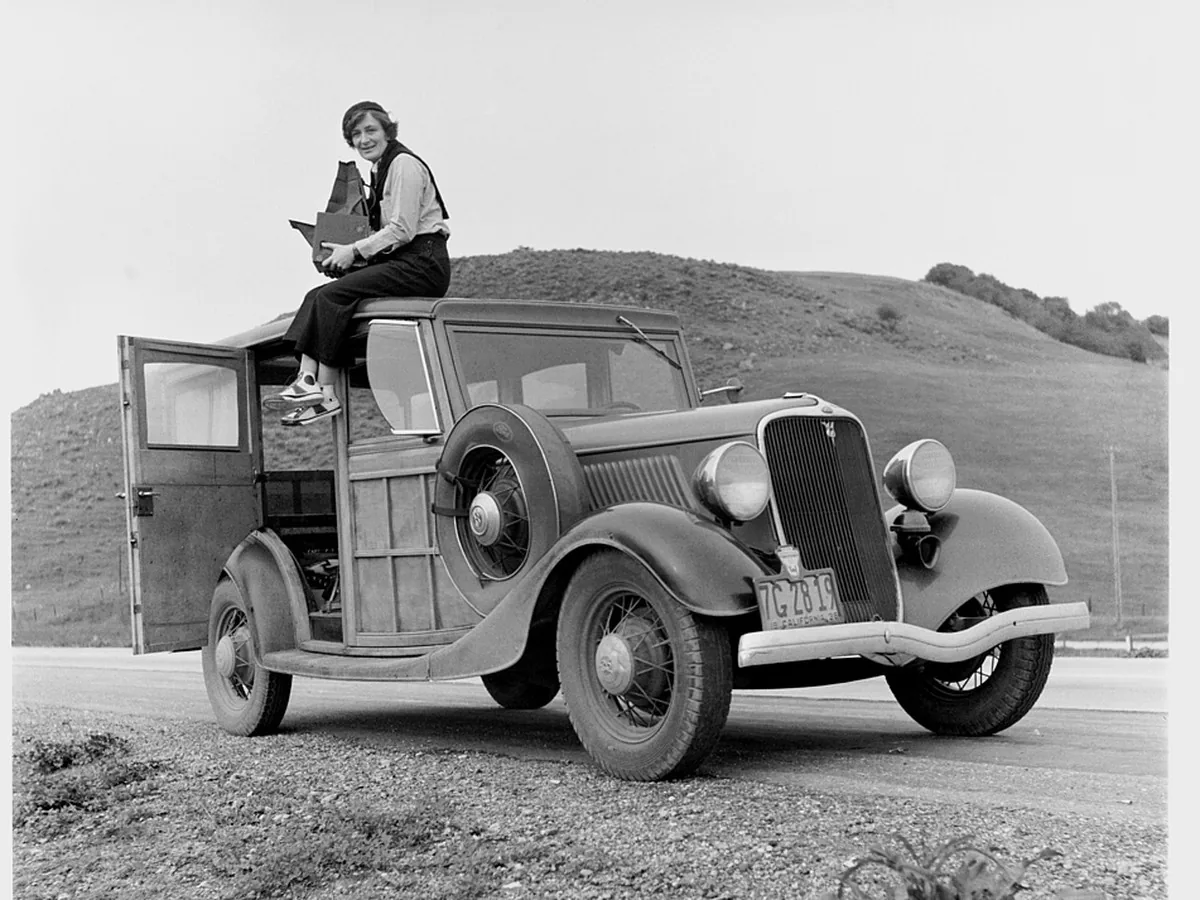
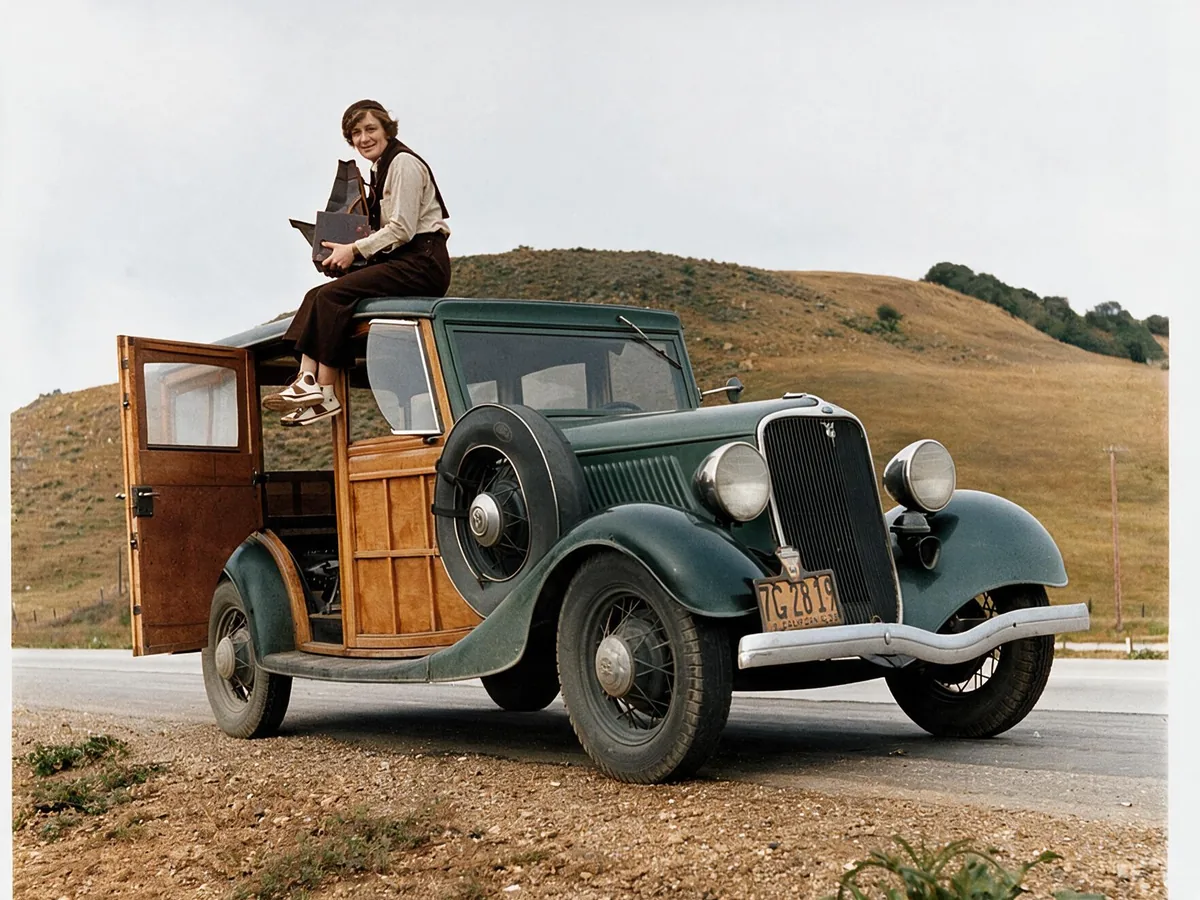
Black and white photo of a woman on a 1930s car, before enhancementBlack and white photo of a woman on a 1930s car, after enhancement

Colorize Photo

Turn black and white photos into natural color.

Colorize photo
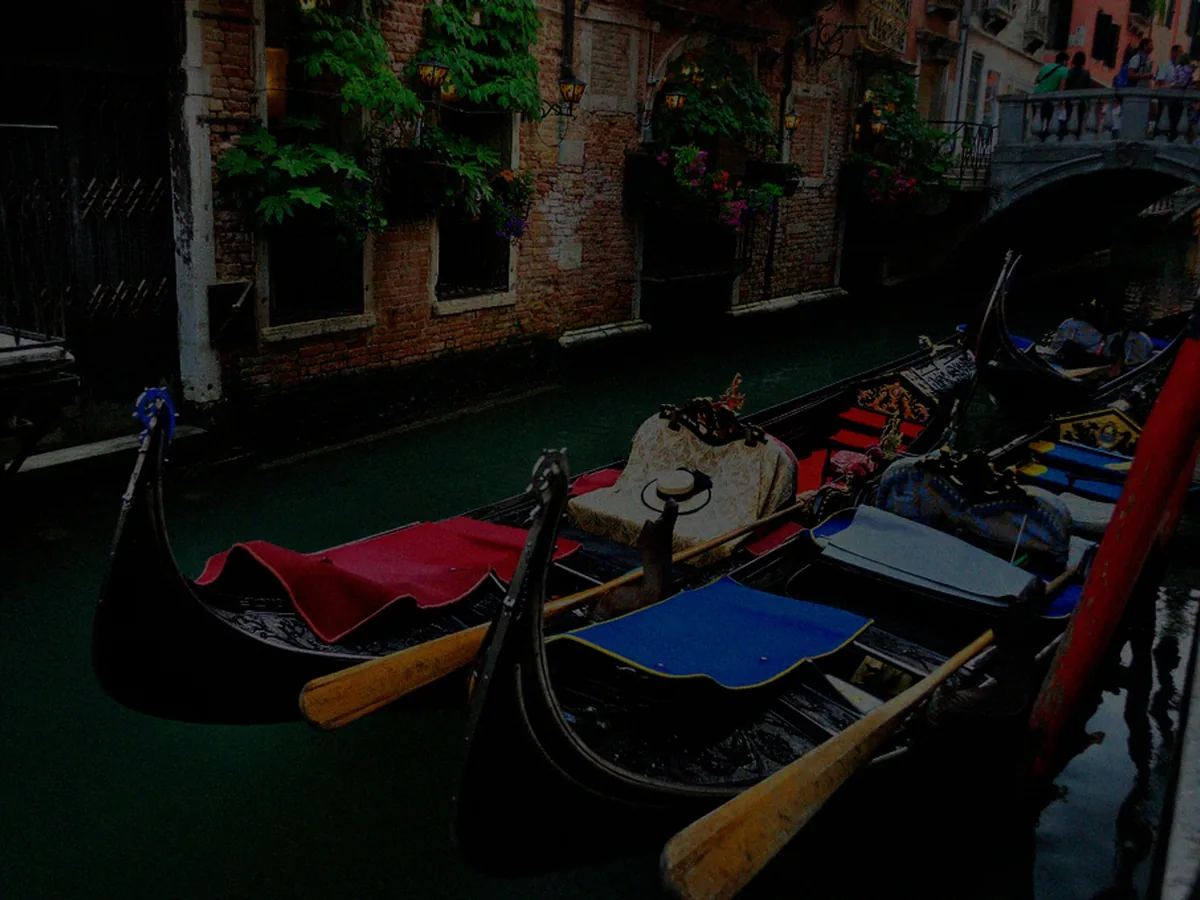
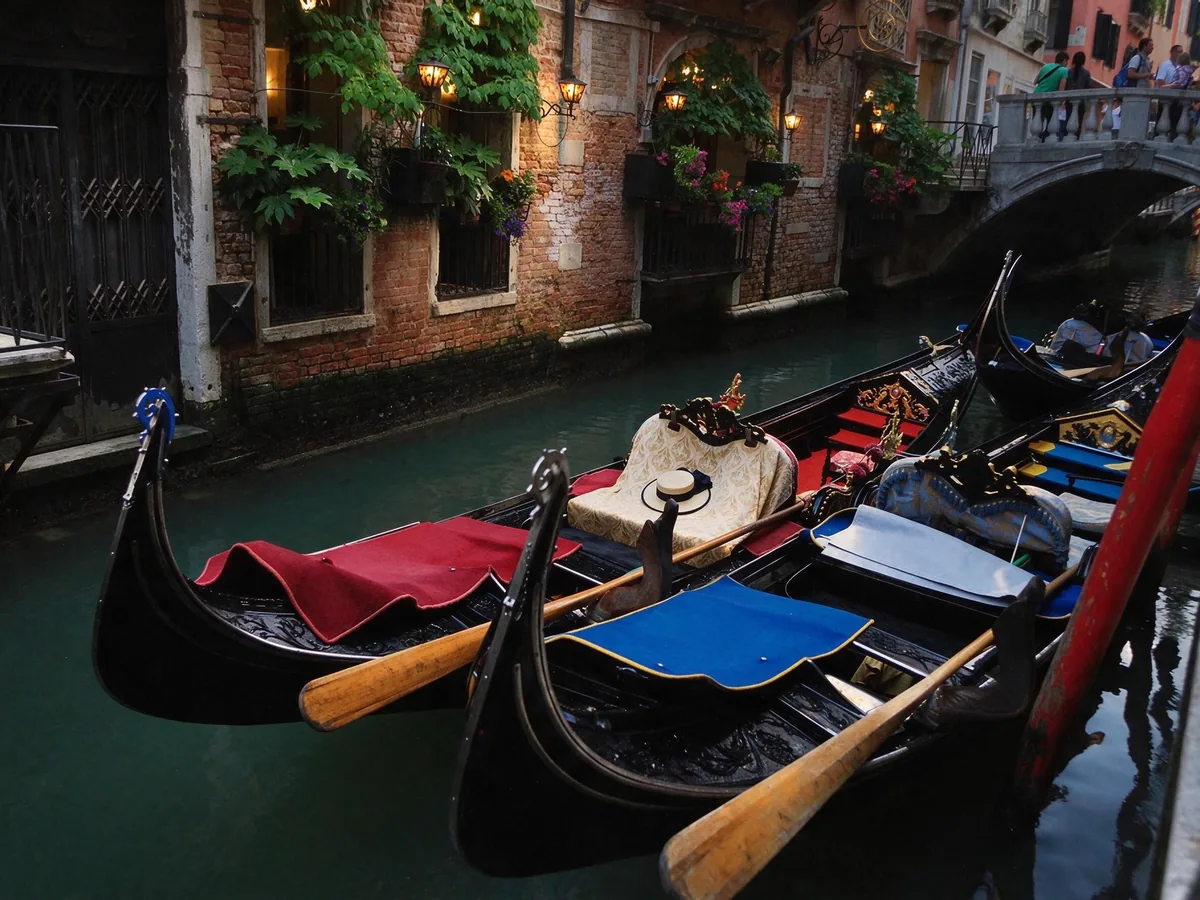
Gondolas on a Venice canal, brightened from a dark photo, before enhancementGondolas on a Venice canal, brightened from a dark photo, after enhancement

Brighten Photo

Fix dark, underexposed and backlit photos.

Brighten photo
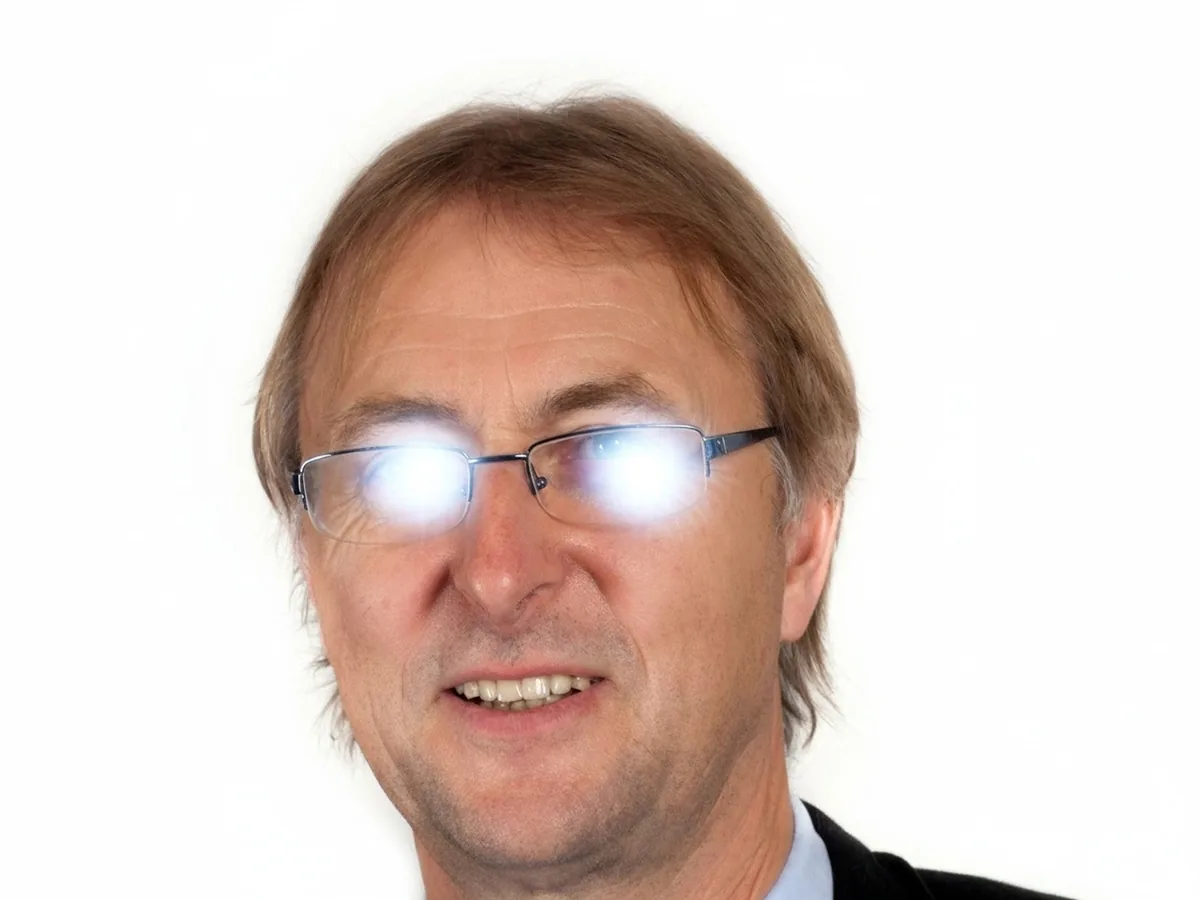
Portrait with flash glare on his eyeglasses, before enhancementPortrait with flash glare on his eyeglasses, after enhancement

Remove Glare

Clear glare on glasses, glass and flash spots.

Remove glare
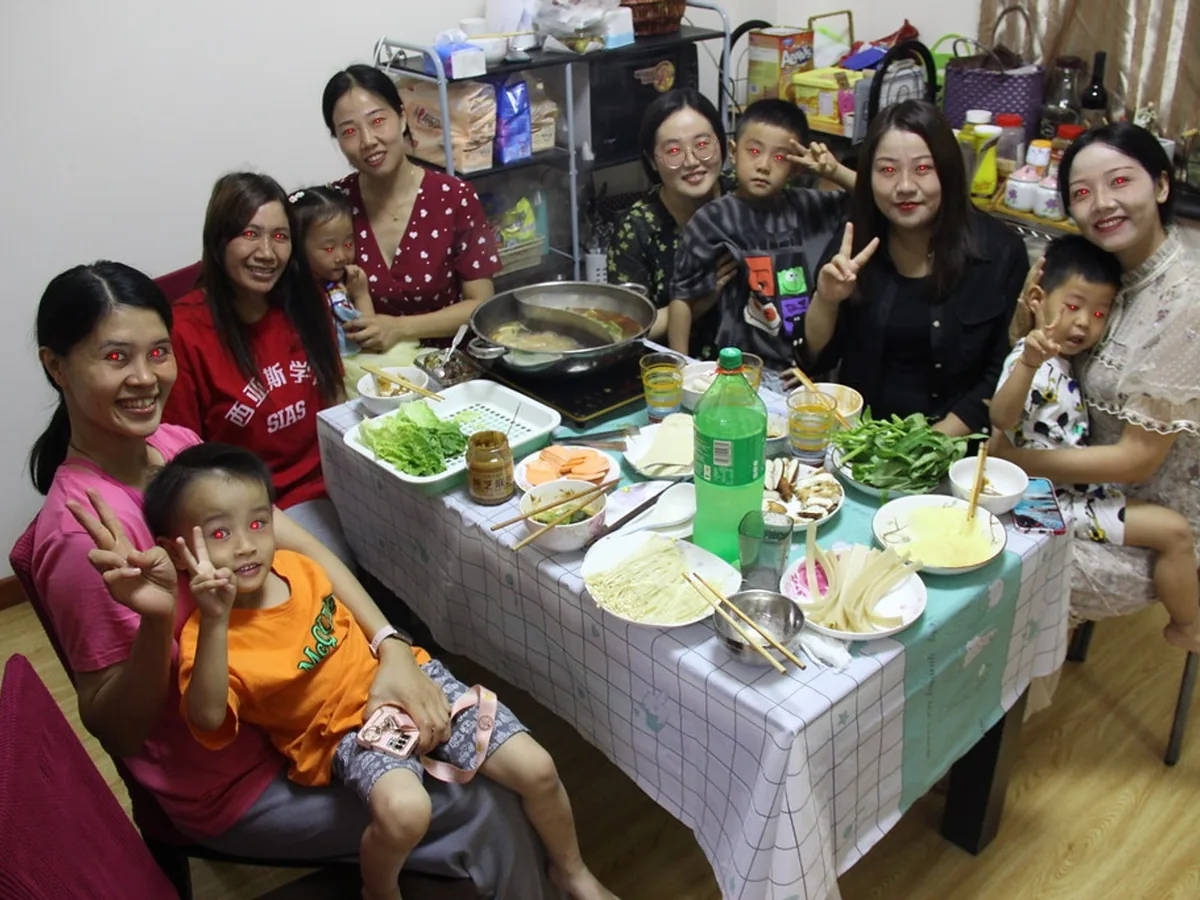
Family party photo with red flash eyes, before enhancementFamily party photo with red flash eyes, after enhancement

Remove Red Eye

Fix red and glowing eyes from camera flash.

Remove red eye